UniFi networks can extend Wi-Fi into areas without Ethernet by adding access points that connect wirelessly. My network already runs a Cloud Gateway Fiber and U7 Pro access points, and its Wi-Fi has been reliable. My goal was to reach a few more corners of my house. The obstacle was getting Ethernet to the places where another access point would help.
Ubiquiti’s UniFi Whole Home WiFi kit, a three-pack of Express 7 units, addresses that obstacle. Its units are small, run from their own USB-C power supplies and can connect wirelessly to an existing UniFi network. Any location with an outlet and a good connection back to an existing access point can therefore host one without new cable. I bought the three-pack at retail and installed a single unit first to see how the approach worked in my house.
Coverage and remote management matter in my household
I work from home, so reliable connectivity is part of my job. My network already has two internet connections, with failover configured to keep it online if one drops. Failover protects the connection to the outside world, while Wi-Fi coverage inside the house is a separate requirement. The added access points were meant to extend that coverage.
I also travel frequently for work, which adds a second requirement: the network has to be manageable from elsewhere. At home, troubleshooting by the rest of my household usually means turning equipment off and on again. When that fails, I need to diagnose the problem remotely. Opening the management app works far better than guiding someone through network settings over the phone.
The rest of my household should be able to get online without learning to manage the network themselves. For that reason, each piece of added equipment has to remain reasonable for me to manage remotely. That requirement shapes how well the Express 7 fits my network. It is also a useful test for any household where one person looks after the network.
The Express 7 can act as a gateway or an access point
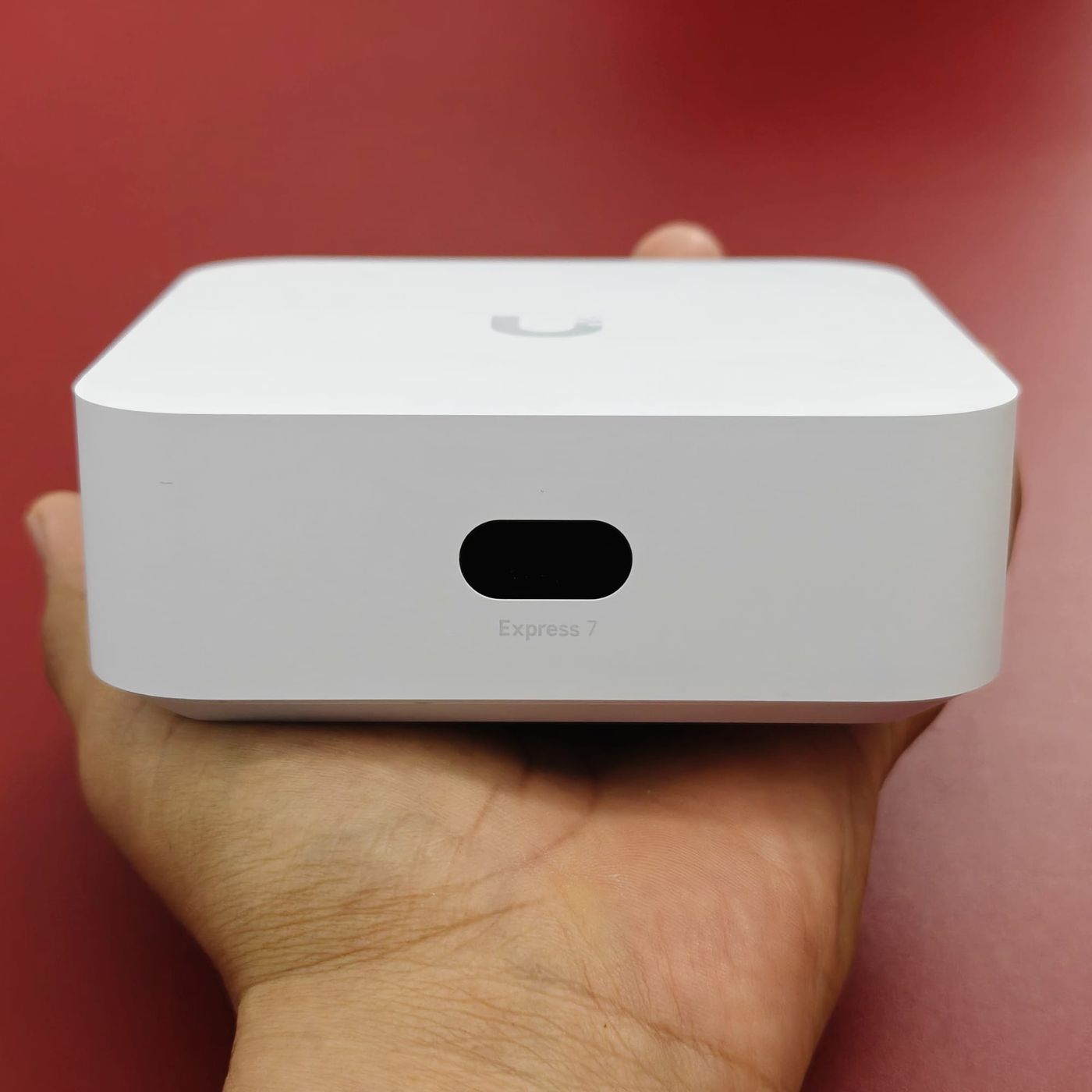
The kit contains three Express 7 units. Each can serve as a gateway, connecting the home network to the internet and running UniFi Network, or as an access point within an existing UniFi setup. In a new installation, one unit can take the gateway role while the others extend Wi-Fi coverage. In my network the Cloud Gateway Fiber already fills the gateway role, so my Express 7 runs as an access point.
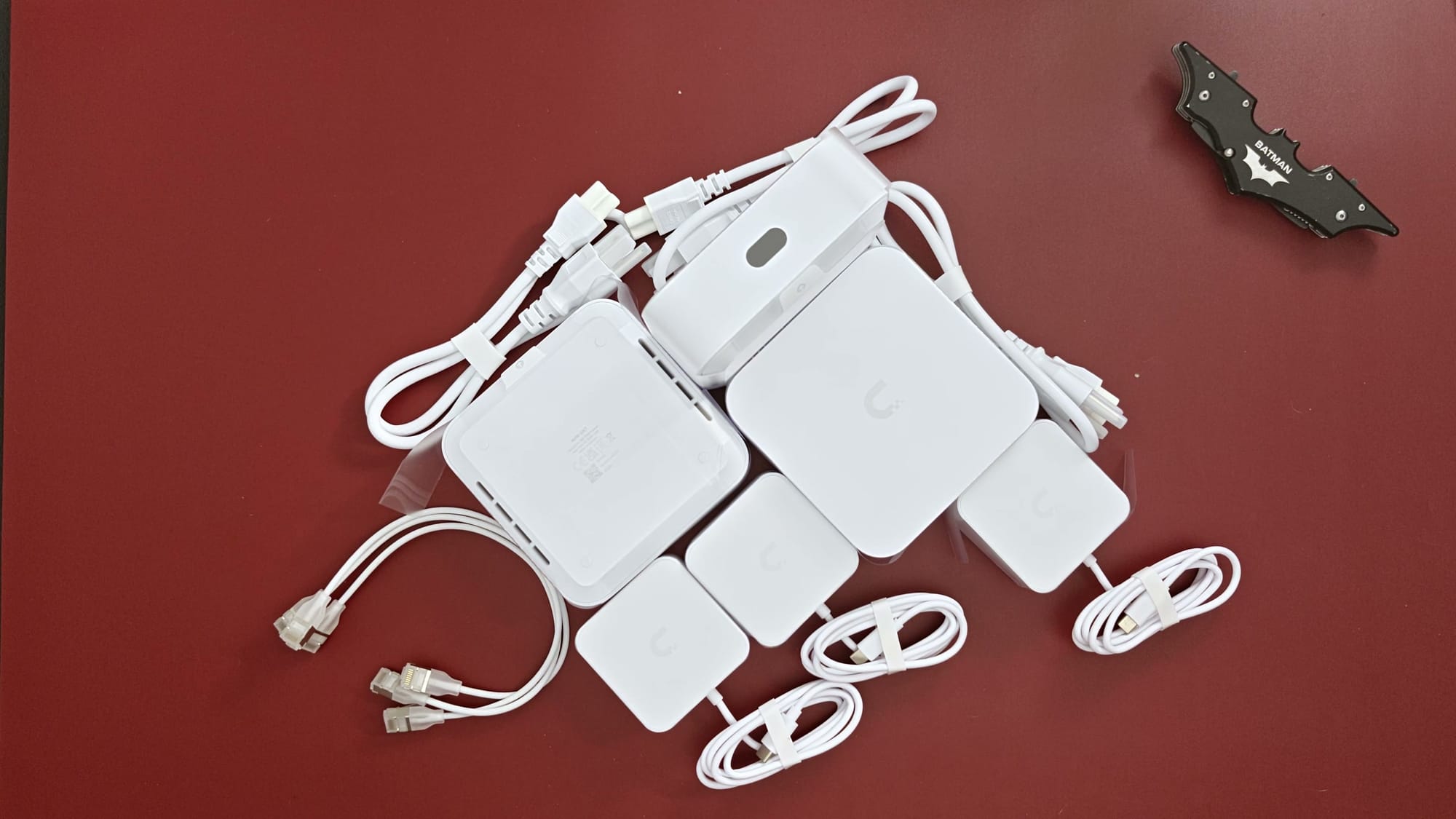
That flexibility allows the same hardware to be used in more than one way, and it also changes how the Ethernet ports behave. The main specifications come first, before the port roles. The figures below, including the coverage estimate, are Ubiquiti’s advertised figures.
| Feature | Specification |
|---|---|
| Wireless | Tri-band Wi-Fi 7: 2.4, 5, and 6 GHz |
| Ethernet | One 10 GbE port and one 2.5 GbE port |
| Power | USB-C, with an included power adapter |
| Size | 4.61 × 4.61 × 1.67 inches |
| Display | 0.96-inch status screen |
| Advertised coverage | 1,750 square feet per unit |
Walls and floor plan still determine how much coverage a unit delivers in practice. The 1,750-square-foot figure works best as a starting point for planning, followed by a check of the connection where the unit actually ends up. The size and power arrangement appealed to me immediately. The unit is a small square, similar in shape to a Mac mini, that can sit on a shelf or desk with power from a nearby outlet.
The Ethernet ports change roles with the mode
In gateway mode, the 10 GbE port connects to the internet equipment. The 2.5 GbE port connects to the local network, whether to a single computer or to a switch serving several devices. A computer connected through that port has a 2.5 GbE link to the Express 7. The 10 GbE connection on the internet side does not raise the speed of that local port.
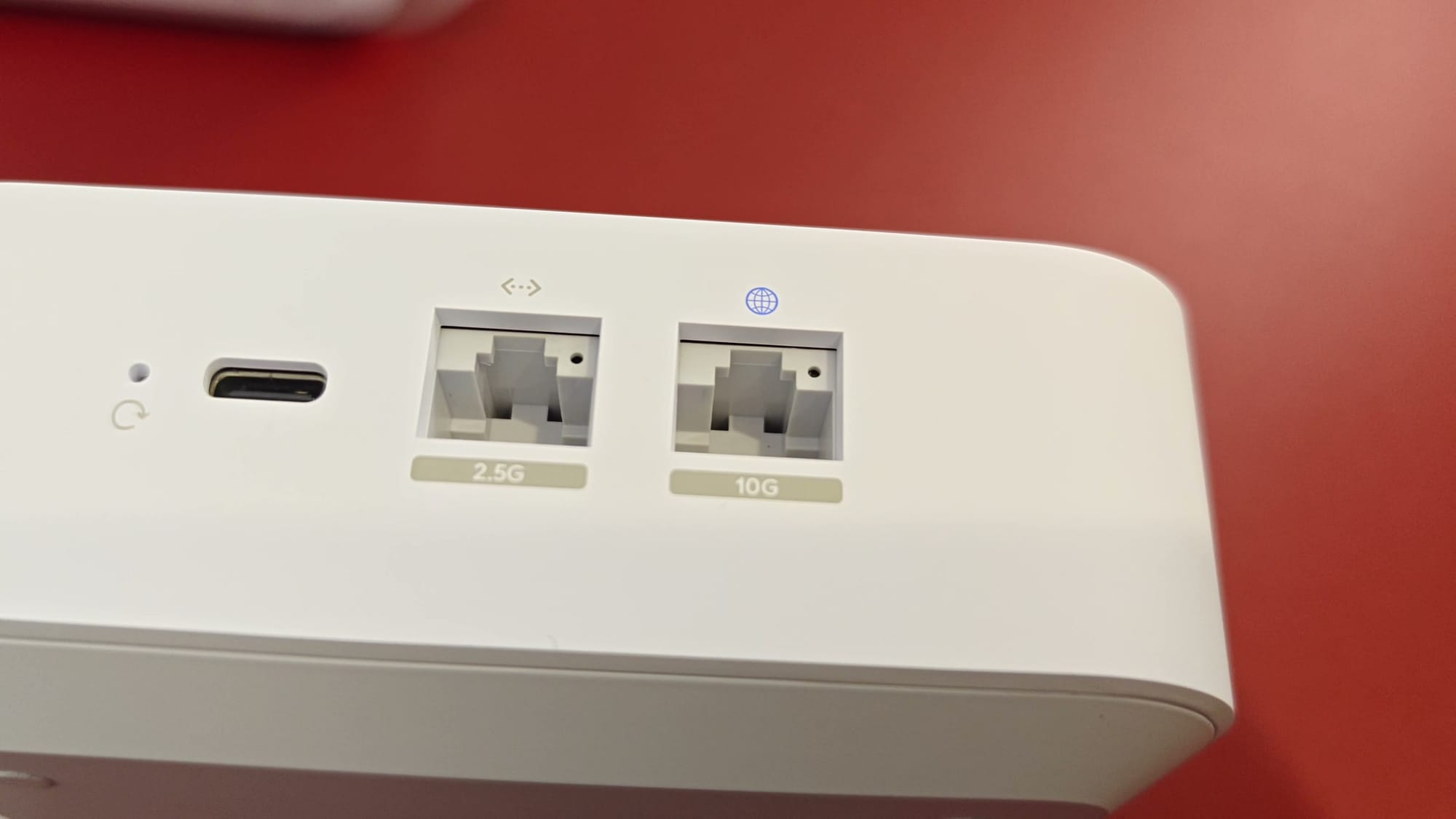
In access point mode, the 10 GbE port becomes available for a wired connection to the existing network. That option helps wherever Ethernet already reaches the chosen location. My unit connects back to a U7 Pro wirelessly, so the port ratings do not describe the speed of that connection. For a setup like mine, the wireless link between the two access points is the figure that matters.
Wireless backhaul extends the existing network
My plan places Express 7 units around the perimeter of my house to extend the reach of my U7 Pros. My Cloud Gateway Fiber and existing access points stay where they are. Without Ethernet at each new location, every Express 7 needs a wireless connection back into the network. My first unit connected to a U7 Pro, which became its mesh parent.
The connection carrying traffic between access points is called the backhaul. A device connected to the Express 7 sends its traffic across that wireless link to the U7 Pro, then through the U7 Pro’s wired connection into the rest of the network. This arrangement allows the Express 7 to sit anywhere with power but no Ethernet. It also means each location has to give the Express 7 a useful connection to its parent.
Multi-Link Operation, or MLO, is active and working on my wireless mesh connection. MLO is a Wi-Fi 7 capability that allows compatible equipment to communicate over multiple wireless links at once. On my network, it operates between the Express 7 and its U7 Pro mesh parent. Ubiquiti enabled MLO for Express 7 mesh links in a September 2, 2026 update with UniFi OS 5.2.
Setup is simple, and placement takes patience
Getting my first Express 7 onto the network was straightforward. I connected the unit with an Ethernet cable and adopted it in UniFi. Adoption is UniFi’s term for adding a device so the system can manage it. After adoption, I disconnected the cable and moved the unit to its trial location.
Once powered up within range of the U7 Pro, the Express 7 connected wirelessly. An outlet in the right corner of the house is only part of the requirement, however. The unit also needs a decent signal from its parent to carry traffic back to the network. The small built-in screen proved more useful for this than I expected.
The display shows an indication of signal strength directly on the unit. When the connection looks weak, trying another location shows whether the signal improves. Distance and walls affect the link, so the spot that needs more coverage may require some compromise. Checking the signal at the device gives a practical basis for finding the right position.
Each move involves some waiting. During initial setup, my unit took about three to four minutes to come up. Every relocation meant unplugging it, reconnecting power elsewhere and giving it time to reconnect. The process takes patience, and the on-device signal indication makes those decisions easier.
Everything stays in one management app
Once connected, the Express 7 appeared in UniFi alongside the rest of my equipment. The app shows the network devices, what is connected to them, network activity and the available settings. Adding coverage therefore did not require me to learn a new management system. That consistency matters when I diagnose my home network from somewhere else.
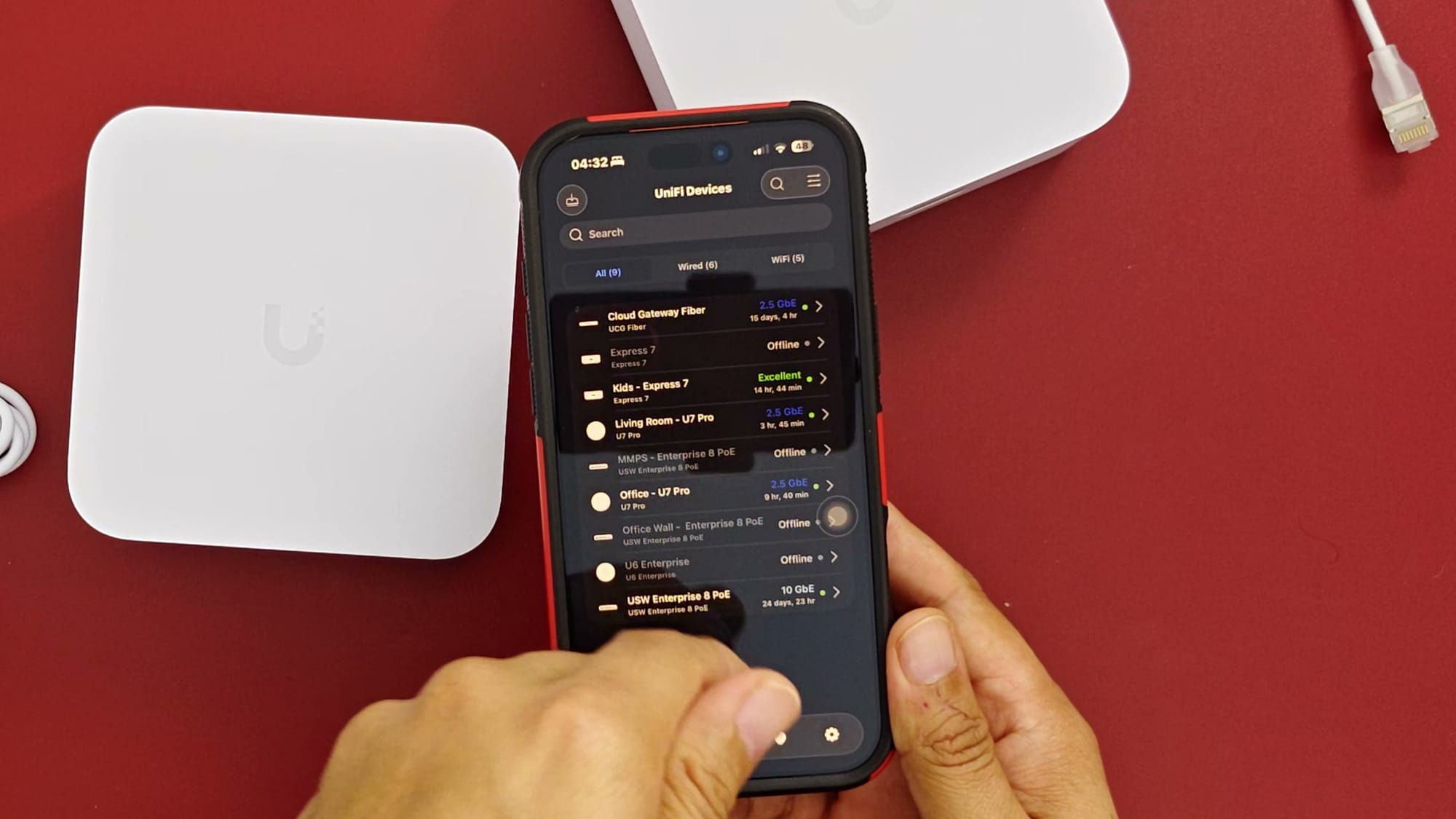
UniFi provides remote access through its account-based Site Manager. Remote access still requires an internet connection at the remote end and a reachable gateway at home. With both available, the network can be investigated and changed remotely. If the home network becomes unreachable, an app can do only so much.
For me, that visibility is a large part of the appeal. The management app is the single place I look when something needs attention, and the Express 7 is simply another device listed there. The Cloud Gateway Fiber continues to handle gateway functions while the Express 7 extends the Wi-Fi. Coverage grows while the setup stays familiar to manage.
Price and open questions
The US store listed the three-pack at about $559 when I bought it, and an added surcharge brought my total to roughly $603. That figure reflects my purchase, so current pricing may differ. I bought it to extend my existing UniFi network into places without Ethernet. Connecting my first unit showed that this equipment can do that.
After my first unit was running, I still had a second waiting to be installed and had not decided where the third would go. I may use the third to cover another part of the house or keep it as a backup. Working through the remaining placements will show where each unit does the most good.
The kit’s effect on the network as a whole needs more time to assess. I have not yet measured any whole-house improvement in speed, latency or coverage. My first setup established that the Express 7 can connect wirelessly to existing UniFi equipment and be managed alongside it. The value of each additional unit will depend on where it is placed and how it performs there.
Plan the placement first
Placement is the main thing to plan for, because each unit depends on a good wireless connection back to the network. The on-device signal display helps assess that connection, but every move means waiting a few minutes for the unit to reconnect. Buyers should map where the coverage gaps are, confirm an outlet is nearby and check the signal before settling on a spot. Ubiquiti’s 1,750-square-foot coverage figure is a planning estimate that walls and layout will adjust.