Guide · Guides · Retro Gaming
Dolphin Depot: How to Set Up the GameCube’s Homebrew App Store
Dolphin Depot is a free homebrew app store that runs on a real GameCube. What it is, how it works, what you need, how to install and use it, and the catches.
https://averagetechnerds.com/dolphin-depot-gamecube-homebrew-app-store/
Twenty-five years on, the GameCube has an app store. Dolphin Depot lets you browse homebrew games, emulators and tools on the console itself and download them straight to an SD card, over the internet. It went into public beta on November 2, it’s free, and it runs on the real console. This guide walks through all of it, from what it is to getting it running.
What Dolphin Depot is
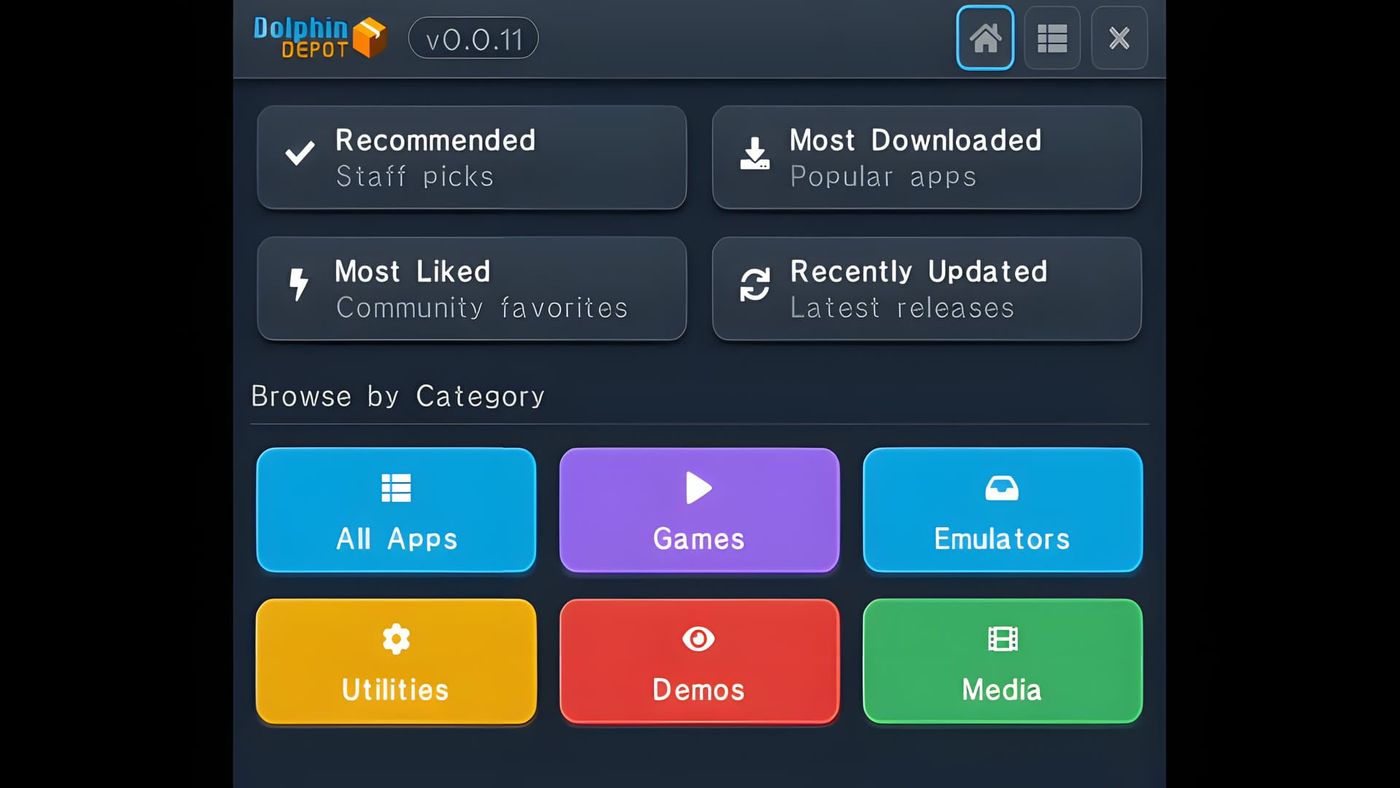
It’s a homebrew store for the GameCube, run by a developer called webhdx and a small group of volunteers. You start it on the console like any other homebrew app, and it looks and works like a modern store: browse a category or the most popular picks, open an app’s page, and hit download. The app lands on your SD card, ready to launch.
There’s a web version of the catalog too, so you can see what’s in it from your phone or computer before you set anything up.
How it works
Behind the store is a public list of apps on GitHub, called the registry. Each app in it has a small file saying what it is and where its developer posts releases. Dolphin Depot’s servers check that list, pick up new releases, and keep their own copy of each download so it stays available.
The client on your GameCube talks to those servers over its network adapter, in a format built to run efficiently on the console’s limited hardware. When you download something, it unpacks into its own folder on your SD card, under apps. That shared layout is the clever bit. Every app sits in the same place, and most ship a banner file, so launchers like Swiss show them with proper artwork. It’s also how Dolphin Depot spots when a newer version is out.
What you’ll need
Three things, and the first is the big one.
Your GameCube has to run homebrew already. If yours doesn’t, the install guide lists the usual routes. You can use a save file that tricks a game into starting homebrew, a modchip like PicoBoot that does it every time you power on, or a drive replacement like GC Loader or FlippyDrive that loads from an SD card.
Then you need a network adapter. Nintendo’s own Broadband Adapter works, and so does ETH2GC, a cheaper open-source one. The Modem Adapter doesn’t, and neither does FlippyDrive’s Ethernet adapter. Either working option means a network cable to your router.
Last, somewhere to save apps. That’s an SD card in an SD2SP2, SD Gecko or MMCE adapter.
Installing it
It takes a few minutes, and you only do it once:
- 1. Download the client from Dolphin Depot’s site on your computer.
- 2. Unzip it. Inside is a folder called apps, with a dolphindepot folder in it.
- 3. Copy that apps folder to the root of your SD card, keeping the folders as they are.
- 4. Put the card in your GameCube’s adapter and turn it on.
- 5. Start Dolphin Depot from a homebrew launcher like Swiss, Cubeboot or Cubiboot.
That’s it. From there, apps from the store install from the console, no computer needed.
Using it
Once it’s running, the home screen leads with the staff picks and the most downloaded apps, and the categories split things into games, emulators, utilities, demos and media. If you already know what you want, there’s a filter. Or just browse.
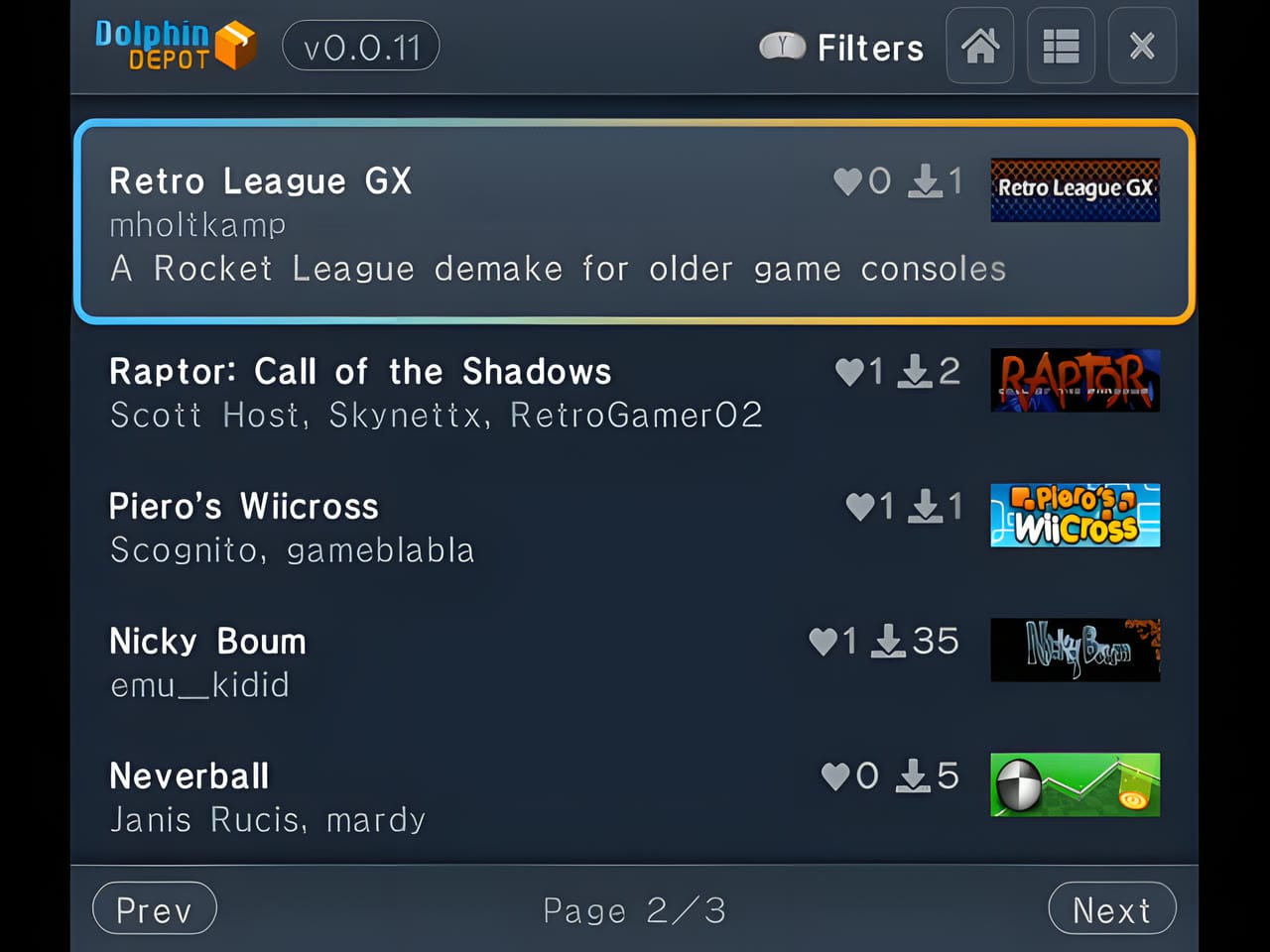
Open an app and you get its description, screenshots and latest version, with a download button and older releases if you need one. Once it’s downloaded, back out to your launcher. The new app shows up there, with its banner if the developer included one, ready to start. When a developer ships an update, Dolphin Depot lets you know.
What’s in the store
67 apps so far, going by its public registry. Among them is CubeBrowser, an actual web browser for the GameCube that now runs JavaScript. Yes, a web browser, on a GameCube. There’s also a Rocket League demake, a Minecraft Classic client and a pile of homebrew games, plus media apps and tools for testing controllers and managing memory cards.
The tools you’ll want next are in there as well. Swiss, one of the launchers you can start Dolphin Depot from, is in the catalog, and so are emulators like Snes9x GX and RetroArch, plus ScummVM for old adventure games. Those need your own games. That’s next.
Loading games
Homebrew games are the easy part. Most are ready to play from your launcher as soon as they download, with nothing else to copy. A few ports need files from the original game, and their app page says so.
The emulators and ScummVM are different: they don’t come with games, so you bring your own. Each one’s documentation says where it looks for game files. Some read from a set folder on the SD card, others let you browse to them, and ScummVM needs each game added in its own menu. Put the card in your computer, copy your own games where that emulator expects them, and load them from there.
The catches
It’s a beta. The team asks people to report bugs on its Discord, so expect the odd rough edge, and expect the catalog to grow and change.
It needs a homebrew-ready GameCube and the right network adapter. If you’ve got neither yet, that’s the real work, and Dolphin Depot doesn’t help with it. If all you’ve got is the Modem Adapter, it won’t do.
At 67 apps, the catalog is still small enough to see most of in an evening.
Safety
Dolphin Depot installs apps to your SD card rather than changing the console itself, the client is open source, and developers’ submissions are reviewed before they show up in the store. That’s reassuring, but its own terms still say running homebrew on a GameCube is at your own risk, including the risk of hardware damage. So go in with your eyes open. The real commitment is getting your GameCube ready for homebrew in the first place.
For developers
If you make GameCube homebrew, getting it in front of people is now a pull request away. You add a small manifest file describing your app to the registry, and the site has generators for that file and for the GameCube’s banner files, so you don’t have to hand-craft either. Host your release on GitHub, GitLab, itch.io or your own site, and the team reviews it before it goes live.
Nerd Alert
Your Turn
What are YOUR thoughts
What have your experiences been? Let us know.