News · News · Retro Gaming · Handheld Gaming
What Is RomM? The Free Home Server App That Keeps Your Retro Library and Saves in Sync
RomM keeps one retro library and your saves in sync across handhelds, PCs and the Steam Deck. Here’s how it works and what 5.5’s save channels fix.
https://averagetechnerds.com/romm-self-hosted-game-library/
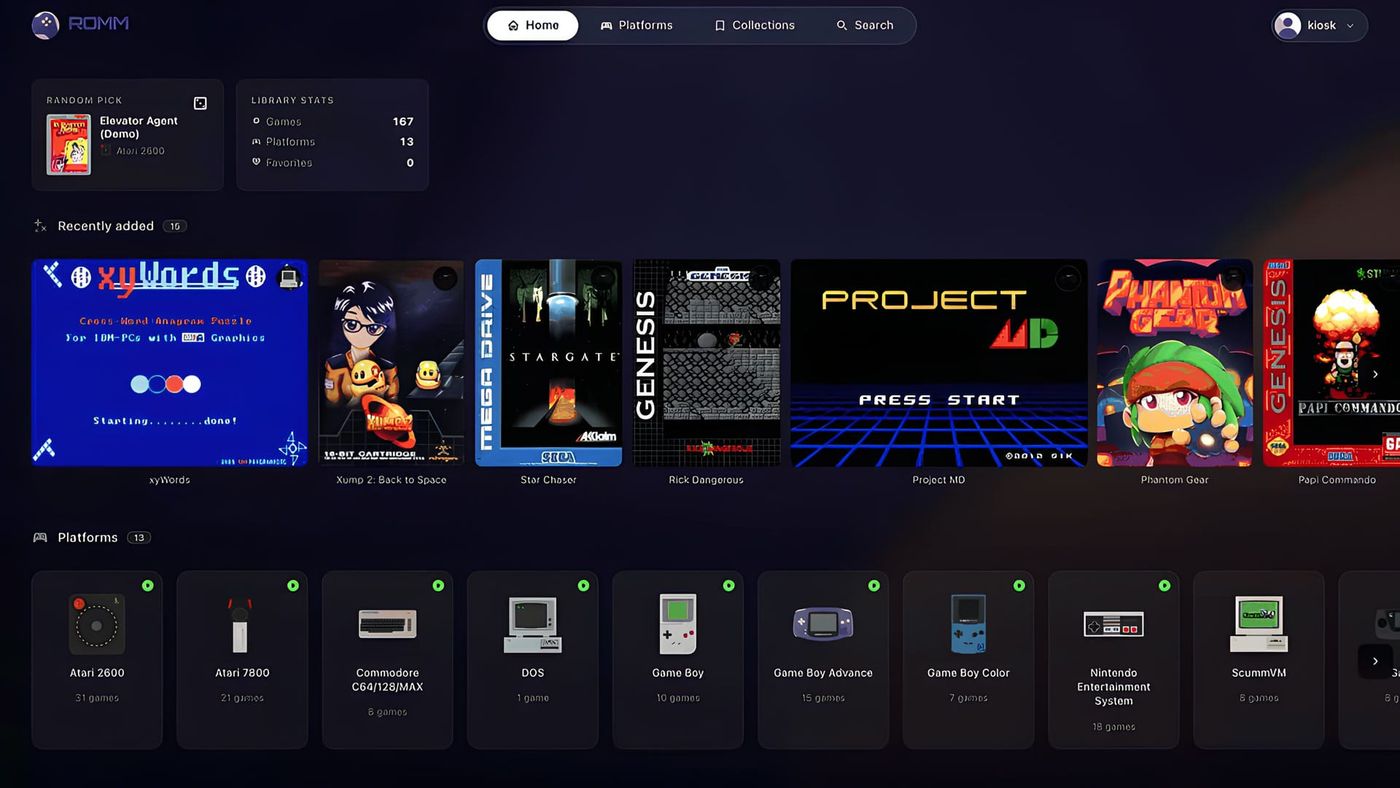
Got more than one handheld? Then you know the drill. Your games live in three places, and your saves live wherever you last played. You beat a boss on the Retroid, pick up the Anbernic on the couch, and you’re back before the boss. RomM is a free app you run on a computer at home that fixes that. It keeps one copy of your game library, dresses it up with box art and details, lets you play in a web browser, and keeps your saves in step across your devices. Its next big version, 5.5, went into beta on November 21, and its headline feature is that two devices can’t wipe out each other’s progress anymore.
What is RomM?
Think of it as a Plex for your retro games. You point it at the folder where your game files live, and it builds a proper library out of them, with box art, descriptions, screenshots and the platform each game belongs to. It covers more than 400 platforms. Then every device in the house can browse that one library, instead of each handheld keeping its own separate collection and its own idea of where you are in Zelda. One library, every device.
It runs on a computer you leave on, like a home server or a NAS. You open it in a web browser, and companion apps bring it to handhelds and PCs.
What does it do with your games?
First, it does the boring part for you. RomM scans your folders and goes looking for each game’s box art, description and screenshots on sites like IGDB and ScreenScraper, and pulls in your RetroAchievements while it’s at it. A folder of files with names only a computer could love turns into shelves you’d actually want to browse. It knows a two-disc game is one game, it keeps DLC, hacks and manuals with the game they belong to, and it has a patcher built in: hand it a fan translation or a romhack, which is a fan-made mod of an old game, and it applies it on the fly.
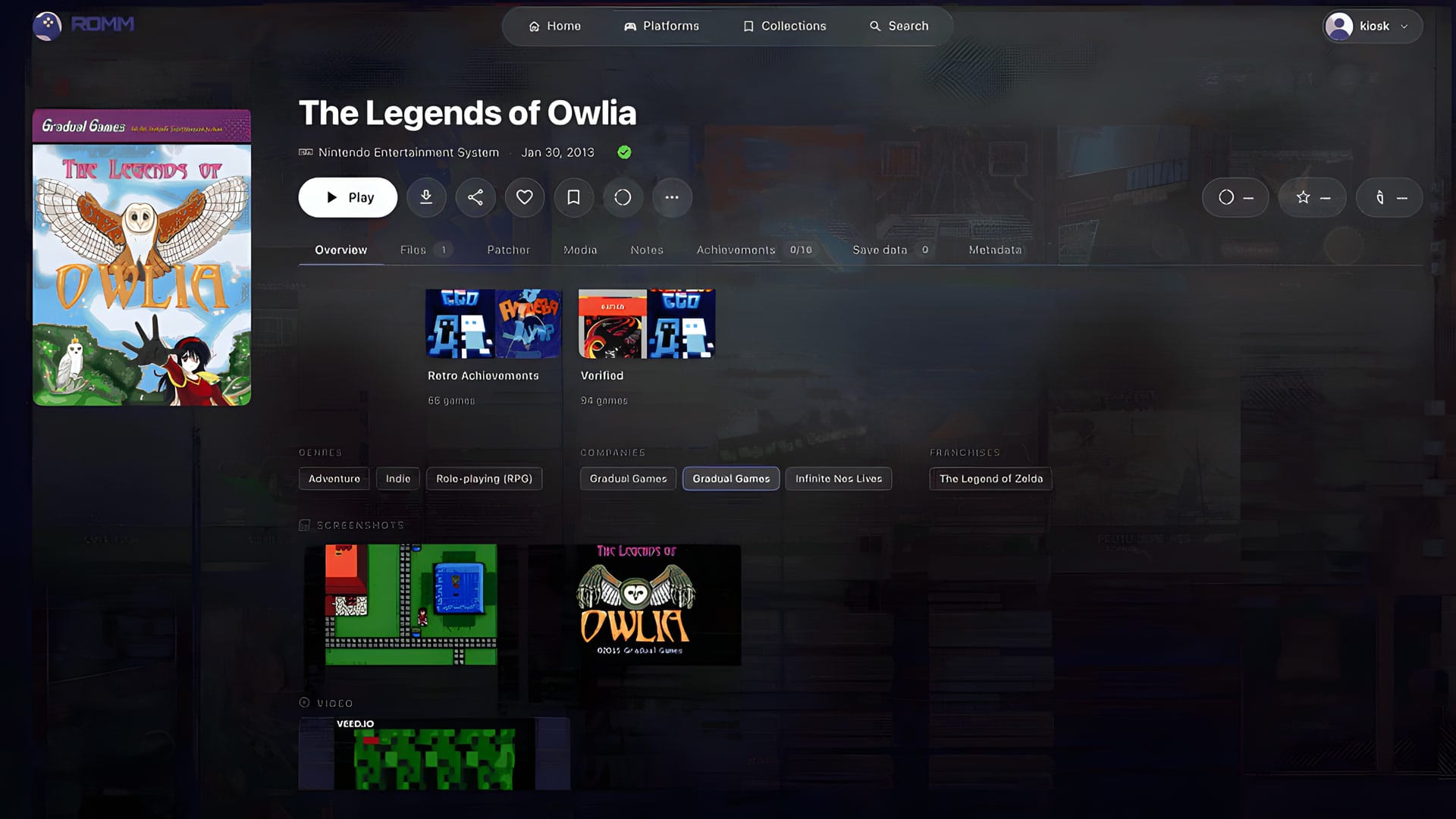
Then it lets you play right in the browser. Plenty of older systems run in a web page through EmulatorJS, so a laptop with nothing installed can pick up a game from your library. And since version 5.4, you can send a game to one of your devices from the web page, and it downloads the next time that device is online.
How do saves move between your devices?
This is where RomM earns its keep. Each device that connects shows up on a Devices page, and saves and save states go back and forth through the server. Play on one, and the save is waiting on the next. No cables. No copying files around. The browser player syncs its saves too, so a session you started on a laptop carries on elsewhere.
Version 5.4 also made RomM a Cloud Sync target for RetroArch. Point RetroArch’s Cloud Sync at your RomM server, sign in, and RetroArch’s saves and states land straight in your library. If you already live in RetroArch on several devices, that’s the easiest way in.
What do save channels change?
They take the guesswork out of it. Before 5.5, a save had a slot, and when two devices changed the same one, RomM flagged the clash and left it to the app to decide what to keep. Most kept both copies, but that was up to the app. In 5.5, a save lives in a channel instead, which is one playthrough of a game. Every sync adds a snapshot to that channel, the save plus the emulator states from that moment.
If your Retroid and your Anbernic both push to the same playthrough, the later push doesn’t erase the earlier one. RomM keeps it as a branch next to the current snapshot, and you can restore it, pin it or split it off into its own channel from a timeline on the game’s Save data tab. RomM doesn’t hoard forever, though. It keeps the last 10 snapshots of each playthrough on top of the current one and anything you pin, and a branch you don’t pin sticks around for 30 days, which is plenty of time to notice your couch session went sideways. Upgrading takes care of the old saves too: your old slot saves move into channels on their own, and apps that still upload the old way keep working.
Which apps connect to it?
Three official ones, and which one you want depends on what’s in your hands. On an Android handheld, a Retroid, an Anbernic or an Odin, it’s Argosy: your library on the device, games downloaded when you ask for them, achievements and saves along for the ride. If your handheld runs a custom Linux firmware like Knulli, muOS, ROCKNIX or Onion, it’s Grout. It grabs games and box art over Wi-Fi and syncs your saves while you play, without you lifting a finger. And on a Windows PC there’s a plugin for Playnite.
Everything else comes from the community, and there’s a lot of it. On a Steam Deck? Look at Tender. It’s a plugin for Decky Loader, the add-on system for the Deck’s game mode, and it brings your library and your save sync over to the Deck. RomMix gives you a Big Picture-style front end that runs on Linux machines too. Past that, there’s an iOS app, Android TV apps and a handful of desktop players. Two front ends you may already have installed, Socket and NeoStation, talk to RomM as well. Both sit next to Argosy in our front-ends guide. One fair warning, straight from the RomM team: it doesn’t regularly review these apps’ code, so give them the trust you’d give any app from a small developer.
What’s RomP?
Think of RomP as the desktop half of the picture. You open it on a Windows, Mac or Linux machine, pick something from your RomM library and play. Starting a system for the first time? It goes and fetches the right emulator for you. Your saves sync with RomM before you start and again when you stop. If both sides changed, it asks which one to keep.
Its party trick is safety. Each game runs in its own locked-down process that can only write to that game’s saves and its own temporary files, so a buggy emulator or a dodgy file can’t touch your other files. Two of the heavier emulators, the ones for the original Xbox and the PS3, run outside that sandbox. For those two, the protection stops at the door. RomP also comes from the community, made separately from the RomM team, so the same small-developer trust from the apps above applies here.
What do you need to run it?
A computer that stays on, and Docker. If Docker is new to you, it runs an app in its own sealed box, called a container, with everything the app needs packed inside. No installing a pile of parts by hand. RomM’s quick start runs two of those boxes side by side, RomM itself and a small database, and its docs have separate guides for Unraid, Synology and TrueNAS, so a home NAS is a natural fit. If you already keep a home server running, like the one where I run my chat models, RomM is one more container on it.
Before your first scan, set up an account with at least one metadata service, like ScreenScraper. RomM will scan without one, but its docs push hard for it, and for a good reason: without one, setup can go wrong and companion apps like the Playnite plugin can fail.
And your games need to sit in the folder layout RomM expects, with one folder per platform. If your collection is a single messy folder, plan a tidy-up first.
How do you set it up?
Roughly four steps. Save RomM’s sample compose file, the recipe that tells Docker which boxes to start, in an empty folder, fill in a few passwords and your metadata keys, and point it at your game, save and config folders. Start it with one Docker command. Open it in a browser, where a setup wizard creates your admin account, since the first user is always the admin. Then run your first scan and watch the library fill in. That’s it.
It’s not hard if you’ve used Docker before. If you haven’t, the hosted route is the shortcut: RomM’s page lists partner hosting from about $2.30 a month, and the partners send a share back to the project.
Can other people in your house use it?
Yes. Everybody gets their own account and their own saves, so two people playing the same game on their own accounts never end up fighting over one save. Just know that each device belongs to one account, so a handheld that gets passed around syncs to whoever paired it. And you decide who gets to change what in the library. If your home network already has a login service, RomM supports single sign-on too.
What does it cost, and where do the games come from?
Nothing, and from you. RomM is open source, with no tracking and nothing locked behind a paywall. The only paid option RomM lists is hosting from its partners. That share, plus donations, helps fund the project. What it won’t do is hand you a single game, BIOS file or key, and the project won’t link to them either, so don’t go asking in its community spaces. It’s built for files you have the right to use, like dumps of your own cartridges and discs, homebrew and freeware. You bring the library, and RomM makes it look good.
Should you jump on 5.5 now?
Only if you like testing. As of November 22, 5.5 is still a beta, and its own notes carry a warning worth taking seriously. The first start runs database changes that can take a while on a big library. Don’t restart RomM while they run. A few settings files need a look before you upgrade too. If your library already works on 5.4, there’s no prize for going first. Back it up before you try the beta. Or wait, and let the testers find the rough edges.
What’s next?
The stable 5.5, with save channels for everyone. Three alpha builds and a beta in under two weeks says it isn’t far off. RomP is moving fast too, with a new build most weeks. Once 5.5 lands, the boss problem from the top of this page is fully covered: the save already follows you from the Retroid to the couch, and if both handhelds saved, neither one gets to erase the other.
Nerd Alert
Your Turn
What are YOUR thoughts
What have your experiences been? Let us know.