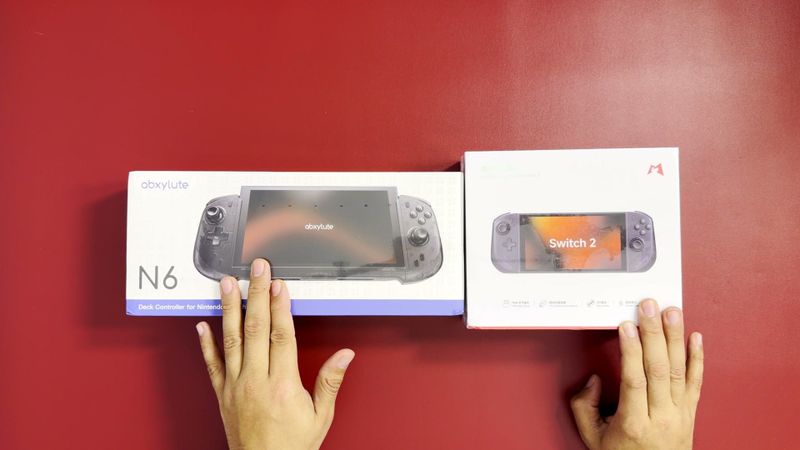
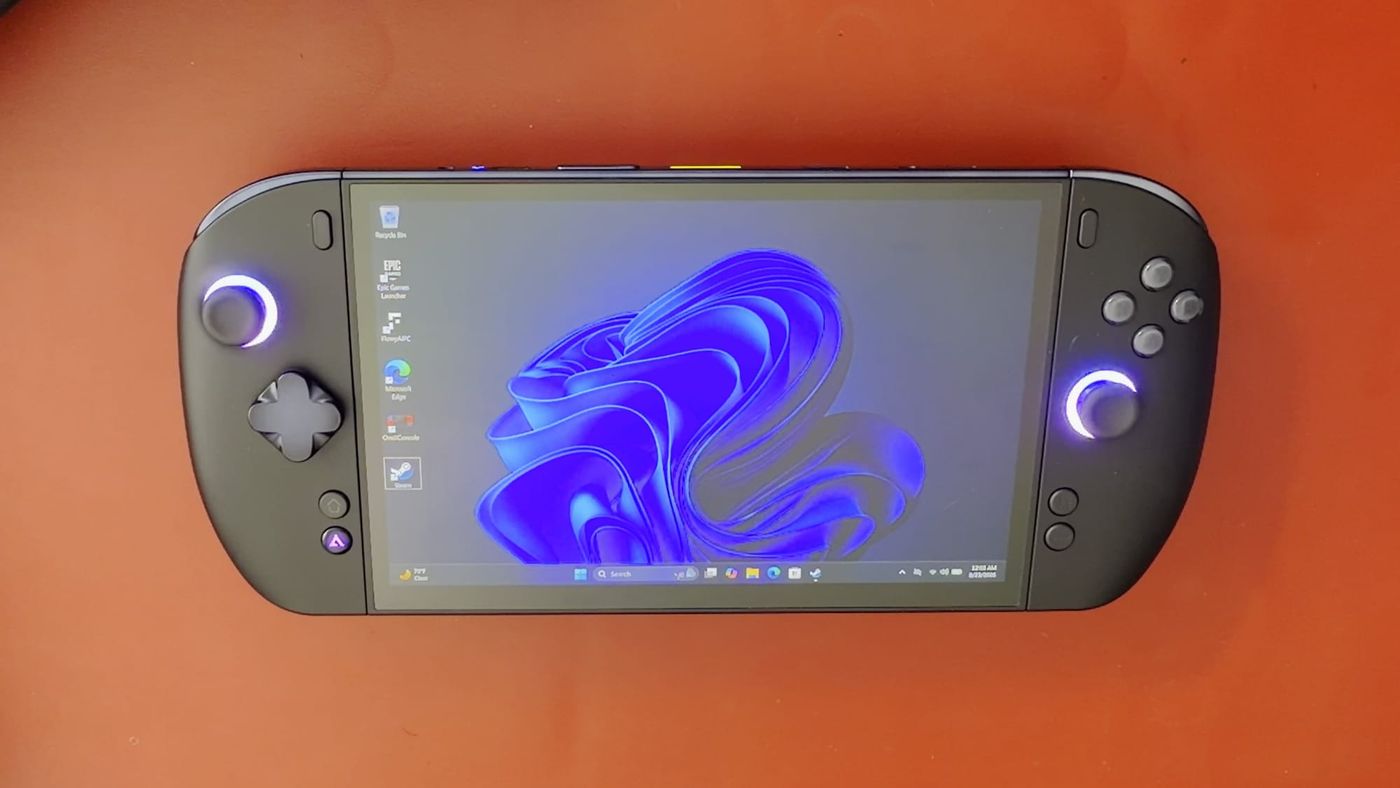
The OneXPlayer X2 Mini Pro is one of the most powerful handheld gaming PCs available, and my configuration cost about $2,400 through the Indiegogo campaign. Its closest point of comparison is my Lenovo Legion Go 2, which cost around $1,300. That leaves roughly $1,100 between the two devices before performance enters the discussion. The central question is whether that extra $1,100 is noticeable while holding the device and playing a game, and in handheld use the difference is smaller than the price suggests.
The review covers games at power settings up to 80 W, use on a TV, the small attachable keyboard and the connector that joins the detachable controllers. It also measures fan noise and heat, and looks at emulation and storage. My first impressions are in the X2 Mini Pro unboxing article, and the four-handheld benchmarks set its results beside the Steam Deck, ROG Ally and Legion Go 2.
UPDATE What’s new since publishing
A few things have changed since this review went up, and one of them landed in my inbox. OneXPlayer emailed me that backers of its Indiegogo campaign, including me, will get its Pro Controllers free of charge. When they arrive, I will add my impressions here.
The pricing has also settled. On OneXPlayer’s store, the air-cooled X2 Mini Pro now costs $2,499 with 48 GB of memory and 1 TB of storage, $2,799 with 64 GB and $2,999 with 64 GB and 2 TB. The liquid-cooled versions run from $2,579 to $3,229 with the Frost Bay dock, and every configuration now includes the keyboard, the controller connector and a protective bag. The store lists shipping for new orders from October 31.
The comparison many buyers are weighing is OneXPlayer’s own OneXPlayer 3, which has an 8.8-inch 144 Hz OLED screen at the same 1920 x 1200 resolution, an 85 Wh battery and Intel’s Arc G3 Extreme chip, from $1,399 to $1,699, according to Notebookcheck. I have not tested it. I would weigh it the same way I weighed my Legion Go 2: by how much of the X2’s extra power I would actually use, which for me is mostly at the TV.
I have also tested USB-C power, which buyers often ask about. With the battery attached, a 100 W USB-C charger works well: it charges the battery, and because the battery is in place, a brief drop in power from the charger does not shut the X2 down. Without the battery, the X2 also runs from USB-C, and mine is running that way now, but any interruption cuts its power instantly. Many multi-port chargers briefly cut power to rebalance their outputs when another device is plugged in, so anyone running the X2 without its battery, including at the TV, should use a single-port charger that can deliver a steady 100 W.
Finally, SteamOS is now an option. Valve’s standard SteamOS image runs on the X2 Mini Pro, although power control still needs the Decky plugin and the extra buttons and lighting are incomplete, according to Geeky Gadgets’ testing. Valve is also bringing Android games to SteamOS, though so far only on its ARM-based Steam Frame.
The case for handheld gaming PCs
The appeal of a handheld gaming PC is freedom from the desk. I spend my workday at a computer, so moving to another desk chair to play does not feel like relaxing. A handheld lets the game go to the couch, to bed or to whichever chair looks comfortable. That freedom is the standard the X2 is judged against in this review.
My Legion Go 2 was already filling that role, with an 8 TB SSD holding most of my game library and Bazzite as its operating system. I left the X2 on Windows when it arrived. I kept its original setup so I could judge the out-of-the-box experience fairly, without moving my Legion’s drive over. I spent some time using it as a regular Windows PC, including the keyboard covered later.
Most of my testing, however, was gaming. The experience I describe in the rest of this review is sitting away from a desk, holding the device and playing demanding games. That is where the X2 has to justify its price. Wattage and benchmark figures follow from that use.
What $2,400 buys
The reviewed X2 Mini Pro has the Ryzen AI Max+ 388 processor with Radeon 8060S graphics, 48 GB of memory and a 1 TB SSD. It also has an 8.8-inch OLED display, detachable controllers and an 85 Wh removable battery. The power control is one of its most notable settings. On DC power it ranges from 6 W up to 80 W, and on battery power it caps at 55 W.
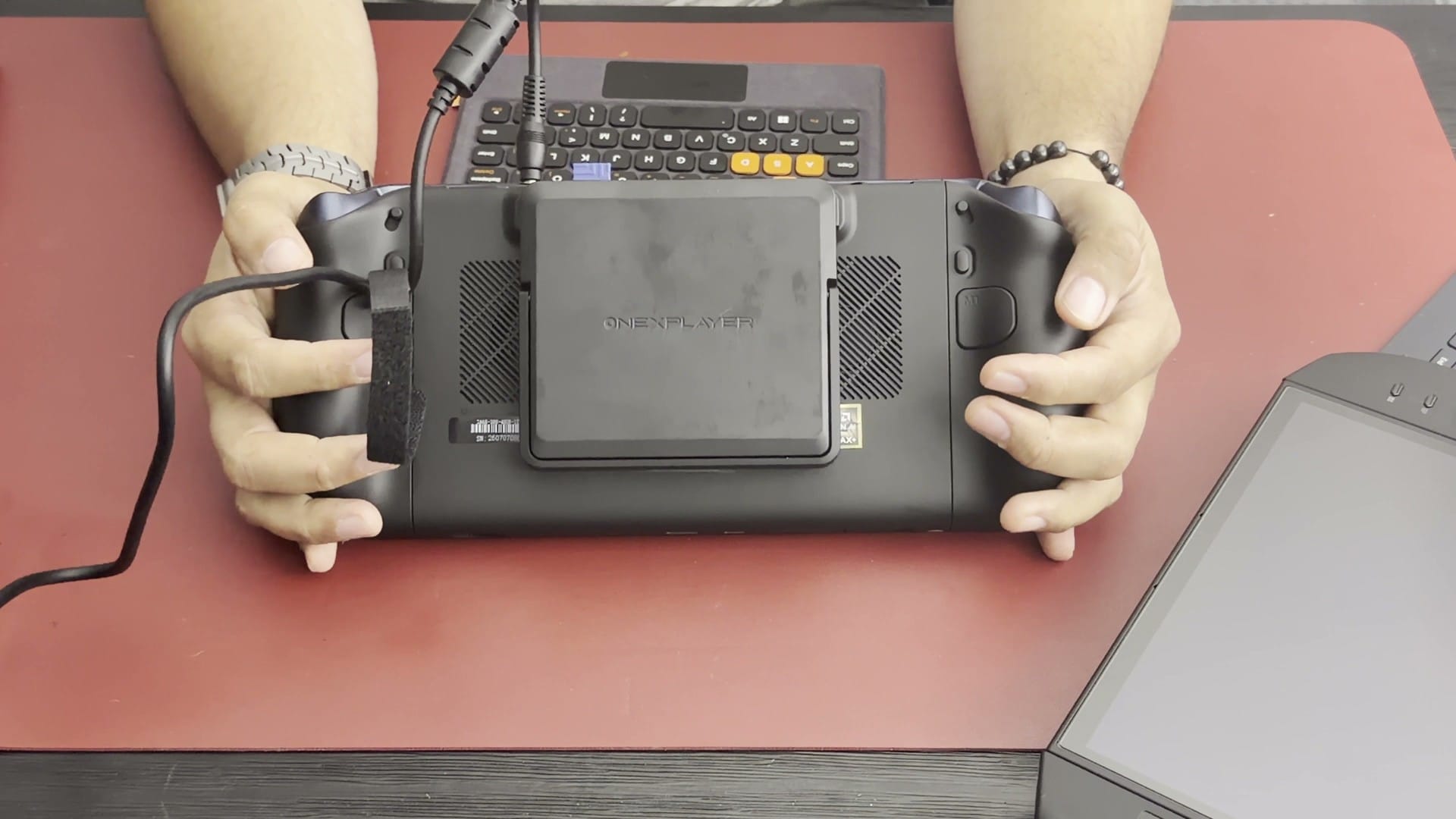
That wattage figure needs a definition before it is used for comparison. A setting of 40 W or 80 W is the power budget for the processor package. The display, fans, storage and everything else inside the device also draw power. The number on the slider therefore does not represent everything being pulled from the battery.
For typical handheld gaming, around 40 W was the setting I kept coming back to on the X2. I ran the Legion Go 2 at its maximum of 35 W. Those settings are close but not identical, so the comparison is not a controlled benchmark. I used both devices in normal play, paying attention to the experience in the hands.
At those settings, the price gap was much larger than the experience gap. My Legion already delivered the performance I wanted on its built-in screen, at a far lower cost. That raised the question of where the X2 could separate itself. If the two feel close at normal handheld power levels, the extra hardware has to show its value at higher settings.
When I raised the X2 to 60 W and then 80 W, it began to create more distance from the Legion. The additional performance became visible, and the fan became easier to hear as the power rose. Running the device that hard at close range made its noise level worth measuring. So I measured exactly that next.
How loud it gets
I measured fan noise with a sound meter near the device while CPU and GPU stress tests ran at each power setting in turn. The room read around 48 dB with some background noise. At 20 W the meter stayed close to that baseline, and at 40 W the fan was running but barely audible from a seated position. At 60 W it became clearly audible, and by 80 W the fan had reached full speed. The recorded readings appear in the table below.
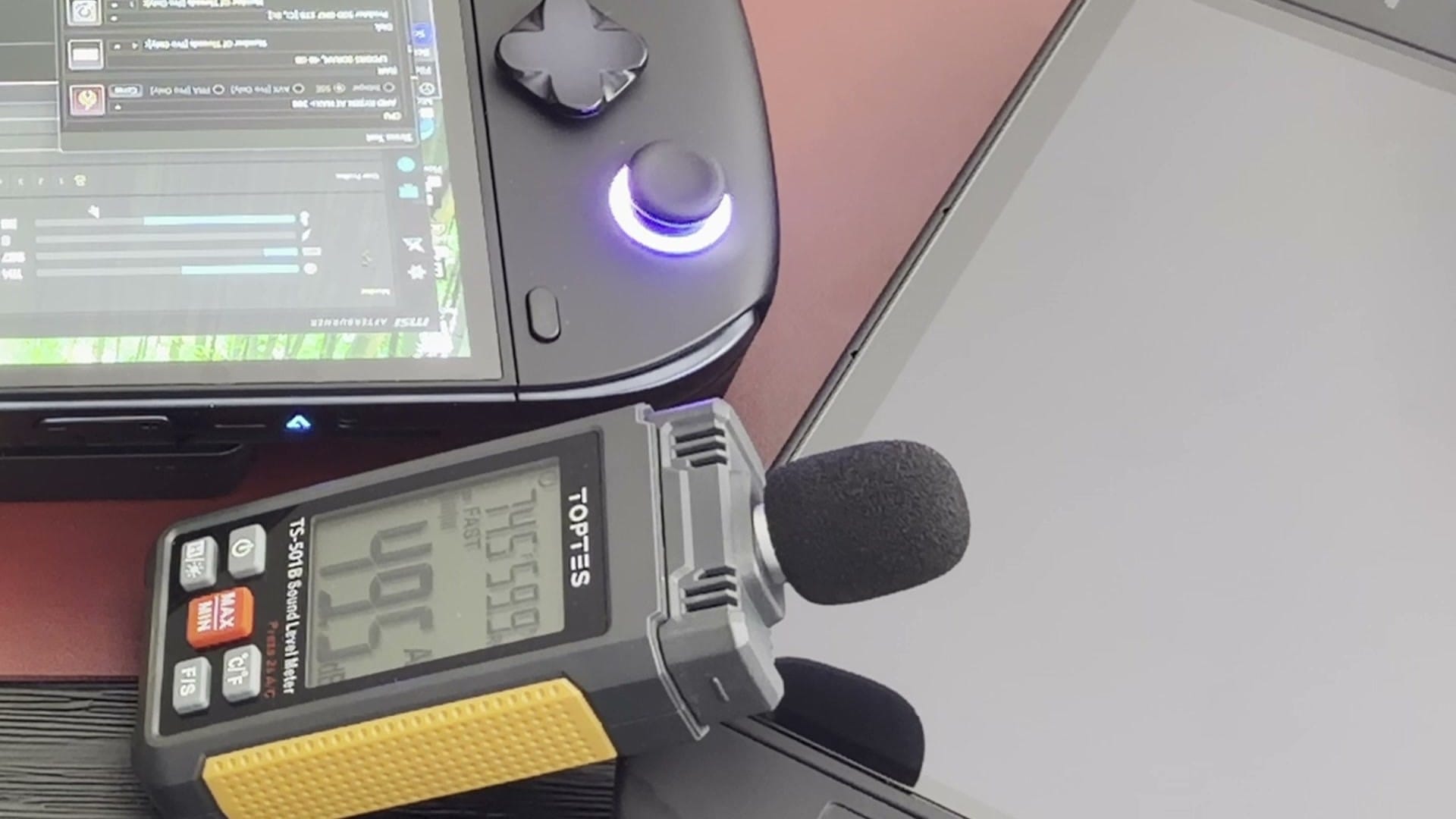
| Power setting | Meter reading | Fan observation |
|---|---|---|
| 20 W | 48 dB | Idle in this part of the test |
| 40 W | 49 dB | Running |
| 60 W | 50 dB | Clearly audible |
| 80 W | 52 dB | 100% fan speed |
How hot it gets
Fans working that hard raise the question of how much heat reaches the hands. During the stress test, the area above the screen and near the exhaust became noticeably warm to the touch. The controllers, where the device is actually held, stayed comfortable. The heat did not become a problem during play.
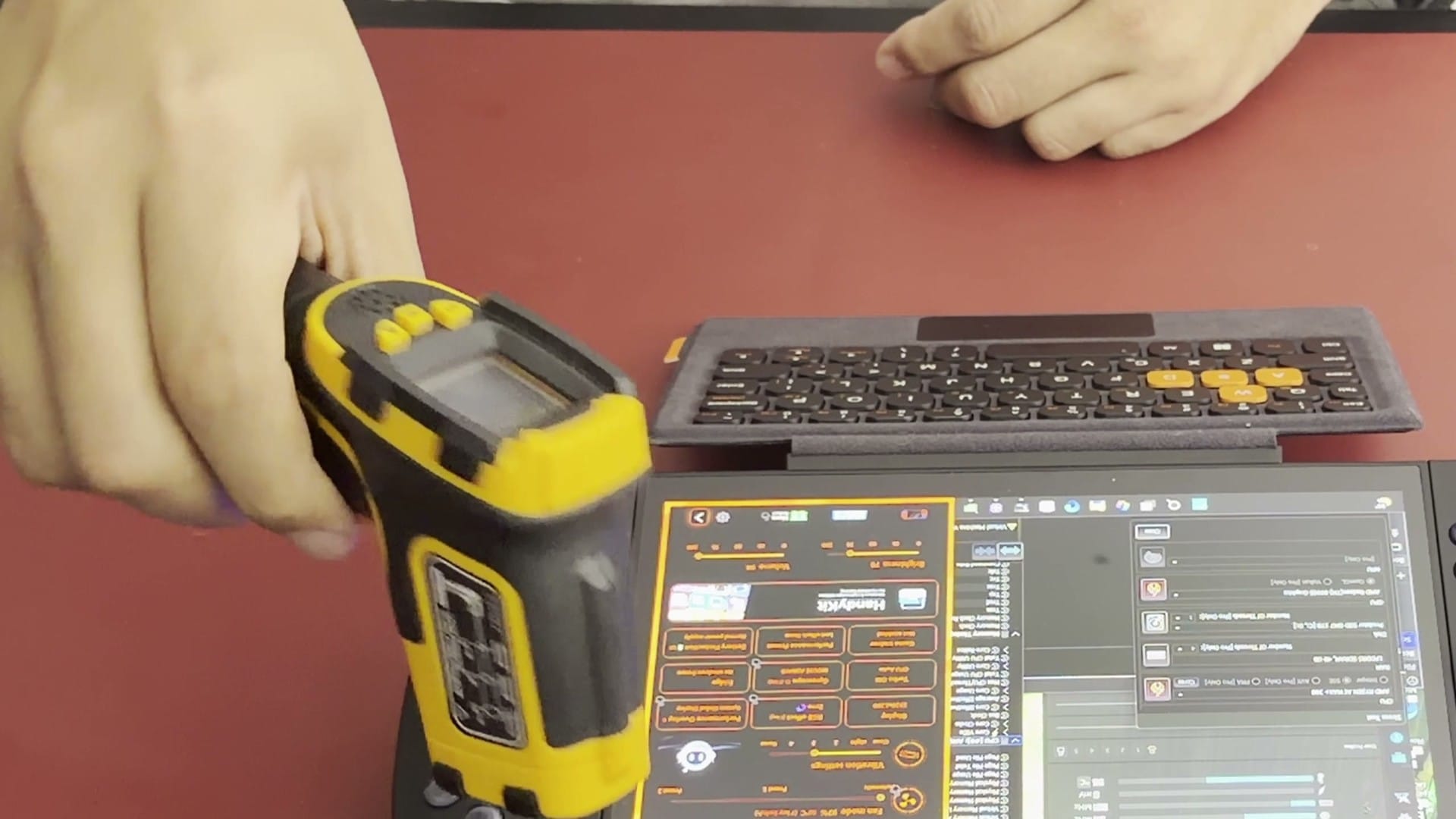
That placement is what matters in practice. A machine like this is expected to get warm when pushed hard. The important point is that the hot area sits away from the fingers. In this test, it did.
Comfort in the hands also depends on the materials, which returns the review to the plastic shell. The Legion Go 2’s shell feels better. At the X2’s price, the shell should feel more reassuring when picked up. Extended use did not change my first impression, and the materials remain an area where OneXPlayer could have done better.
Putting 80 W to work
With noise and heat measured, the next step was actual games. I connected the X2 to an external display at 80 W to run Cyberpunk 2077 and Black Myth: Wukong. Both games leave room to experiment with resolution and graphics settings. My aim was to push the X2 beyond the usual handheld experience with a bigger screen in front of it.
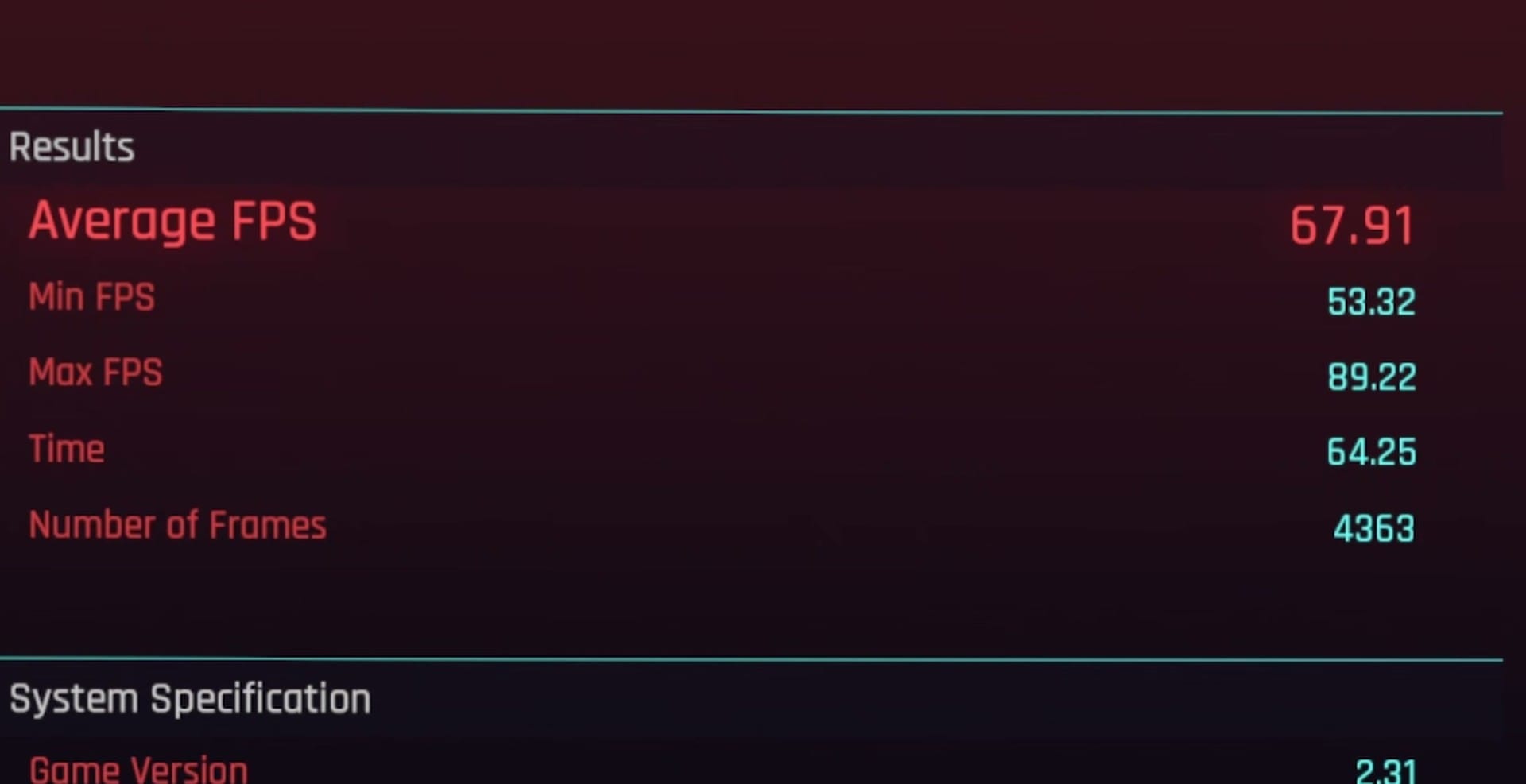
I tested at 1440p and also 4K. At those resolutions, the higher power settings have a clear purpose. Graphics settings and frame generation can be adjusted to find a combination that looks good and plays well. For buyers who enjoy tuning hardware, the X2 offers plenty to explore.
Those experiments also clarified where the X2 fits. In the hands, the Legion Go 2 already delivers a satisfying experience. Connected to a TV, the X2 has more room to push resolution and ask more of its hardware. That is where the extra power proved useful, with my X2 staying at the bigger screen and my Legion free to travel around the house.
Emulation
PC games are only part of what these handhelds are used for, and retro games are the other part. I tried games through Switch, PS3, Xbox 360 and PS4 emulation, and the titles I had ran well. Carrying an emulation library alongside a PC library is part of the appeal of these devices. It covers both demanding new games and old favorites.
I have not tested plenty of games, especially on the PS4 side. Anyone buying a handheld for a particular game should check how that game runs in the intended emulator. More hardware helps. Compatibility still comes down to the specific game and emulator.
Storage and detachable controllers
Storage becomes a practical concern once PC games and an emulation library share a device. My X2 came with a 1 TB SSD, while my Legion Go 2 already held an 8 TB drive. The X2 takes a full-size M.2 2280 SSD, so replacing the internal drive is possible. Doing so means opening the device, and a guide for this exact model is advisable before starting.
For adding storage without opening the device, there is a microSD slot and a separate Mini SSD slot that opens with a pin. I did not have a Mini SSD, so I have not tested that slot’s performance. The option is still promising. It could allow more of a library to travel along without swapping the internal drive.
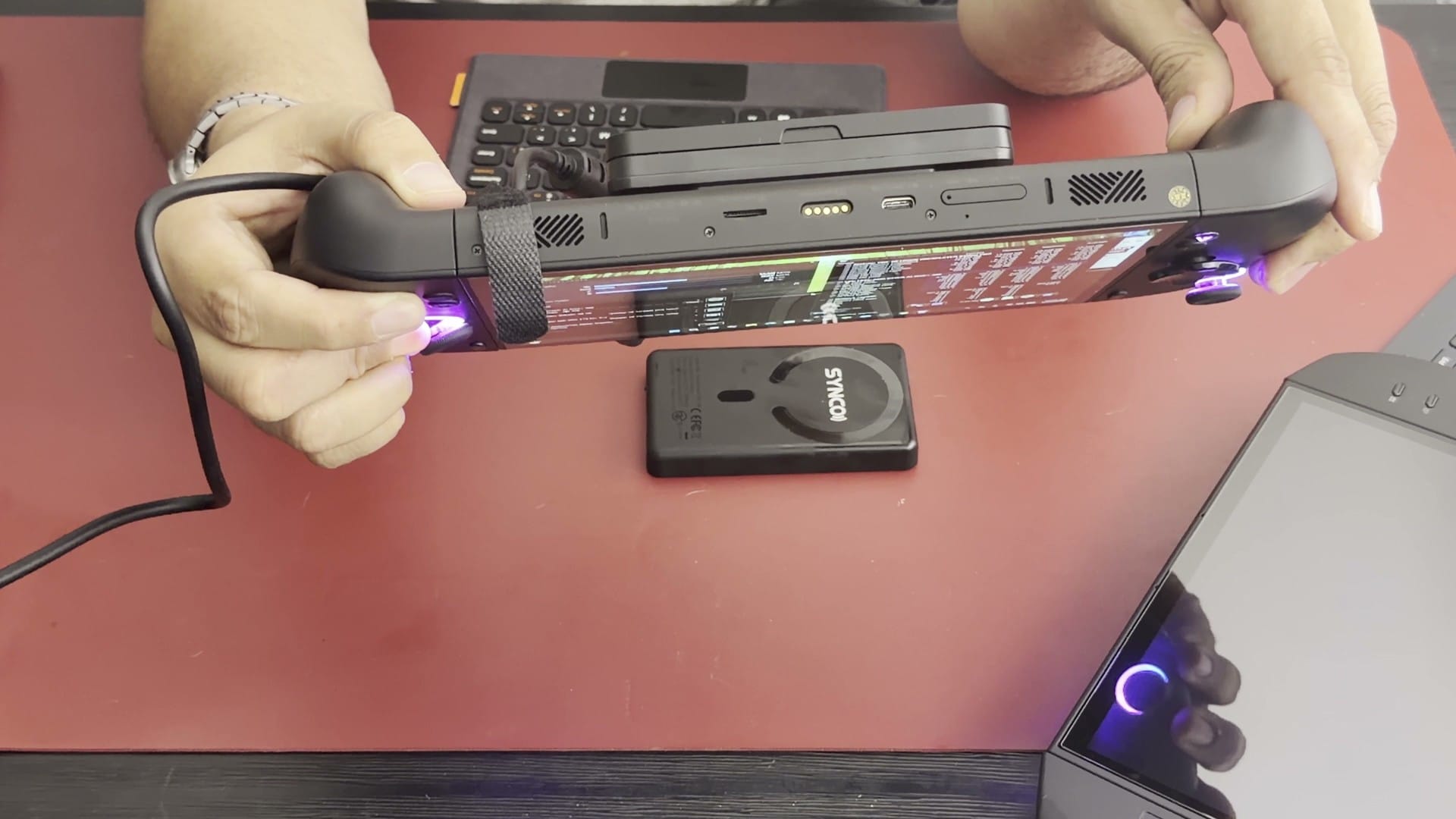
The detachable controllers can also be used with the X2 set down, joined by a small connector. At first I was unsure how that connector’s touchpad was powered. It turns out to have its own battery, which powers the touchpad and its wireless connection to the included USB receiver. The connector charges through USB-C, and the attached controllers charge through their contacts.
With the connector attached, the X2 can sit on its stand while the joined controllers are held with the touchpad between the hands. That arrangement is useful for continuing to play without holding the entire device. It also makes the touchpad available for moving around Windows.
The attachable keyboard
The touchpad handles navigation in Windows with the controllers detached, but some tasks require typing. That is where the small attachable keyboard helps. It is handy for a password, a quick message or a file name. It provides physical keys without another keyboard or the on-screen one.
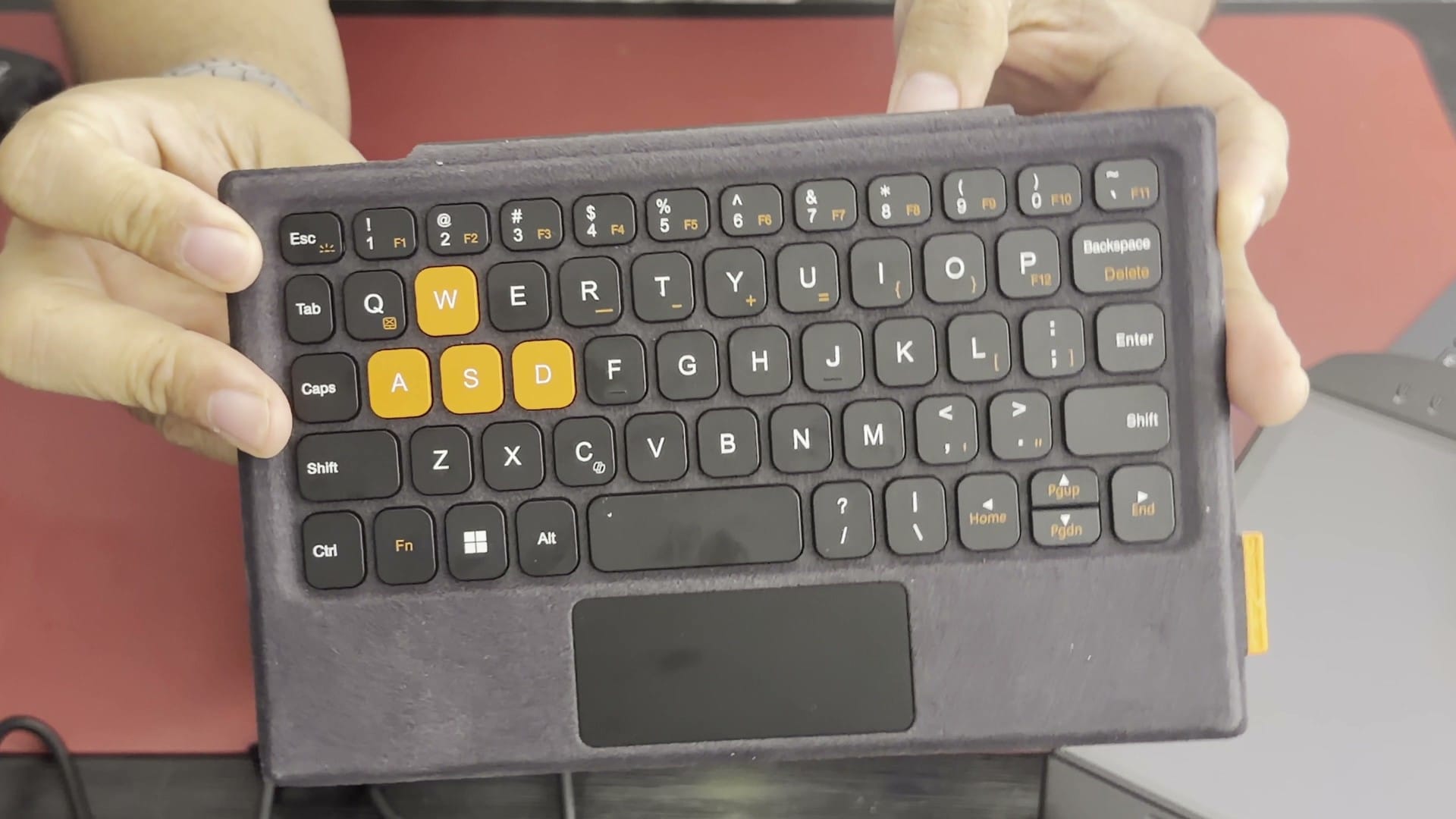
The keyboard is not suited to long writing. It is cramped, and the layout takes some getting used to. Extended typing on the X2 calls for a regular keyboard. For the occasional input Windows needs during play, it is a useful inclusion.
The keyboard attaches magnetically and folds over the display, which looks convenient for carrying everything together. In my testing, folding it closed did not put the screen to sleep. The magnetic hold was also not strong enough for me to trust it to stay closed inside a bag. That raises a question about the keys resting against the display in transit, which has not been established either way, so carrying the X2 in its case with the keyboard kept off the screen is the safer choice.
The X2 works best on a TV
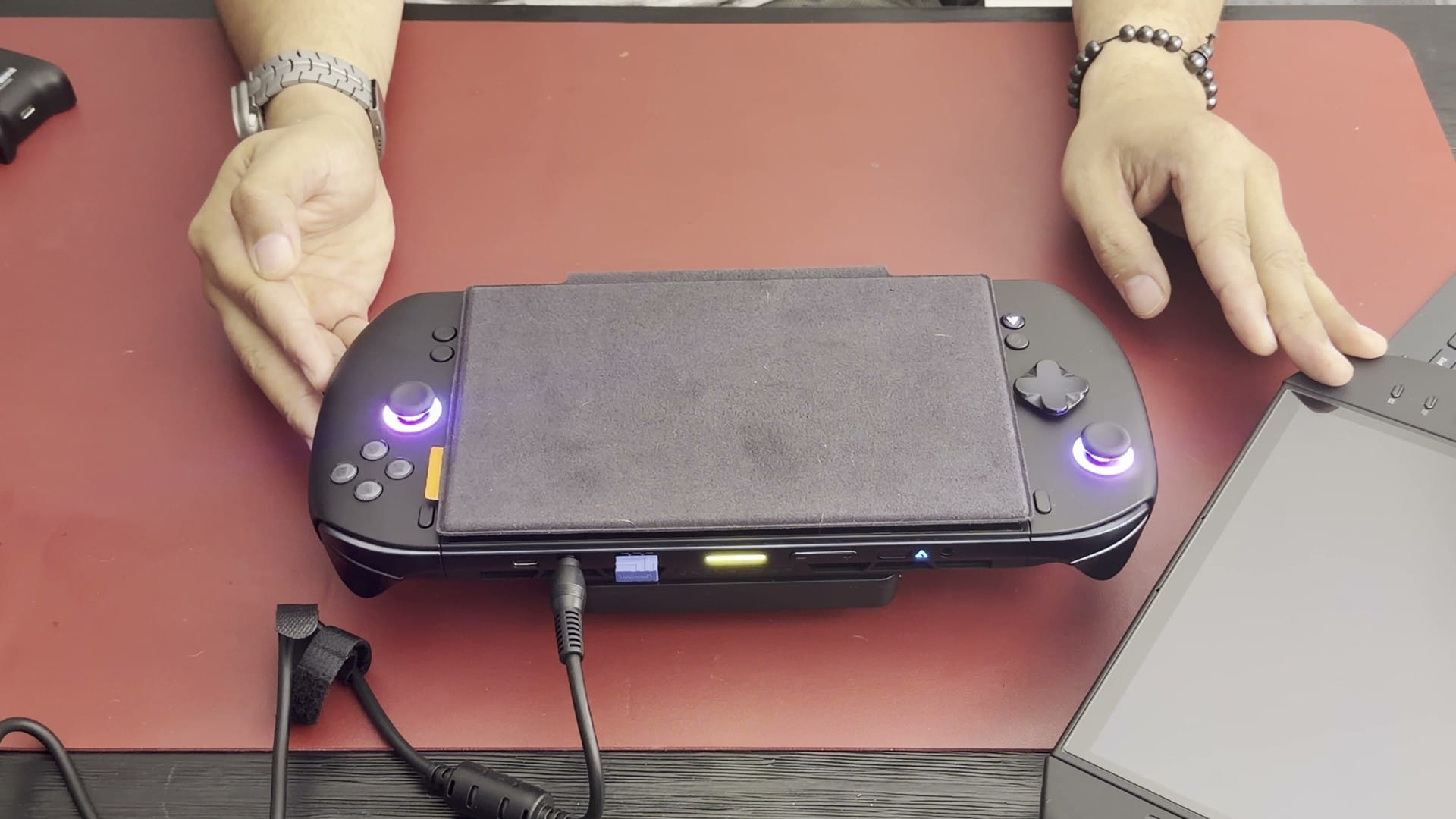
With a regular keyboard and an external controller, the X2 can be used without holding it at all. Adding a TV completes that setup, and that is where my unit has ended up. In my gaming corner, it stays connected to external power and the TV. From there, it only takes a controller to play on the bigger screen.
When I unplugged that cable during testing, it showed how easily the X2 returns to handheld use. The mirrored display took a moment to adjust, but the games I tried kept running. That option is useful, although I have used it little in practice. My Legion Go 2 already covers my handheld play, so I have little reason to disconnect the X2.
Staying at the TV gives the X2 a reason to run higher resolutions and graphics settings. It also removes battery use from any power-setting experiments. If a game runs well at a lower setting, the power can be turned down to give the fans a break. The TV setup therefore lets the X2 use as much or as little of its power as each game needs.
Anyone planning to leave the X2 connected should know one more detail about its battery. The battery is removable, but no smaller internal battery keeps the device running when that pack comes off. With the battery removed, the X2 needs external power to stay on. That matters for anyone considering running it docked without the pack installed.
Before you buy
Before buying, several details are worth checking. The fan reaches full speed at 80 W, with a meter reading of 52 dB against a 48 dB room. Specific games should be verified in the intended emulator, and the 1 TB drive may need replacement or expansion through microSD or the Mini SSD slot. Anyone planning to run it docked without its battery should note that the X2 has no backup internal battery.