Guide · Guides · Handheld Gaming · Retro Gaming · Retro handhelds
How to Install Armada OS on AYN Handhelds: Odin 2, Odin 3 and Thor
Armada OS turns AYN's Odin 2, Odin 3 and Thor handhelds into Steam Game Mode machines from a microSD card. Which bootloader folder each model needs, the install, what each one gets and the way back to Android.
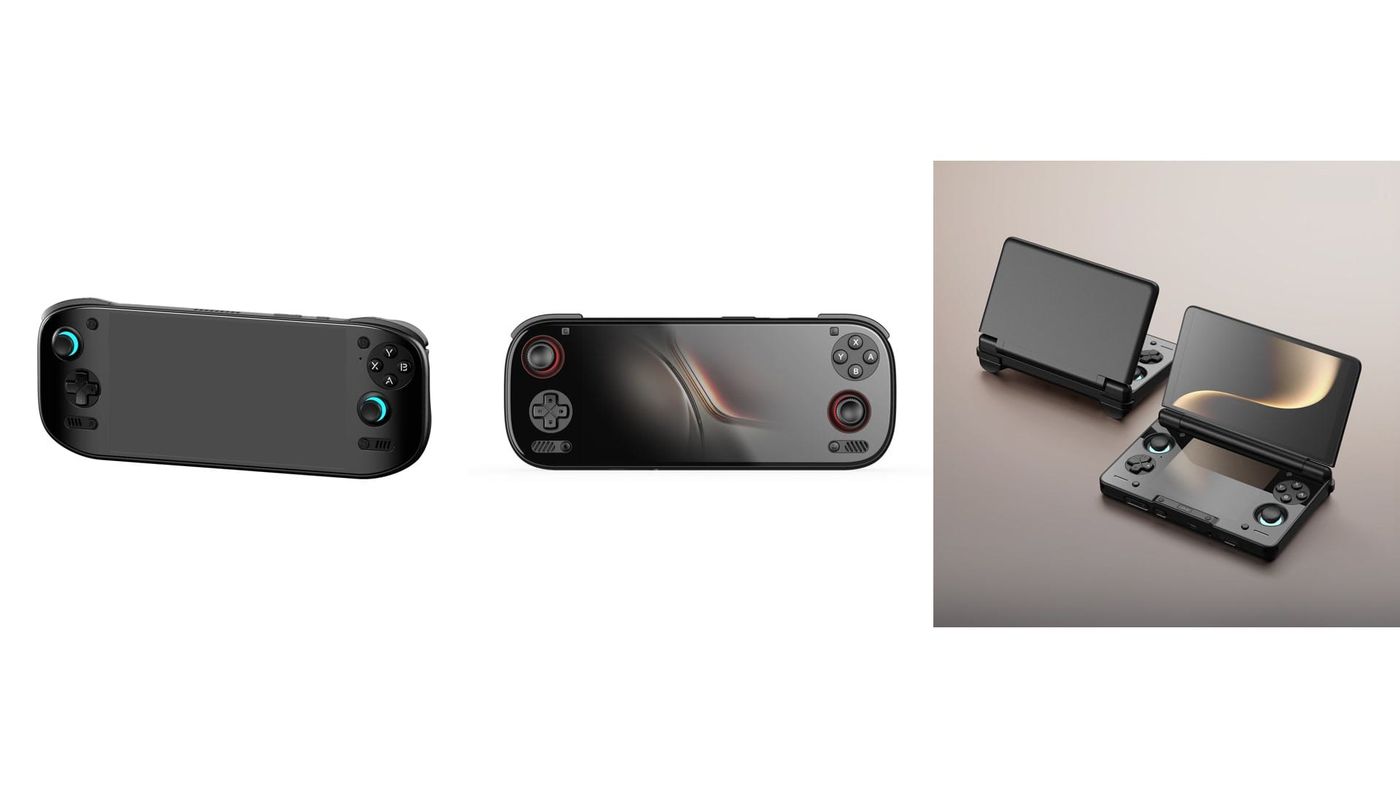
I’ve got an Odin 2 Portal Max, and like every Snapdragon handheld AYN makes, it shipped with Android. Armada offers it a second life. It’s a Linux that boots straight into Steam’s Game Mode, the way a Steam Deck does, and it runs from a microSD card. Android stays right where it is. Nothing changes there until you decide it should. Seven AYN handhelds run it now: the Odin 2 family, the Odin 3, the new Odin 3 Portal and both Thors. The install is the same on every one of them. You just pick one folder.
UPDATE What’s new since publishing
The release this guide was waiting for is out, and I’ve updated the steps to match. Armada 20261109 swaps the old ROCKNIX bootloader for OpenABL, so the card folder is now called openabl and the boot menu’s start option reads Start Linux. Already running Armada? You don’t need to reflash anything. The update swaps the bootloader for you when you shut down. If the new boot menu asks for your handheld’s model the first time, just pick it again. The Odin 3 Portal is supported now too, and it uses the Odin 3’s SM8750 folder.
Two more things you’ll notice right away. Gyro works on the Odin 2, Odin 2 Portal, Odin 3, Odin 3 Portal and Thor, and Steam sees it as a Steam Deck gyro, so all of Steam Input’s gyro settings just work. And standby drain is way down: Armada says an Odin 2 Portal now lasts about 8 days asleep on a charge, and an Odin 3 about 6.
Meet Armada
Armada is a Linux for ARM handhelds that sets out to feel like SteamOS. Underneath, it’s Fedora. The device support comes from ROCKNIX, the Linux many people already run on these handhelds for emulation. It starts straight into Steam’s Game Mode, and a full KDE desktop is there when you want one. Windows games run through two layers that come already set up. FEX translates PC code so an ARM chip can run it. Proton, the compatibility layer from the Steam Deck, takes care of the Windows side, and Armada ships CachyOS’s version of it, Proton 11. Armada’s docs say most games just install and play. A few need a setting changed.
Armada is young. Its code only went public in June, and it moves fast, so menus and steps can change between releases. This guide sticks to one build. Bazzite, the gaming Linux for PCs, has noticed the project and now points its ARM users toward Armada. If you’re wondering how PC games run on these chips at all, my piece on Valve bringing Android games to SteamOS covers FEX and Lepton.
Which AYN handhelds it covers
Armada uses one download for every device, and you tell it which handheld you have in the boot menu later. The only thing that changes between AYN models is which bootloader folder you flash from the card, and that depends on the chip inside.
| Handheld | Chip | Folder on the card |
|---|---|---|
| Odin 2 | Snapdragon 8 Gen 2 | SM8550 |
| Odin 2 Mini | Snapdragon 8 Gen 2 | SM8550 |
| Odin 2 Portal (Base, Pro, Max) | Snapdragon 8 Gen 2 | SM8550 |
| Thor (Base, Pro, Max) | Snapdragon 8 Gen 2 | SM8550 |
| Thor Lite | Snapdragon 865 | SM8250 |
| Odin 3 | Dragonwing Q8 | SM8750 |
| Odin 3 Portal | Dragonwing Q8 | SM8750 |
Two rows deserve a second look. The Thor Lite looks just like the Thor but has an older chip, so it needs the SM8250 folder, and Armada warns that flashing another chip’s bootloader can brick a device. The Odin 3 Portal is the newest arrival, added in 20261109, and it takes the same SM8750 folder as the Odin 3. The README on the card doesn’t name it yet, so go by this table.
Getting ready
You need a microSD card of at least 64 GB, ideally an A2 card for speed, and any computer that can write a disk image. That’s the whole shopping list. The bootloader swap happens from Android itself, with scripts that come on the card, so there’s no special cable or PC flashing tool involved.
Grab the current image from Armada’s downloads page. This guide follows 20261109, about 7 GB. Write it to the card with balenaEtcher or Raspberry Pi Imager, which take the download as it is, or Win32 Disk Imager once you’ve decompressed the .gz file. Armada’s SD card guide lists all three. The finished card has an openabl folder on it. One warning before you go looking for help: Armada’s own wiki still describes the old bootloader as of November 10, so go by the README on the card, or this guide.
Swapping the bootloader
The bootloader is the little program that starts your handheld. AYN’s version only knows how to start Android, and Armada swaps in one with a menu that can start Linux too. You save a copy of the original first, which is your way back to stock later, since AYN’s own site doesn’t offer firmware downloads for any of these models.
- With the card in, start Android normally and copy the
openablfolder from the card to the top level of internal storage. - Open the folder for your chip from the table above, for example
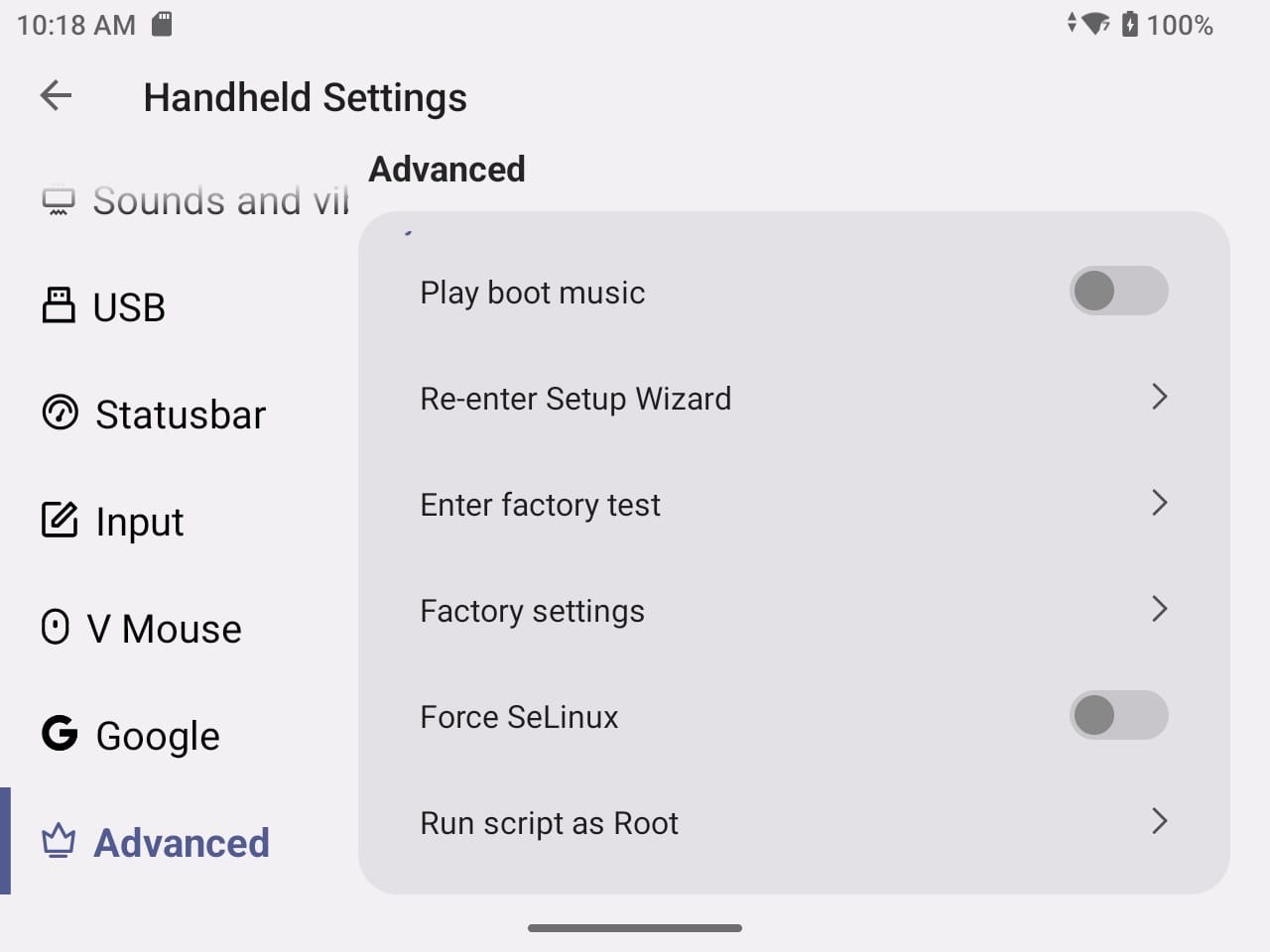
openabl/SM8550on an Odin 2 Portal or a Thor. - Open the root script tool. It comes built into the handheld’s Android, so there’s nothing to install or root: you point it at a script and it runs with full system access. On AYN handhelds, Joey’s Retro Handhelds puts it in Android’s Settings under Odin Settings, or Thor Settings on a Thor, at the bottom of the page, as Run script as Root.
- Run
backup_abl.shfrom your chip’s folder. It saves the original bootloader asabl_a.imgandabl_b.imgin that folder. Check both files are there, then copy them to your computer. - Run
flash_abl.shfrom the same folder to install the new bootloader, OpenABL.
The first boot
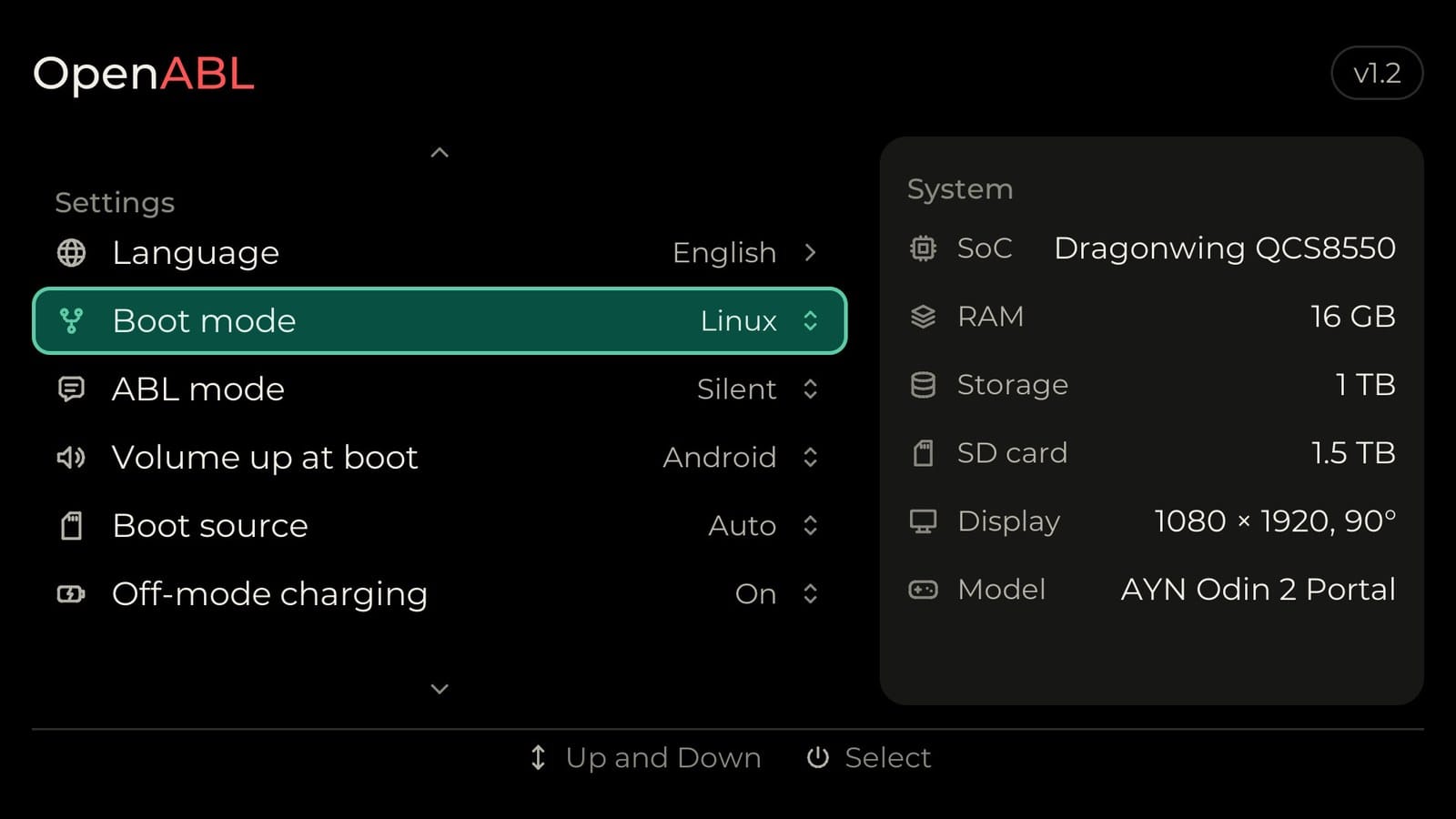
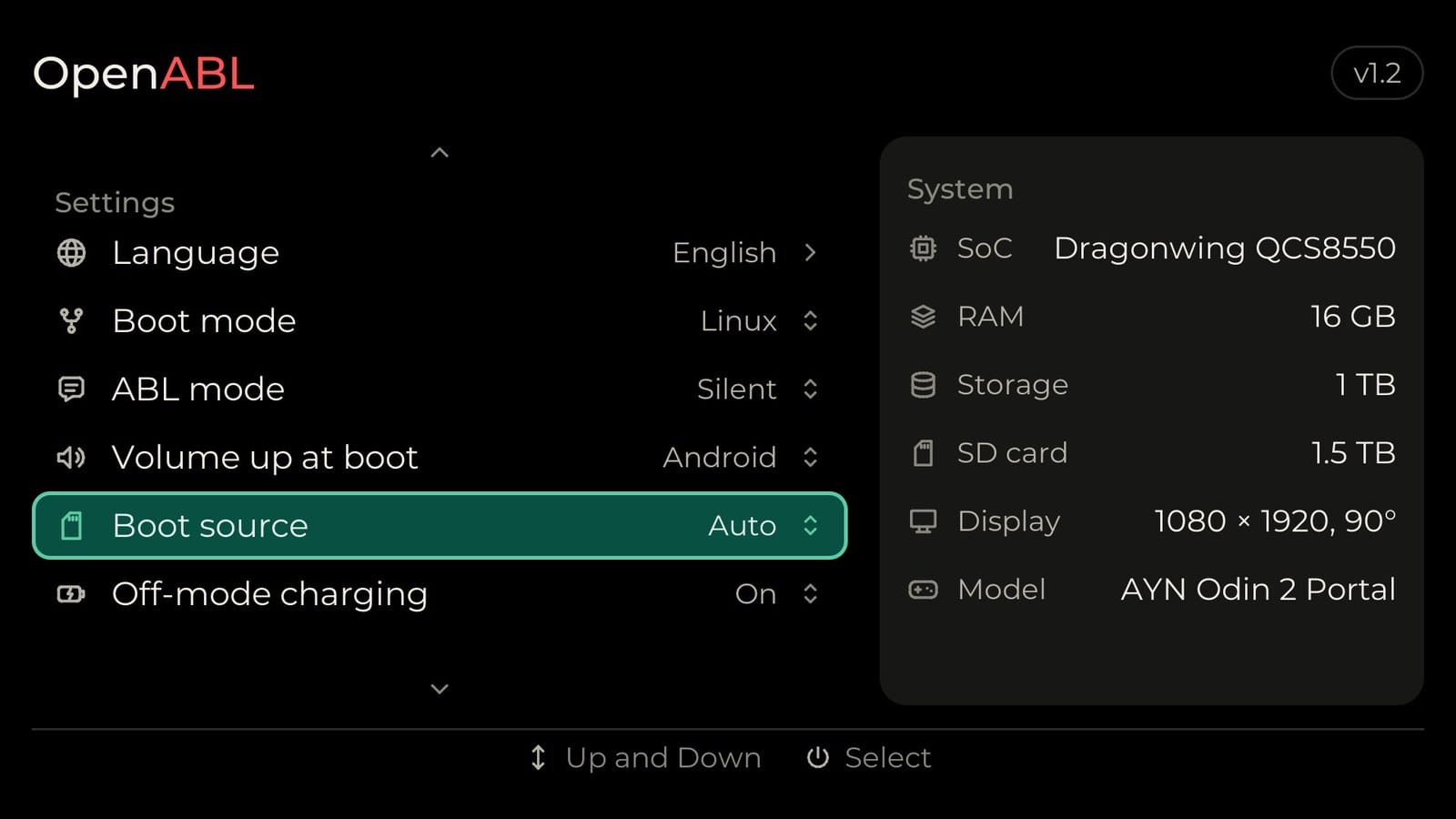
Power off and get your fingers ready, because the AYN timing is a little fussy. Hold Volume Down and the power button together, let go of power when the AYN logo shows, and keep holding Volume Down until the boot menu appears. That’s the combo Joey’s Retro Handhelds gives for AYN models. In the menu, Volume Up and Down move and the power button selects. Set the device model to your handheld, switch the boot mode to Linux and pick Start Linux. There’s a handy new shortcut, too: hold Volume Up instead while you power on, and it starts Android once without changing your setting.
Give it time on the first run. Armada’s guide says the screen can stay black for up to a minute after the intro animation, then Steam asks for your language, time zone and Wi-Fi, restarts itself, and can go black for another minute before the sign-in screen. On AYN handhelds, the Home button opens Steam’s menu and the Back button opens Quick Access. If you ever need the desktop directly, hold Select for about a second while the boot splash is showing. When the desktop asks for a password, Armada’s developers have said it’s armada.
Keeping Armada updated
Updates work the way they do on a Steam Deck. Open Steam’s settings, go to System, pick an update channel and check for updates. Armada recommends Beta for everyday use, because builds only land there after release testing. Preview follows the newest code as it’s written, so you get fixes first, but Armada warns it can be highly unstable and is meant for people comfortable fixing a broken system. To see it at all, you may need to turn on Developer Mode and tick Show Advanced Update Channels. Either way, there’s no rewriting the card and no downloading your games again.
Updating over the air is still new for Armada, though. If an update ever fails, Armada says you may need to reflash, and its tools can roll back to the previous version. One snag is worth knowing if you like to tinker. An Odin 3 owner who had added system packages with rpm-ostree, a command-line tool, found Steam kept saying the system was up to date while newer builds were out. If that’s you, compare your version with Armada’s downloads page now and then.
Moving it to internal storage
The card is the easy way to try Armada. If you’d rather have it on the handheld itself, open the desktop, go to System and run the Armada Installer, then choose to install alongside Android and decide how much space Android keeps. On an Odin 3, Retro Handhelds found the internal install took about 15 minutes.
This step resets Android’s apps and data, though Android itself stays. Afterwards, power off, take out the card and set the boot source to Internal in the boot menu. If something interrupts the install, Armada’s internal storage guide says to run the installer again from the card, or switch the boot source back to the card.
Sharing games with Android
This is the question I’d ask first, and the honest answer is that Armada’s documentation doesn’t cover it. While Armada runs from the microSD card, there isn’t really anything to share. Android only sees a small partition on the card, which holds the bootloader files and isn’t somewhere to keep games, and Armada doesn’t read Android’s internal storage. An Odin 2 Portal owner asked for exactly that in October, wanting to keep Armada on the card and put games on the 1 TB internal drive, and the request is still open.
Install Armada internally and the card slot is free again. That’s where sharing gets possible. Two card formats decide how. exFAT is the everyday format that Android and Armada can both read. ext4 is Linux’s own format, and it’s the one Steam games need. A Retroid owner with Armada on internal storage split a card in two: an exFAT part for Android, and an ext4 part that another owner’s workaround turned into Steam game storage for Armada. ROMs are the part nobody has documented yet. Put them on the exFAT side and emulators in both systems could use them, with one catch. Armada only mounts ext4 cards by itself, so you’d mount the exFAT part from the desktop.
What each AYN model gets
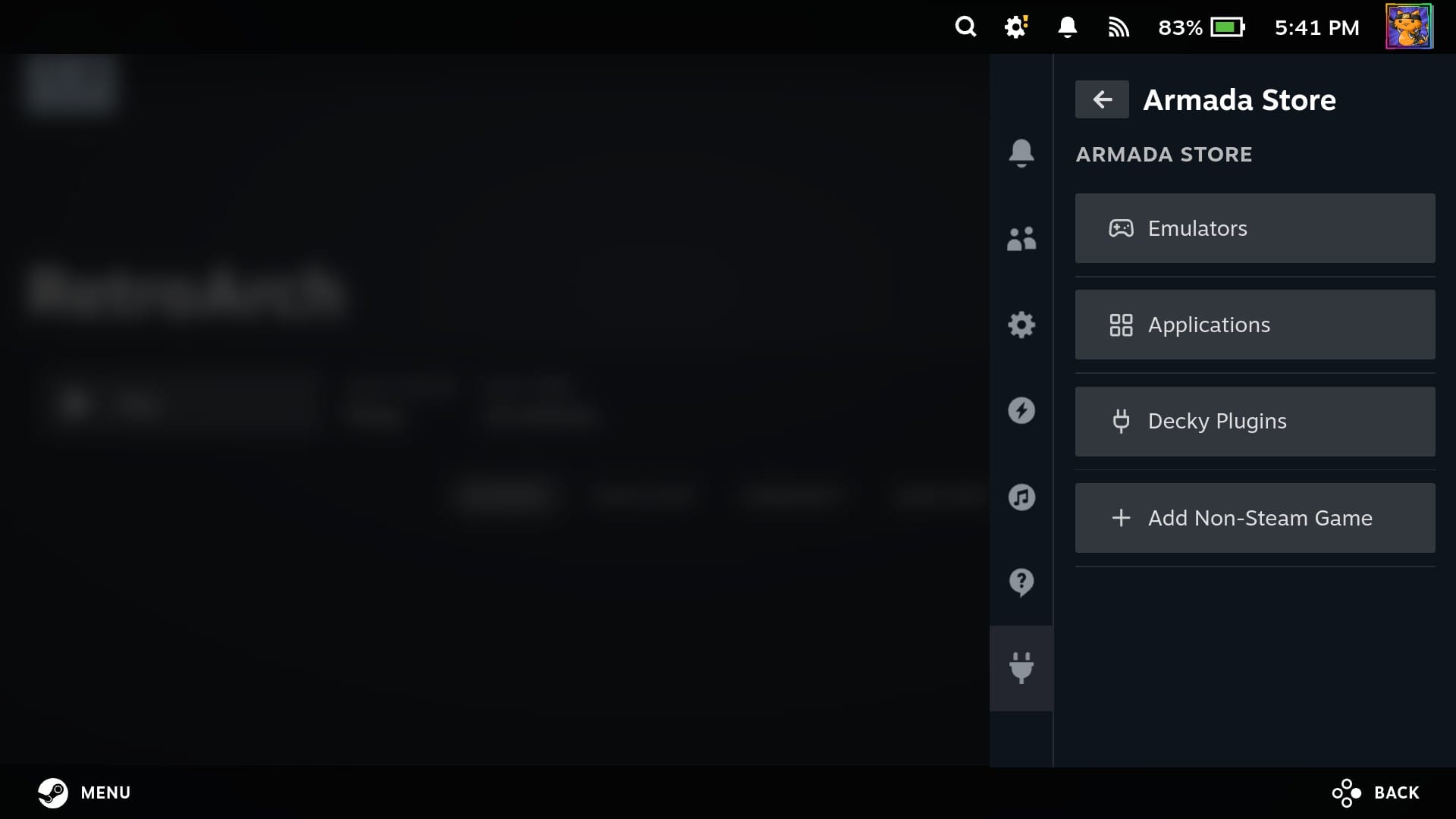
Every model gets the same core, and it covers the things you’d reach for first. Power profiles (Eco, Balanced and Performance) live in Steam’s performance menu, and that’s where you switch between them. Armada Control, Armada’s own settings app in Quick Access, is where you tune how each profile behaves and edit the fan curve. Games can see the controls as an Xbox 360 pad, an Xbox Series pad, a Steam Deck or a DualSense, whichever suits the game. Android apps run through Valve’s Lepton. If you miss one, the Aurora Store, a free app that downloads apps from the Play Store, is waiting in the Armada Store.
Past that, four models get the most extras: the Odin 2 Portal, the Odin 3, the Odin 3 Portal and the Thor. On those you get HDR, the lights around the sticks, and some tuning for the OLED screen. Portal owners get their back buttons, and the Odin 2 Mini gets its own drivers for brightness and touch. The Thor Lite? Armada’s notes list none of those extras for it, and it runs the oldest chip of the seven, so it’s likely to trail the others in PC games.
The Odin 3 and Odin 3 Portal
If you have an Odin 3, you have the fastest chip Armada supports on an AYN handheld, a version of the Snapdragon 8 Elite, and it’s the AYN model I’d pick for PC games on Armada. The newer Odin 3 Portal runs the same chip, and Armada calls it its most Steam Deck-like device yet. Coming from a project built to feel like SteamOS, that’s a big compliment.
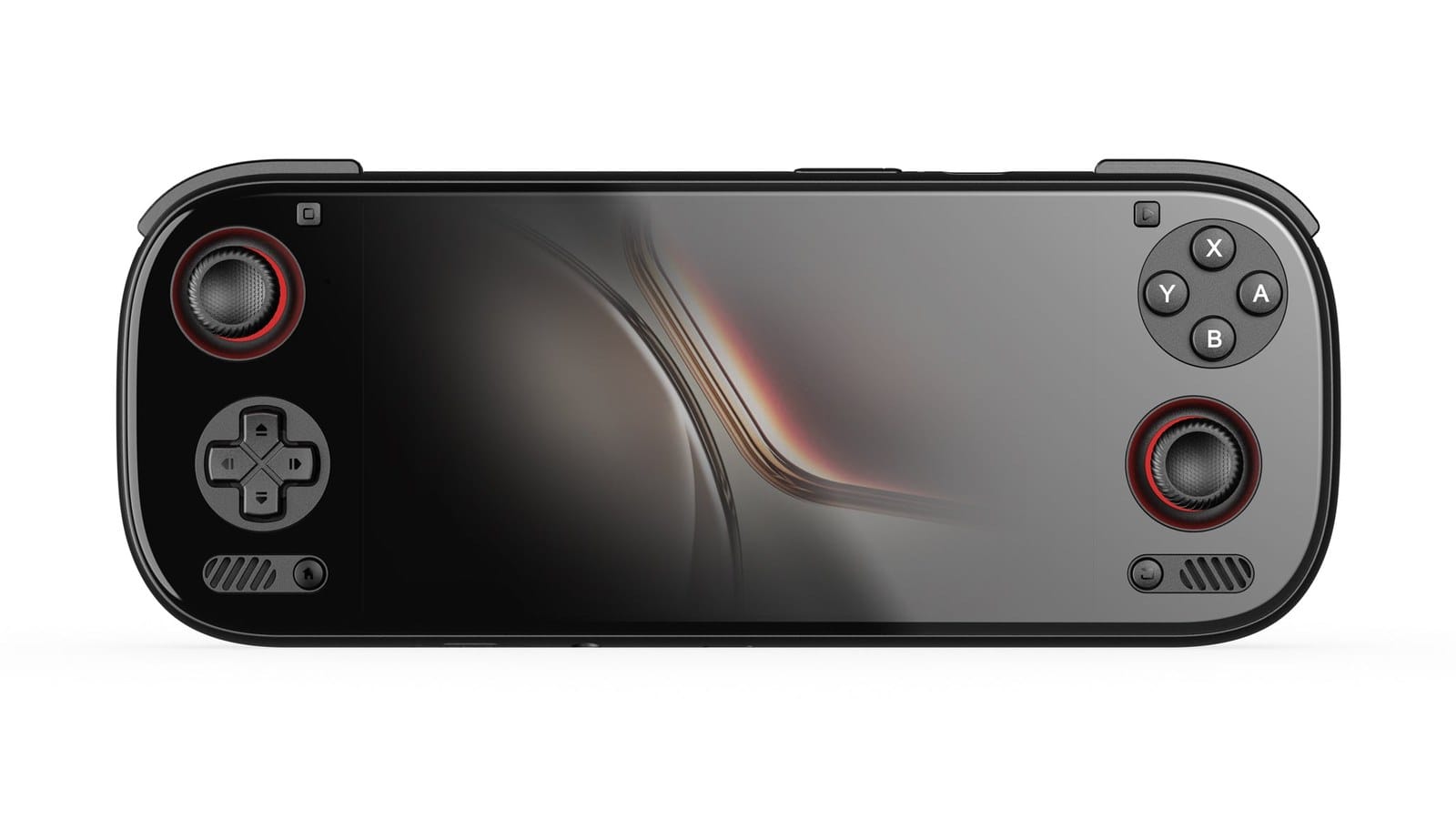
The Odin 3 itself has had the most fixing lately. Plug it into a TV and the sound now comes along with the picture. Put it to sleep mid-game and it wakes without freezing, which you’d expect from any handheld but didn’t always get here. And if you stream games from your PC, the last release made Remote Play decoding about three times faster, so there’s less delay between your PC and your hands.
Emulators
Armada can run emulators, but it won’t set them up for you yet. Armada’s own docs call emulation a work in progress for early adopters. Everything installs from the Armada Store, which lives in the Decky tab of Quick Access: ES-DE, the menu you browse and launch your games from, plus emulators for most systems up to the PS3, Wii U and original Xbox. Each emulator needs setting up by hand, and none of them come with BIOS files. Bring your own.
Two tips from Armada’s docs save some pain. Launch your emulators from Steam, so the controls stay the same in Game Mode and on the desktop. And keep the controller on Steam Deck mode in Armada Control, so you stay in step with the emulator defaults Armada ships in future updates. Looking for Switch games? There’s no Switch emulator on Armada’s list yet. For now, that’s a job for Android.
The Thor’s second screen
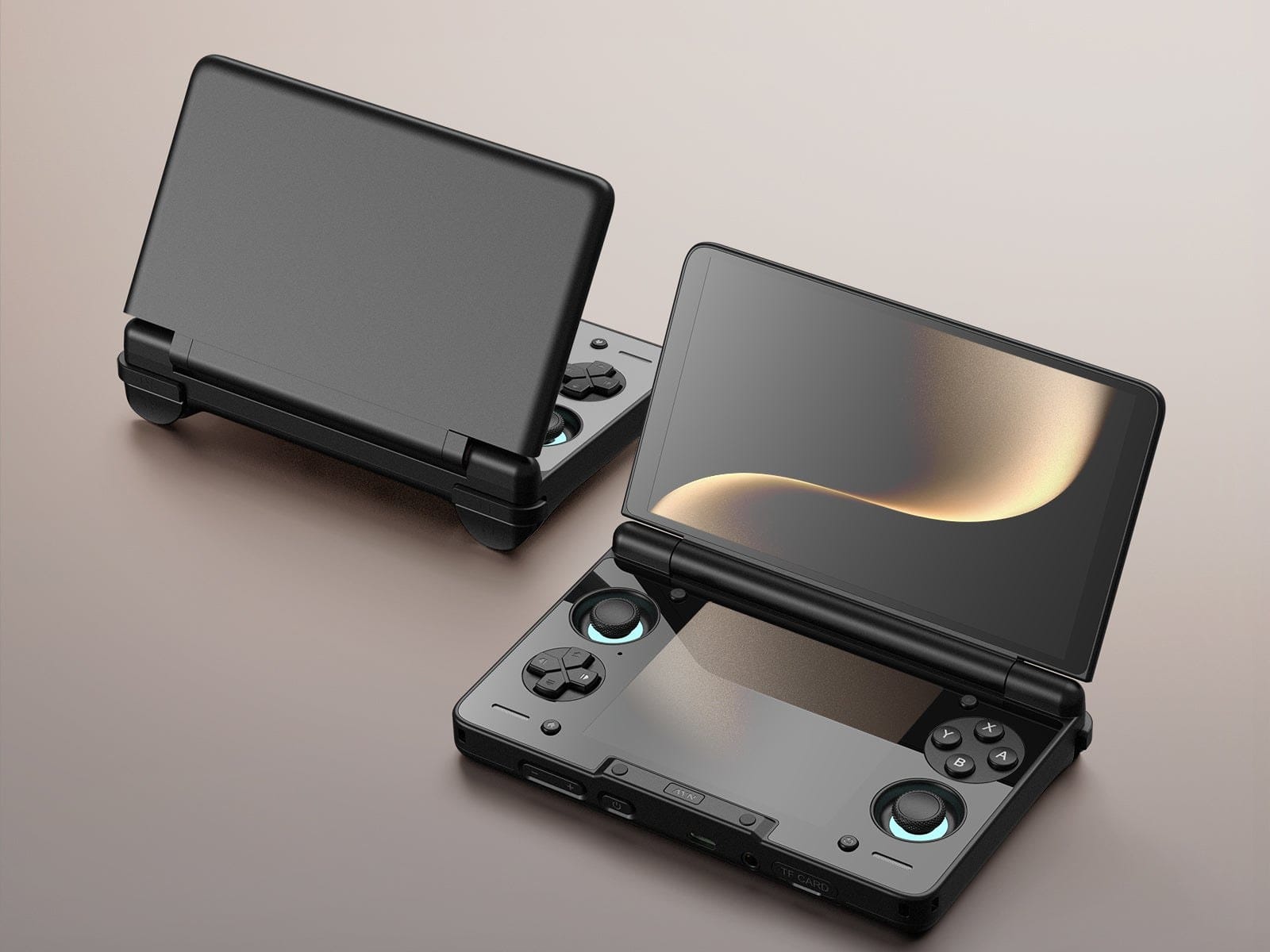
Steam’s Game Mode only draws on the Thor’s top screen. The bottom one isn’t wasted, though. On the desktop both screens work, and the on-screen keyboard pops up on the bottom one. For DS and 3DS games, the Armada Store has two-screen builds of melonDS and Azahar that use it, and Android apps made for two screens can use both through Lepton. There’s an experimental extra, too. Armada Control, Armada’s own settings app, can start Plasma Mobile on the bottom screen, which is KDE’s phone-style, touch-friendly desktop. What you can’t do yet is put a second window of your choice down there in Game Mode. Owners have asked for it more than once. The Thor Lite handles its two screens the same way.
Rough edges to know about
Sleep used to be the big one, and the November release goes a long way on it. The gap that update left is gyro, which the Odin 2 Mini and the Thor Lite still don’t have.
Owners have filed a few open reports too, and some come from older builds, so check yours before you count on these. Audio comes up most. The headphone jack wasn’t detected on an Odin 2 Portal and an Odin 3, and it crackles on an Odin 2. If you use wired headphones, try them early. An Odin 2 Mini owner sees screen flicker that Android doesn’t have. And on an Odin 2, the mini-HDMI output blinks on and off with a TV.
Going back to Android
If Armada runs from the card, getting back is a menu choice: power off, hold Volume Down to open the boot menu and switch the boot mode to Android. You can switch back and forth whenever you like.
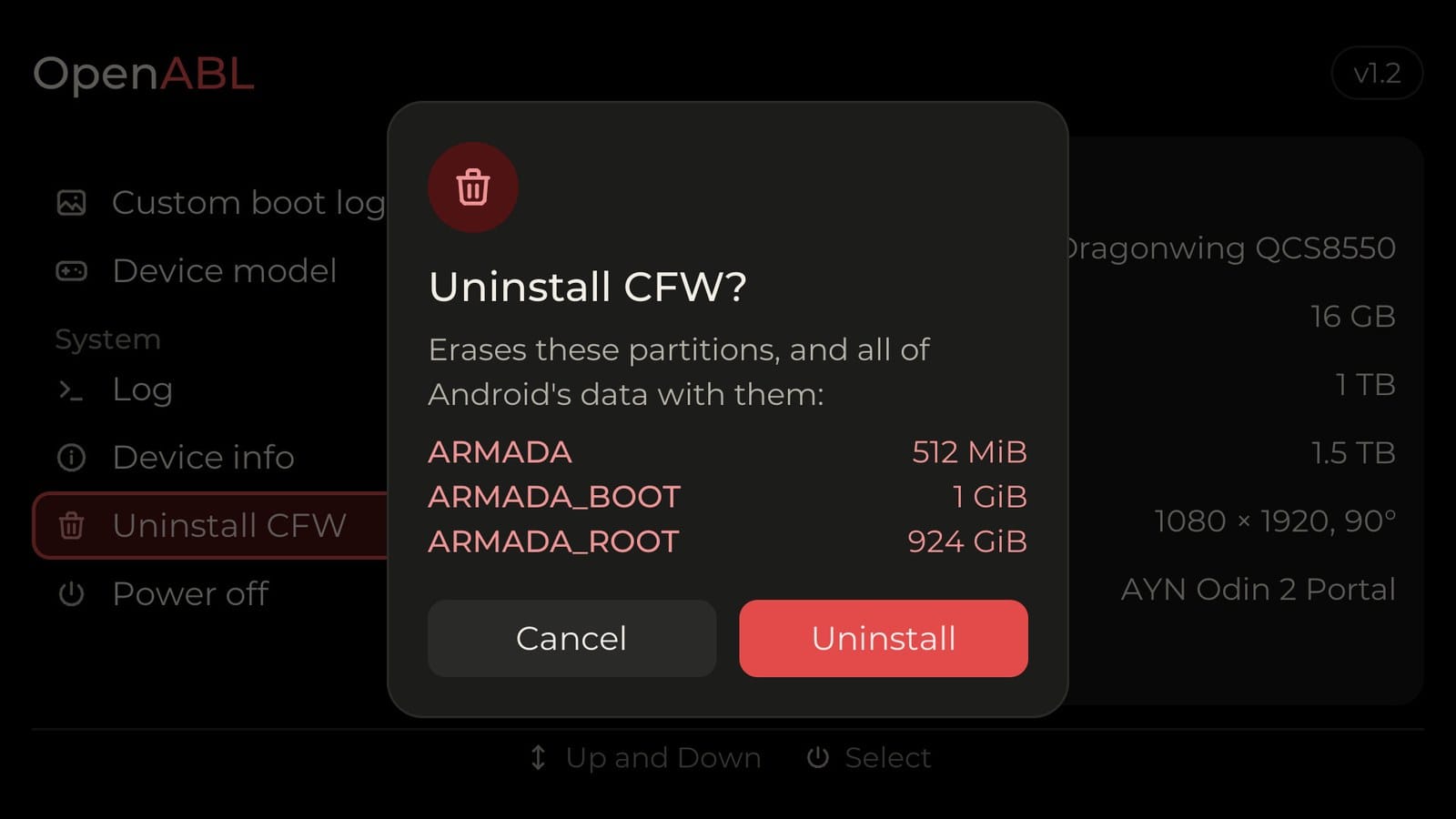
For an internal install, the same menu has Uninstall CFW. It asks you to confirm twice, because it removes Armada and wipes Android’s apps and data along with it, then gives the space back to Android. To restore the original bootloader as well, copy the openabl folder back from the card if it’s no longer on internal storage, put your abl_a.img and abl_b.img into your chip’s folder inside it and run restore_backup_abl.sh from Android’s root script tool. Armada’s docs don’t walk through that last part, but the script is on the card for exactly this.
On the shelf
Retro handheldsSee the whole story →Nerd Alert
Your Turn
What are YOUR thoughts
What have your experiences been? Let us know.