News · News · Handheld Gaming · PC Gaming · Handheld PCs
Backlog Turns Your Steam Library Into a Screensaver for the Steam Deck
Backlog builds a Steam Deck and Big Picture screensaver from your own game covers, hours and achievements. What it shows, how to set it up, and what stays private.
https://averagetechnerds.com/backlog-steam-deck-screensaver/
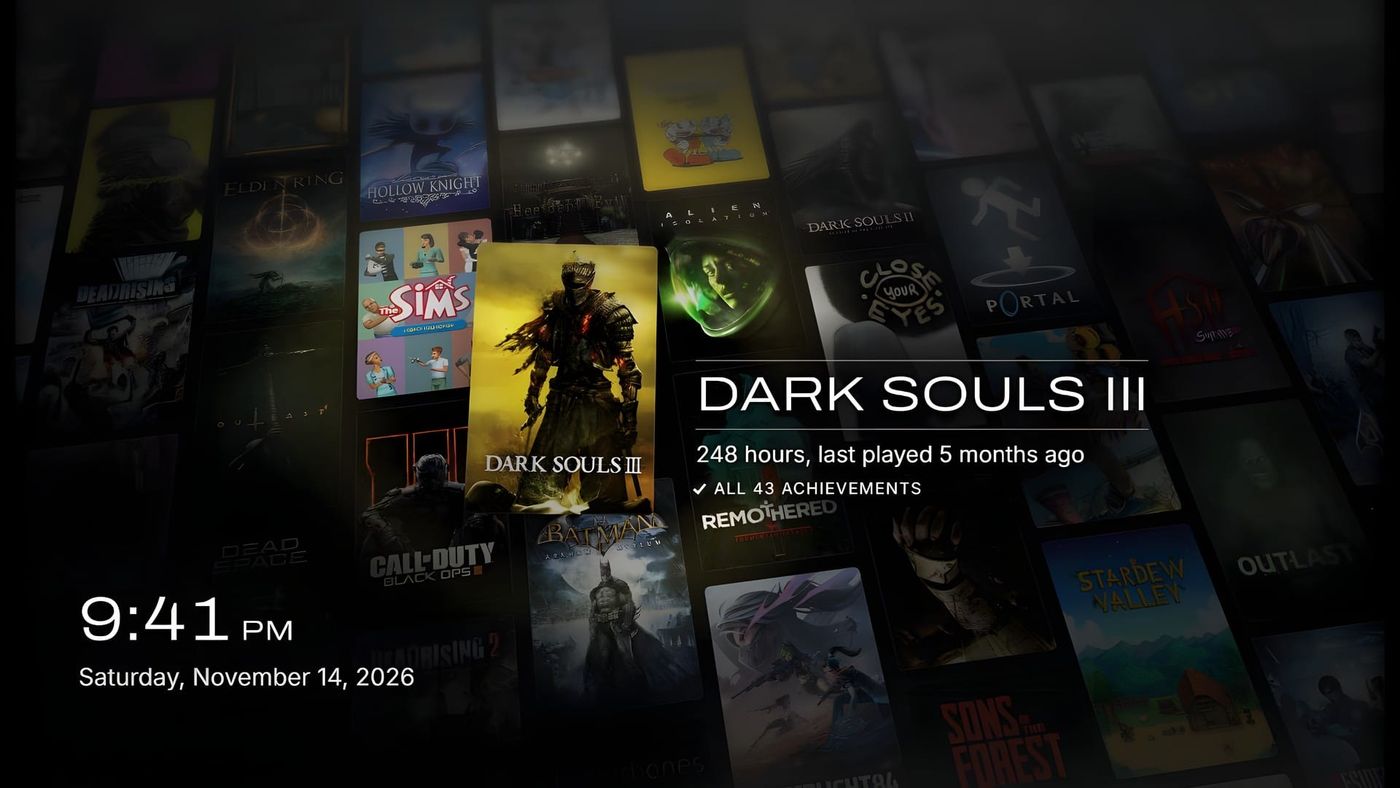
Leave a Steam Deck alone for a few minutes and the screen goes quiet, whether it’s sitting on a desk or docked under a TV across the room. Since October, Steam can fill that moment with a screensaver, and it lets you add your own. Backlog is a fan-made one that builds four slow scenes out of your own game covers, and every so often it pulls one game forward with your hours, when you last played it and your achievements. It’s free and open source, and it works in Big Picture mode on a PC too.
What does it actually show?
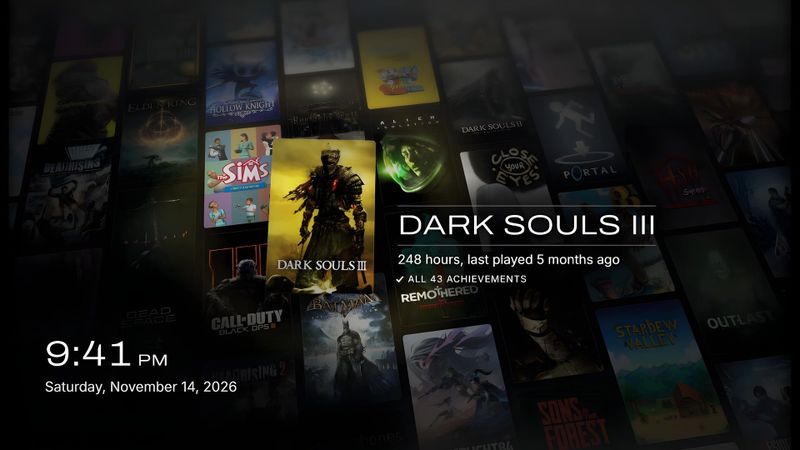
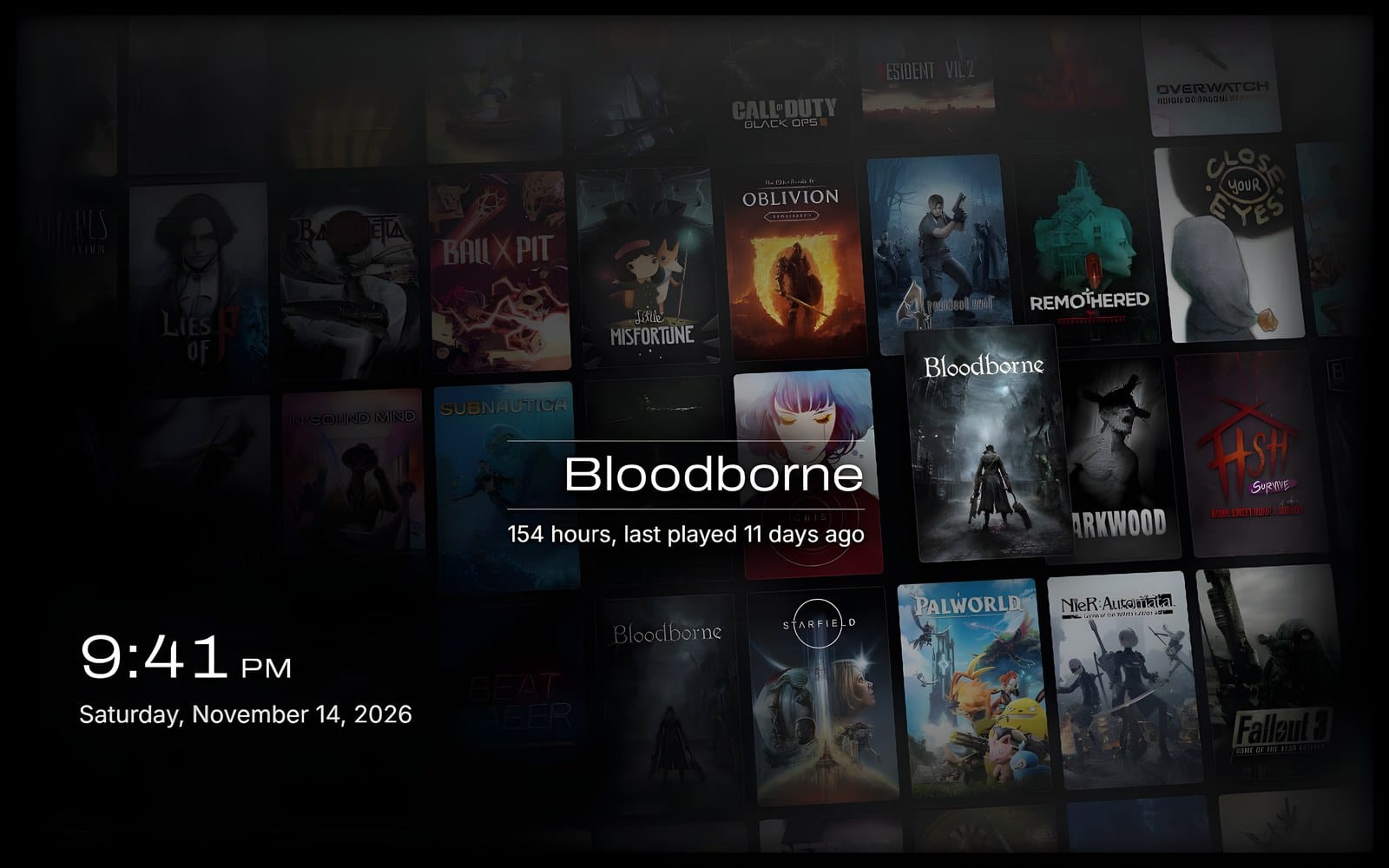
Your games, arranged four ways. Mosaic first. Hundreds of tiny covers gather into one big picture, the art of a game you own, then the camera pushes in until you can see it was your library all along. Drift is a tilted wall of covers sliding past. Flip turns over like an airport departures board, and Ripple sends a slow wave through a grid.
Every so often, one game steps into the spotlight. You get its name, your total hours, when you last played and how many achievements you’ve got. The bottom corner shows the time and date. Seeing 248 hours of one game float past is either a proud moment or a gentle warning, depending on your week.
Where did Steam screensavers come from?
Valve added them to Big Picture mode and the Steam Deck in October, along with a folder for custom ones. Steam opens a screensaver as a simple web page with no access to Steam itself, so a screensaver can’t look up your games while it runs.
Backlog gets around that at install. It reads your games, playtime, achievements, cover art and newest screenshots from Steam’s files once, and copies what it needs into the screensaver’s folder. On a Deck, it then refreshes every 15 minutes in the background, so a new game or a long weekend shows up on its own.
How do you install it on a Steam Deck?
It starts in Desktop Mode. Download the latest zip from the project’s GitHub page, unzip it, and double-click Install Backlog. It asks three things: which scenes you want, how long each one stays and what the clock shows.
Then head back to Game Mode, open Settings, then Customization, then Screensaver, and pick backlog. Want different scenes later? Run the installer again. Updating works the same way, and your settings stay put. There’s an Uninstall Backlog to match if you change your mind.
Does it work on a PC?
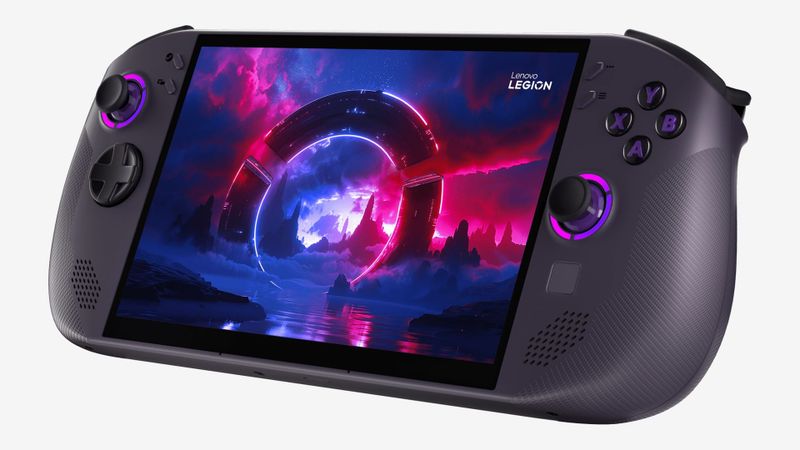
Yes, in Big Picture mode. On Windows, you run one PowerShell command from the unzipped folder and then pick backlog under Big Picture’s own screensaver setting, restarting Steam if it doesn’t show up. Linux, which is what my Legion Go 2 runs through Bazzite, gets a small install script that needs Python 3. The developer says that same script should work on a Mac too, but hasn’t been able to test it on one.
Can you make it your own?
A settings file in the screensaver’s folder covers most of it, and every line is explained. Pick favorites so only those games take the spotlight. Hide the ones you’d rather nobody saw. Merge duplicate entries so the hours add up.
My own Deck is the original LCD model, so this next one isn’t for me, but OLED owners get a setting of their own. It slowly shifts the picture around, dims it at night and can fade to black, which is easier on a screen that can burn in.
What’s next?
More releases, by the look of it. Backlog went from 1.0 to 1.0.3 in four days. Its developer tested it on a Steam Deck OLED with 127 games and wants to hear how it copes with bigger libraries.
On the shelf
Handheld PCsSee the whole story →Nerd Alert
Your Turn
What are YOUR thoughts
What have your experiences been? Let us know.