Device profile · Device Profiles · Handheld Gaming · PC Gaming · Handheld PCs
Lenovo Legion Go S: SteamOS vs Windows, Which Chip to Get, Emulation and Setup
The Legion Go S comes with SteamOS or Windows and two AMD chips. Which version to get, how fast each runs games, what it emulates, and how to set it up.
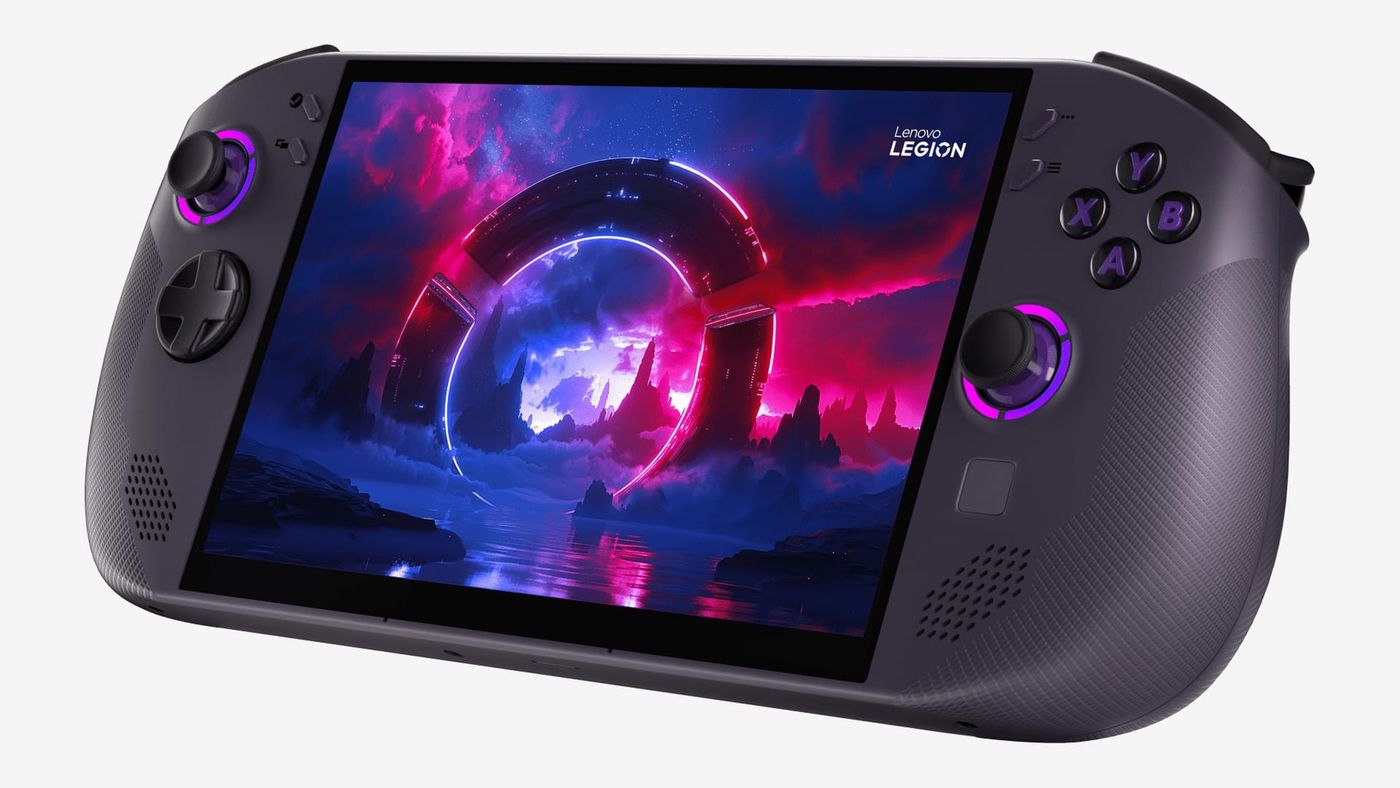
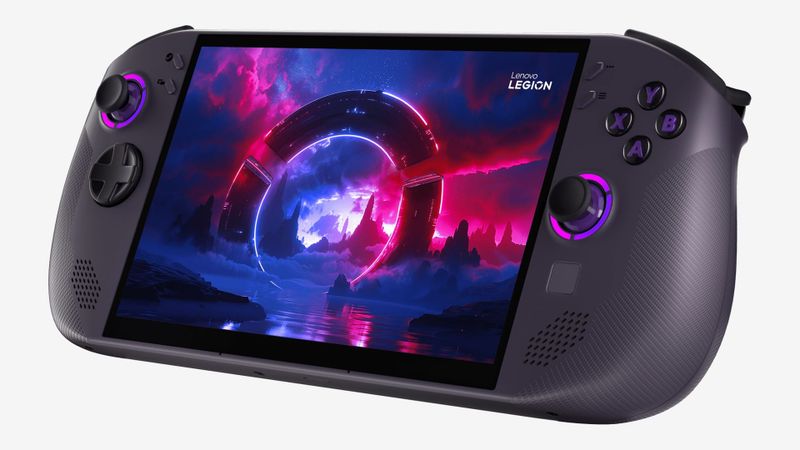
Lenovo’s Legion Go S was the first handheld you could buy with official SteamOS on it that wasn’t a Steam Deck. It’s also sold with Windows, and with two different AMD chips, and that’s where buyers get lost. Pick right and you get a handheld that beats the Steam Deck. Pick wrong and reviewers called it poor value.
Which Legion Go S should you get?
Start with the operating system, before you even look at the chip. SteamOS is the same software as the Steam Deck. It boots straight into Steam, sleeps and wakes like a console, and updates the Go S’s own firmware for you. Windows runs every store and every game, including the ones with anti-cheat that SteamOS can’t handle, like GTA Online and F1 24.
The speed gap is real. And big. Returnal ran at 18 FPS on Windows and 33 on SteamOS on the same Go S in Ars Technica’s test. That’s nearly double, from changing nothing but the software. Newer AMD drivers closed some of the gap on Windows, but SteamOS still came out ahead in most of the other games.
Then the chip. Two choices. The Z2 Go is the budget one, four cores from an older generation. The Z1 Extreme has eight newer cores and newer graphics, the same chip as the original Legion Go and the ROG Ally X, and on SteamOS it ran 8 to 18 FPS faster in Tom’s Hardware’s games. On a handheld, that’s a gap you’ll feel in newer games. If the price difference is small, get the Z1 Extreme. If you mostly play lighter games and emulate up to Wii U, the Z2 Go is enough.
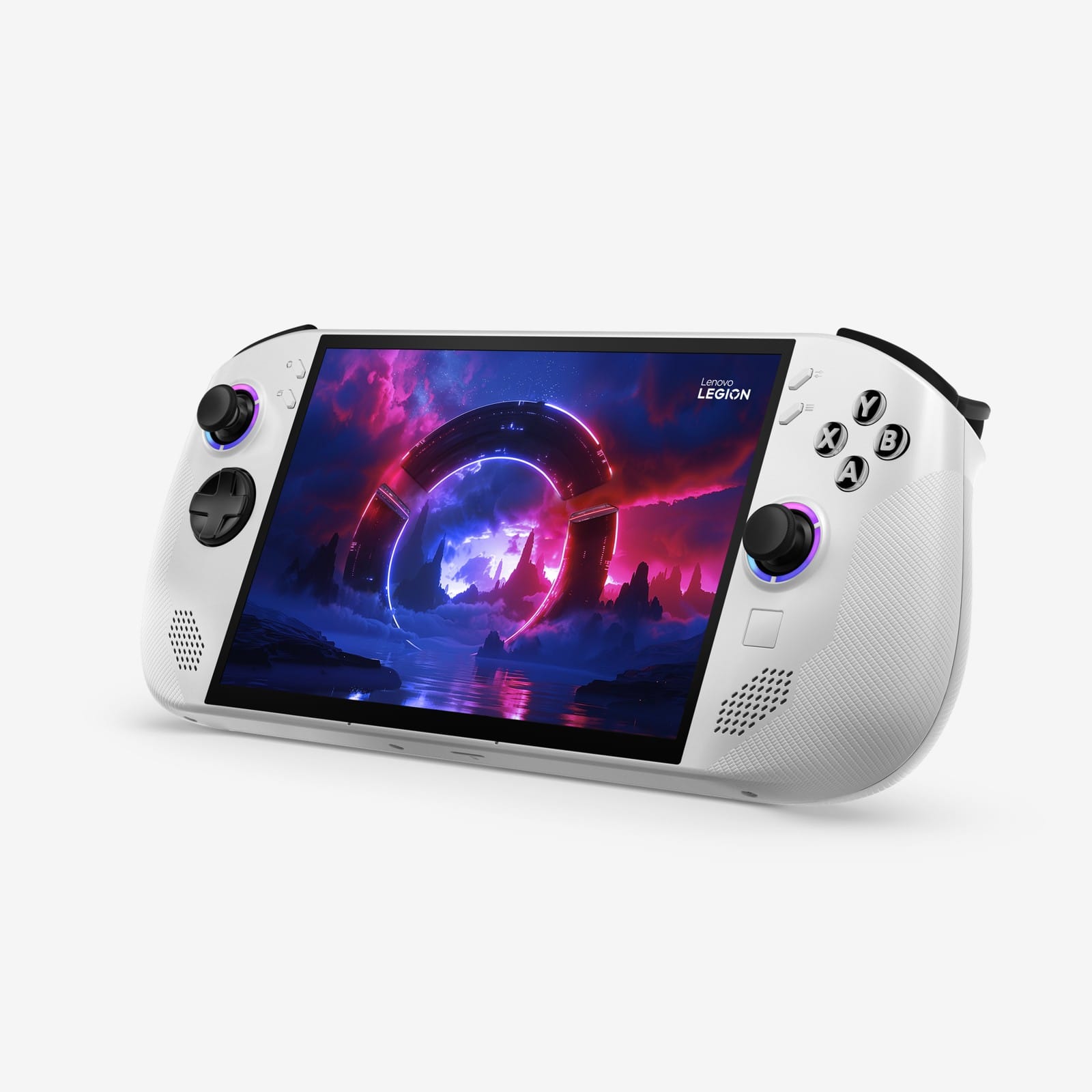
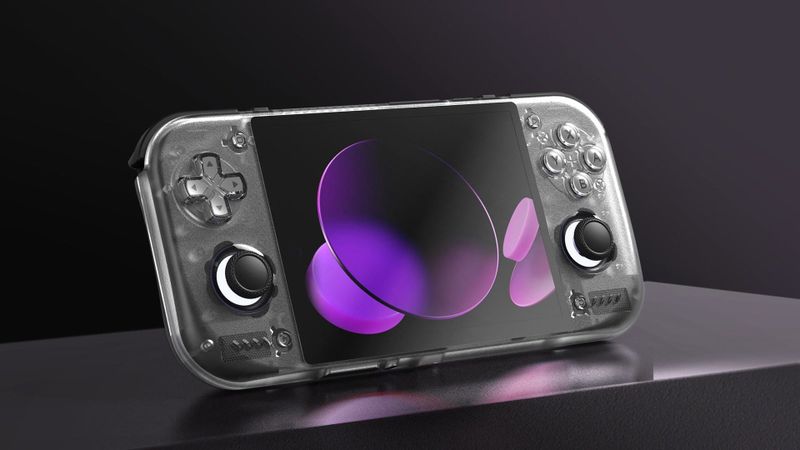
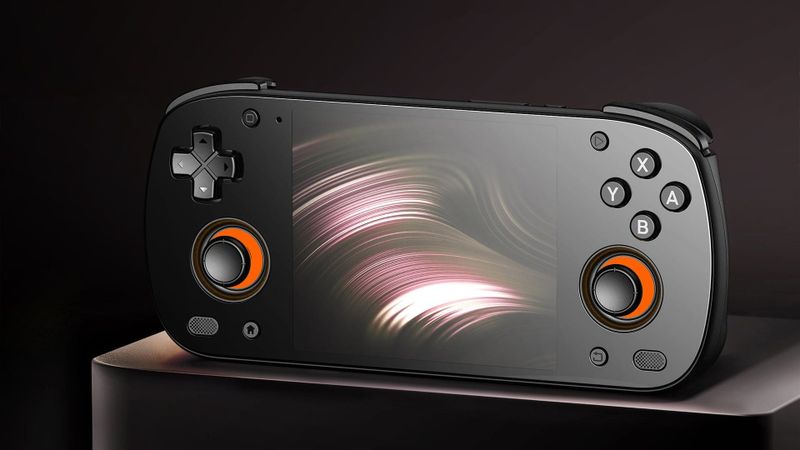
One easy way to tell them apart: the colour follows the OS. Every Windows model is Glacier White, and every SteamOS model is Nebula Nocturne, a dark purple-grey.
How fast is the Legion Go S in PC games?
On SteamOS, faster than a Steam Deck, even with the cheaper chip. These numbers come from Notebookcheck’s reviews at 1080p.
| Game and settings | Go S Z2 Go, SteamOS | Go S Z2 Go, Windows | Steam Deck OLED | ROG Ally X, Windows |
|---|---|---|---|---|
| GTA V, Highest | 25.3 FPS | 17.8 FPS | 19.5 FPS | 27.1 FPS |
| Strange Brigade, Ultra | 46 FPS | 35.9 FPS | 30 FPS | 51.6 FPS |
| Shadow of the Tomb Raider, Highest | 34 FPS | 27 FPS | 25 FPS | 37 FPS |
| Cyberpunk 2077, Ultra | 20.1 FPS | 13.8 FPS | Not tested | 22.9 FPS |
The Z1 Extreme version goes further. On SteamOS it edged out the ROG Ally X running Windows in HotHardware’s games, and the Ally X has the same chip. So a Go S on SteamOS gets more out of a Z1 Extreme than the Ally X does on Windows. That says a lot about SteamOS.
What can the Legion Go S emulate?
Everything up to Wii U. Either chip. Retro Catalog scores the Z2 Go version exactly the same as a Steam Deck OLED, so if you know what a Deck can emulate, you know what this can. Switch and PS3 are where it gets patchy, and that’s where the chip starts to matter.
| System | How it runs | What reviewers found |
|---|---|---|
| Up to SNES, PS1, N64, Dreamcast | Runs well | Fully playable, upscaled to 1080p |
| PS2 | Runs well | Played perfectly even upscaled to 1080p |
| GameCube and Wii | Runs well | F-Zero GX at a full 60 FPS; Wii Remote games need control setup |
| 3DS, DS, PSP | Runs well | |
| Wii U | Runs well | Wind Waker HD ran flawlessly |
| Switch | Patchy | A kart racer ran with occasional drops on the Z2 Go |
| PS3 | Patchy | Demon’s Souls was very playable at about 40 FPS at 720p |
One thing to keep in mind. Most of those game results come from Retro Dodo’s review of the Windows Z2 Go, and Lenovo sponsored that review. Retro Catalog’s scores point the same way, though. If Switch and PS3 matter to you, go for the Z1 Extreme, with twice the cores and newer graphics.
How do you set up emulation on the Legion Go S?
EmuDeck is the easy route on both systems. It installs and configures the emulators, sets up Steam ROM Manager so your games show up in your Steam library, and checks your BIOS files. On SteamOS you install it from Desktop Mode, and EmuDeck’s wiki wants your microSD card formatted for Linux, which SteamOS does for you in Game Mode.
Some emulators want a BIOS, a copy of the original console’s start-up code, and those files come from your own hardware. Plan on one for PS1 and PS2. The PS3 emulator installs Sony’s own system update, and Switch emulation needs keys and firmware from your own Switch.
If you’d rather browse your games in a dedicated menu, ES-DE is free on Windows and SteamOS. I’ve written a front ends and firmware guide that explains what it does.
How do you set up the Legion Go S?
On SteamOS, sign in and let it update. That one update covers the Go S’s BIOS and controller firmware too. For power, the Quick Access button plus Y cycles the modes: 10W Quiet, 15W Balance and 30W Performance, or a custom limit from 5 to 40W. Leave it on Balance for most games and save Performance for the heavy ones, because that’s where the battery goes. If you use a microSD card, update first. SteamOS 3.8.12 fixed card reader problems on some models.
On Windows, open Legion Space with the Legion L button. My own Legion Go 2 runs Bazzite, so I skip it, but on a Windows Go S it’s where the updates live. Check for driver and BIOS updates under Disks and Drivers. Don’t skip that. In June 2025, Ars Technica found Lenovo’s graphics driver months out of date, and newer AMD drivers made games run noticeably better. Legion L plus Y cycles the same power modes, and the Xbox full screen experience is there if you want a console-style screen.
Can you put SteamOS on a Windows Legion Go S?
Yes. Valve supports it. Valve lists the Legion Go S as one of only a handful of devices “Powered by SteamOS,” and its SteamOS install page has steps for the Windows model. You write Valve’s recovery image to a USB drive, turn off Secure Boot in the BIOS, then boot from the drive and choose to wipe the device and install SteamOS.
Two warnings first. It erases Windows completely, so back up anything you want to keep. And Retro Handhelds recommends updating the BIOS and drivers in Windows first. The touchpad’s firmware update isn’t in Legion Space or Windows Update, so it comes from Lenovo’s support site and installs from Windows.
What should you know before you buy?
Mostly the price. It’s moved. The SteamOS Z2 Go launched at $599.99, and by April 2026 it was $989.99 at Best Buy. That’s about 65% more. Check Lenovo’s current price before you decide, because it may have moved again.
Beyond the price, two things would give me pause. The battery is small for this class at 55.5Wh, so heavy games last about 2 to 2.5 hours on SteamOS and less on Windows. And the controls don’t detach, unlike the original Legion Go and the Legion Go 2, so if you liked that trick, this isn’t the one.
The rest is small stuff. There’s no fingerprint reader, so Windows asks for your PIN on the touchscreen every time it wakes, by default. And the touchpad is tiny, about 10mm square.
Legion Go S vs Legion Go 2 and Steam Deck
The Legion Go 2 is the one I actually own, and you can read my Legion Go 2 long-term review. It’s bigger and pricier, with detachable controllers, an 8.8-inch OLED and the Z2 Extreme chip that people sometimes expect in the Go S. If you want one device that does everything, controllers off included, that’s the Go 2, though at today’s prices my review says to look at a handheld with Intel’s new Arc G3 Extreme chip instead. If you want something lighter and simpler for the couch, the Go S makes more sense.
Against the Steam Deck, it comes down to what you want more. If it’s speed and a bigger screen, the Go S on SteamOS beat the Deck in every game Notebookcheck tested, on a sharper 120Hz panel. If it’s an OLED, a lighter handheld and longer battery life, usually for less money, the Deck OLED is still the one. PCWorld and Engadget both got longer battery life from it.
| Legion Go S | Legion Go 2 | Steam Deck OLED | |
|---|---|---|---|
| Chip | Ryzen Z2 Go or Z1 Extreme | Ryzen Z2 or Z2 Extreme | AMD custom APU |
| Screen | 8-inch IPS, 1200p, 120Hz | 8.8-inch OLED, 1200p, 144Hz | 7.4-inch OLED, 800p, 90Hz |
| Controls | Built in | Detachable | Built in |
| OS | SteamOS or Windows | Windows | SteamOS |
Lenovo Legion Go S specs
| Spec | Lenovo Legion Go S |
|---|---|
| Chip | AMD Ryzen Z2 Go (Zen 3+, 4 cores, RDNA 2) or Ryzen Z1 Extreme (Zen 4, 8 cores, RDNA 3) |
| Memory | 16GB or 32GB, soldered |
| Storage | 512GB or 1TB; M.2 slot takes 2242 or 2280 drives; microSD up to 2TB |
| Screen | 8-inch IPS touch, 1920x1200, 16:10, 48 to 120Hz variable refresh rate, 500 nits |
| Battery | 55.5Wh; 65W USB-C charger on US models |
| Controls | Hall effect sticks with RGB rings, triggers with range switches, two rear buttons, small touchpad, gyro, HD haptics |
| Ports | Two USB4 with DisplayPort 1.4 and charging, microSD, 3.5mm headphone jack |
| Wireless | Wi-Fi 6E, Bluetooth 5.3 |
| Size and weight | 298.5 x 127.55 x 22.6 to 43.4mm, about 740g |
| Software | SteamOS (Nebula Nocturne) or Windows 11 Home (Glacier White) |
On the shelf
Handheld PCsSee the whole story →Nerd Alert
Your Turn
What are YOUR thoughts
What have your experiences been? Let us know.