Guide · Guides · Handheld Gaming · Retro Gaming · Emulation
How to Set Up ES-DE on Android: The Complete Guide, Shown on the Retroid Pocket Duo
Every step of setting up ES-DE 3.5 on an Android handheld, shot on the Retroid Pocket Duo: setup, games, emulators, box art, themes, both screens with ES-DE Companion, and fixes for games that won’t launch.
https://averagetechnerds.com/es-de-android-setup-guide-retroid-pocket-duo/
 EmulationAndroid emulators, by systemWhere to get each one, what it costs, and the ones I runSee the emulators →Every emulation article →
I’ve set up ES-DE on more Android handhelds than I can count, and it’s still the first thing that goes on a new one. It’s also where a new handheld can swallow a whole evening if you don’t know the traps. So this time I did it on my Retroid Pocket Duo with a screenshot at every step, on both screens, and wrote down every spot where the Duo didn’t behave the way ES-DE’s own guide says it should.
Why ES-DE
A front end is the menu that sits in front of all your emulators. ES-DE shows every game you own in one place, with box art, and when you pick one, it opens it in the right emulator for you. Without one, you’re bouncing between RetroArch for some systems, a separate app for others, and a file browser for all of them.
What keeps me coming back is how far it goes. It does a lot. It knows more than 150 systems out of the box, lets you pick a different emulator for most systems or even a single game, and it’s the same app on Windows, Mac and Linux, so your games and box art can move between devices. On a two-screen handheld like the Duo, version 3.5 also lets you choose which screen each system opens on.
Before you start
Get a few things lined up first, and the rest goes much faster. You’ll need ES-DE itself, which comes up next, plus your own games and the BIOS files from your own consoles for the systems that need them. ES-DE doesn’t come with any of those, and this guide won’t tell you where to find them.
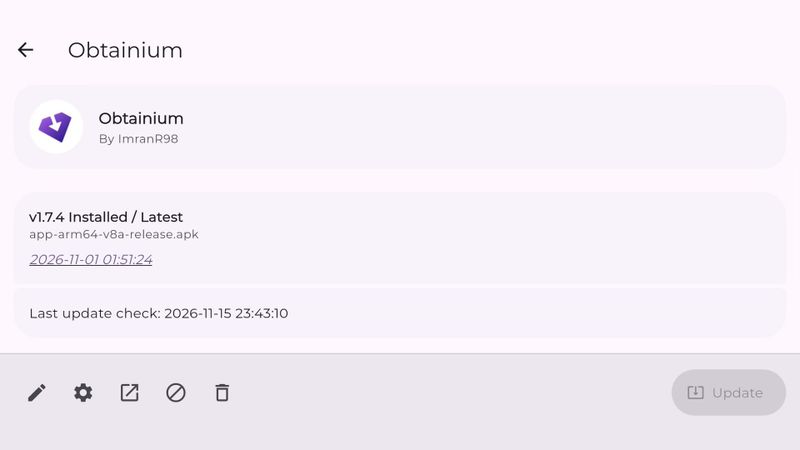
It doesn’t install emulators either, so plan on adding those yourself. For that, I recommend Obtainium. It installs apps straight from their makers’ own pages and keeps them up to date for you. You’ll also want a file manager that can install apps, since ES-DE and a few emulators don’t come from the Play Store. I use MiXplorer. And if you want the best box art, make a free account on ScreenScraper while you’re at it. It’s optional, but it speeds things up later.
Buying and installing it
On Android, ES-DE is sold through Patreon. It’s also on the Samsung Galaxy Store and Huawei’s AppGallery, but you won’t find either one on a handheld like the Duo, and it isn’t on Google Play at all. On Patreon it’s $6, and a single month’s membership is all it takes. The app stays yours after that, on every device you own. No subscription needed.
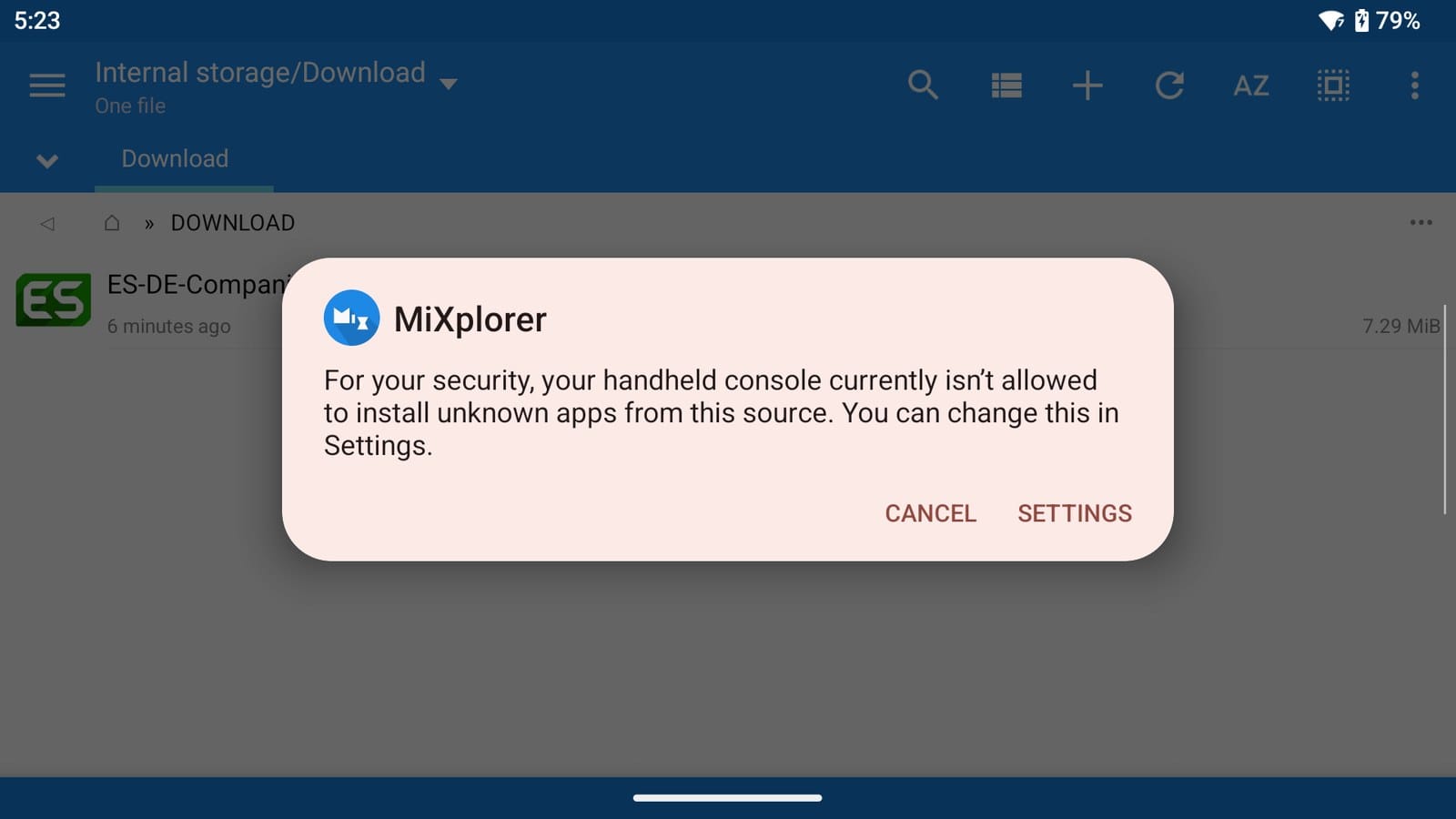
Once you’ve paid, a download link arrives by email. Open it on the Duo, download the file and tap it in your file manager. The first time you install an app that way, Android stops you and asks whether that file manager is allowed to install apps. Tap Settings, switch on Allow from this source, then go back and finish. You only do this once.
Hang on to that email, because every update arrives the same way. If you lose it, resend.es-de.org sends the latest one again. The link sometimes refuses to download from inside Gmail, so copy it into your browser if that happens. And if Android says “there was a problem parsing the package”, either the download didn’t finish or the device isn’t 64-bit Android 10 or newer. If ES-DE won’t run on your handheld at all, they refund Patreon buyers within a month.
The first-launch setup
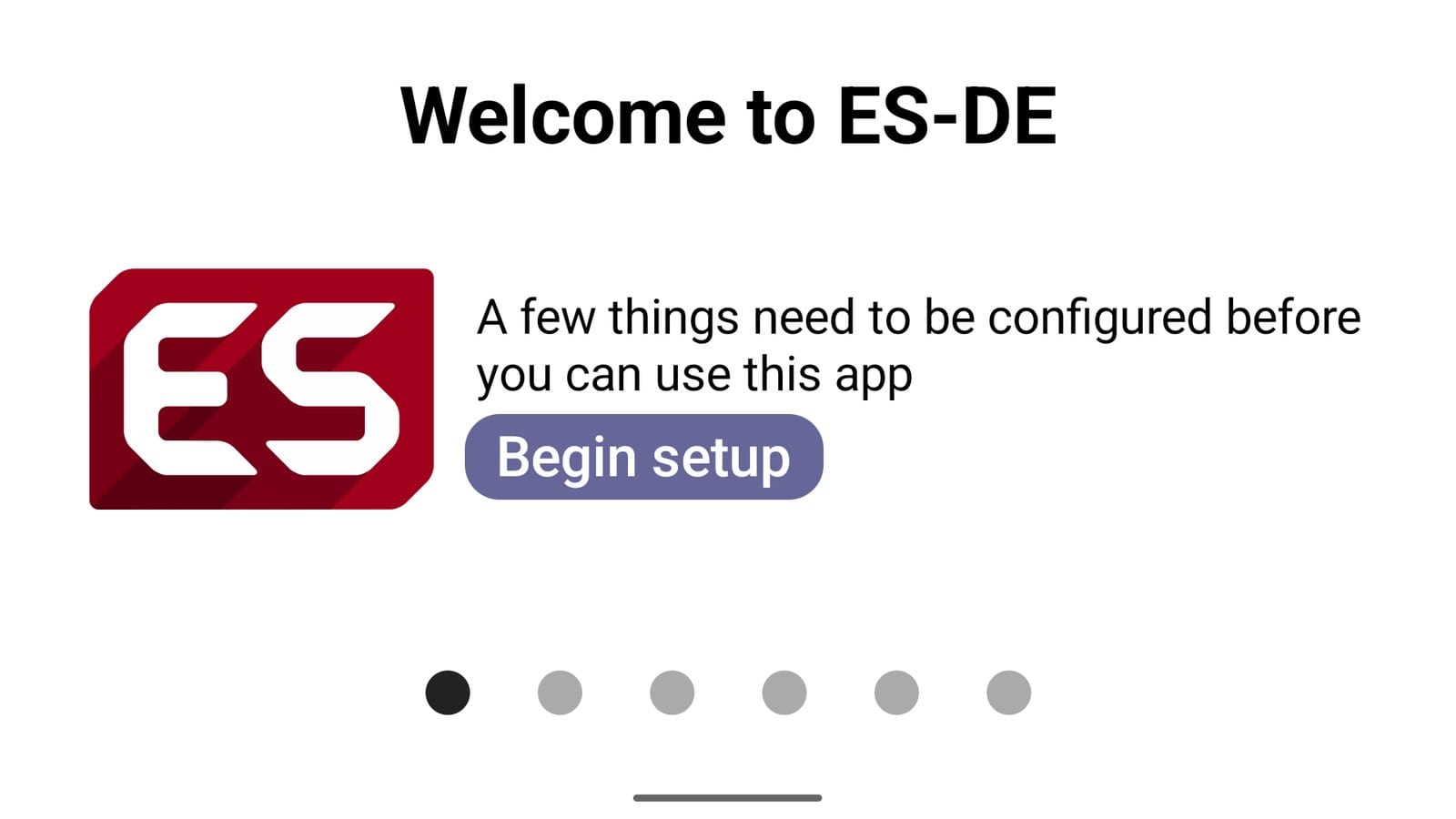
The first time you open ES-DE, it walks you through a short setup it calls the configurator. On the Duo, all of it happens on the top screen.
Step 1: Storage access
ES-DE reads and writes thousands of files across your games and box art, so it needs permission to manage your storage. Tap Open permission screen, switch on Allow access to manage all files, and go back.
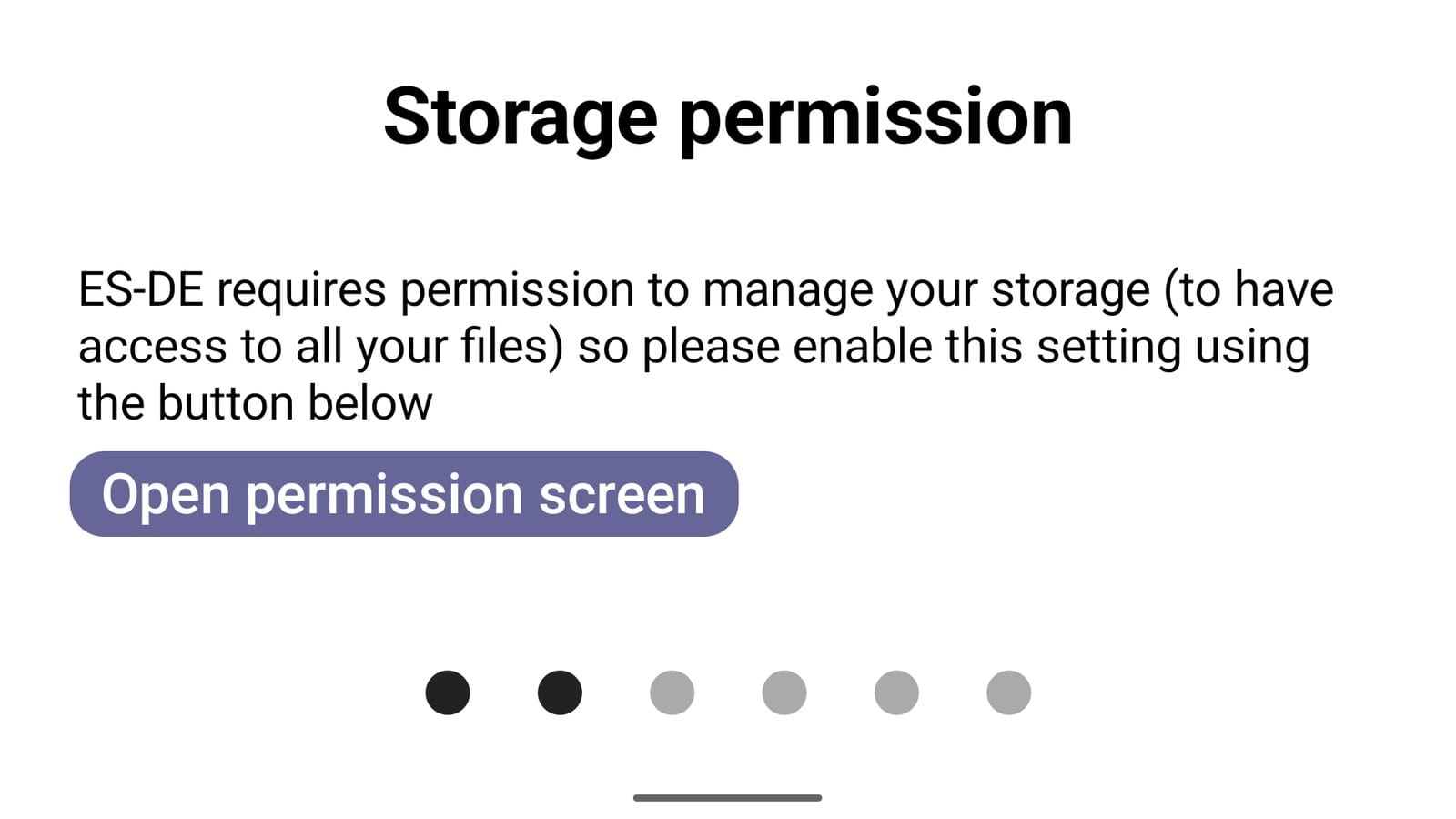
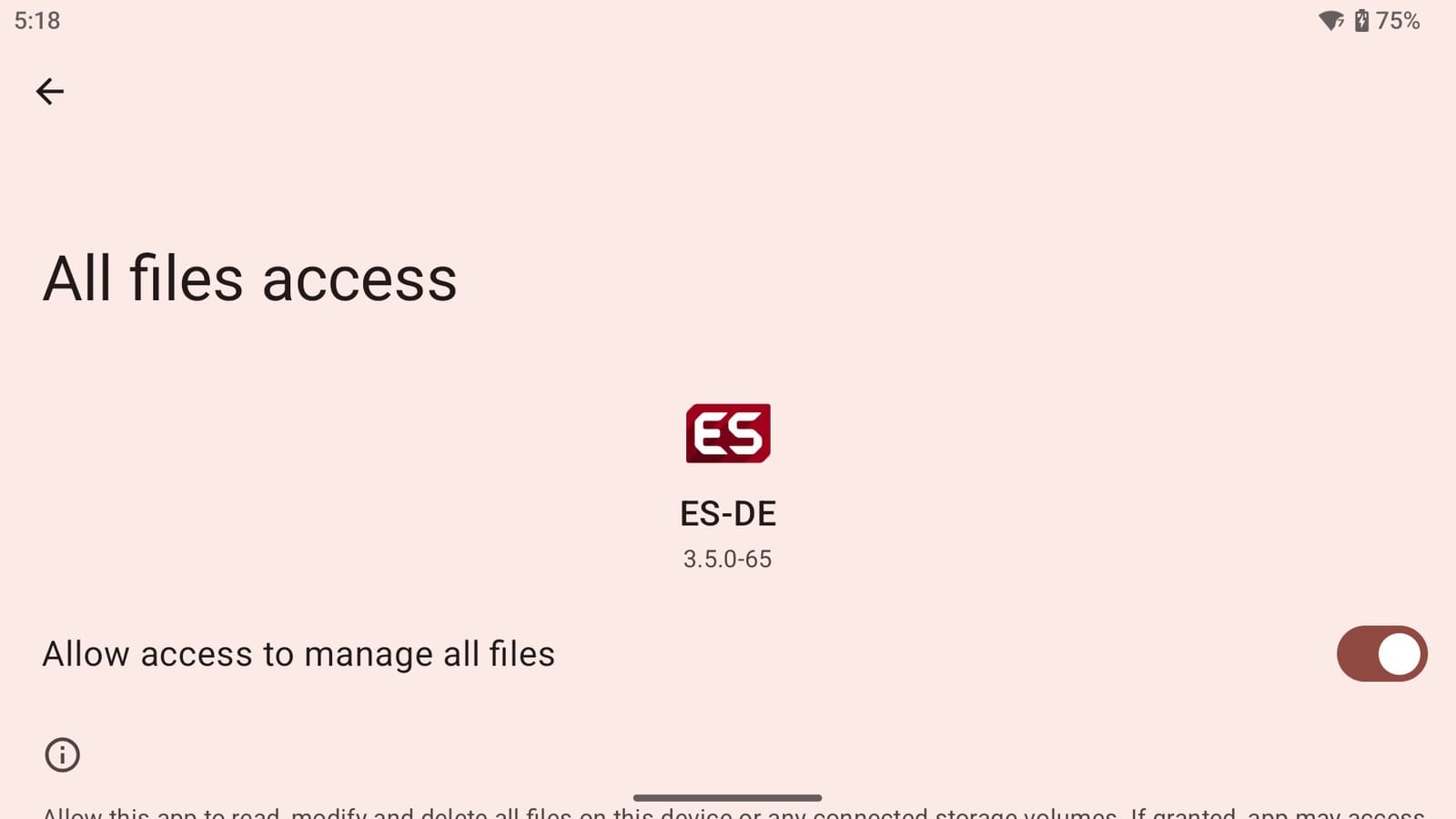
Running setup a second time? If the button says Already granted, that’s fine. Carry on. On the Duo, clearing ES-DE’s data doesn’t take this permission away.
Step 2: The ES-DE folder
Next it wants a home for your settings, gamelists, box art and collections. Call the folder ES-DE and keep it on internal storage, even if your games are going on an SD card. ES-DE reads lots of small files from it, and internal storage handles that far better than a card does.
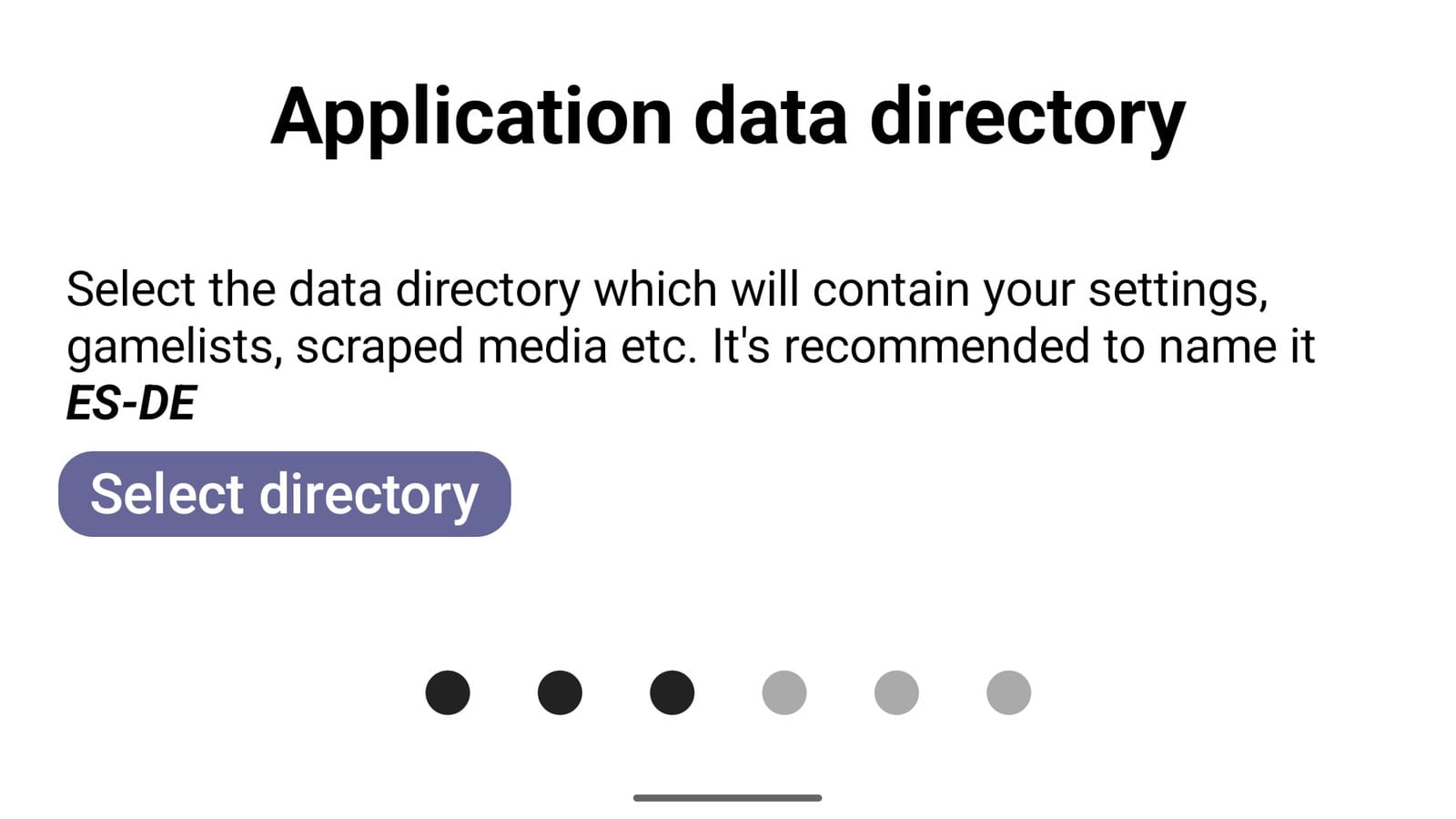
When Android’s folder picker opens, go to internal storage, make or open the ES-DE folder, tap Use this folder, then Allow.
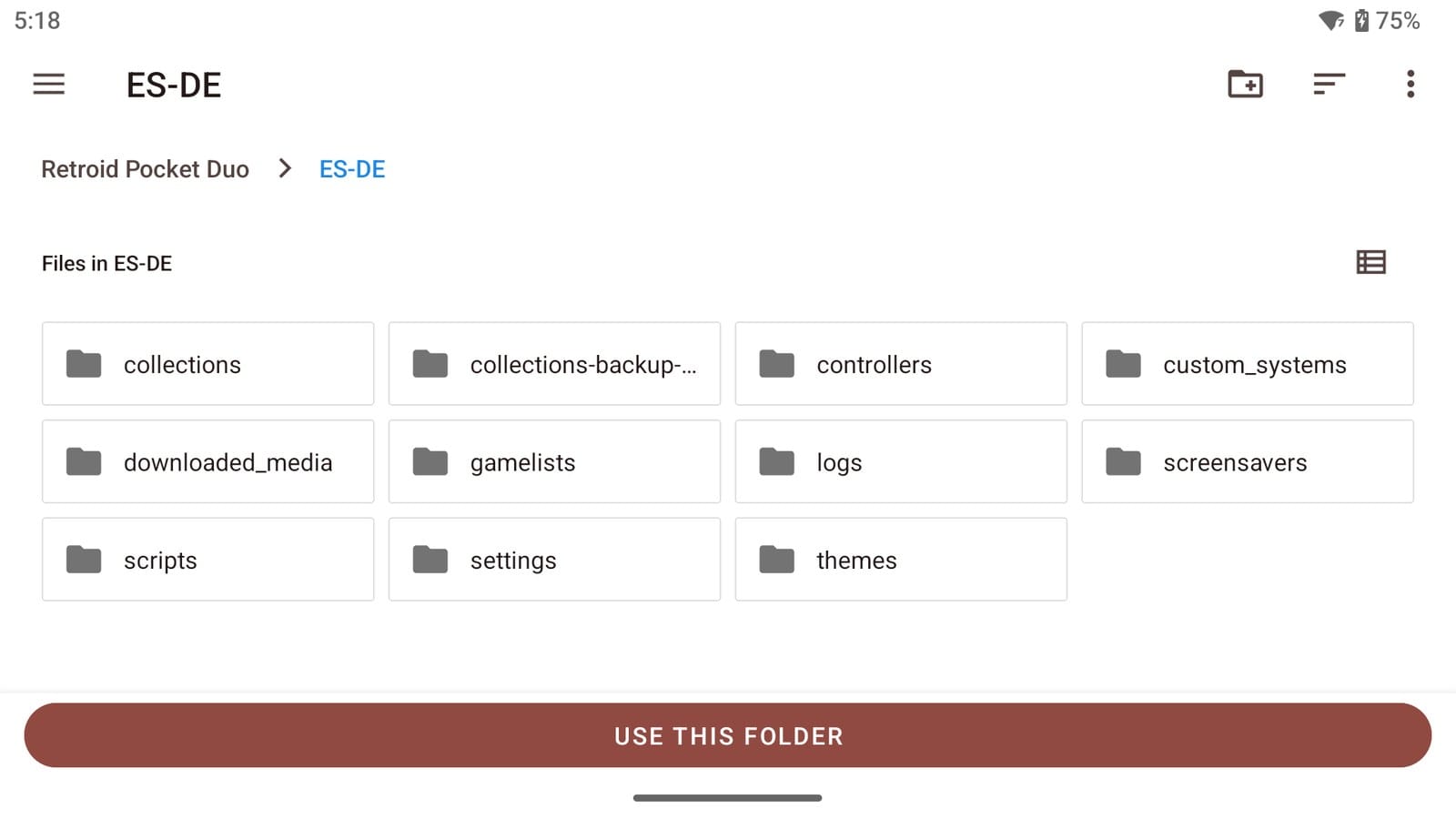
If ES-DE has been on this device before, point it at the same folder. You won’t see a “setup found” message. It just carries on, and your settings, gamelists and collections come back with it. So do any themes you put in ES-DE/themes yourself. Themes from the theme downloader are the exception, because clearing ES-DE’s data or uninstalling it deletes them.
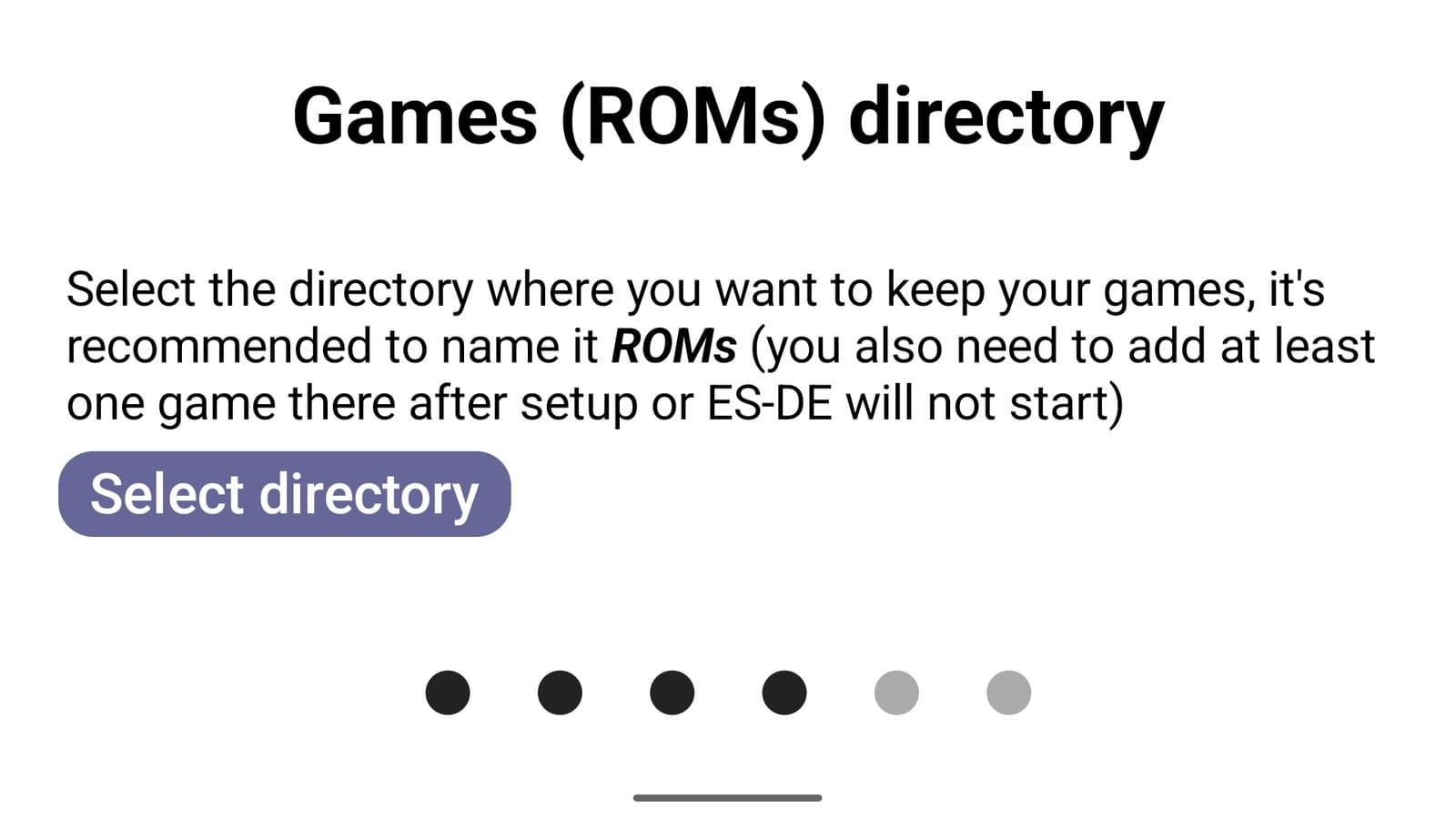
Step 3: Your games folder
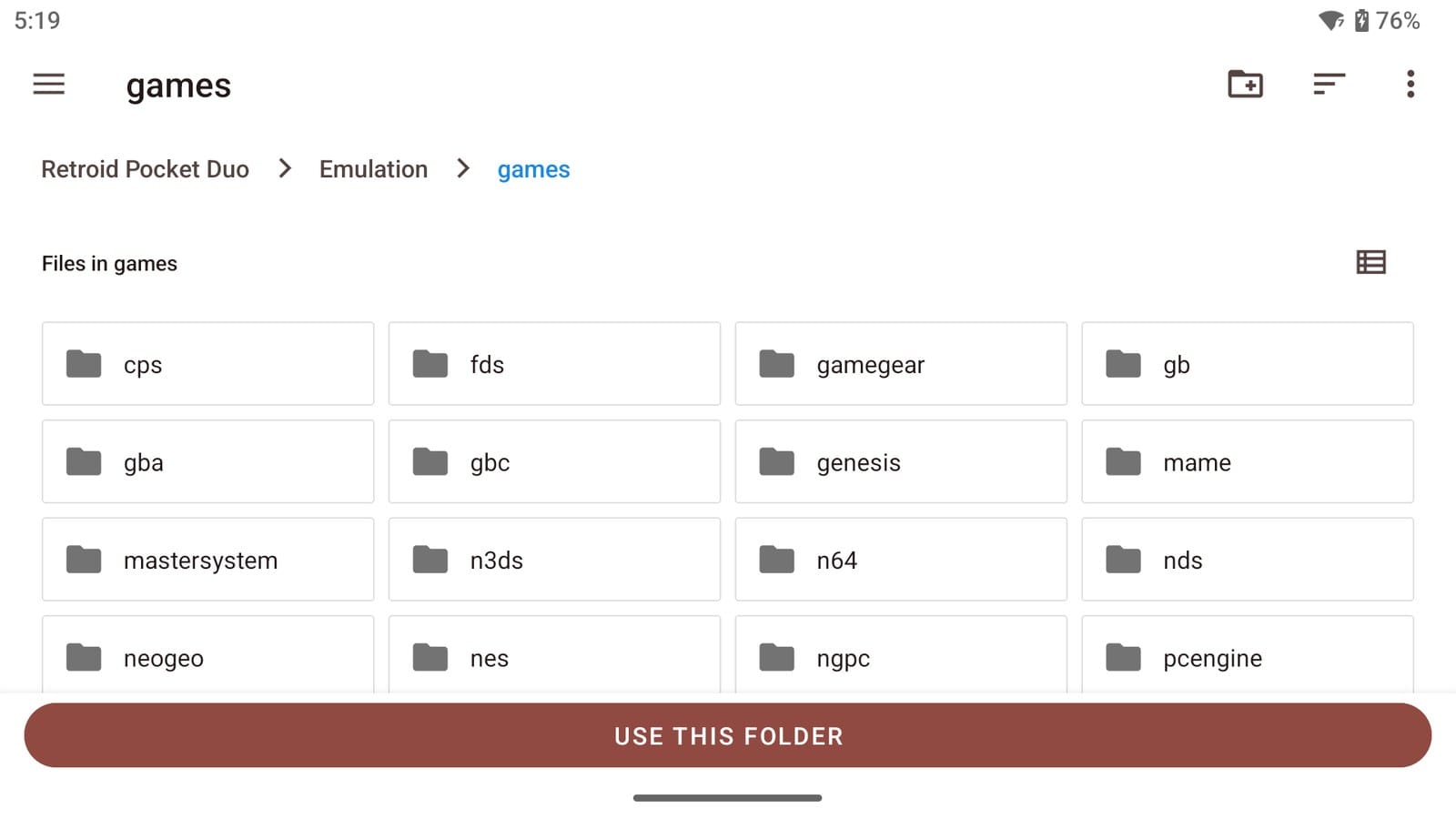
Now for your games. ES-DE suggests a folder called ROMs. Any name works, though. Mine’s Emulation/games.
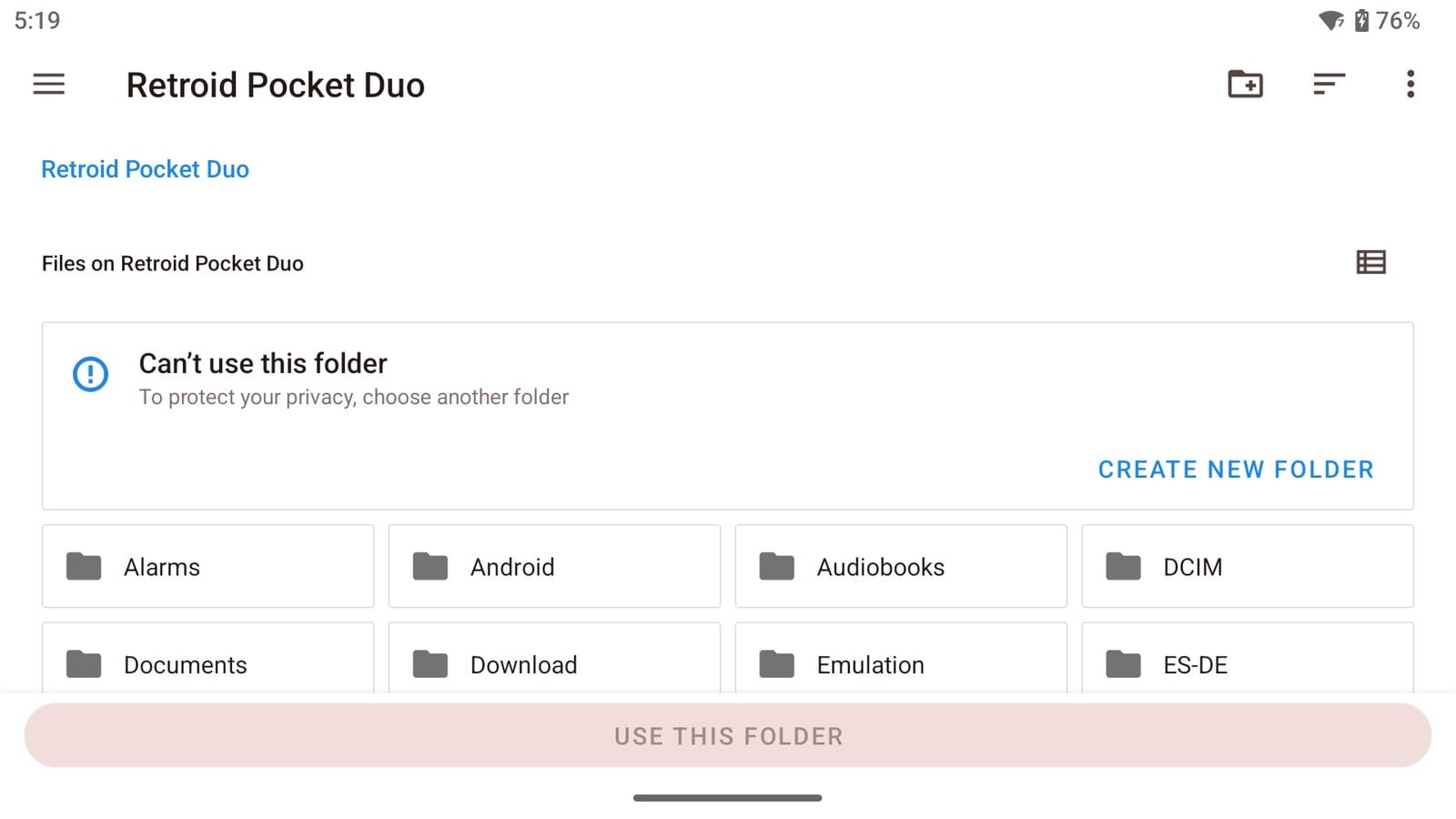
Android won’t let you pick the very top of your storage, though. Try it, and you get “Can’t use this folder”, so make a folder for your games and choose that.
Putting your games on the SD card instead? Open the menu at the top left of the picker and choose the card there. ES-DE’s Android documentation says you’ll need to make the games folder on the card yourself in that case, and delete the empty one it already made on internal storage.
Step 4: The system folders
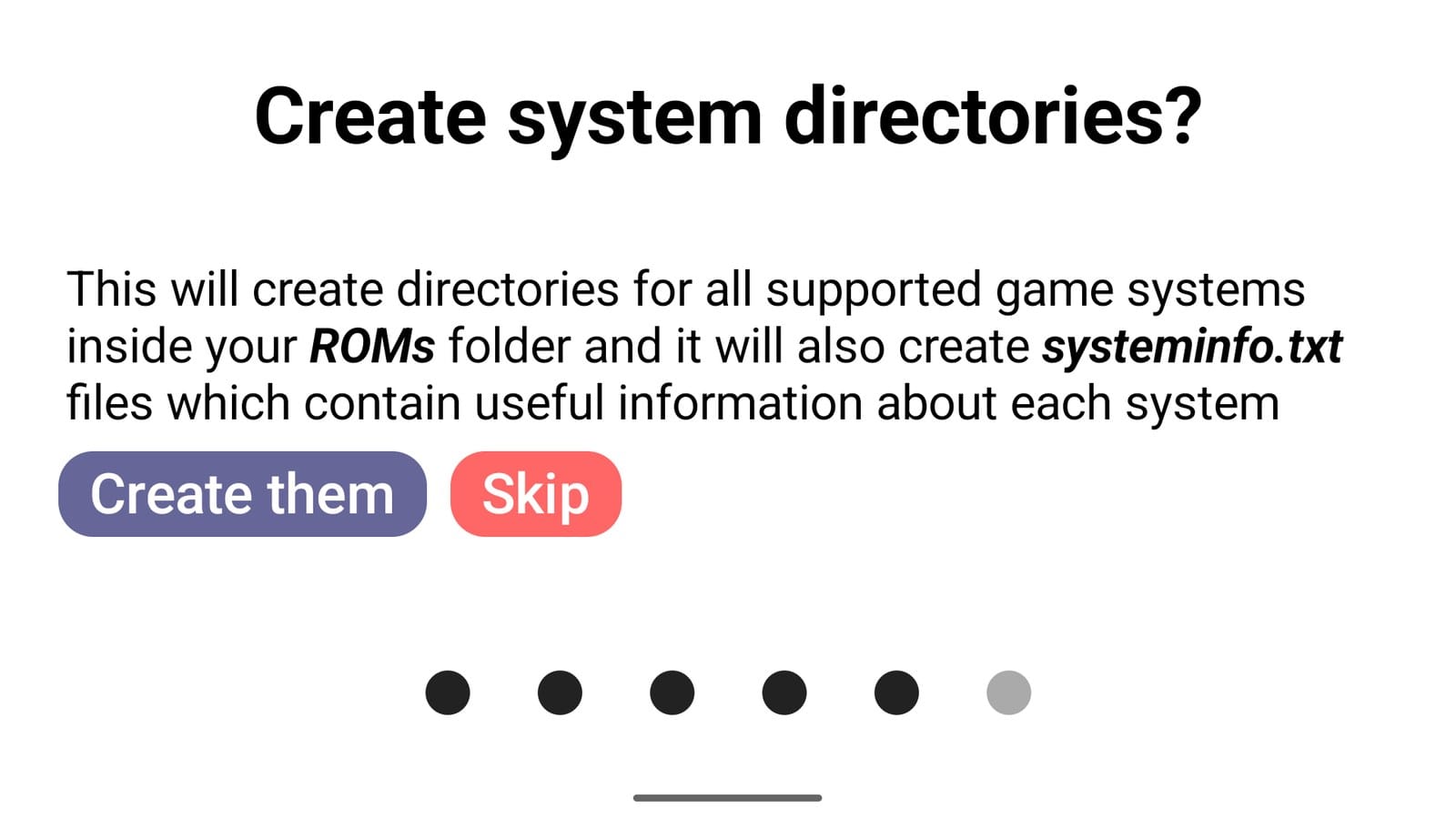
ES-DE then offers to make a folder for every system it knows, each with a systeminfo.txt file inside that lists the file types and emulators that system takes. On a fresh setup, let it. You can delete the ones you don’t need afterwards. I skipped it this time, because my games folder was already laid out the way I like it.
Step 5: Done
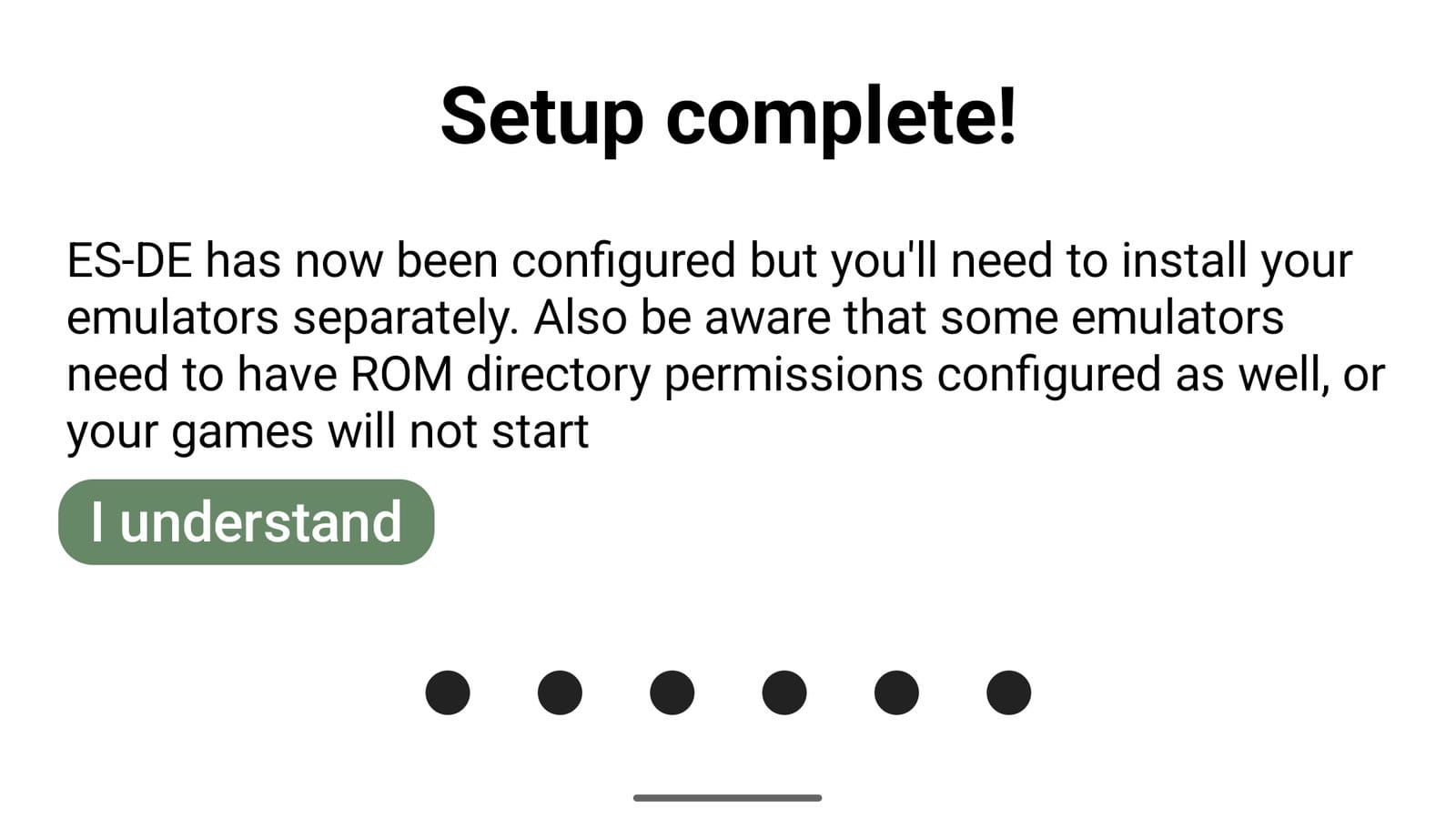
Last comes a reminder that ES-DE doesn’t install emulators, and that some of them need permission to see your game folders before they’ll work. Tap I understand, and it goes looking for your games.
Getting around ES-DE
Once setup finishes, ES-DE opens on the system view, with one entry for each system you have games for. Press A on a system, and you’re in its game list. The bar along the bottom of the screen shows what every button does right where you are, so glance down whenever you’re not sure.
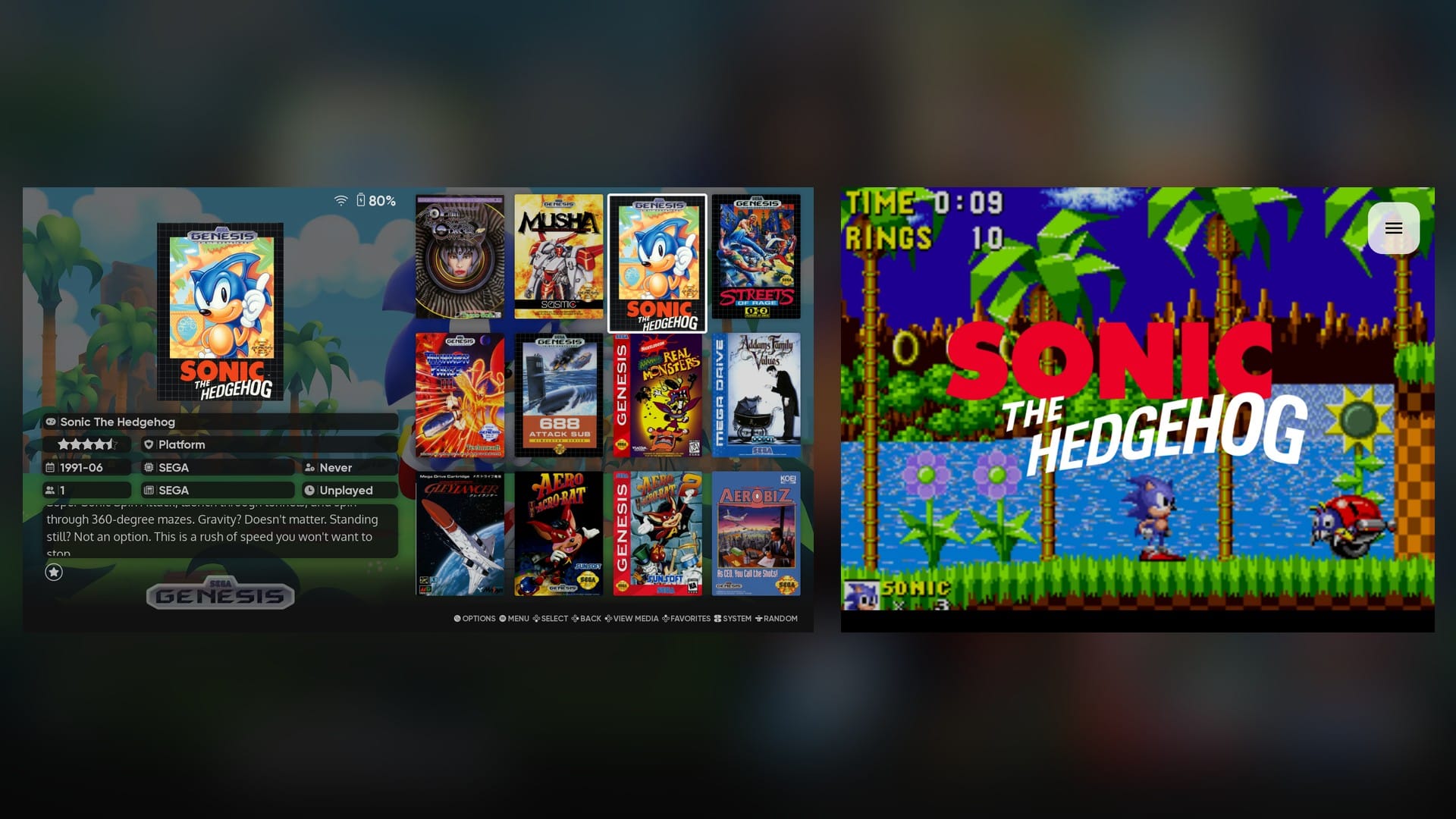
These are the buttons you’ll use most. The letters are for my Duo, which has a Nintendo-style layout. On an Xbox-style handheld, like my Odin 2 Portal, the buttons flip: where this list says A, press B, and where it says X, press Y. The same goes the other way round. ES-DE can also swap them back for you, under Settings worth changing.
- **A** opens a system, launches a game and picks things in menus.
- **B** goes back.
- **Start** opens the main menu, where almost every setting in this guide lives.
- **Select** opens the gamelist options for wherever you are. You can sort and filter the list there, jump straight to a letter, and edit a game’s details.
- **Y** marks a game as a favorite.
- **X** opens the media viewer, with the game’s screenshots, videos and box art full screen.
- **Clicking a thumbstick** jumps to a random game, which is a good way to find something you forgot you had.
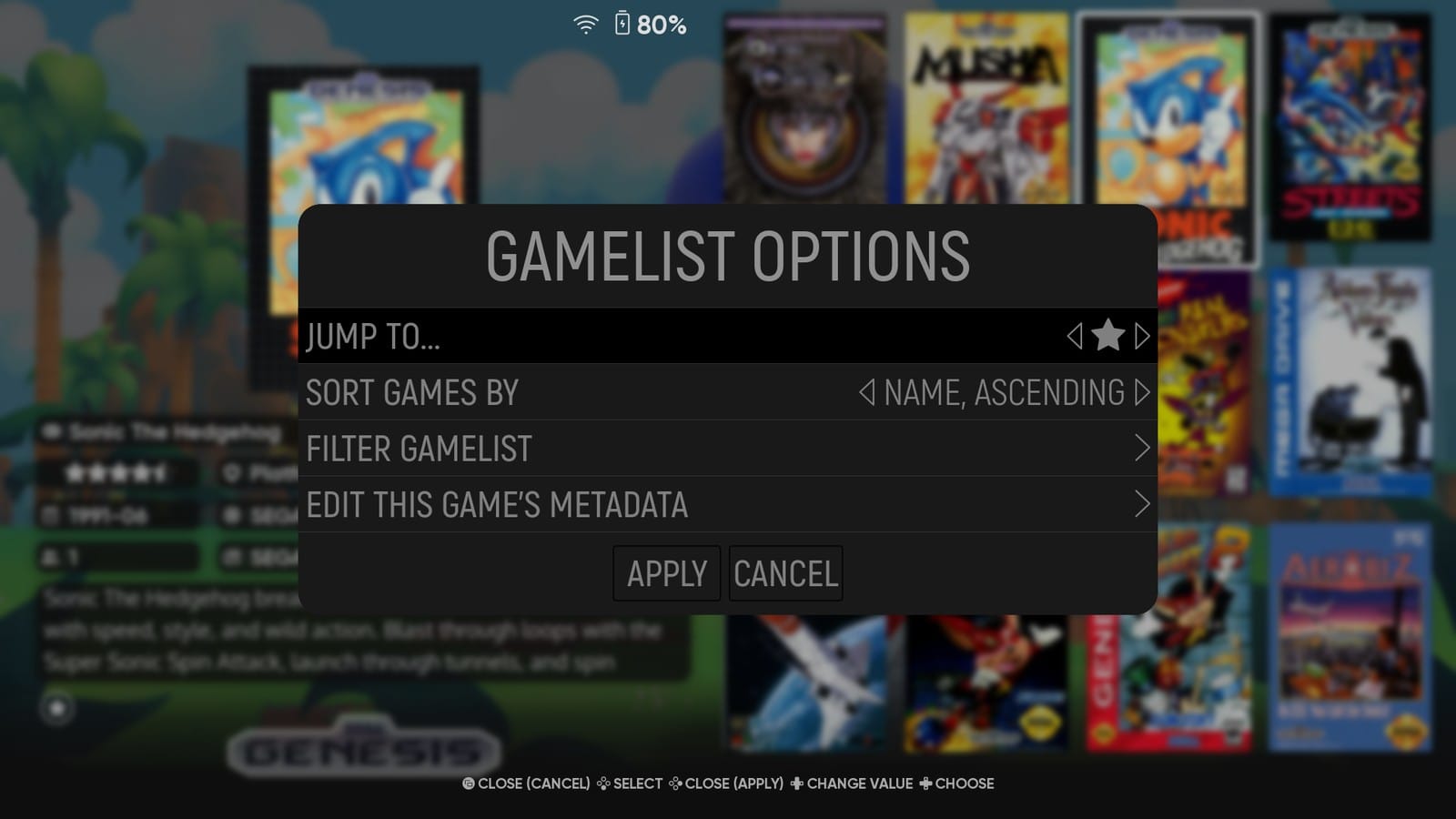
The shoulder buttons depend on your theme. In a grid like the one in my screenshots, left and right move through the games, so the shoulder buttons take you to the next or previous system. In a plain list, left and right do that job instead, and the shoulders jump 10 games at a time. And if you’re hunting for one game in a big list, Filter gamelist in the gamelist options lets you type part of its name.
Putting your games in
With the folders made, your games go one system per folder. ES-DE uses its own short names, like psx for the PlayStation, genesis for the Genesis and dreamcast for the Dreamcast, which is why letting it make the folders saves so much guessing.
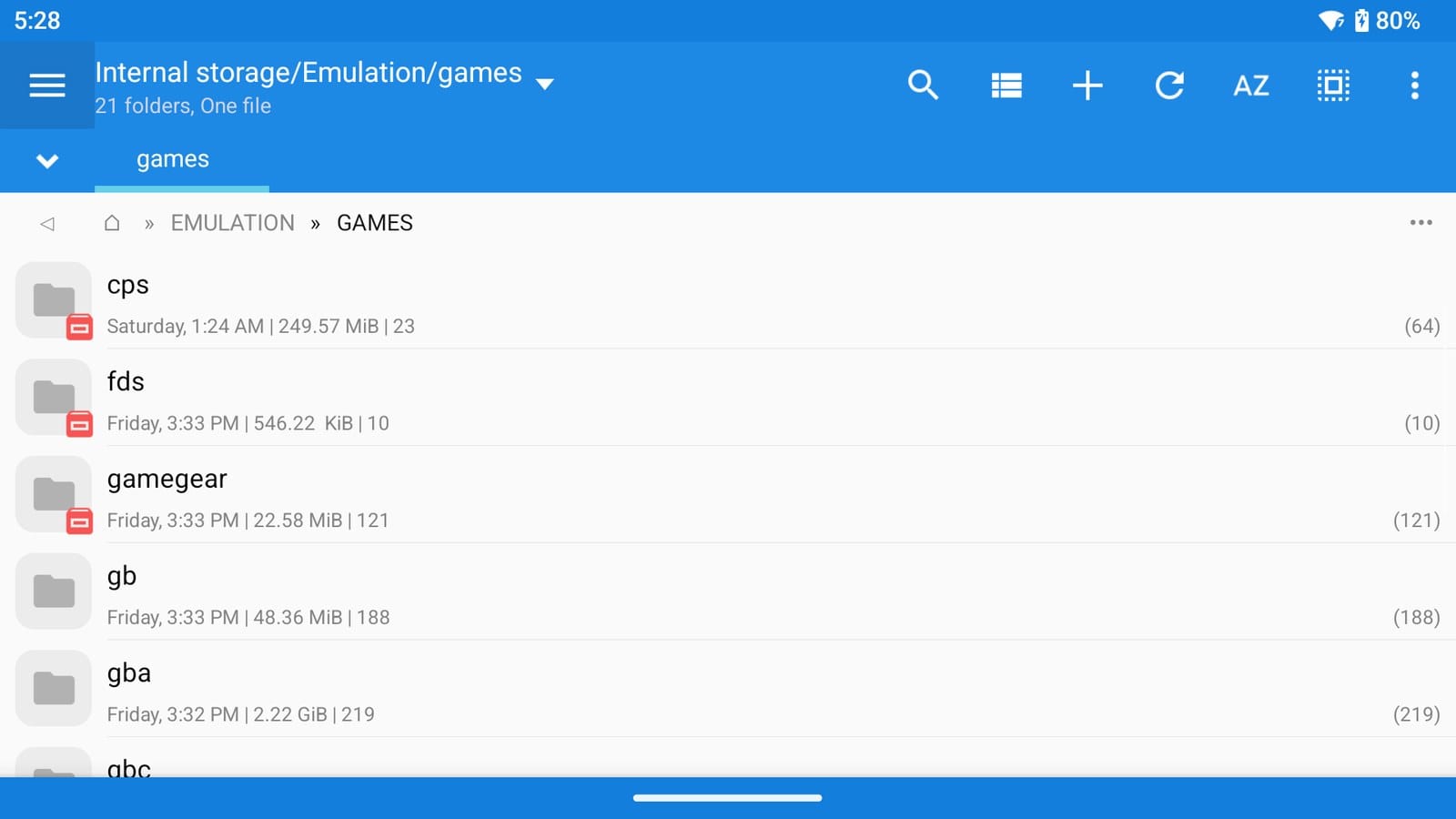
Keep every folder name lowercase. If you’re bringing games over from another front end that used folders like PSX or PS2, rename them. ES-DE will still list the games either way, but some emulators won’t open them.
Games on more than one disc
These are worth a few minutes of extra work, or they show up once per disc. The fix is an .m3u file, a plain text file that lists each disc’s file on its own line. You launch that instead of disc one, and most emulators handle the disc swaps for you.
The discs themselves still need tucking away, or ES-DE lists each one next to the .m3u. ES-DE’s own way to do it is a folder with exactly the same name as the .m3u file, extension and all. Here’s how I set up Parasite Eve, which comes on two discs:
- In the psx folder, make a folder called Parasite Eve.m3u.
- Put both disc files inside it.
- Next to them, make a text file called Parasite Eve.m3u, with each disc’s file name on its own line.
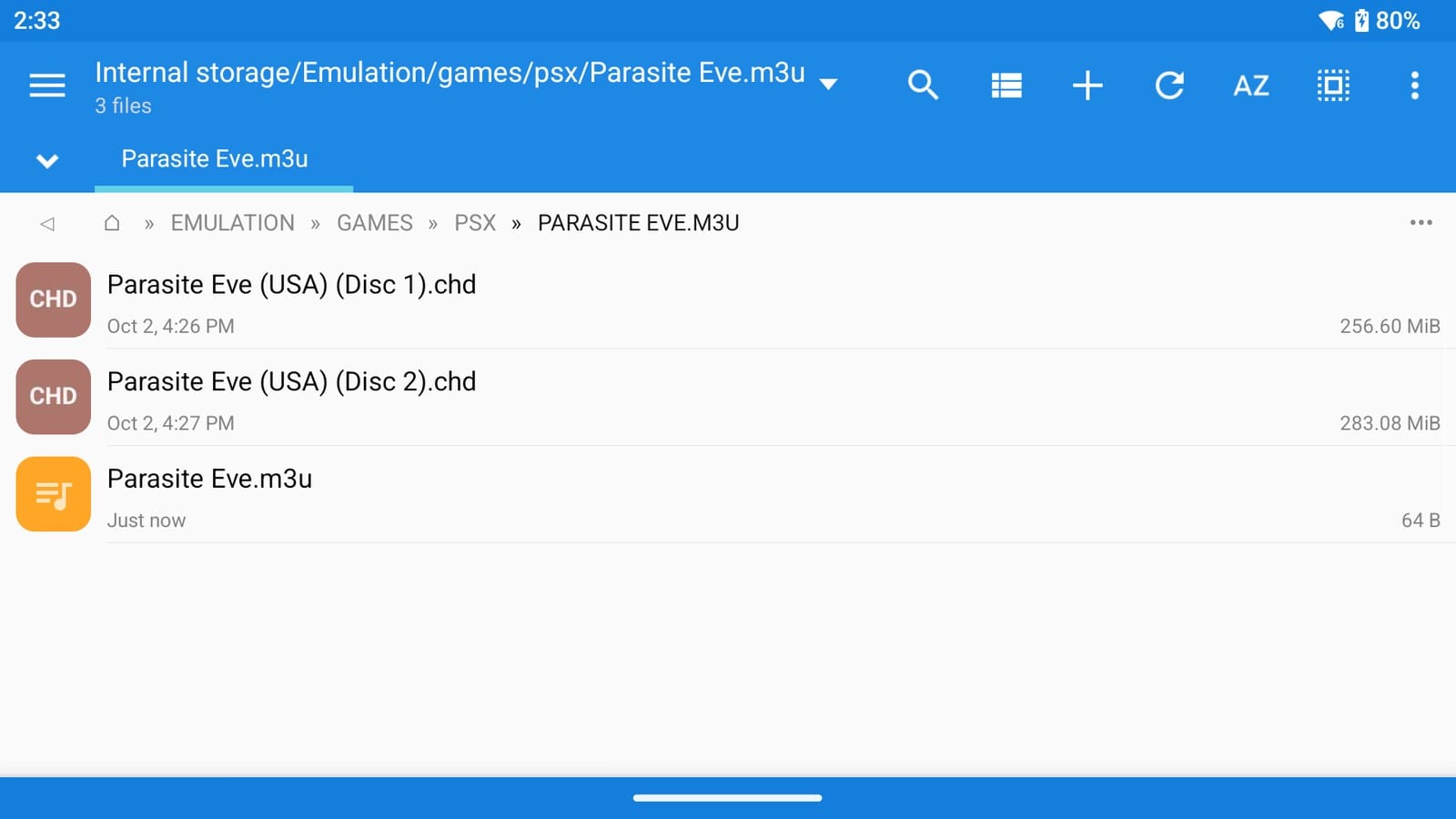
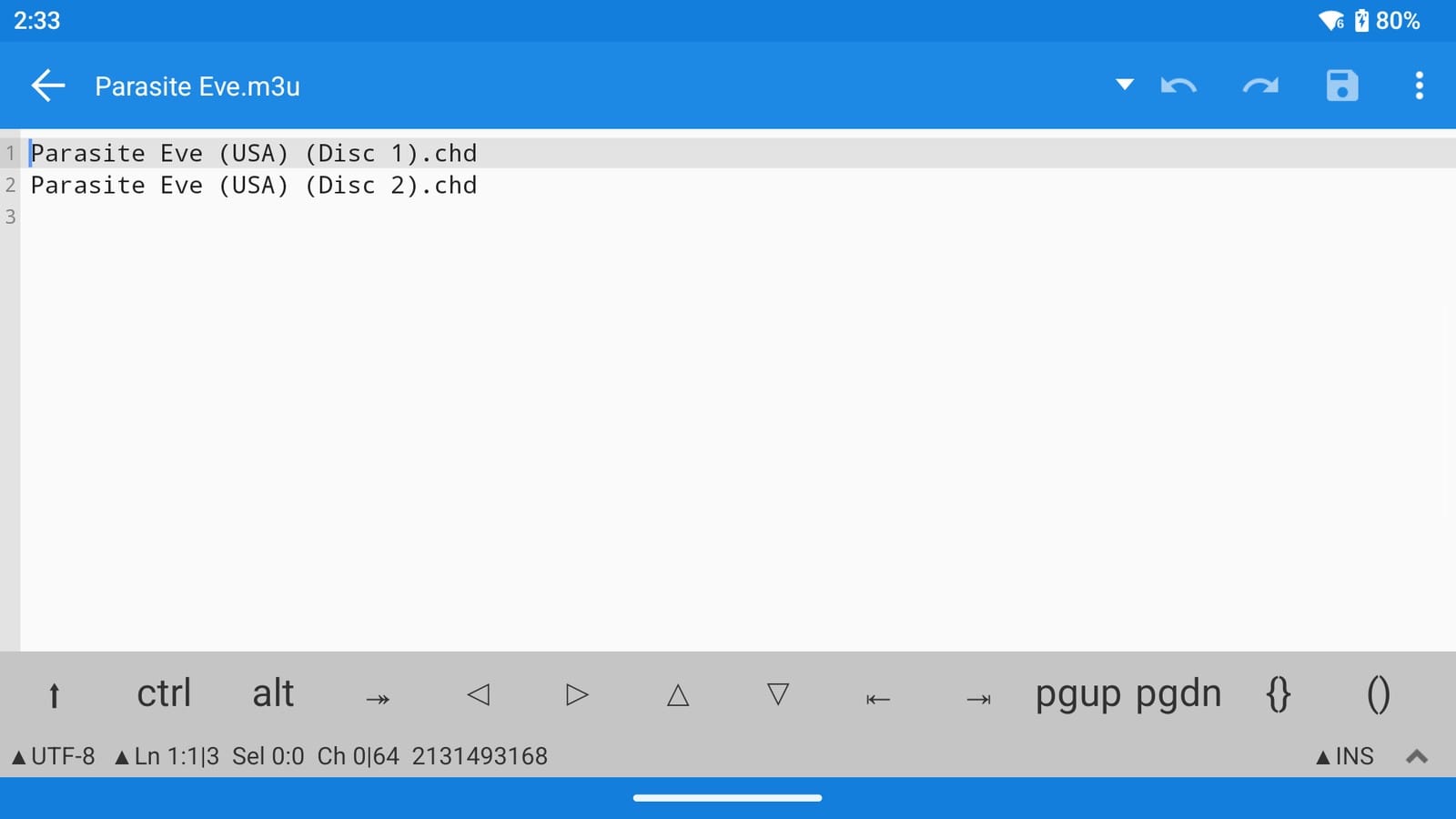
ES-DE treats that folder as a single game, and launching it hands the .m3u to the emulator.
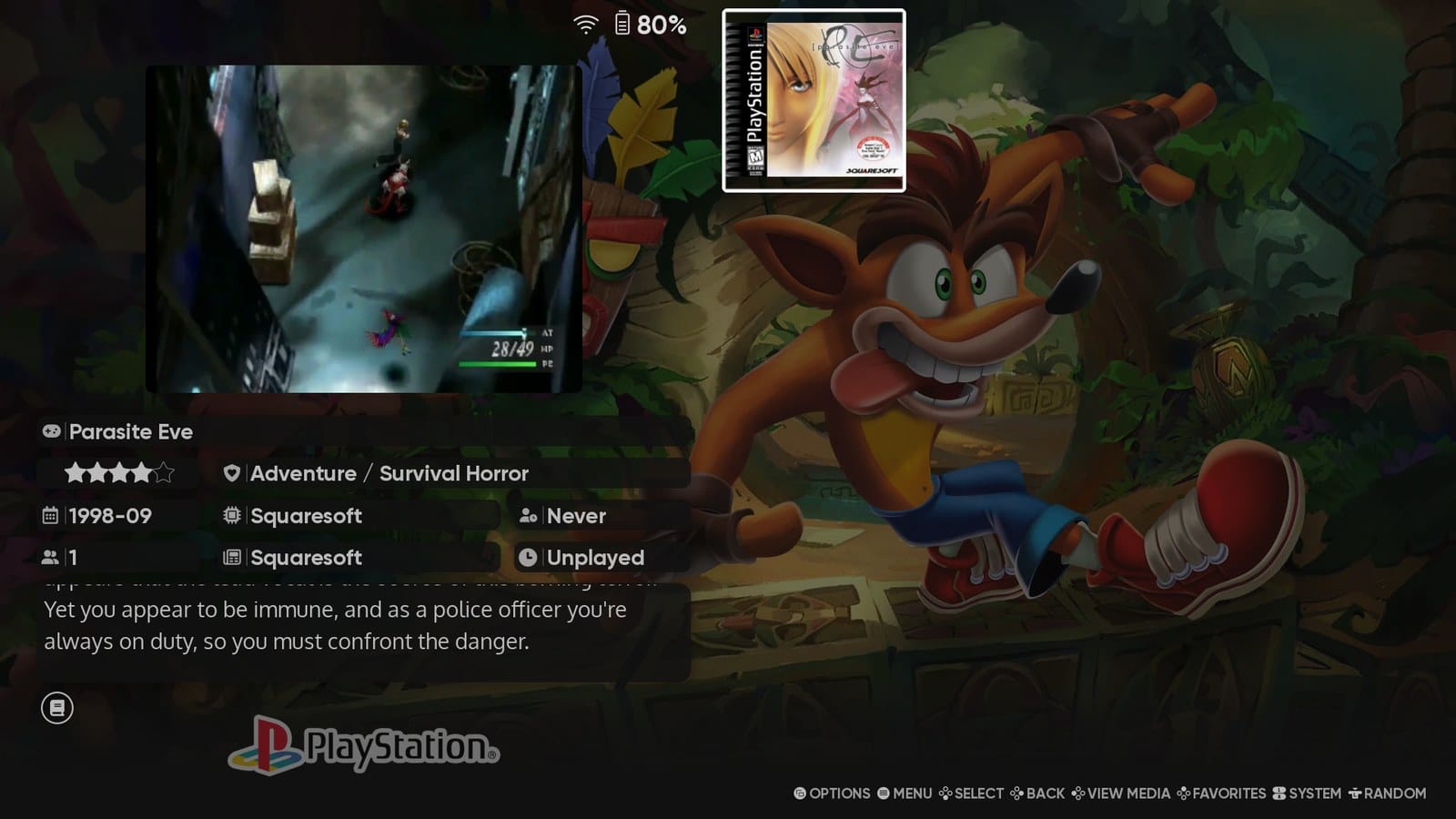
You’ll find guides that hide the discs in a folder called .hidden instead. On my Duo that backfired. With ES-DE’s Show hidden files and folders setting switched on, as mine is, .hidden turns up in the list as a game of its own. The folder way doesn’t care how that’s set. One catch, though. Box art I’d already scraped for Parasite Eve didn’t show up for the folder version, so scrape the game again once it’s set up.
If ES-DE says it found no games
If ES-DE opens on a message saying no game files were found, your games folder is empty, or the games aren’t in the system folders it expects. The message shows the folder it’s looking in, so check that path first.
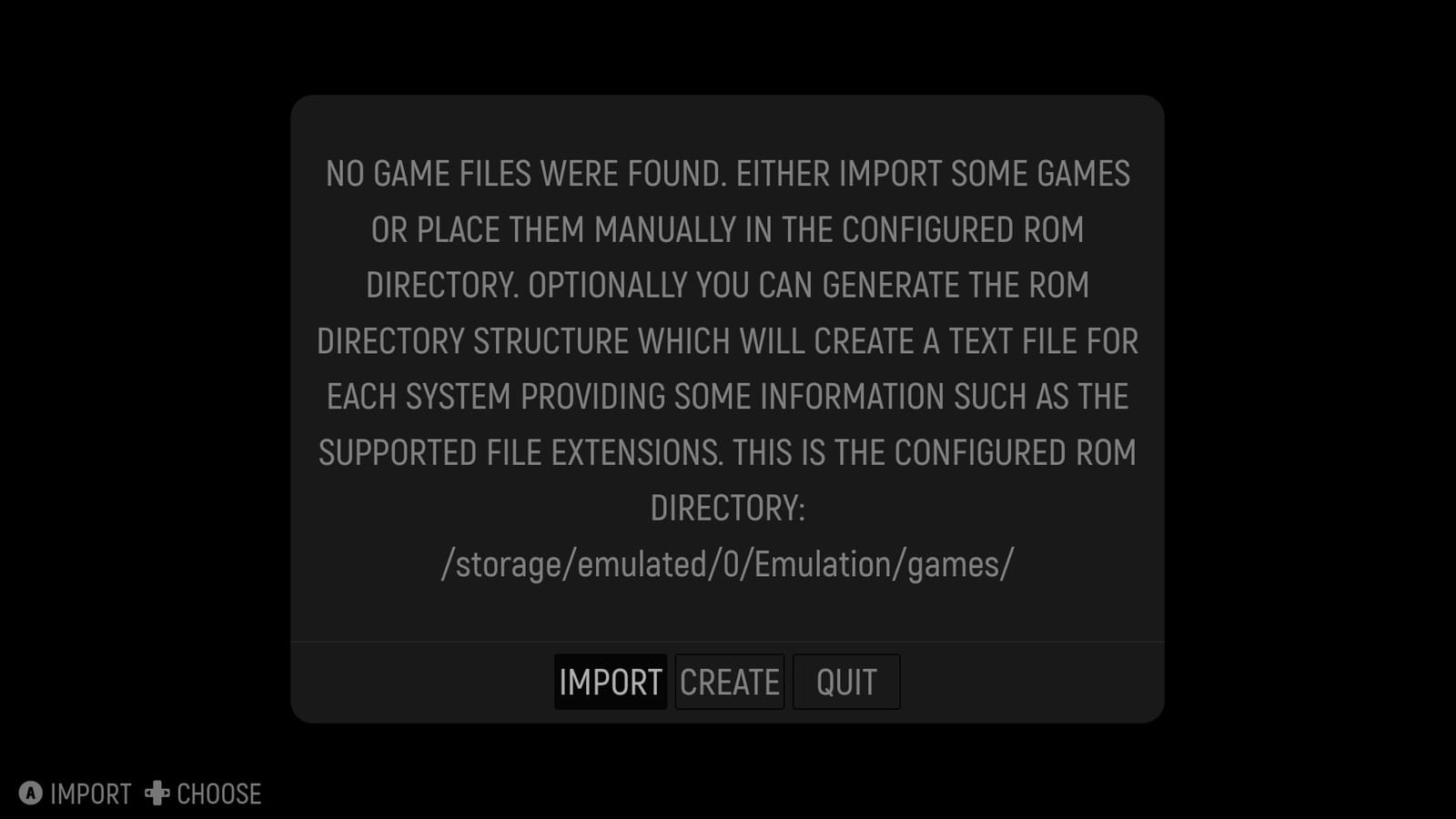
If that folder is gone altogether, like a games folder on an SD card that isn’t in the handheld, ES-DE goes back to its setup screens instead.
Picking your emulators
This is where most of your evening goes. ES-DE comes set up to use RetroArch for most systems, so that’s the place to start.
RetroArch first
RetroArch runs a huge number of systems through add-ons it calls cores. Get it from RetroArch’s own website, and pick the 64-bit Android download. ES-DE’s team strongly recommends against the Play Store version, which is missing cores and often won’t launch games from ES-DE at all.
Open it once on its own before you launch anything from ES-DE. Go to Main Menu > Online Updater > Core Downloader, and download the core for each system you play. ES-DE won’t do that part for you, and a missing core is the usual reason a game opens to a black screen.
Some systems also need BIOS files from your own consoles. Those go in RetroArch’s system folder, which you’ll find under Settings > Directory > System/BIOS.
Standalone emulators
For the heavier systems, a standalone emulator often does a better job than its RetroArch core. Here’s the catch, though. Installing one isn’t enough. ES-DE keeps sending that system’s games to RetroArch until you switch it over under Alternative emulators, which comes up in a couple of sections.
This is how my Duo is set up. The middle column is what ES-DE starts with, and anything without “Standalone” in its name runs as a RetroArch core.
| System | Folder | ES-DE starts with | My Duo uses |
|---|---|---|---|
| Sega Genesis | genesis | Genesis Plus GX | Genesis Plus GX |
| Sega CD | segacd | Genesis Plus GX | Genesis Plus GX |
| Sega Saturn | saturn | Beetle Saturn | Beetle Saturn |
| Sega Dreamcast | dreamcast | Flycast | Flycast (Standalone) |
| Capcom arcade | cps | MAME - Current | FinalBurn Neo |
| Neo Geo | neogeo | FinalBurn Neo | FinalBurn Neo |
| PlayStation | psx | Beetle PSX | SwanStation |
| PlayStation 2 | ps2 | PCEE2 | ARMSX2 (Standalone) |
| PSP | psp | PPSSPP | PPSSPP (Standalone) |
| Nintendo 64 | n64 | Mupen64Plus-Next | Mupen64Plus-Next |
| Nintendo DS | nds | melonDS DS | WatermelonDS (Standalone) |
| Nintendo 3DS | n3ds | Azahar | Azahar (Standalone) |
| GameCube | gc | Dolphin | Dolphin (Standalone) |
| Wii | wii | Dolphin | Dolphin (Standalone) |
WatermelonDS is a version of melonDS that uses both of the Duo’s screens, and ES-DE 3.5 added it as its own emulator choice. There’s more on what that means for the bottom screen further down.
Not sure where to get one of these? ES-DE’s Android documentation lists every emulator it supports and where each one comes from. Most of them can go through Obtainium, the app I mentioned at the start, and ES-DE’s team recommends it too.
Letting emulators see your games
Some emulators can open a game straight from ES-DE, because ES-DE hands them the file as it launches. That only works for a single file, though, and a disc game is often several files, so a lot of emulators have to be shown the folder first, and until you do, you’ll see “the game file could not be opened” or nothing at all.
So open each of those emulators once, find its setting for game folders, and add the folder for that one system, like games/psx or games/psp. Point it at the system’s own folder. Most of them won’t accept the whole games folder. Do it once per system.
Whichever emulator it is, the request ends up in the same Android folder picker:
- In the emulator, find its setting for adding a games folder.
- When the picker opens, go back to the top of your storage. Android won’t let you pick the very top, but you walk down from there.
- Open your games folder, then the system’s own folder, like psp.
- Tap Use this folder, then Allow.
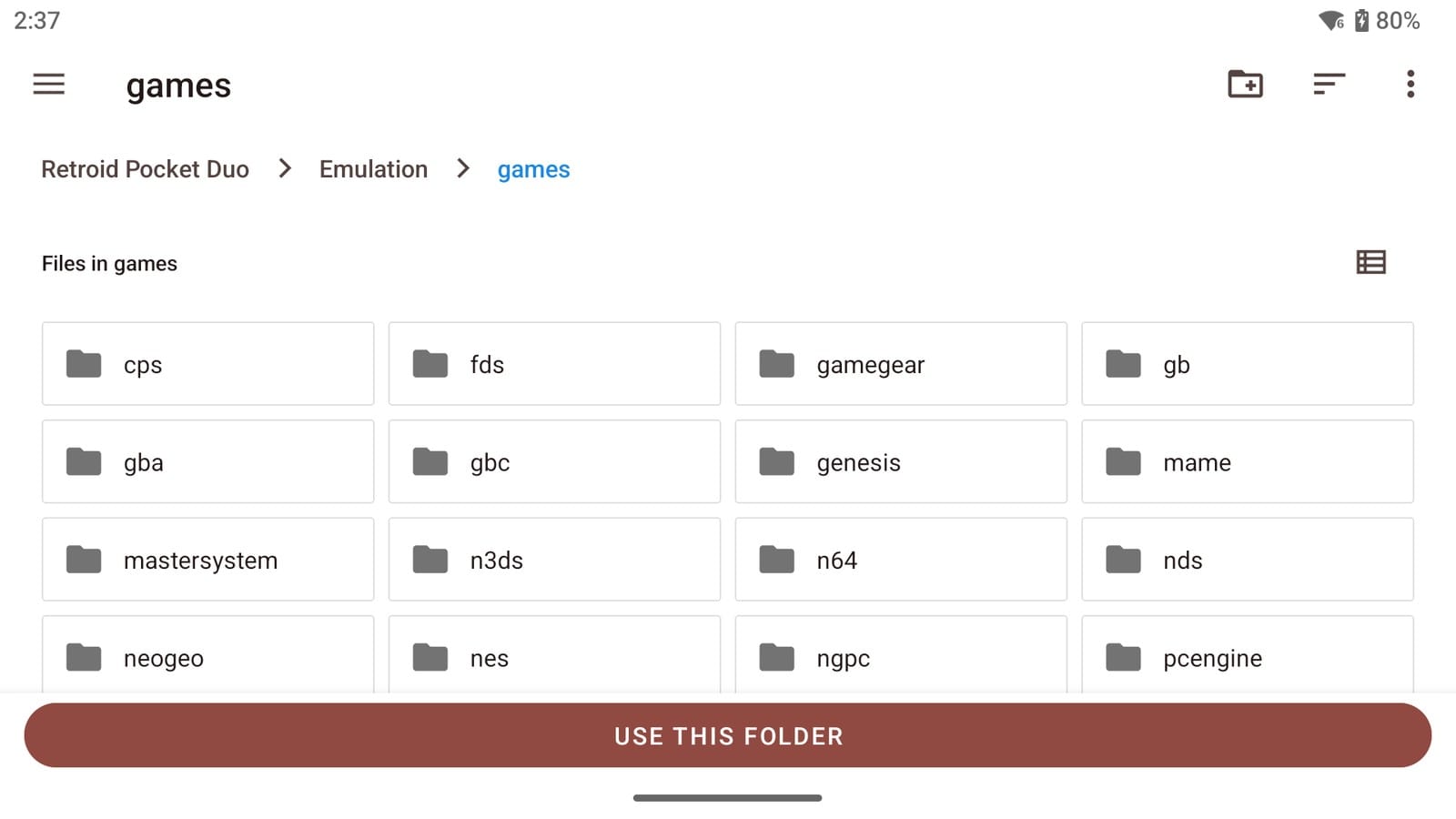
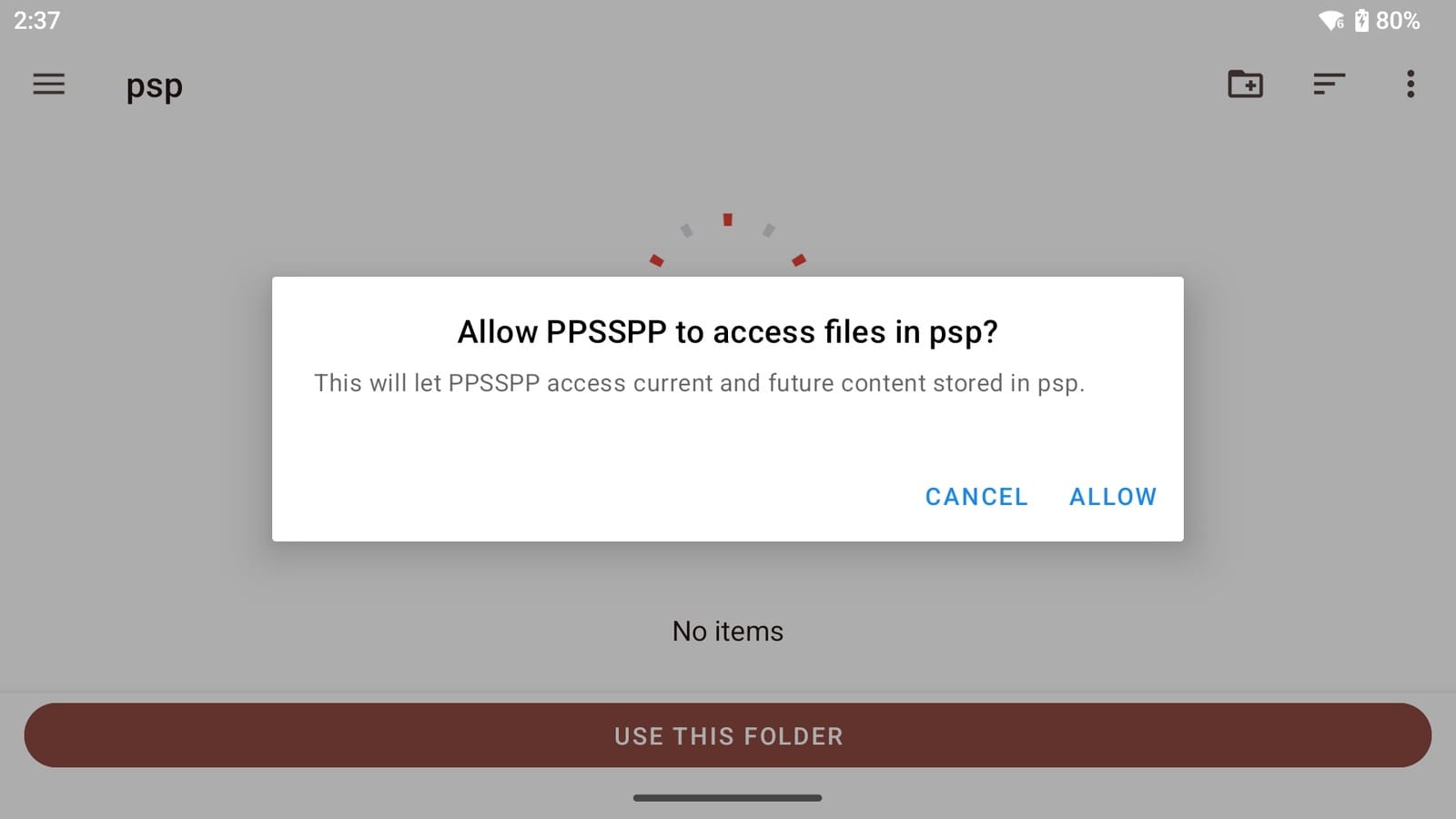
Why go back to the top first? It’s an Android quirk. Even when the picker opens somewhere that looks right, ES-DE’s docs say it can hand the emulator the old path of a folder you’ve renamed, like PS2 to ps2. And in PPSSPP, use its Browse button when you add the folder, or ES-DE can’t launch PSP games.
Changing the emulator for a system or a game
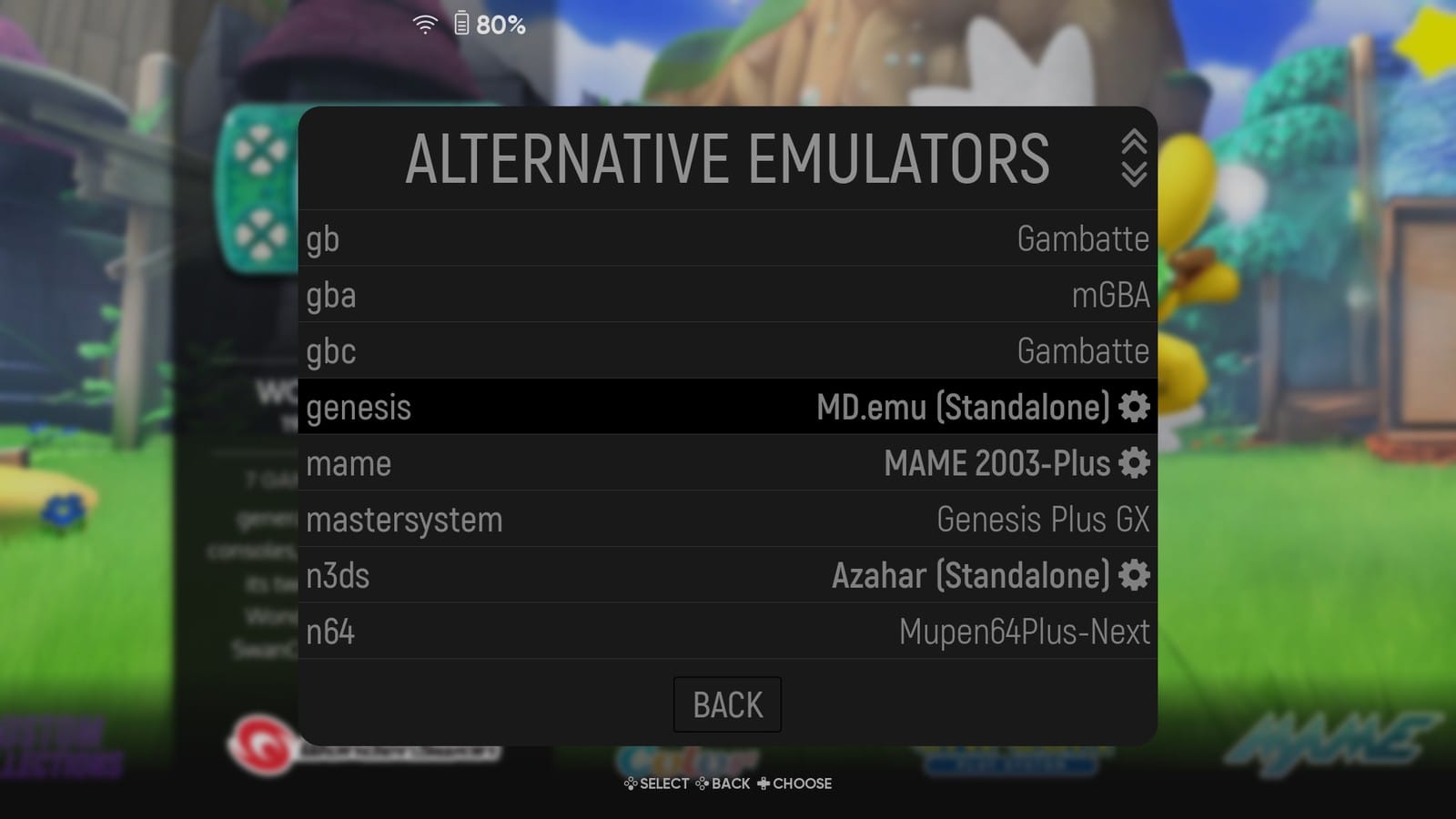
Once games are launching, you might want a different emulator for a system. Press Start to open the main menu, go to Other settings, then Alternative emulators.
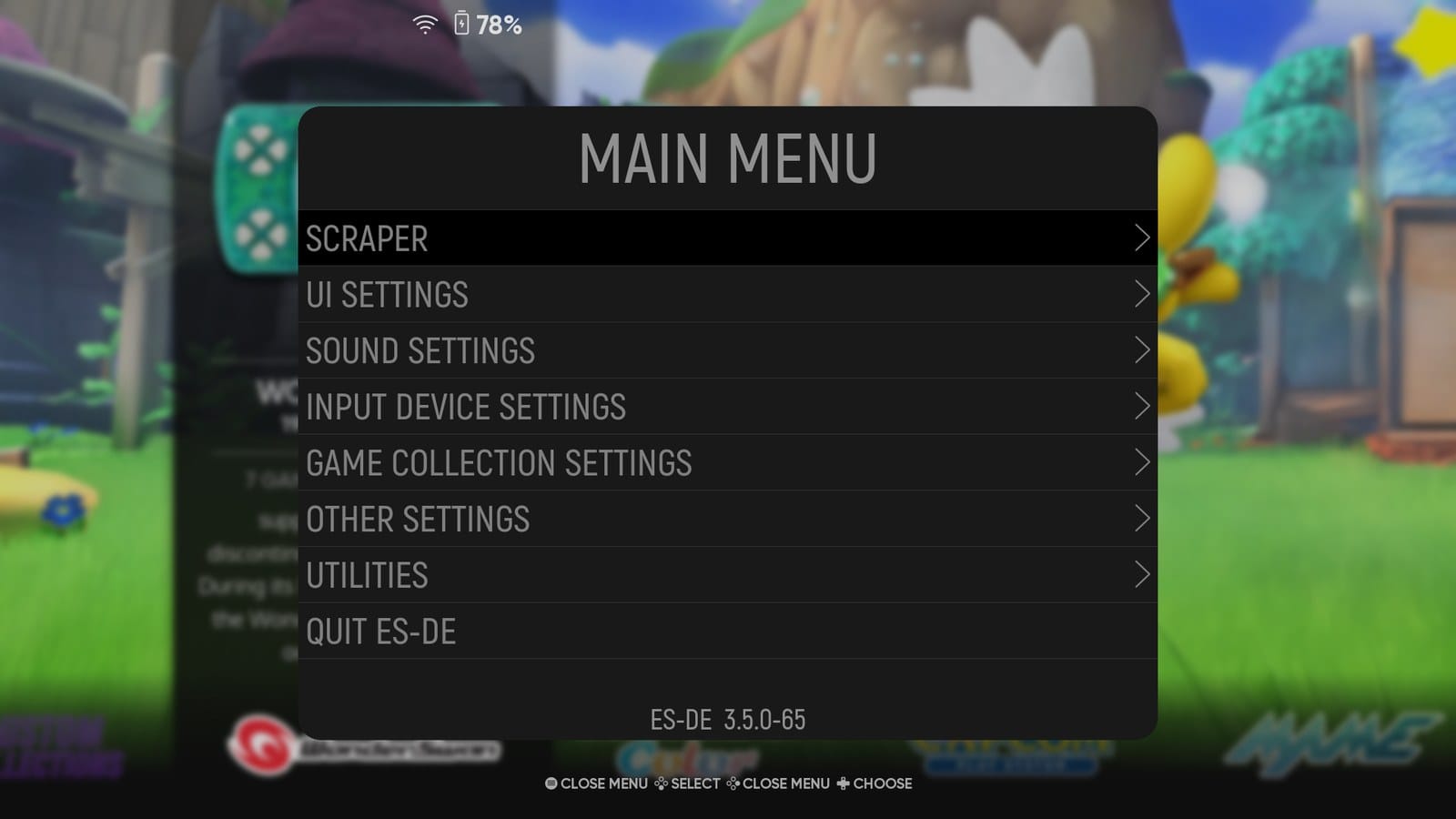
Every system’s current emulator is listed there. A name with a gear icon next to it means you’ve changed it from the default, which makes it easy to see what you’ve touched.
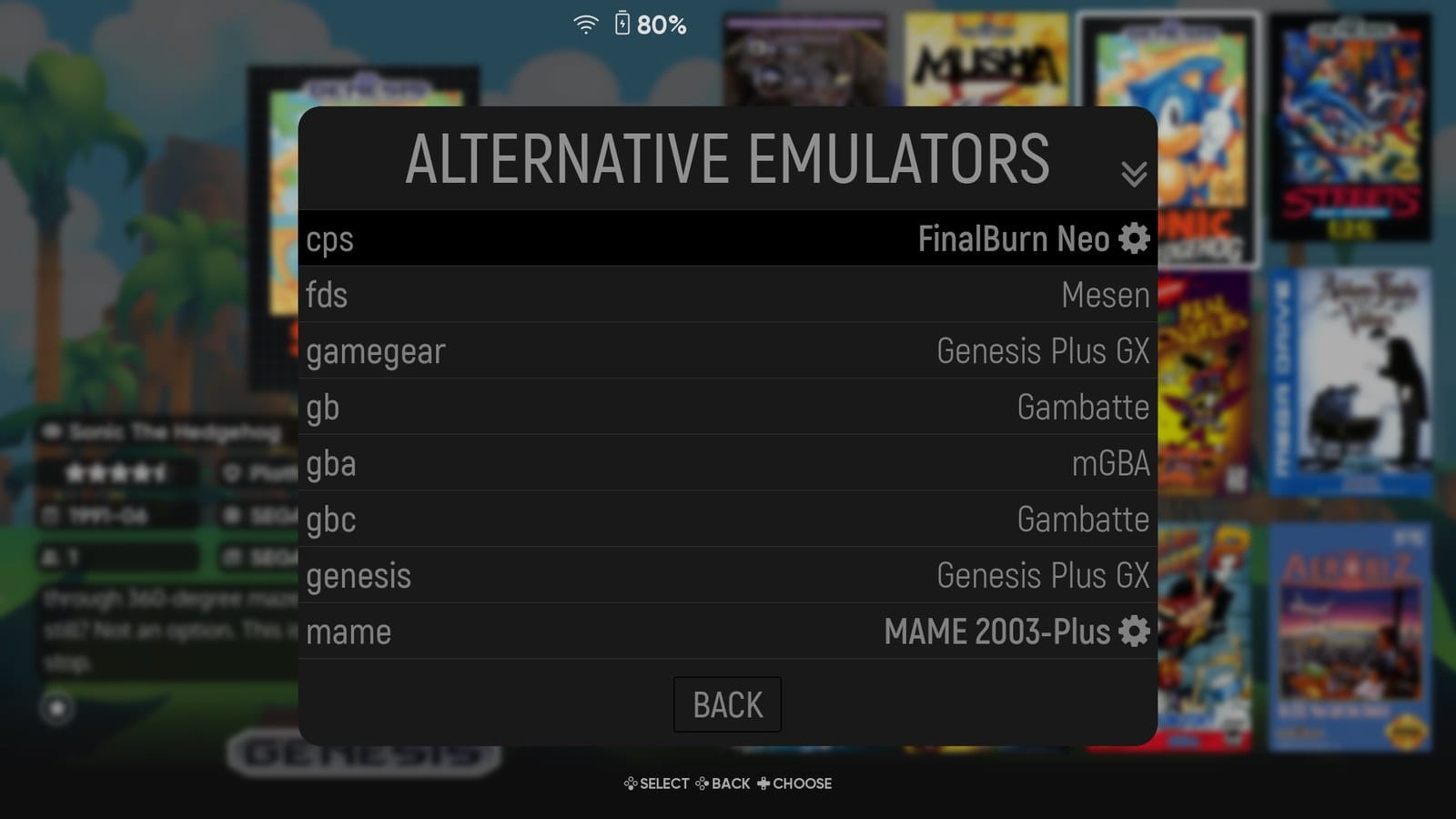
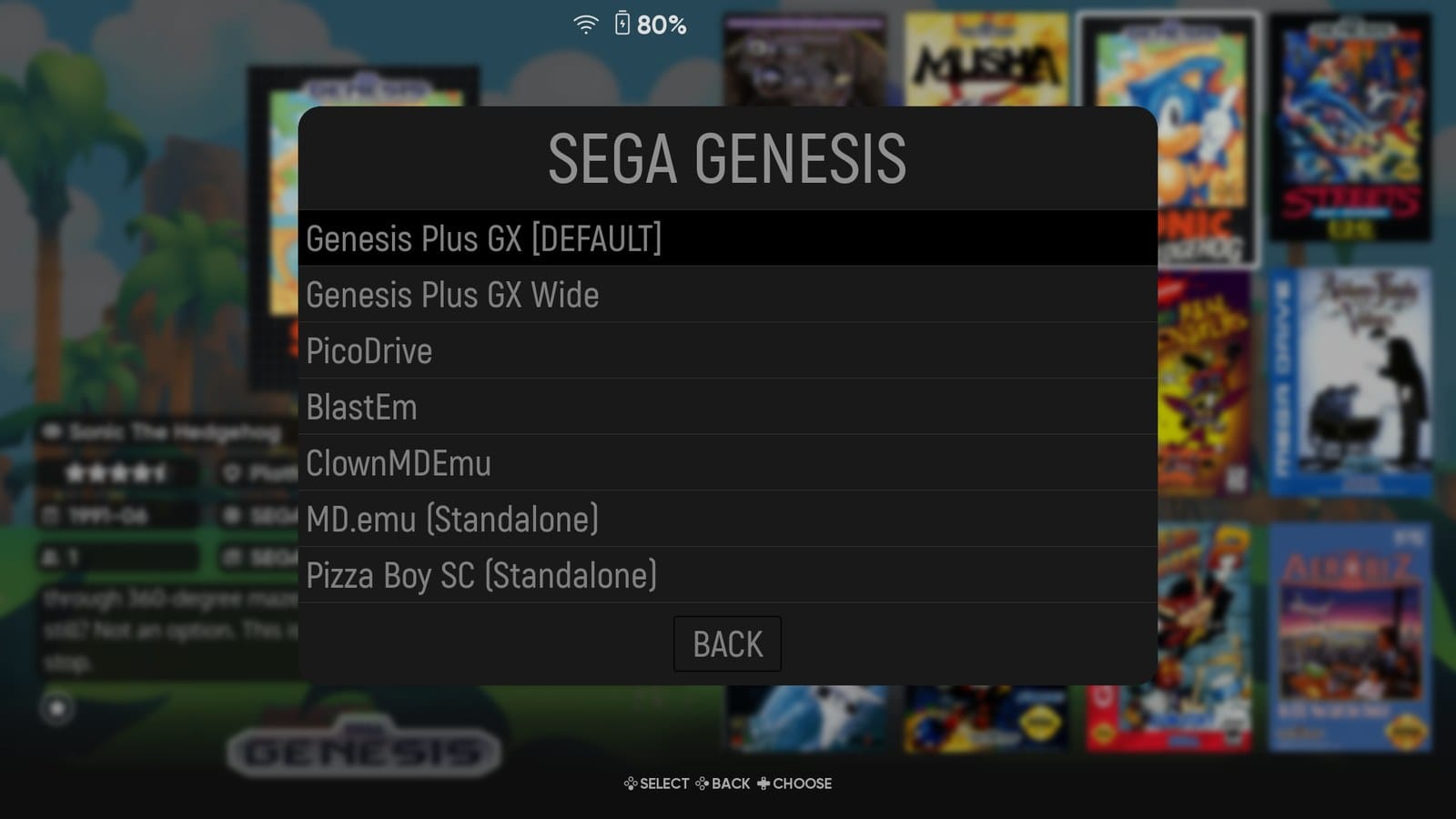
ES-DE lets you pick an emulator you haven’t installed, and it won’t warn you until you launch a game. I set my Duo’s Genesis to MD.emu, which isn’t on it, and every Genesis game stopped with an error saying ES-DE couldn’t find the emulator and asking whether it had been properly installed. Install it, or set the system back.
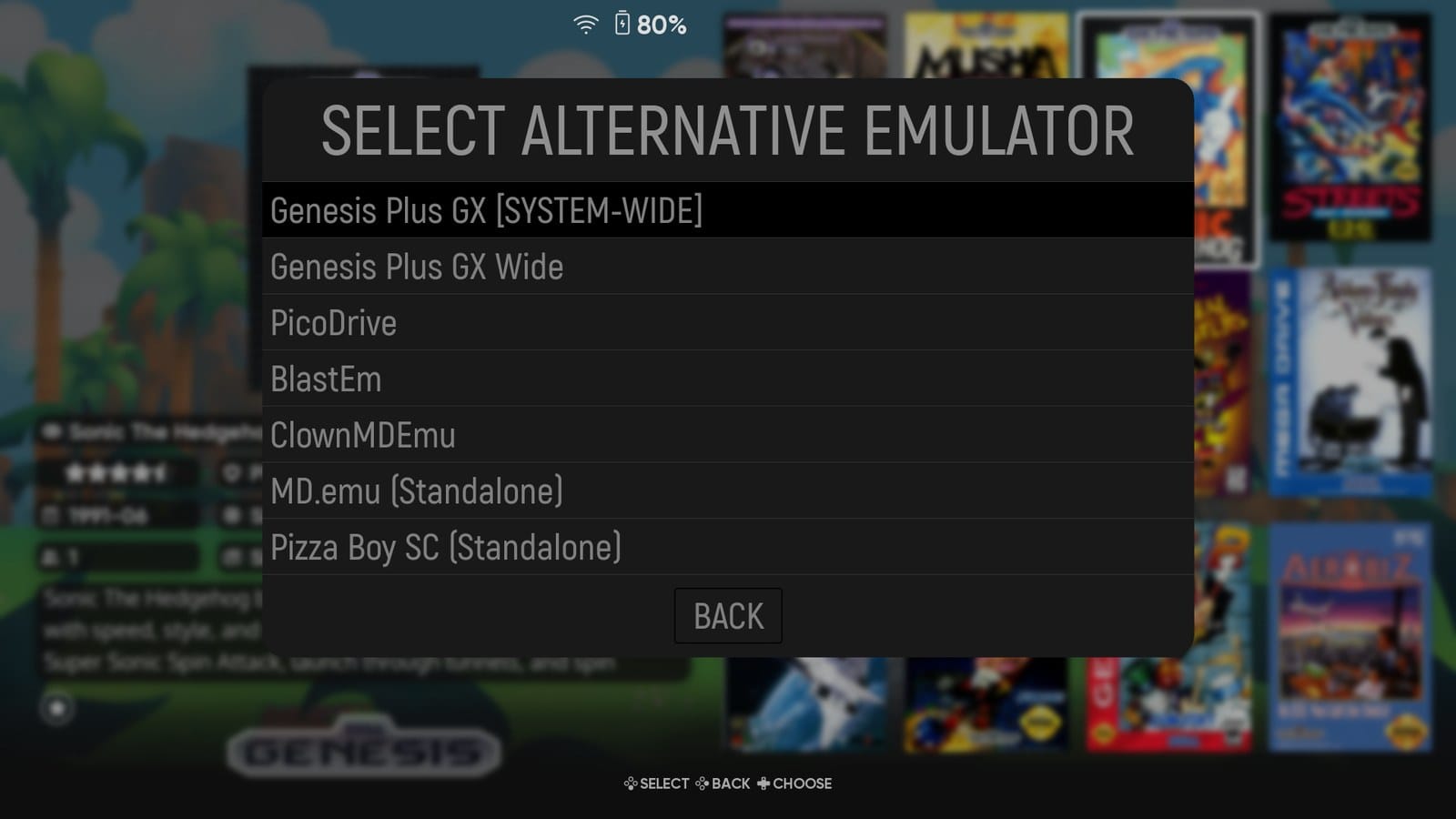
Sometimes it’s just one game that runs better somewhere else. For that, select the game, press Select for the gamelist options, choose Edit this game’s metadata, and scroll to the bottom. Alternative emulator is the last row, and whatever you pick there beats the system’s setting for that one game.
Box art and videos
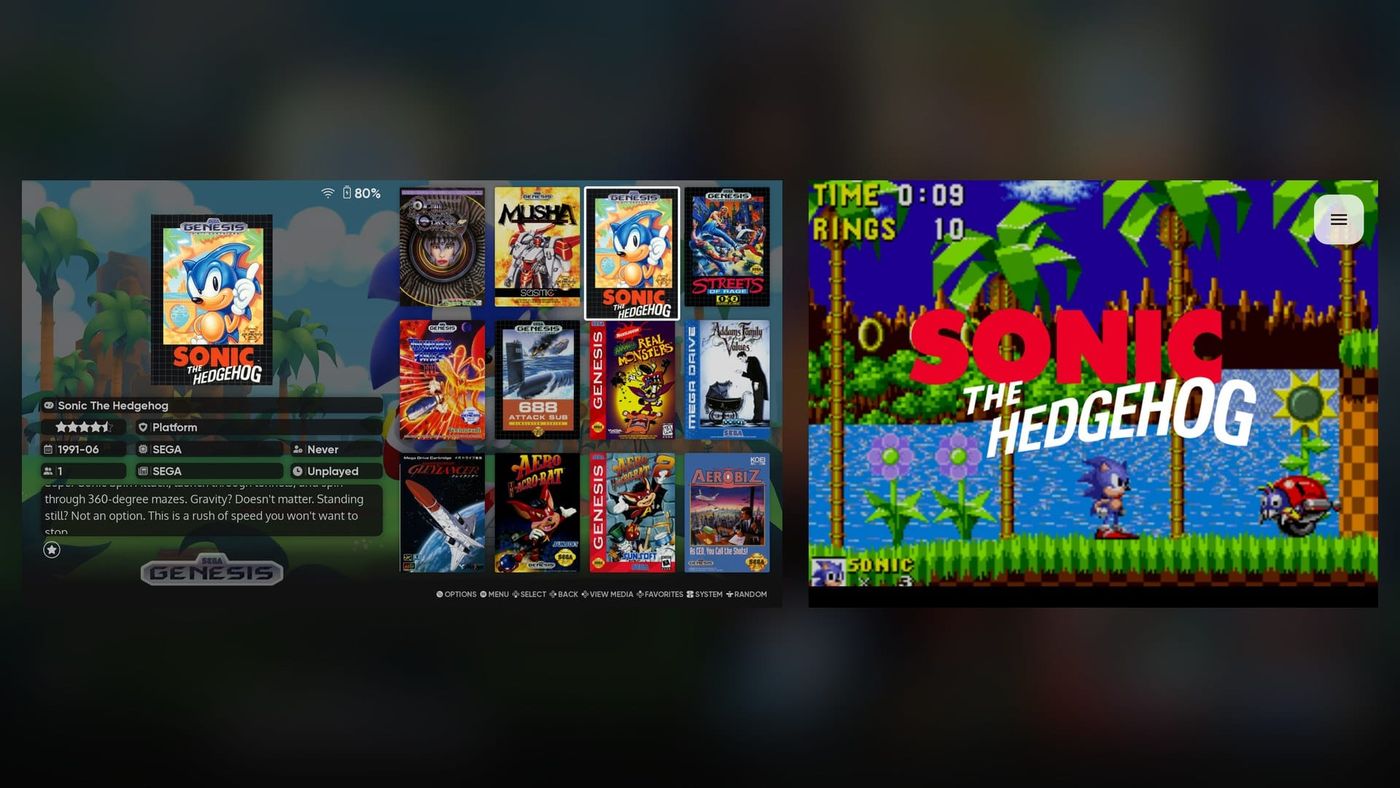
This is the part that makes ES-DE look the way it does in the screenshots. ES-DE looks each game up online and downloads its box art, screenshots, videos and details, and it calls that scraping. You’ll find it under Scraper in the main menu.
Here’s how to run it the first time:
- Under Scrape from, pick where to look. There’s more on the two choices below.
- Set Scrape these games to All games. Later on, after you add a few games, No metadata picks up only the new ones.
- Under Scrape these systems, tick the systems you want. You can do them all in one go, but a small system first shows you what you’ll get.
- Check Content settings and Other settings, both covered below.
- Press Start, and let it run.
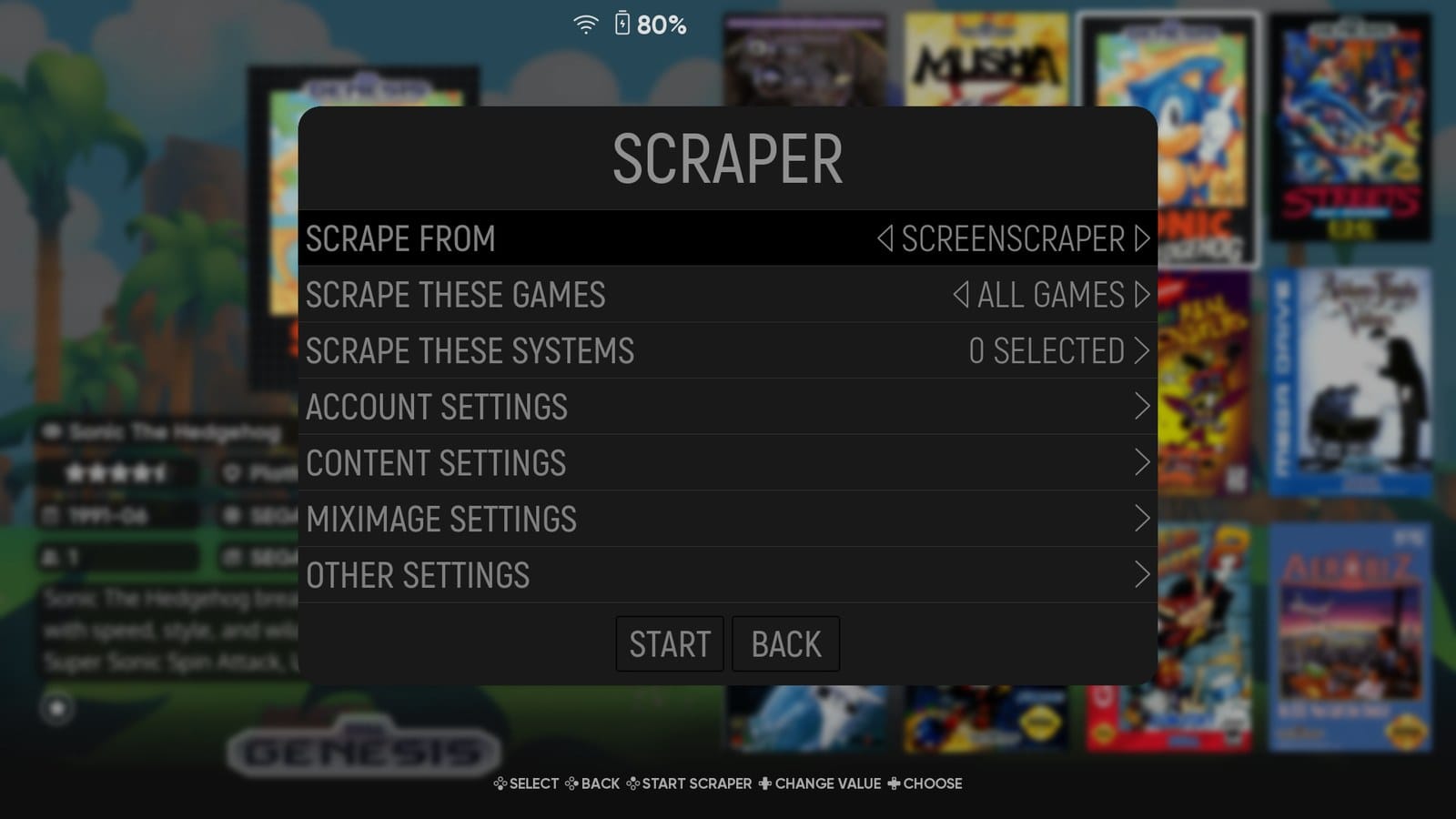
There are two places it can look. I use ScreenScraper. It covers more systems, picks the box art for your region, and has extras like 3D boxes and manuals. TheGamesDB is the better pick for PC games, and it can fill in a release date ScreenScraper doesn’t have.
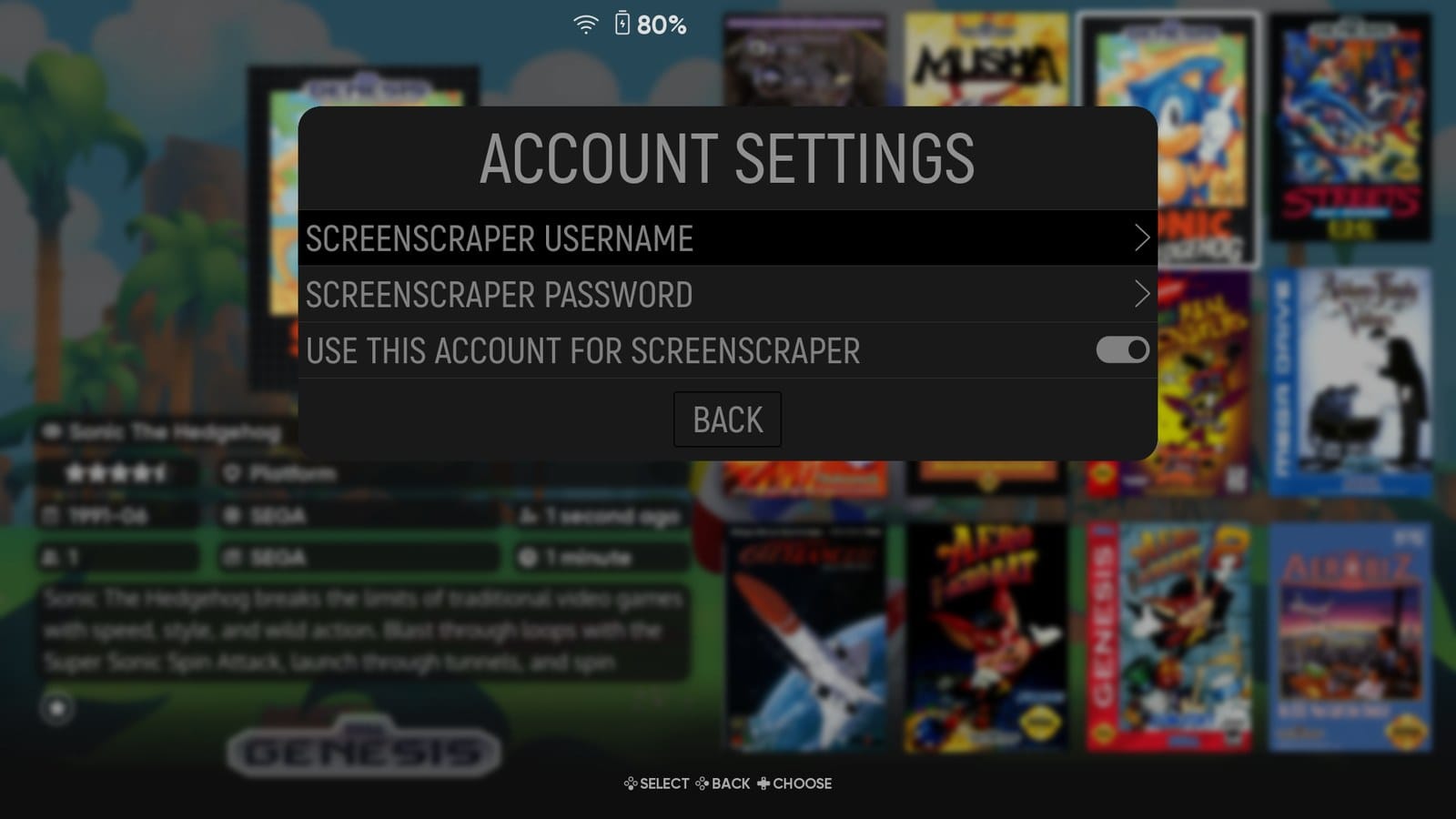
ScreenScraper works without an account. You just wait longer. If you made one, add your username and password under Account settings. ES-DE keeps that password in plain text in its settings file, so use one you don’t use anywhere else.
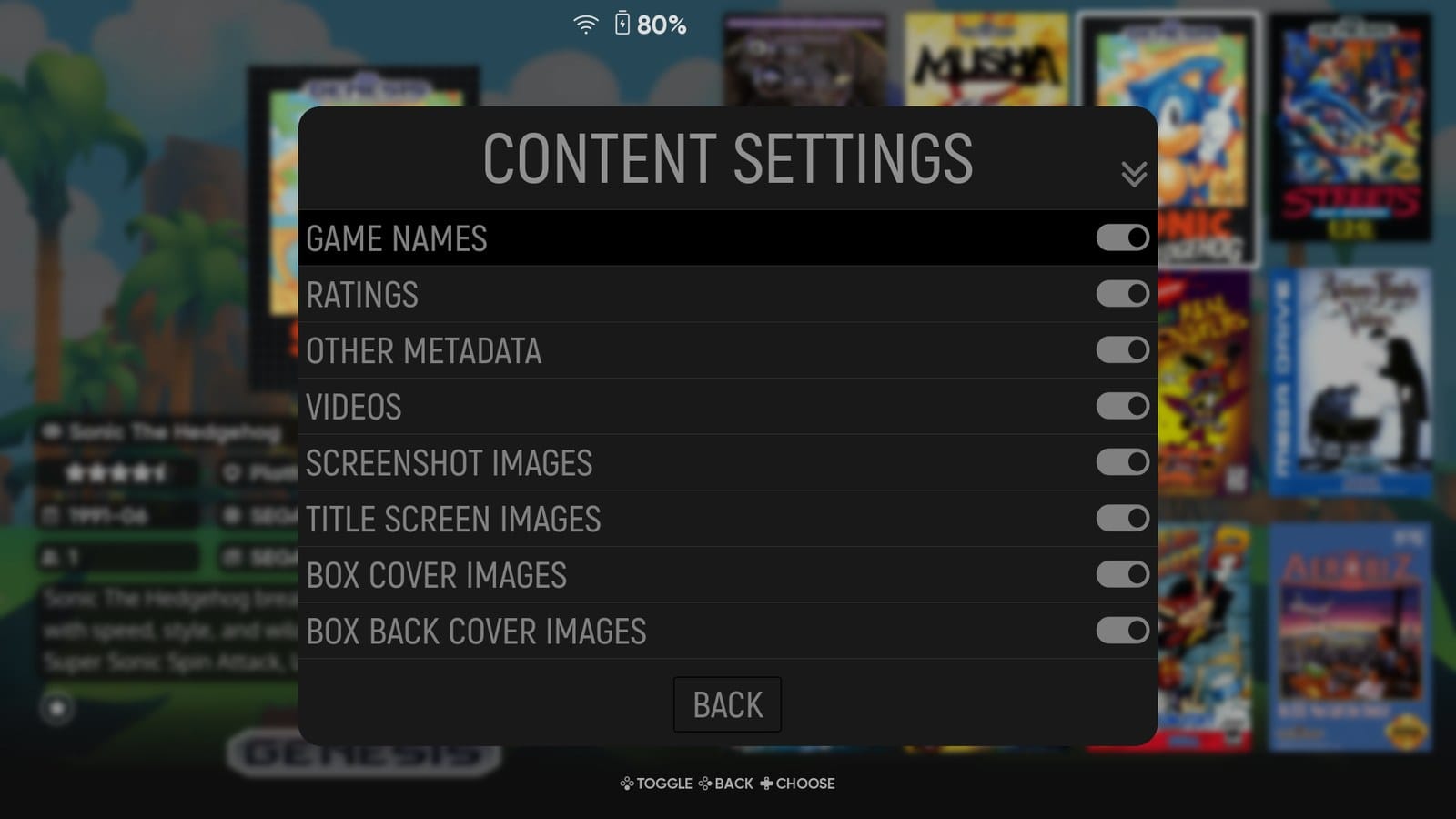
Before you start, look at Content settings, which decides what gets downloaded. Videos take up by far the most space, so switch them off if your storage is tight or your theme doesn’t show them.
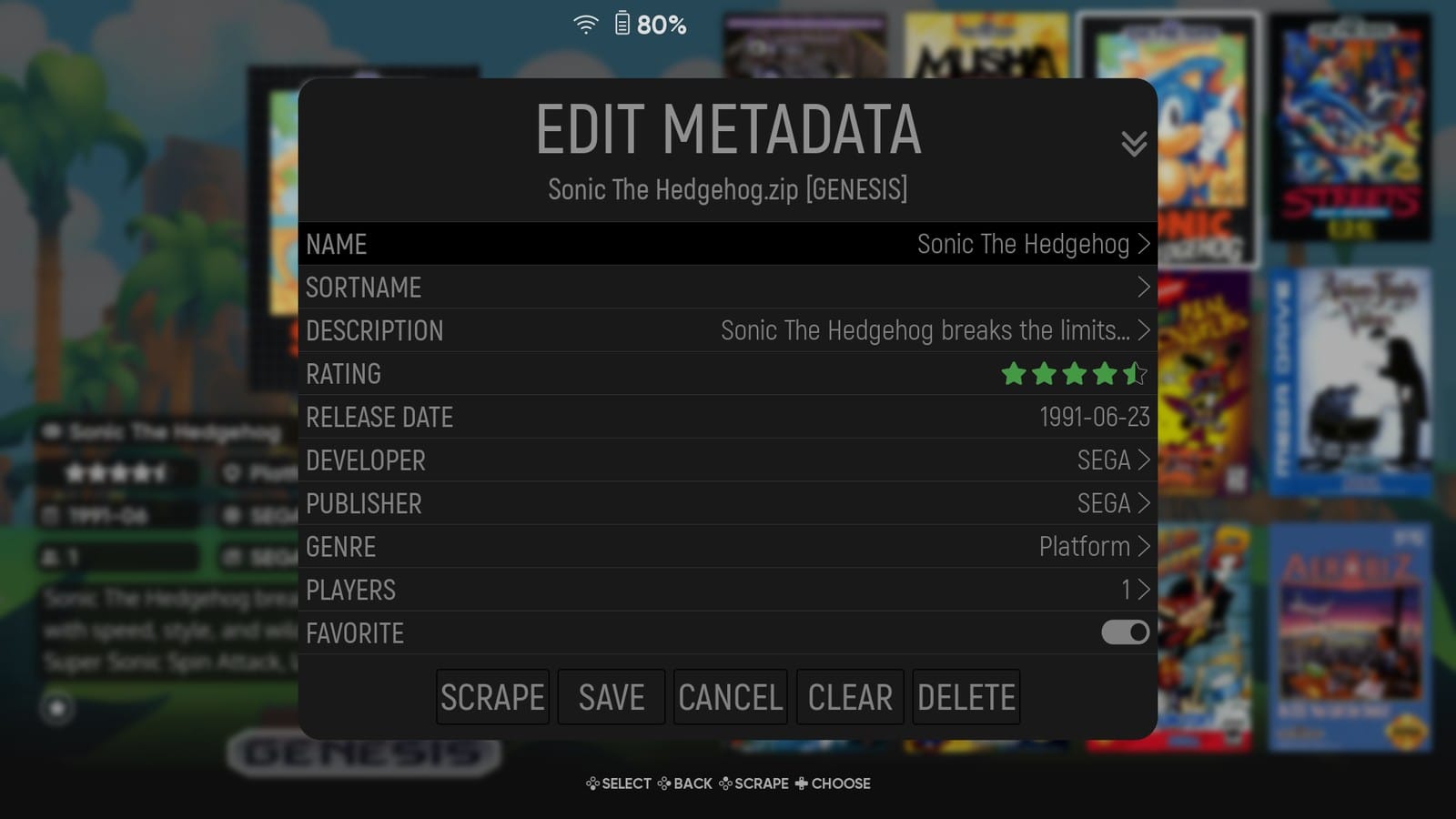
Other settings has three more to look at. Region decides whose box art you get, so set it to yours. Interactive mode is off out of the box, which means the scraper runs on its own and takes its best guess when a name matches more than one game. Turn it on if you’d rather pick each one yourself. And with ScreenScraper, Search using file hashes matches each game by its file instead of its name, which gets it right whenever ScreenScraper knows that file.
Everything it downloads goes into ES-DE/downloaded_media, in a folder for each system. If the scraper can’t find a game, or you don’t like what it found, you can put your own images in there too.
One more setting before a big scrape: Overwrite files and data, also under Other settings. With it on, a scrape replaces box art and details you already have, including anything you fixed by hand.
You can also scrape a single game. Select it, press Select, choose Edit this game’s metadata, then Scrape.
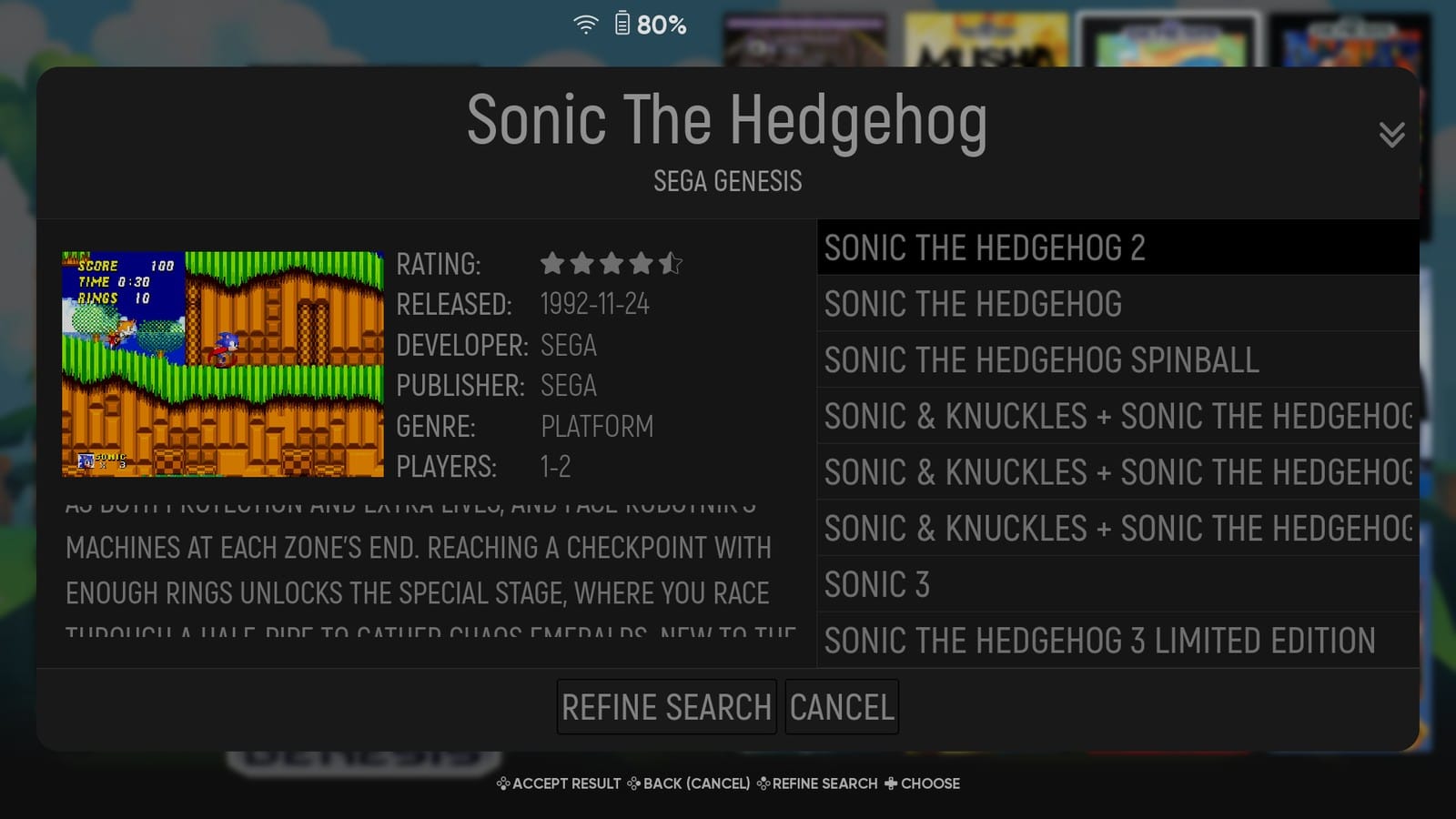
That’s where you can check what it finds, and you should. When I scraped Sonic The Hedgehog on my Duo, the top result was Sonic The Hedgehog 2. The release date gives it away, so look at that before you accept anything. If the right game isn’t in the list at all, Refine search lets you type the name yourself.
Themes on the Duo
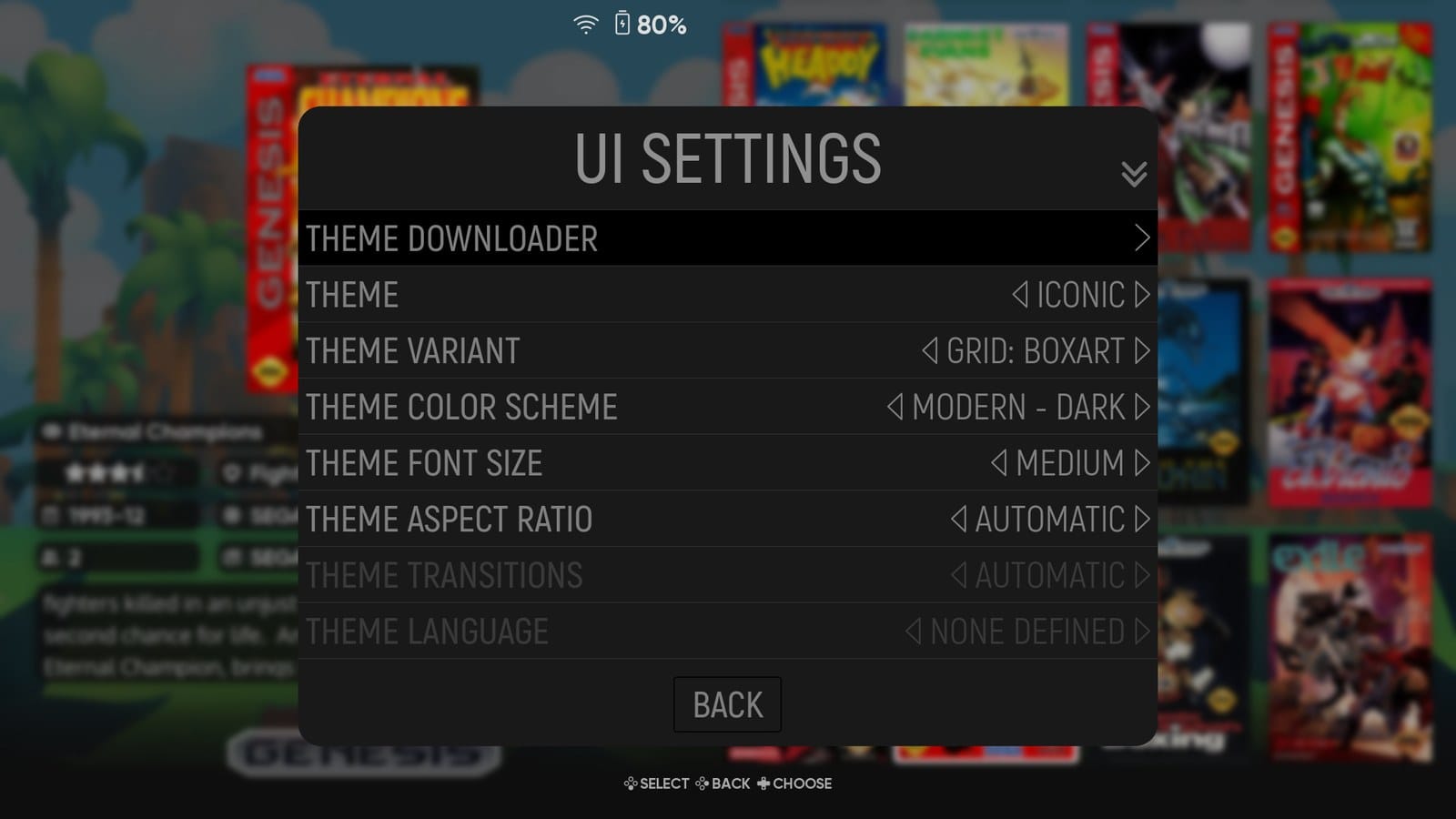
On Android, ES-DE only comes with one theme, Linear. The easiest way to get more is the Theme downloader, under UI settings. It loads the full list of themes, shows you screenshots of each one, and installs the one you pick with a single button. Then you choose it under UI settings > Theme.
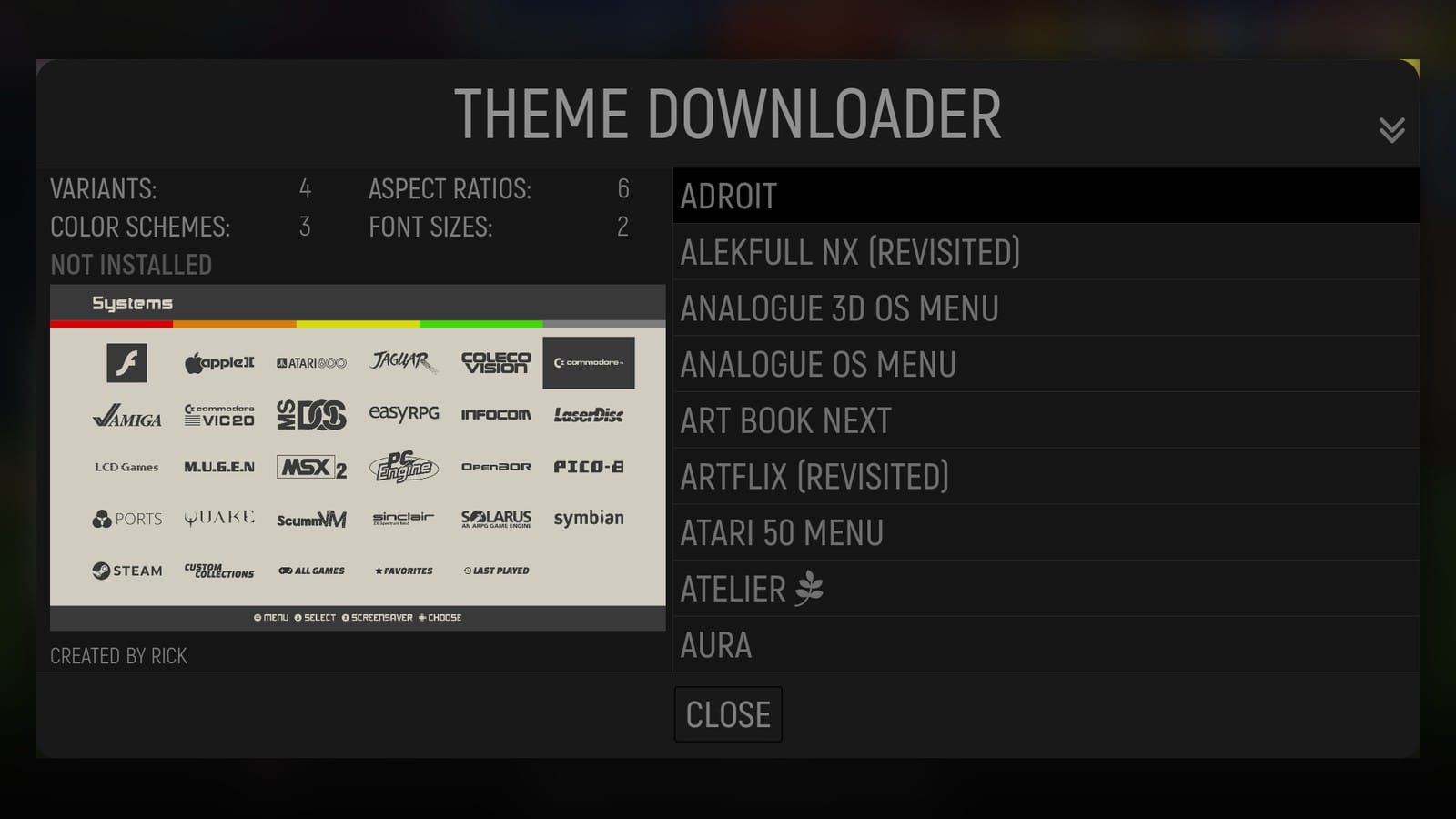
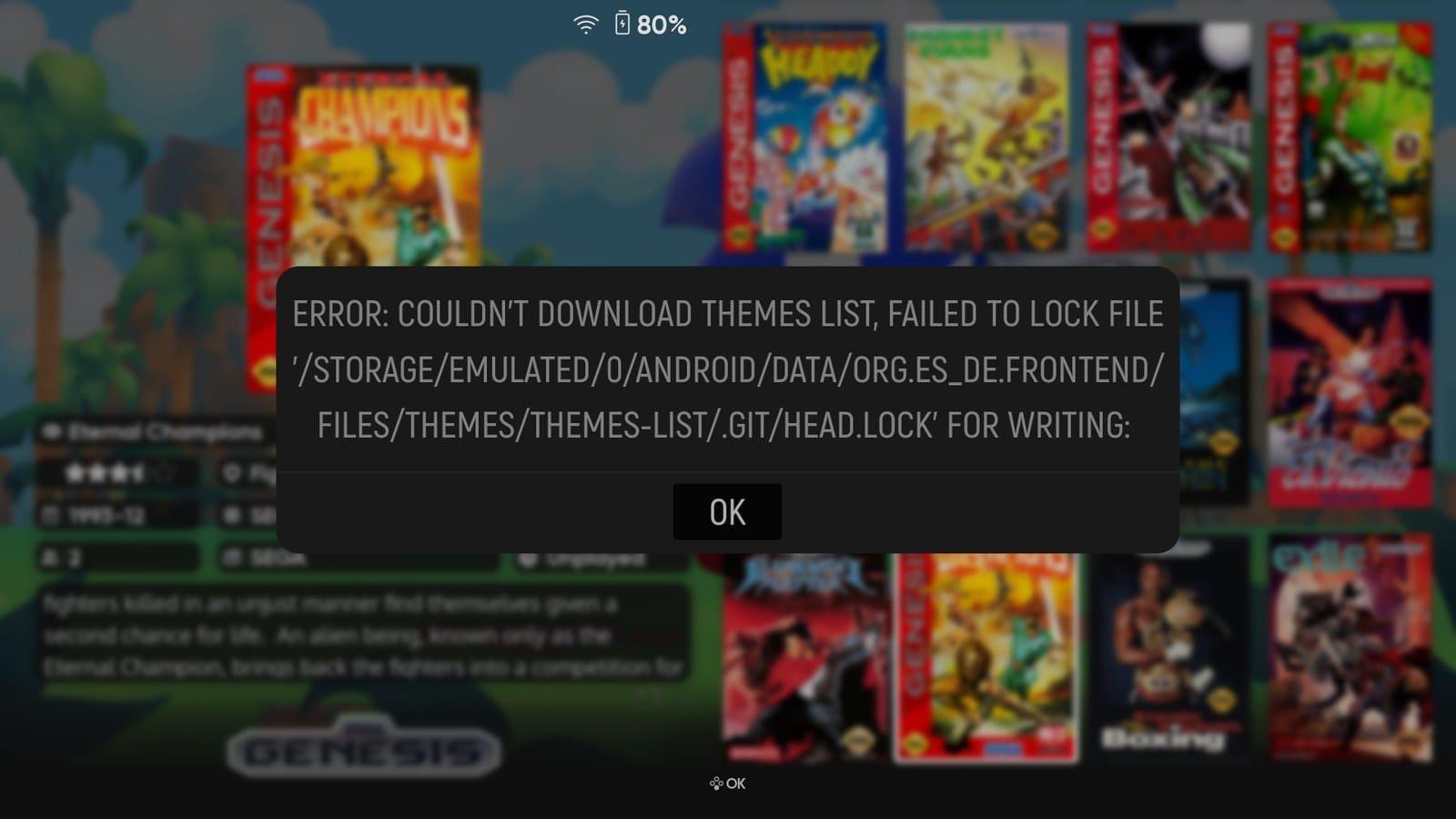
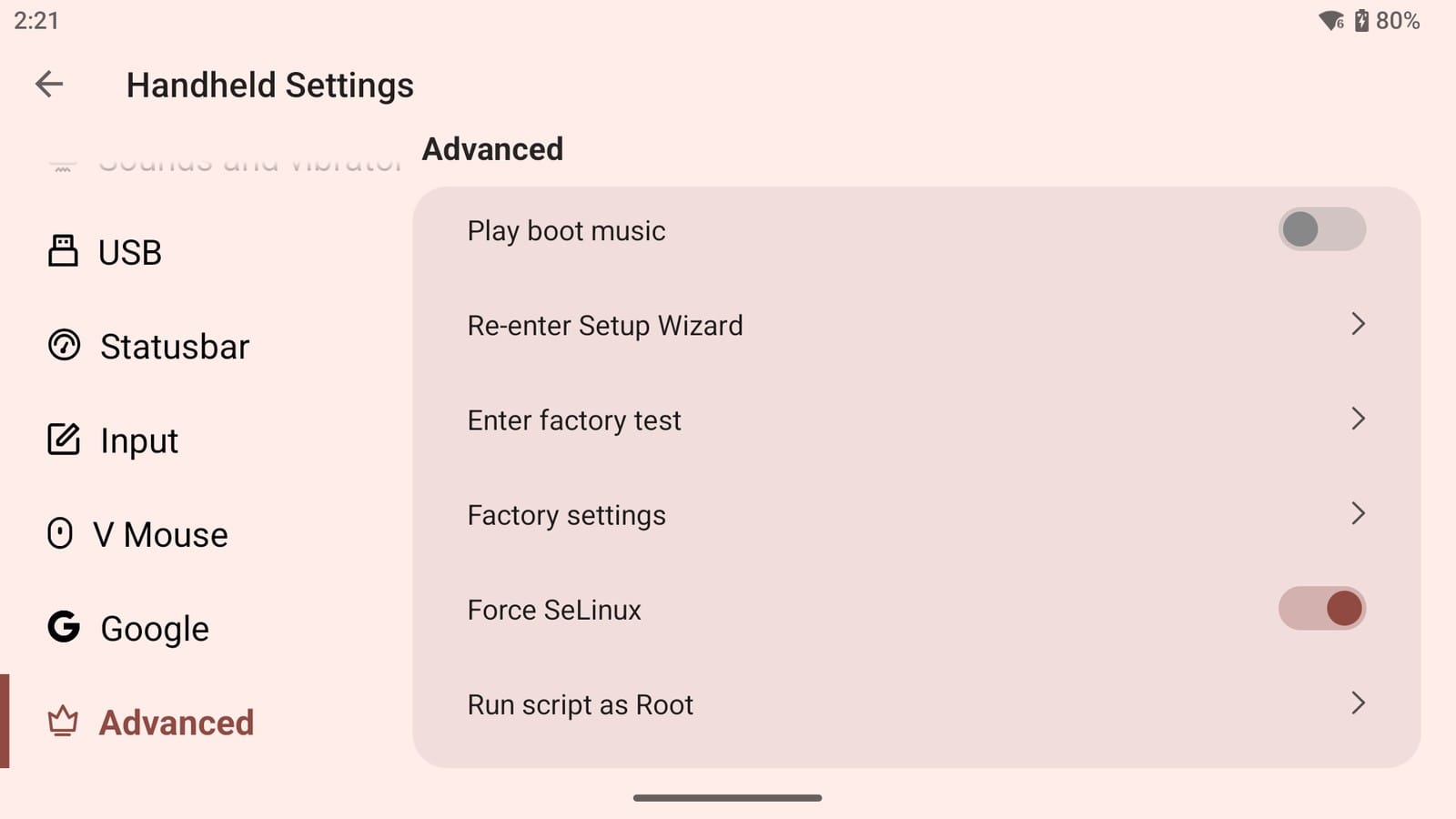
If you’d rather not touch that setting, you can still install themes by hand, and it only takes a minute:
- On the theme’s GitHub page, tap Code, then Download ZIP.
- Unzip it, and copy the theme’s folder into ES-DE/themes on the Duo.
- Restart ES-DE, then choose the theme under UI settings > Theme.
My favorite is Iconic, with its grid-boxart variant and the dark-modern color scheme, and it’s the one in every screenshot here. Installing by hand has one small bonus. Uninstalling ES-DE deletes themes from the downloader, but the ones in ES-DE/themes stay put.
Using both screens
ES-DE only ever draws on one screen at a time. What you get to choose is where your games open, and what the other screen shows while you browse.
Launching games on the other screen
Under Other settings, Launch on other screen has a main switch, and since 3.5 there’s a switch for each system underneath it. Turn the main one on, and games open on the bottom screen while ES-DE stays on top. Switch a system off, and its games stay on the top screen. You can set it for a single game in its metadata editor, too.
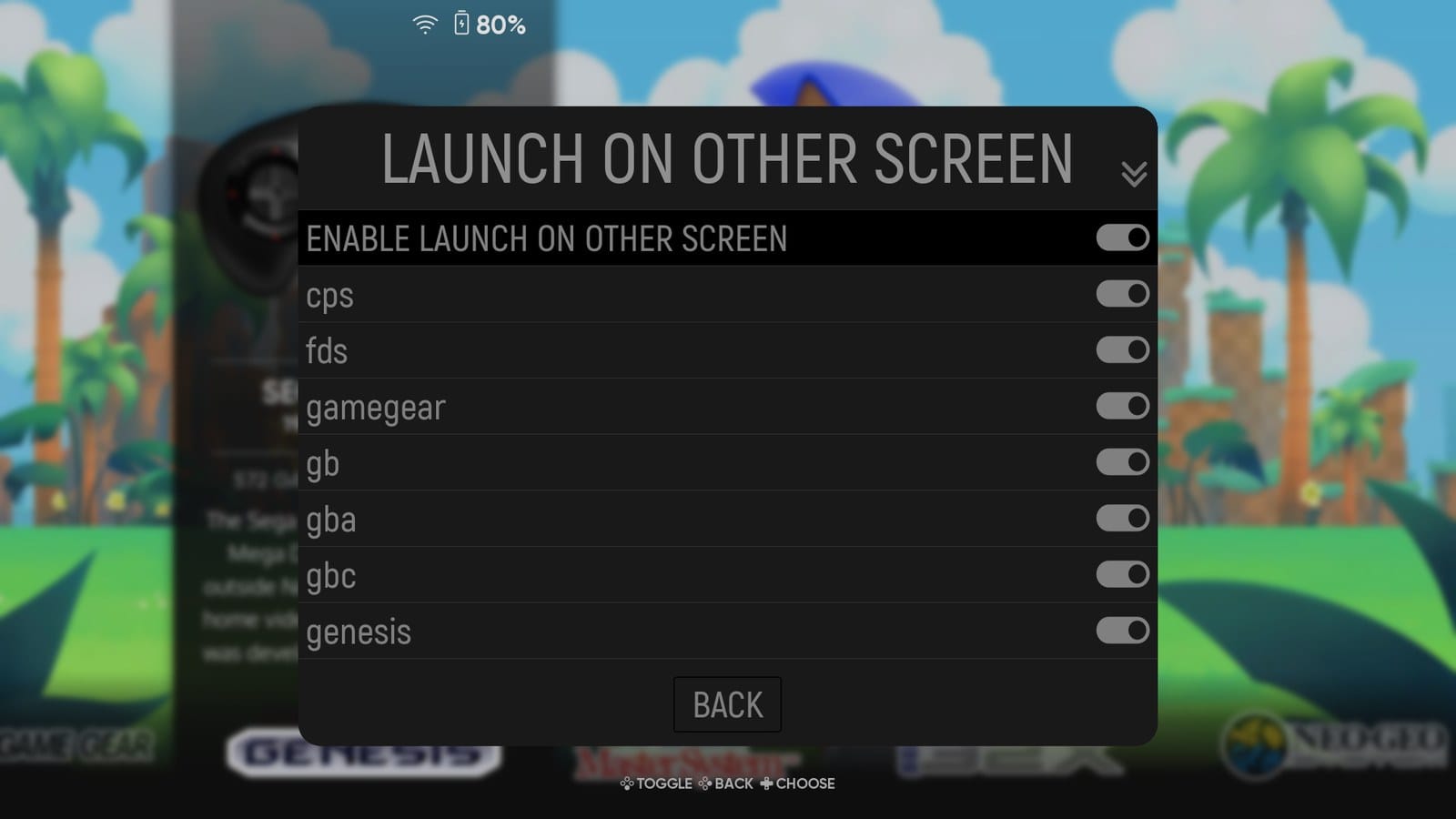
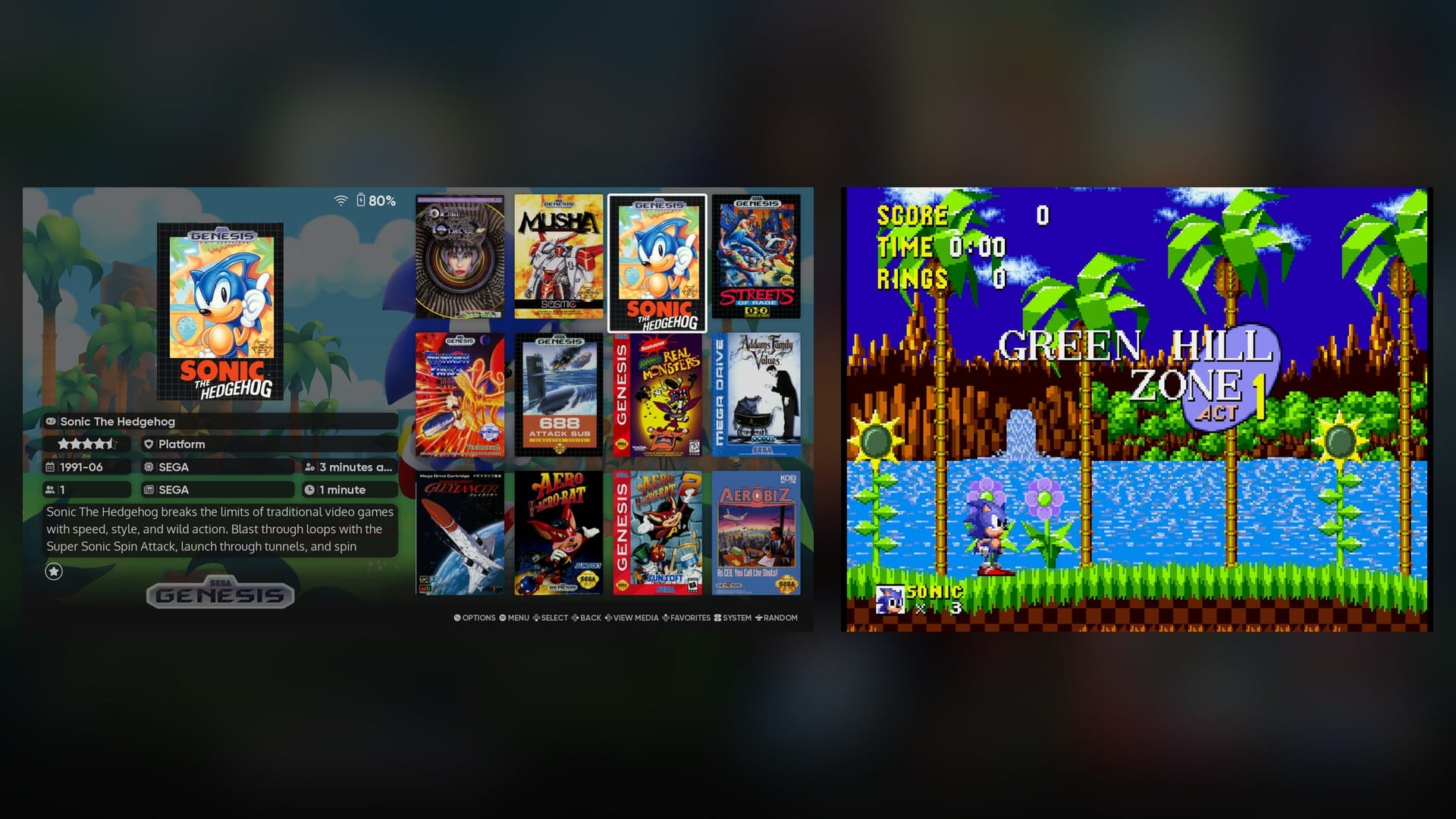
I keep mine off. I play on the top screen. If you also own an Odin 2, leave it off there for sure. That handheld reports a second screen it doesn’t have, and games fail to launch with this switched on.
ES-DE Companion on the bottom screen
This is the app that gives the Duo’s second screen something to do. While you browse, ES-DE Companion shows the system’s logo over art from its games, then the screenshot and logo of whatever game you land on. It’s free, it’s made by one of ES-DE’s own team, and it lives on GitHub, so you install it from your file manager the same way you did ES-DE.
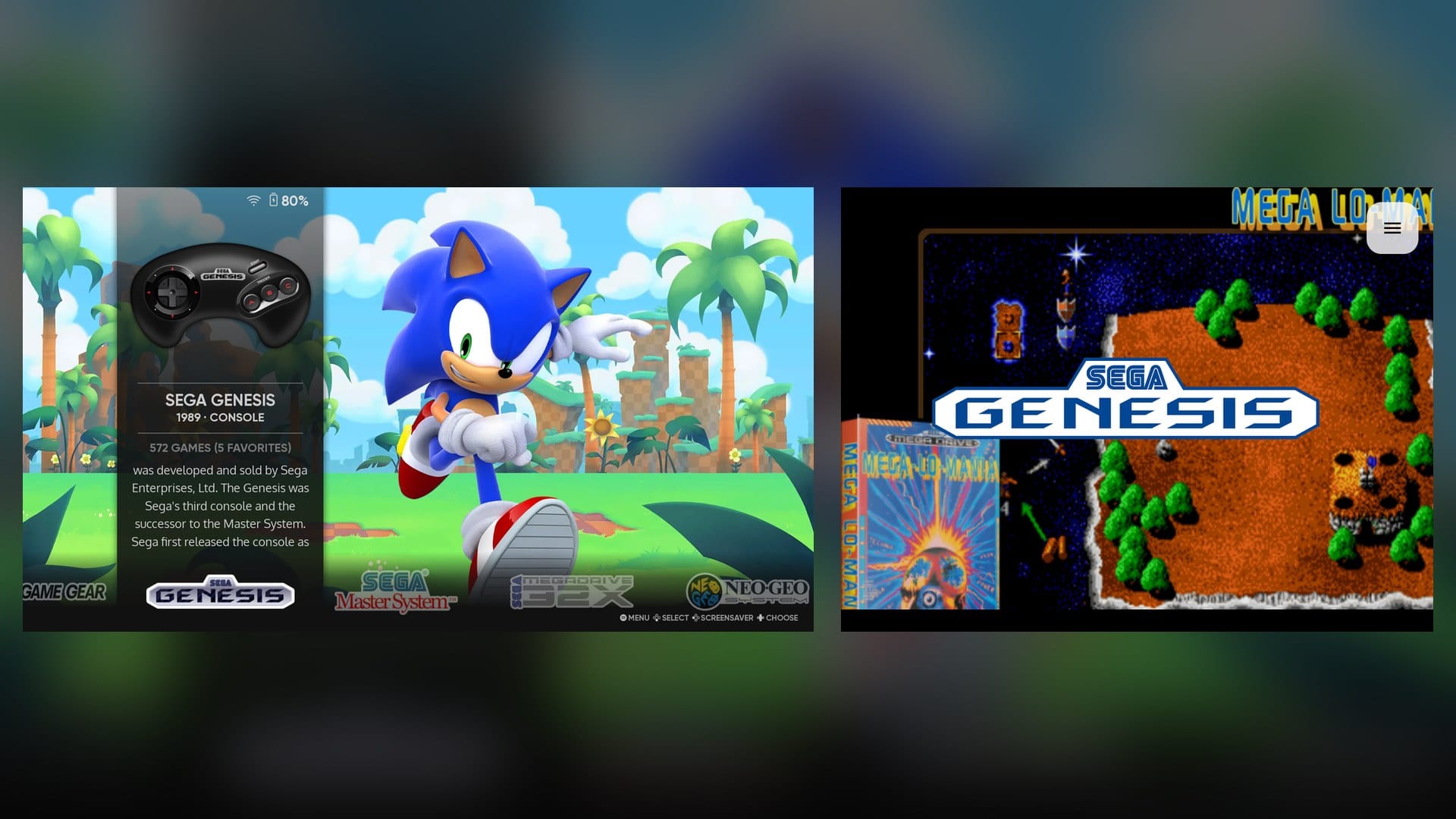
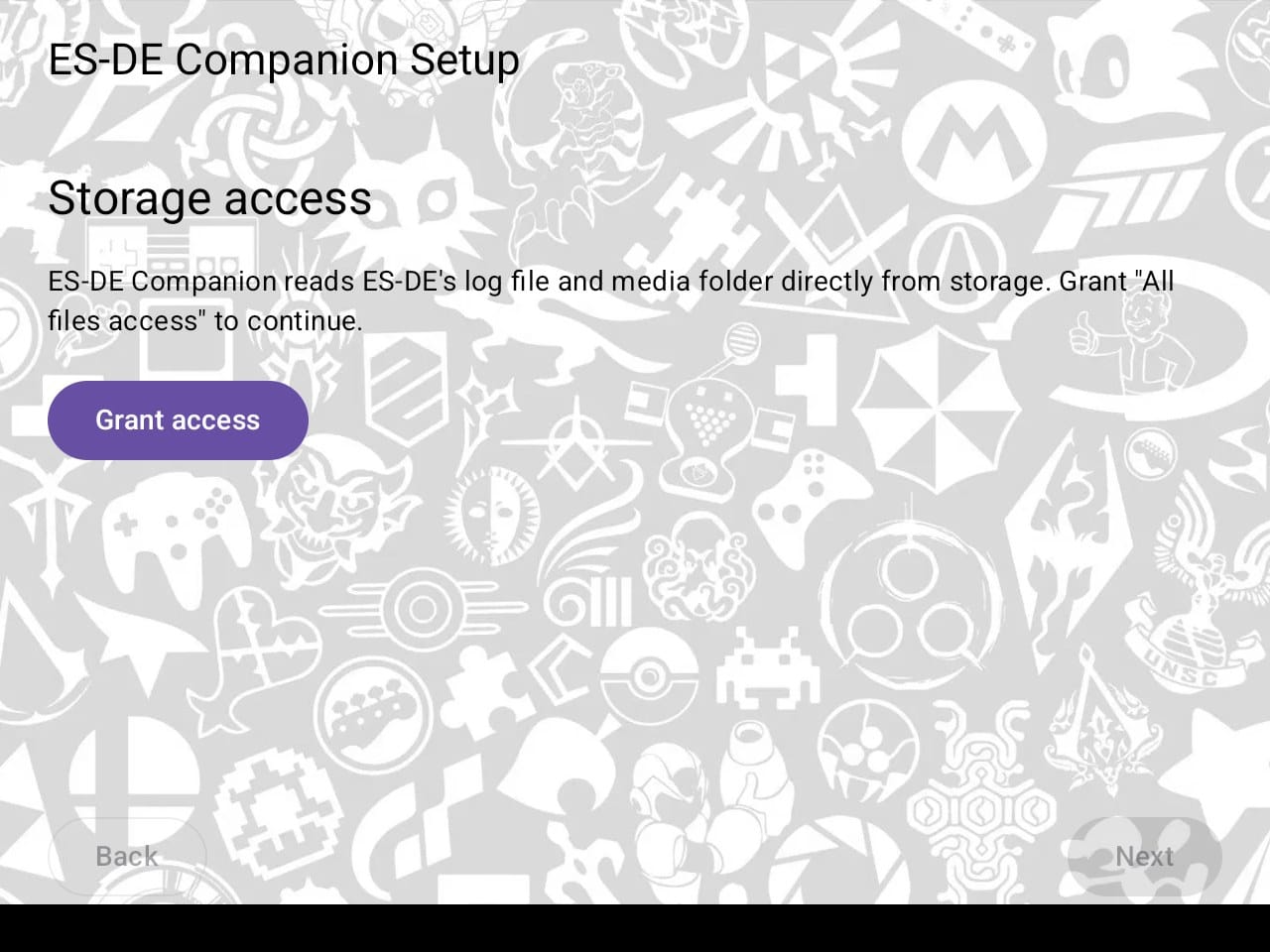
Open it on the bottom screen, and its setup starts by asking for the same All files access ES-DE wanted.
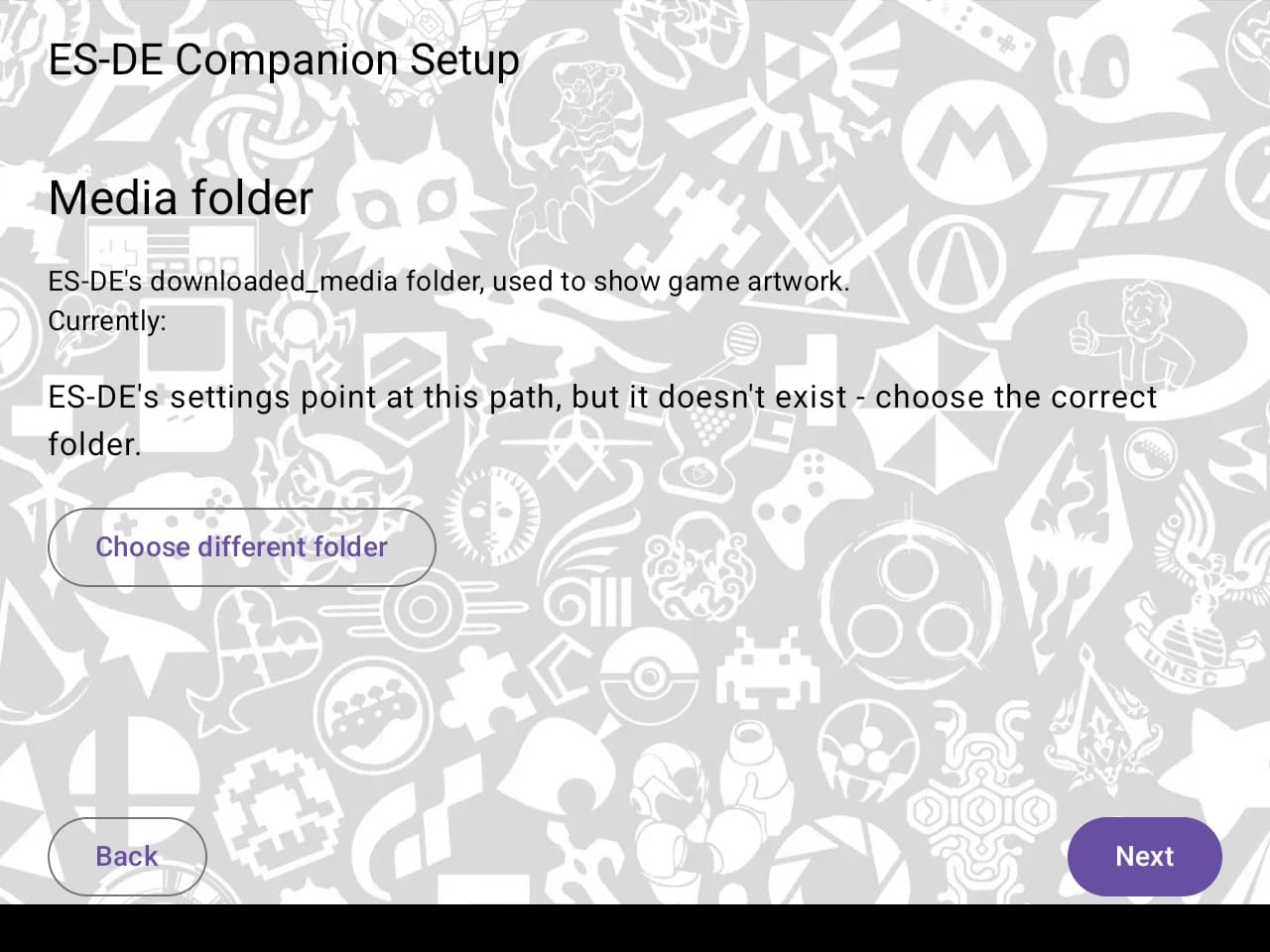
After that it looks for your ES-DE folder, and it usually finds it on its own. The media folder tripped me up. If you never changed where ES-DE saves box art, Companion says the folder “doesn’t exist”, even though it does. Tap Choose different folder, go to ES-DE/downloaded_media, and allow it.
Next come three settings in ES-DE. Companion keeps up by reading ES-DE’s log file, and these make ES-DE write what you’re browsing into it. They’re all under Other settings: Enable custom event scripts, Browsing custom events and Debug mode. Companion calls the second one “Browsing Custom Event Scripts”, so don’t let the name throw you.
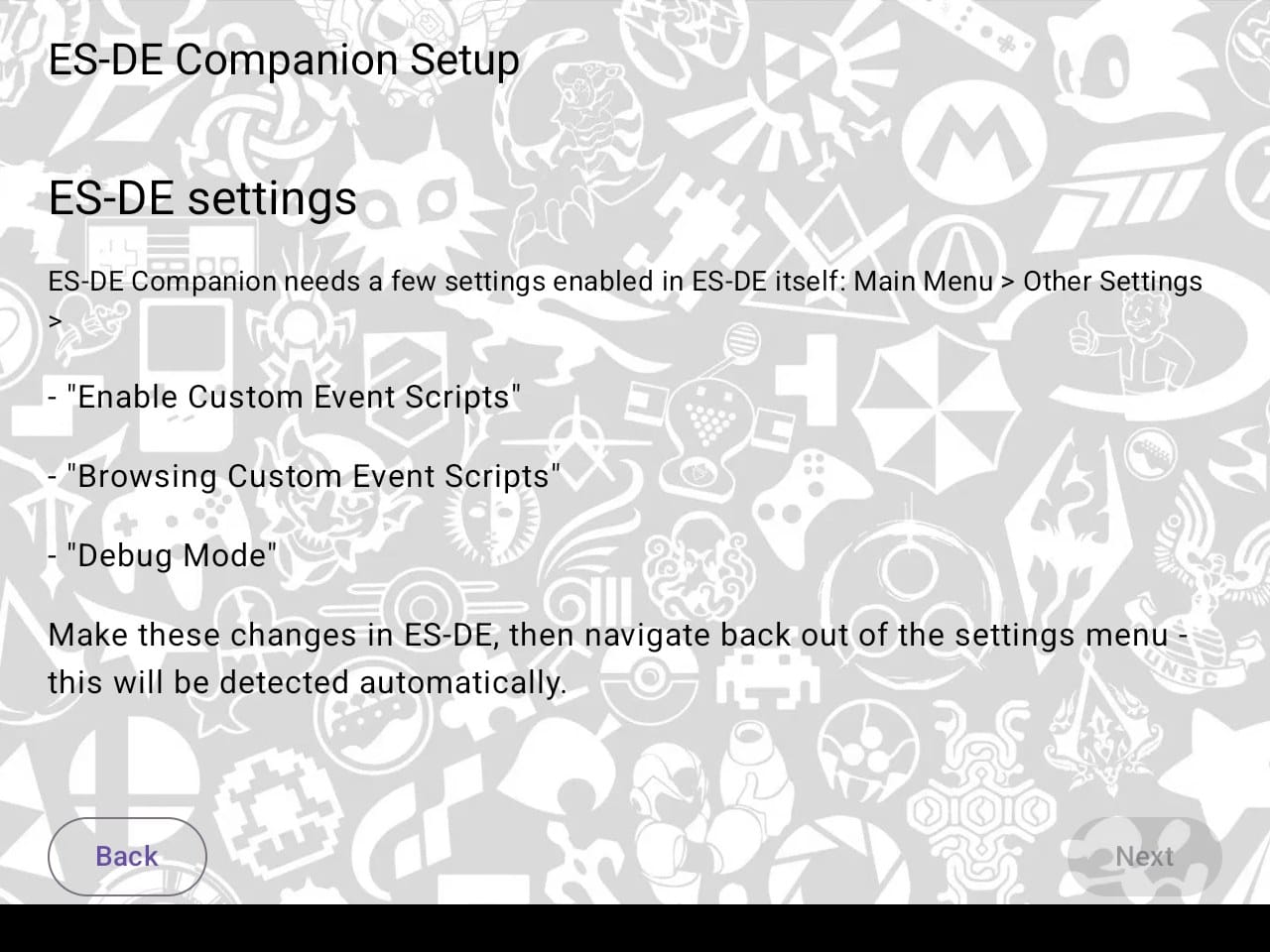
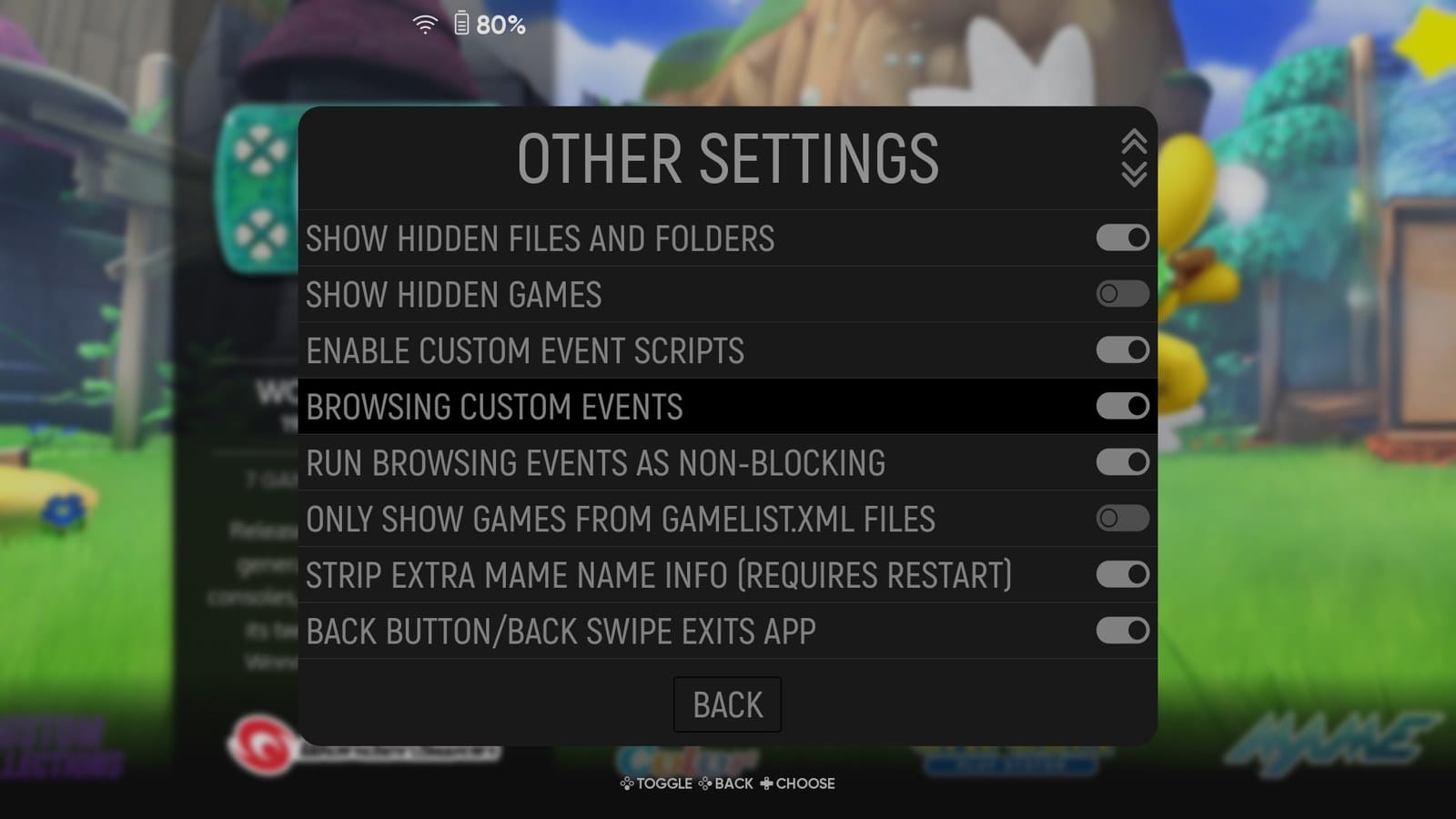
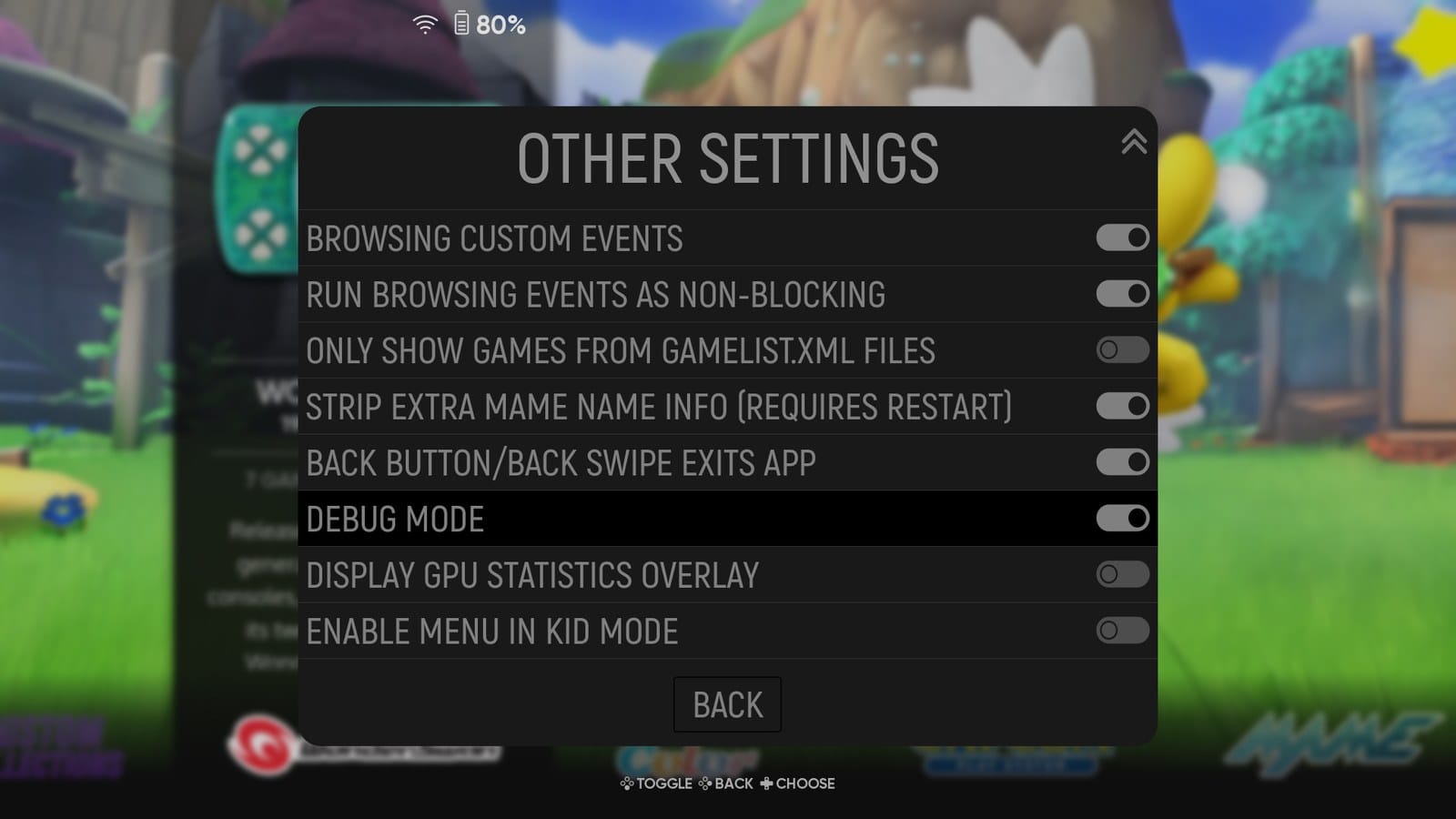
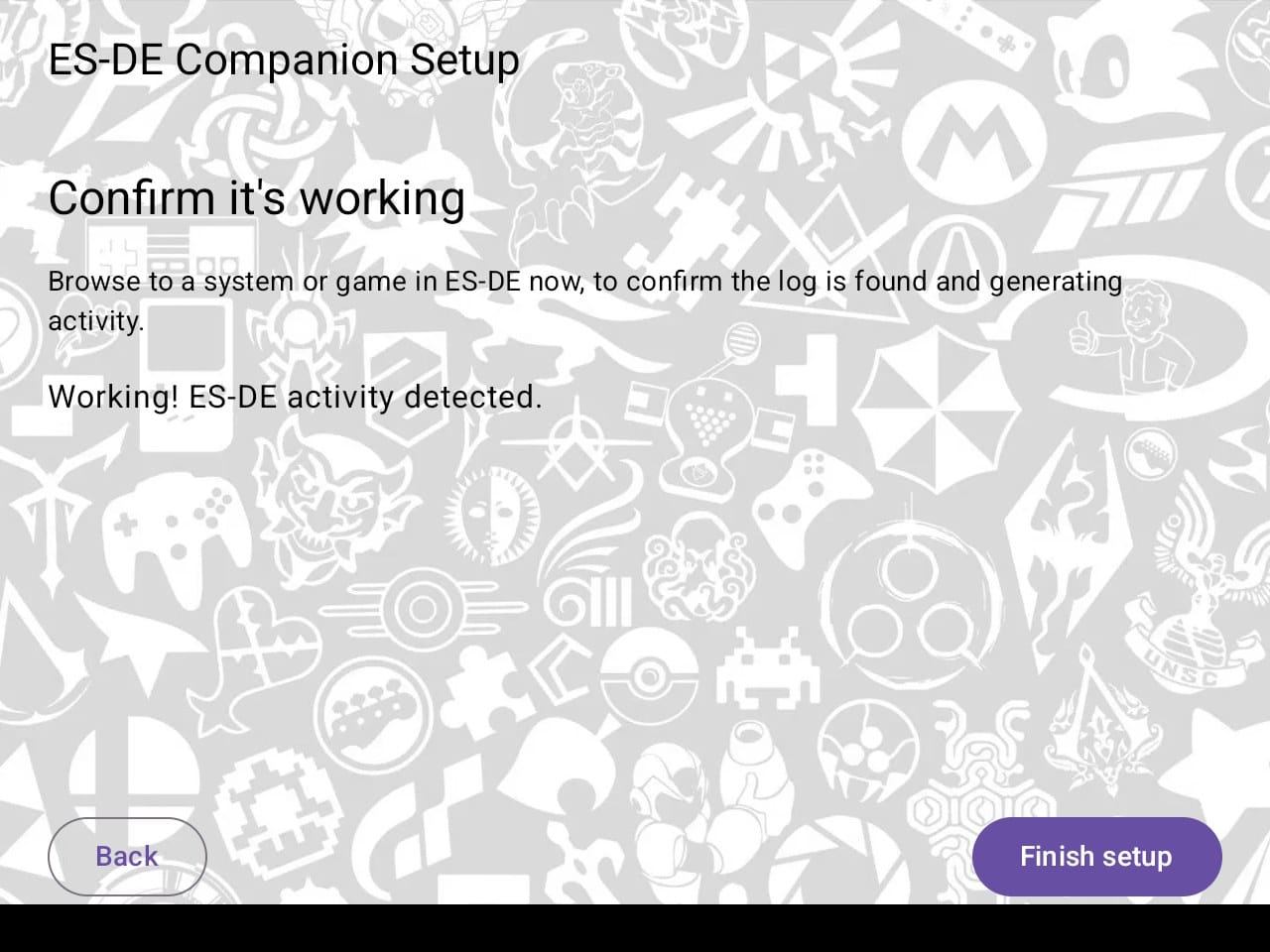
Once all three are on, back all the way out of ES-DE’s menu. ES-DE only saves settings when you leave the menu, and Companion won’t move on until it sees them. Then browse a few systems, Companion says “Working!”, and you’re set.
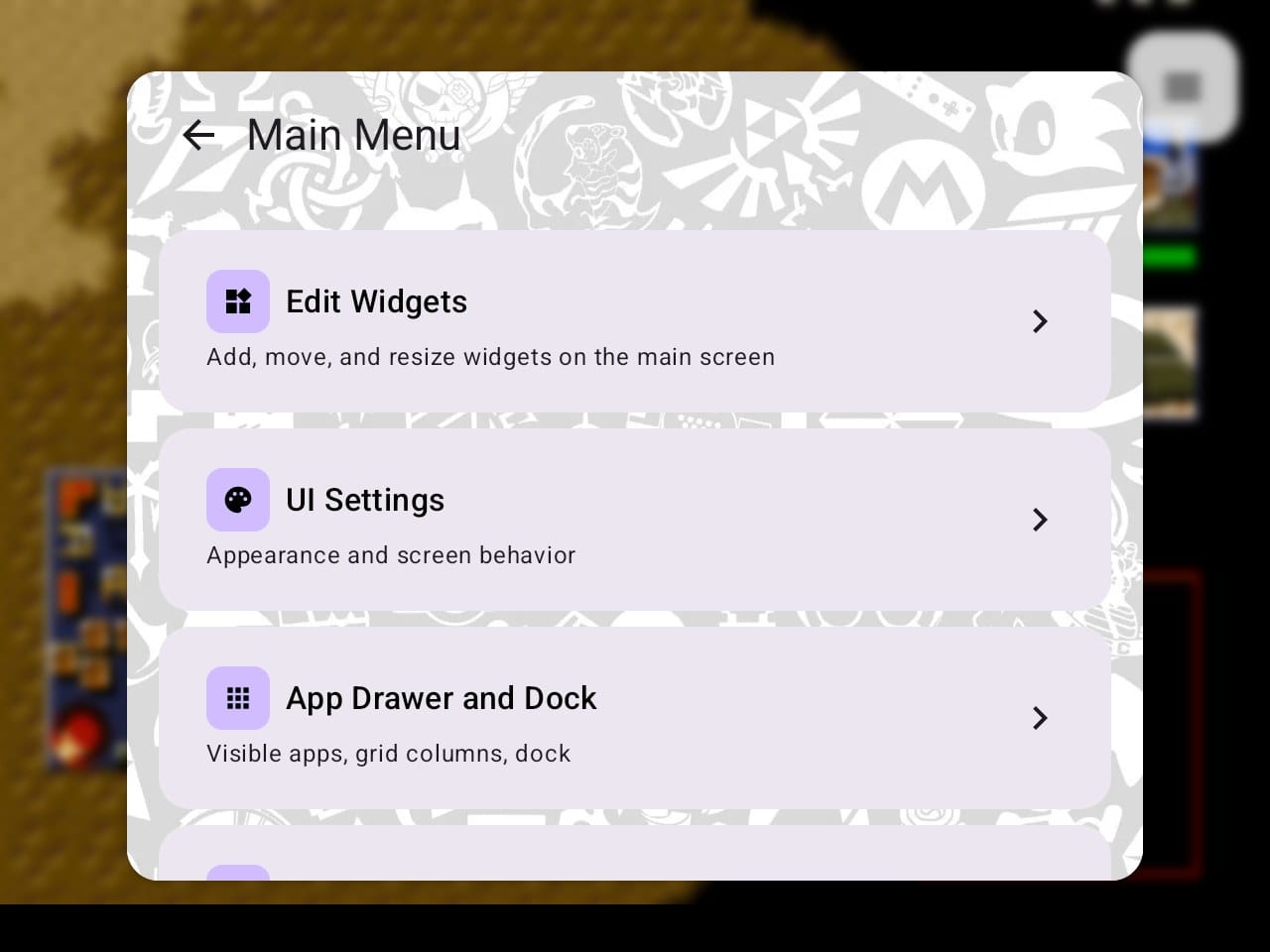
Later on, long-press anywhere on the bottom screen to bring up Companion’s menu, with widgets, background music, an app drawer and more. Edit Widgets lets you move and resize what it shows, with a separate layout for the system view and the game view.
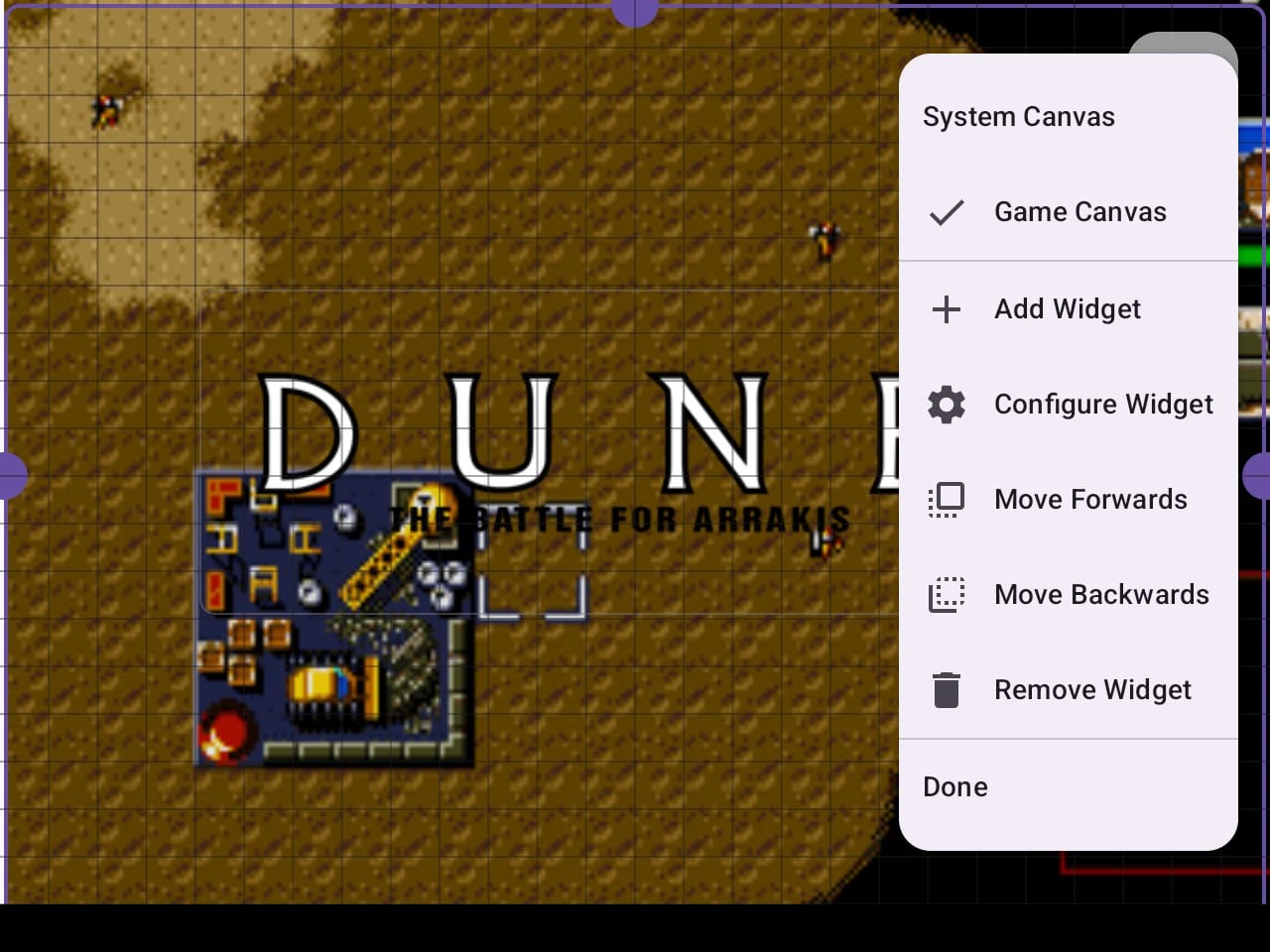
Tap a widget to select it, then drag it to move it, or pull its edges to resize it. The menu button in the top right corner adds, configures and removes widgets. There are 6 kinds for the system view and 16 for the game view, from box art and 3D boxes to the game’s description, its rating and its video.
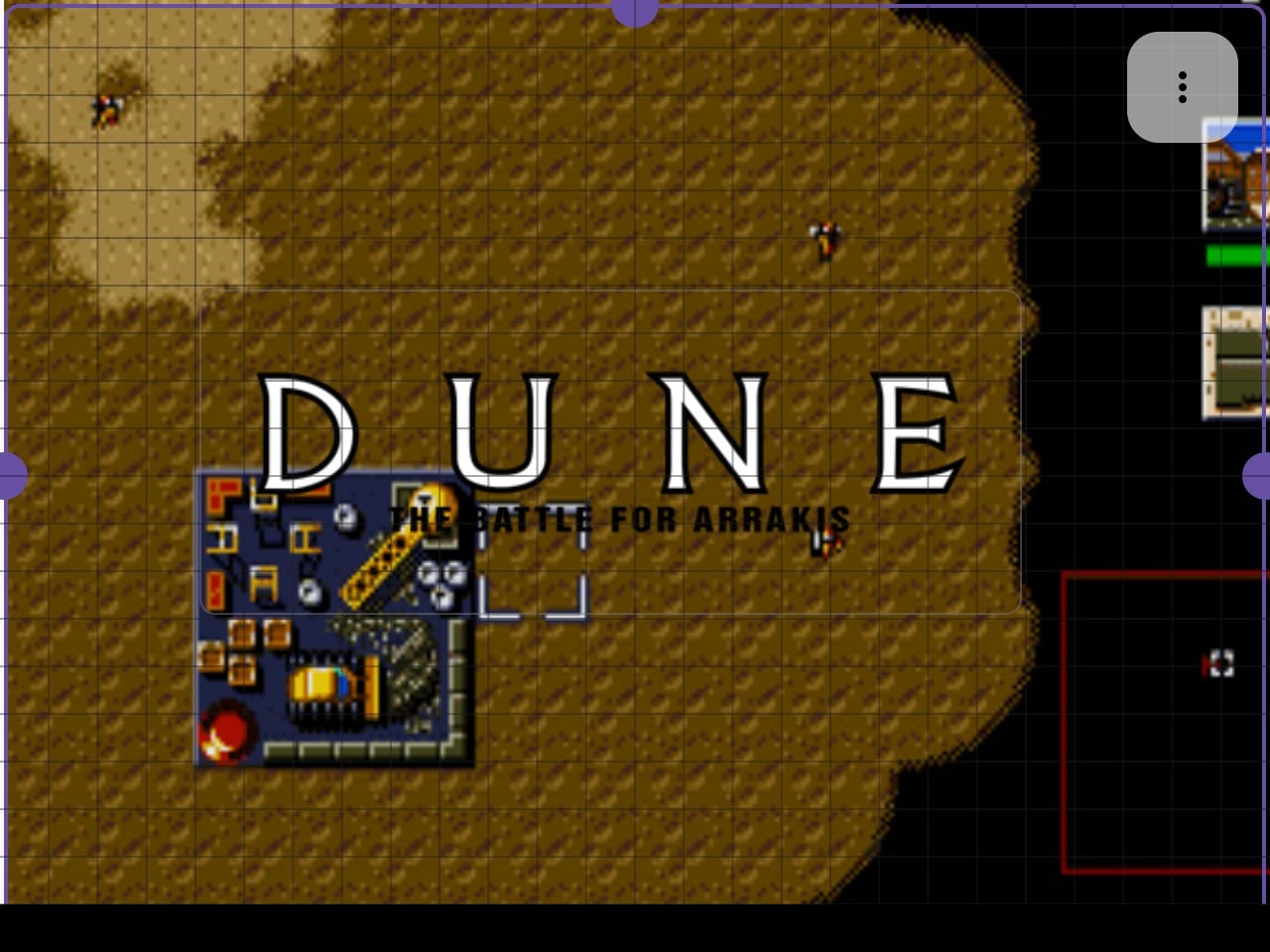
I’d seen a report of the widget editor getting stuck in a loop on the Duo, so I went looking for it. Done took me straight back out every time.
A few more things in Companion’s long-press menu:
- **The app drawer.** Swipe up on the bottom screen, and you get every app on the Duo, and you can choose which screen each one opens on.
- **Background music.** Point Companion at a folder of music in its setup settings, then switch it on under Background Music. Music in the folder itself plays everywhere. Put some in systems/genesis inside it, and that plays while you browse the Genesis.
- **Game guides.** Companion can download guides from GameFAQs, so you can read one on the bottom screen while you play on the top.
- **Backup & Restore.** Once you’ve got it the way you like it, save everything to one file, under Companion’s setup settings. It makes a reset or a new handheld much less painful.
When an emulator wants both screens
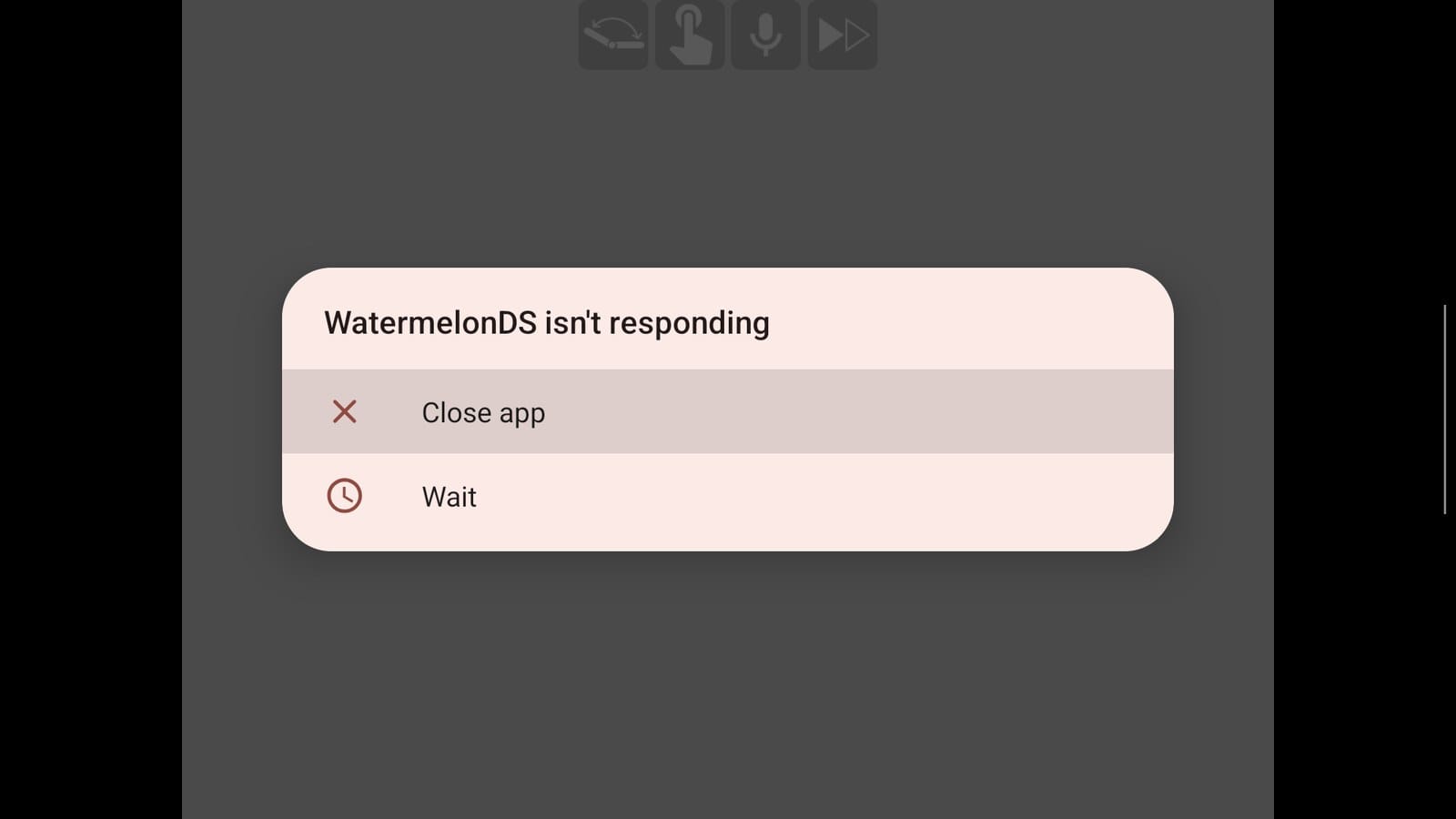
A few emulators use both screens on their own, like WatermelonDS for DS games, and they have to take the bottom screen back from Companion. On my Duo, WatermelonDS took about 20 seconds to start, and Android popped up “WatermelonDS isn’t responding” on both screens. Tap Wait, maybe twice. Close app ends the game. After that, the DS game took over both screens and played normally.
Android games and apps
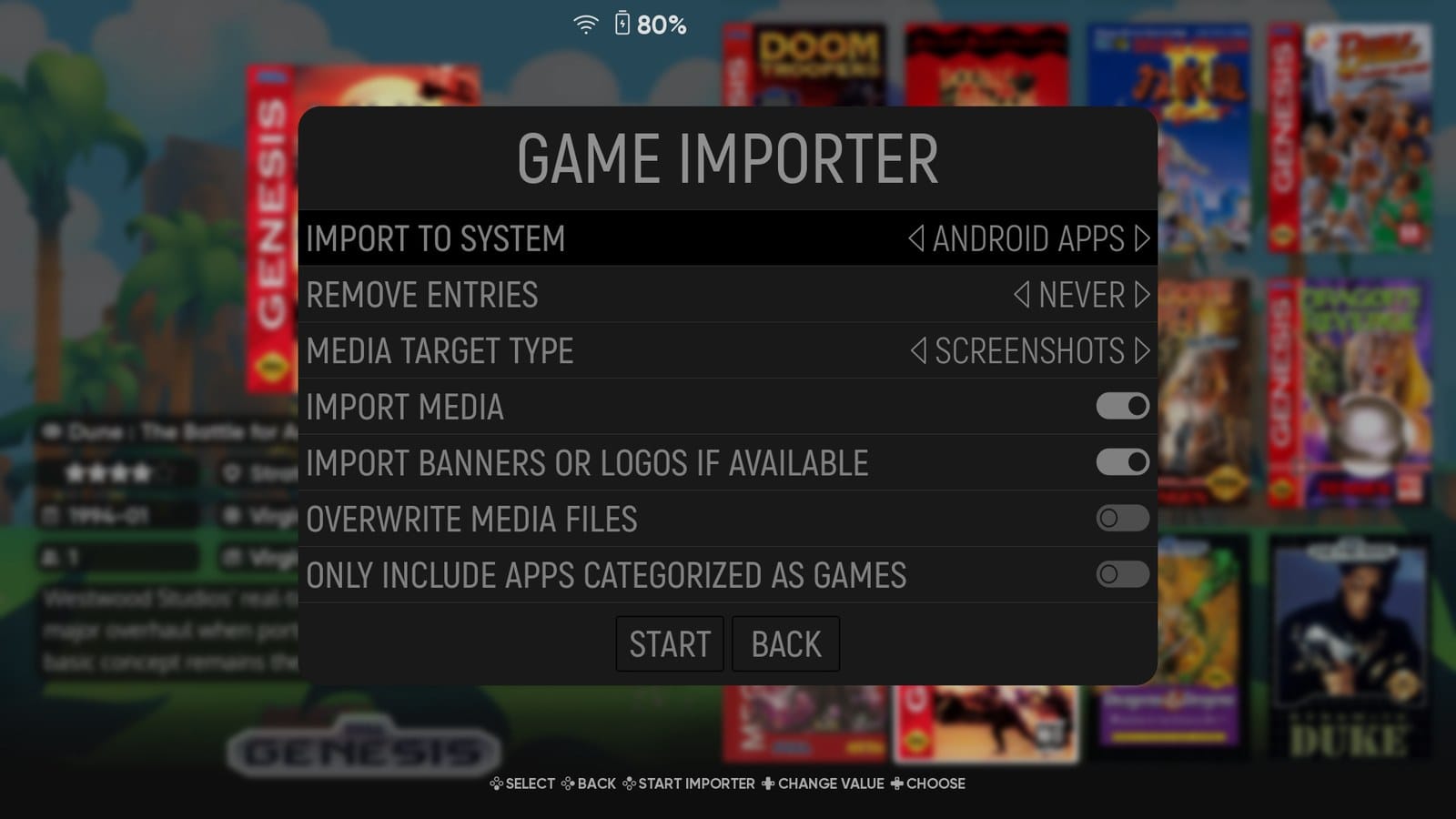
ES-DE can list your Android games and apps next to everything else, so you never have to leave it. Open the main menu, go to Utilities, then Game importer, choose Android apps or Android games, and press Start.
Tick whatever you want in the list and press Import. It can grab each app’s icon, and a banner or logo if the app has one, so they don’t look out of place.
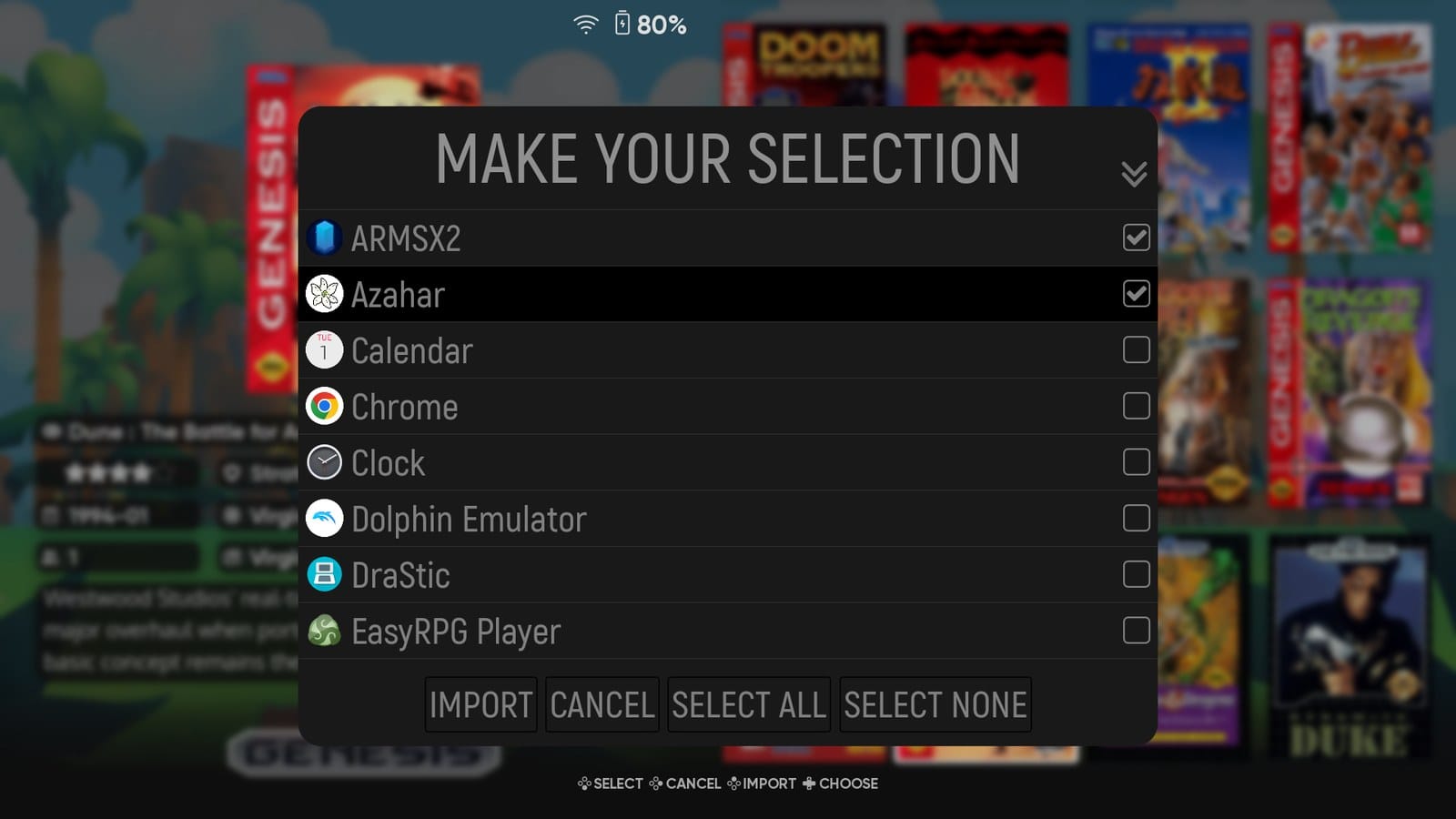
The list doesn’t update itself, though. If you install or remove an app later, run the importer again.
Collections
Collections are playlists for your games. They don’t move any files. They just list games from any system together. ES-DE makes three on its own: All games, Favorites, and Last played, which holds the last 50 games you’ve launched. You can switch each one on or off under Game collection settings > Automatic game collections.
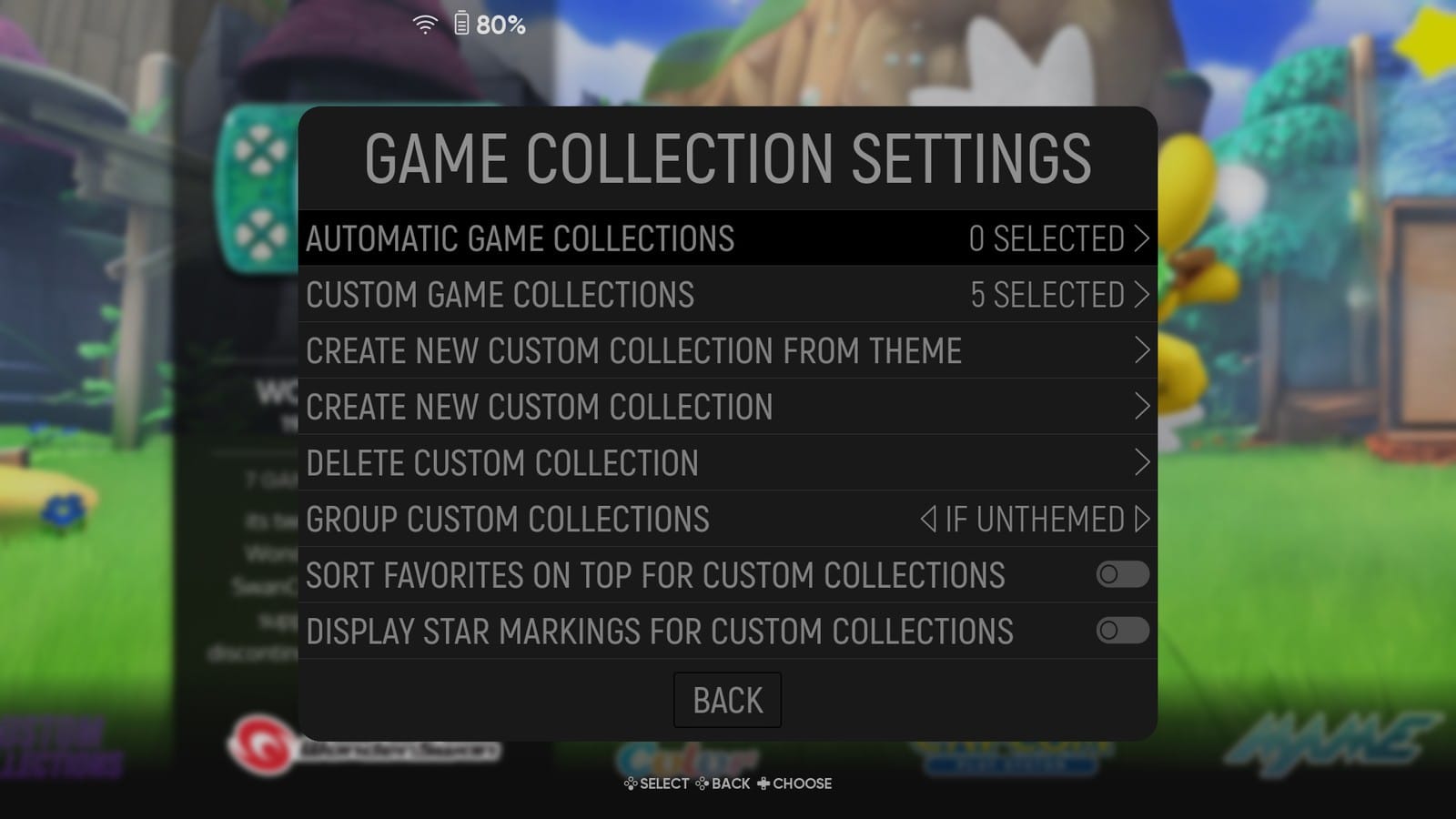
Your own are where it gets fun. I keep one for each of my favorite series, like Final Fantasy, with every game from every system in one list. Making one takes a minute:
- Open Game collection settings and choose Create new custom collection.
- Type a name and confirm it.
- ES-DE puts you in edit mode. Go to any game list and press Y on each game you want in it. While you’re editing, the bar at the bottom shows the collection’s name next to Y.
- When you’re done, choose Finish editing in Game collection settings, or in the gamelist options.
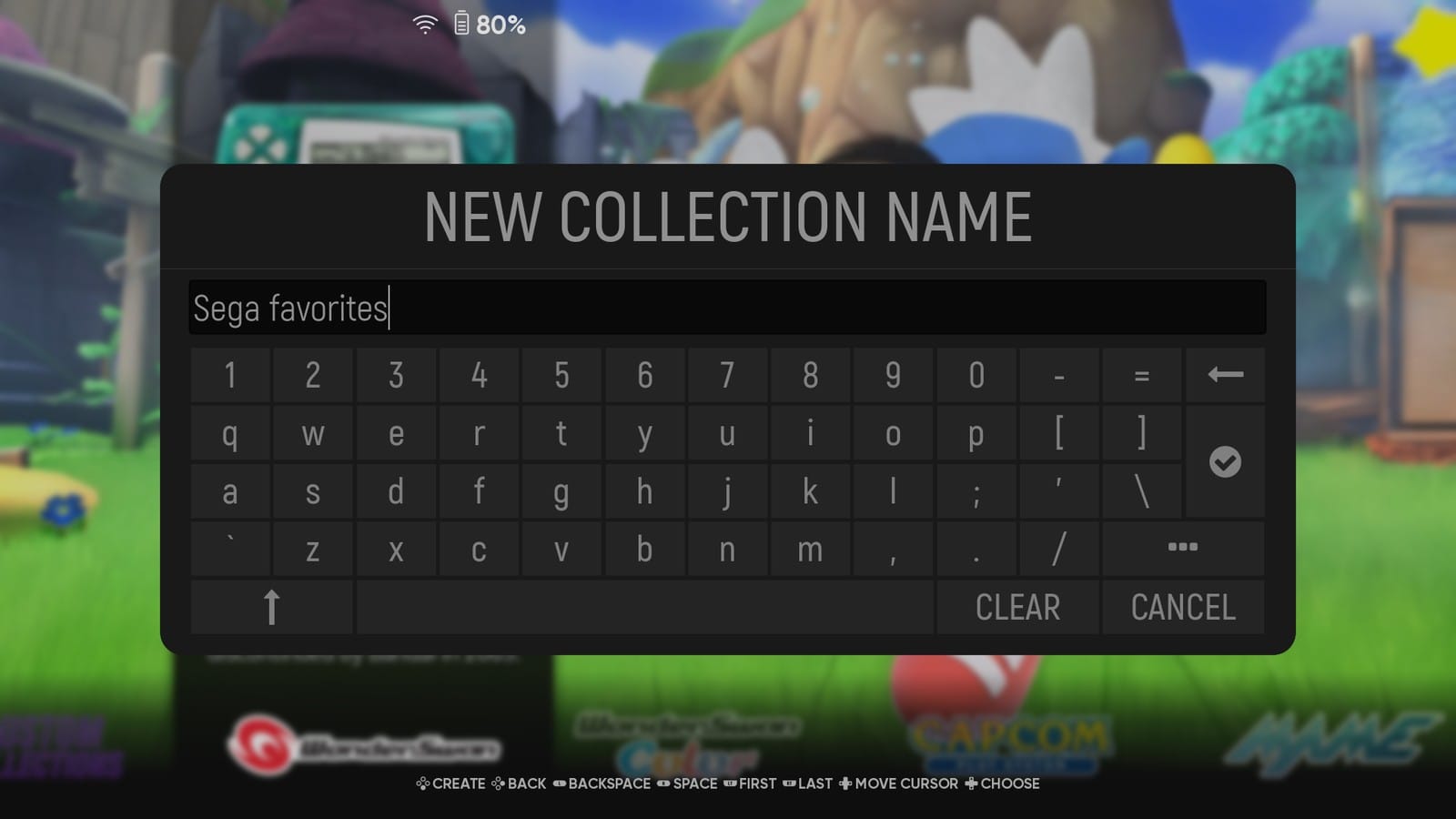
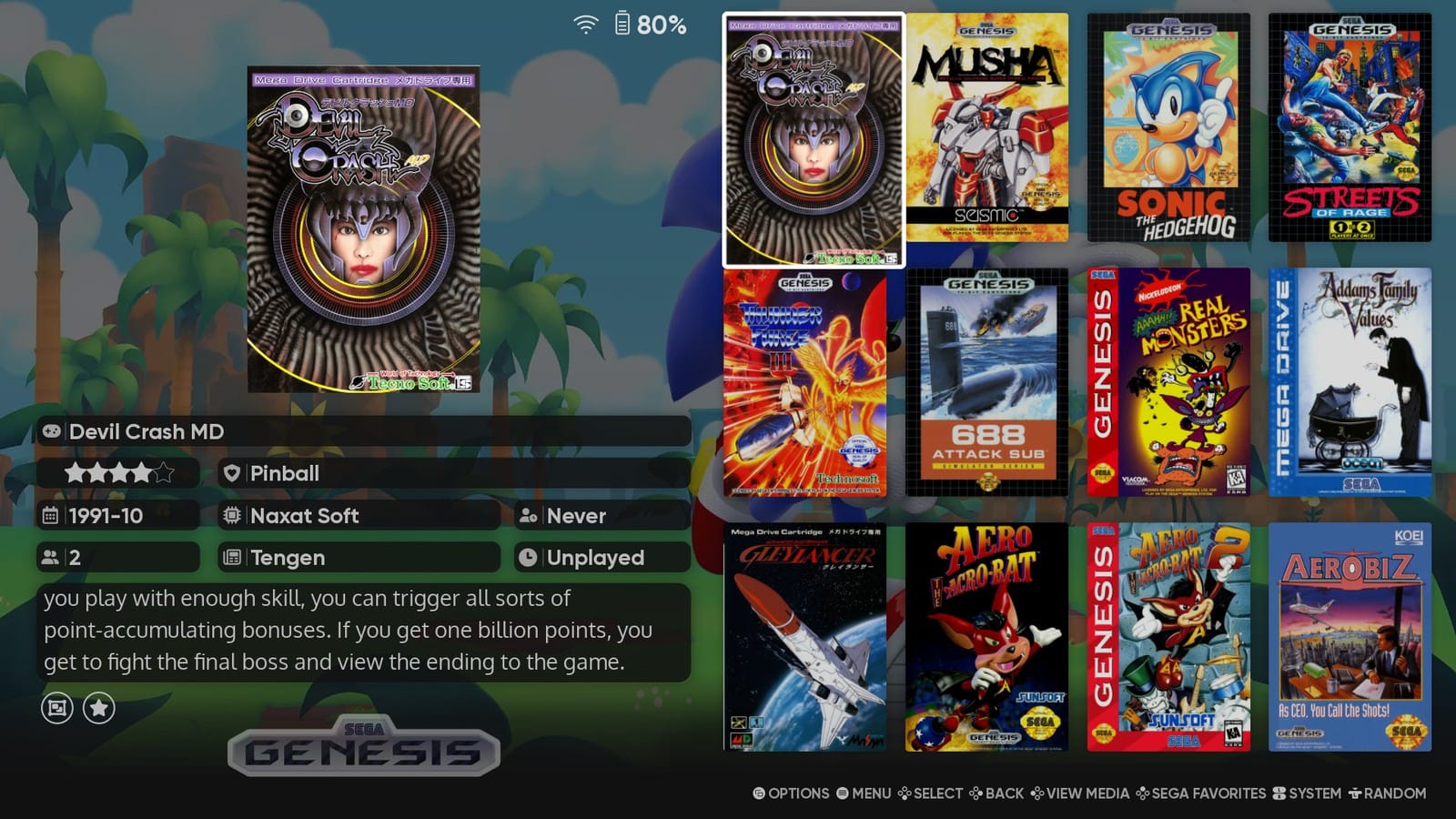
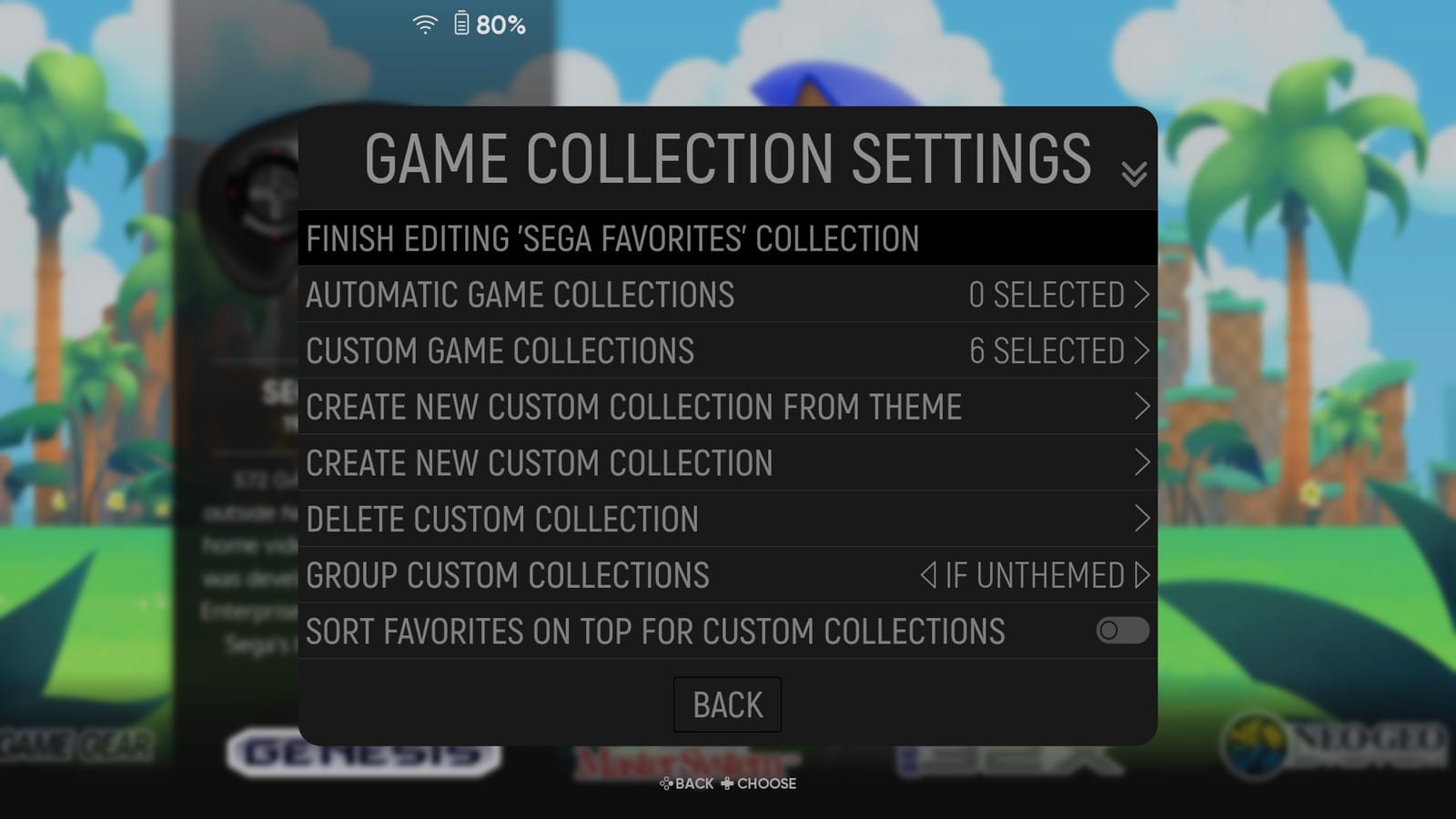
With the default settings, your collections then show up together in one entry in the system view. To add more games later, open the collection, press Select and choose Add/remove games to this game collection.
Making it your home screen
If the Duo is only for games, setting ES-DE as its home app is worth it. Open Android’s Settings, go to Apps > Default apps > Home app, and pick ES-DE. It opens straight away, and from then on the Duo boots into ES-DE and the Home button always brings you back.
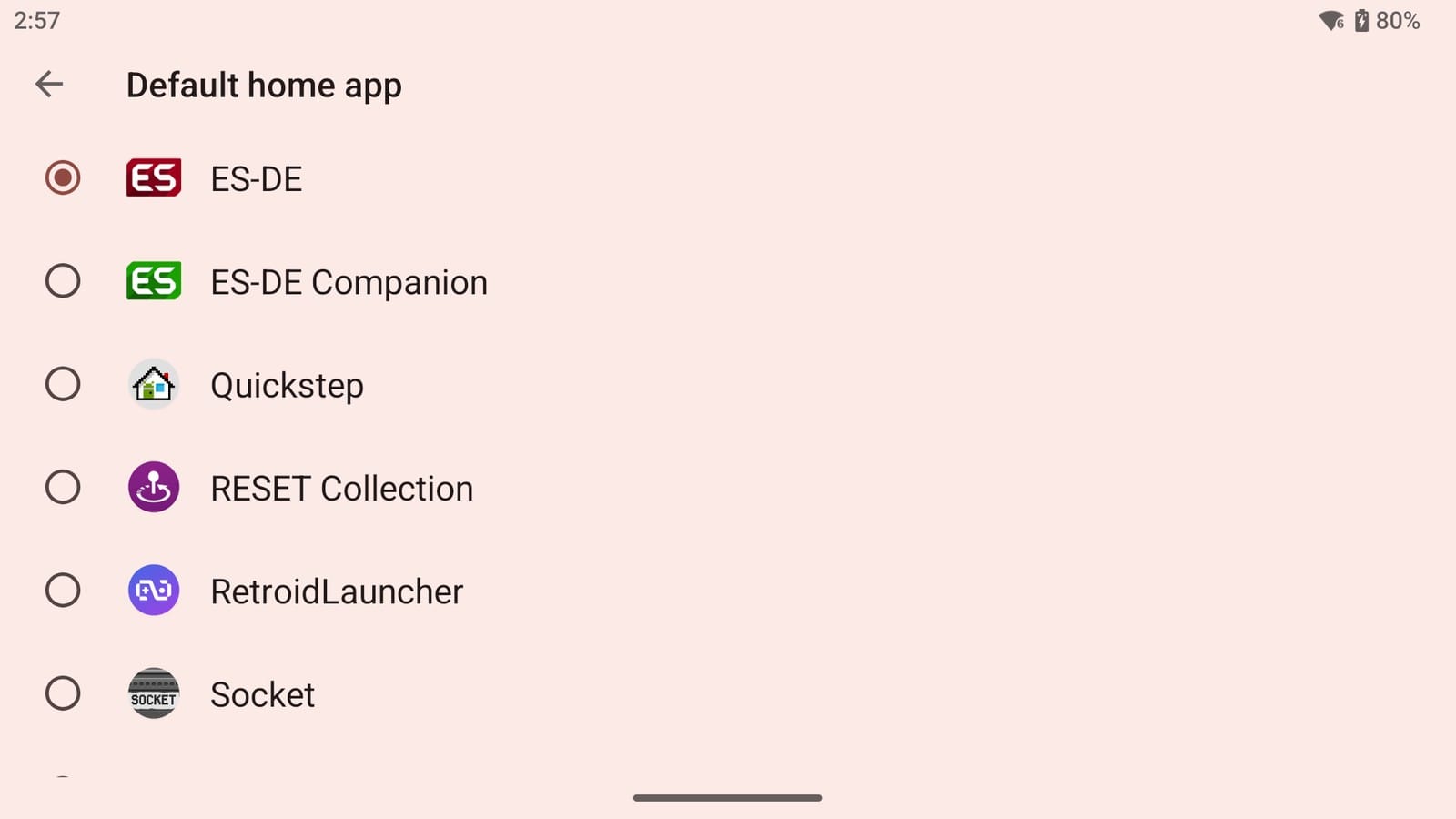
Import your Android apps first, Settings included, so you can still reach them. And if you ever do lock yourself out, swipe down from the top of the screen and tap the gear icon, and Settings is right there to switch it back.
There’s one catch if your ES-DE or games folder is on the SD card. After a reboot, ES-DE can show its setup screen because Android hasn’t finished mounting the card yet. Wait a few seconds and press B. Everything’s still there.
Settings worth changing
With the big stuff done, a few settings in the main menu are worth a look.
- **The touch overlay.** By default, ES-DE draws on-screen buttons whenever you touch the screen. On a handheld with real buttons, switch off Enable touch overlay under Input device settings. Just don’t do it on a phone with no controller, or you’ll lock yourself out.
- **The RetroArch core check.** Under Other settings, Query installed RetroArch cores (Experimental) makes ES-DE tell you when a core is missing before it launches anything. It needs a recent RetroArch.
- **Swapped buttons.** If your handheld has A and B the other way round from what your thumbs expect, Swap the A/B and X/Y buttons under Input device settings flips them, and the bar at the bottom follows along.
- **The screensaver.** Under UI settings > Screensaver settings, it can do more than dim the screen. Slideshow cycles through your games’ screenshots, and Video plays their scraped videos.
- **Navigation sounds.** If the clicks while you browse get on your nerves, switch off Enable navigation sounds under Sound settings.
When a game won’t launch
It happens to everyone. It’s almost always one of these.
RetroArch opens to a black screen
RetroArch on Android doesn’t complain when something’s missing. It just sits on a black screen. Usually the core ES-DE asked for isn’t installed, or the system needs a BIOS file you haven’t added yet. Turn on the core check from the settings above, and ES-DE warns you about a missing core instead. A missing BIOS file still ends in a black screen, though, so check those next.
The other usual suspect is the Play Store version of RetroArch. ES-DE only works with it if you switch on Use RetroArch in SAF mode (Not recommended). The name says it all. Get RetroArch from its website instead, and leave that option off, because with the website version it breaks every RetroArch launch.
The game flashes, and you’re back in ES-DE
On my Duo, this came from a RetroArch session I’d left running in the background from another front end. It swallowed the launch, and a second later I was back in ES-DE. Swipe RetroArch away in recent apps, or force-stop it in Android’s settings, and launch again.
“The game file could not be opened”
The emulator can’t see that game’s folder yet. Open the emulator and add that system’s folder, the same way you did when you were letting emulators see your games, and check the folder name is all lowercase.
“Couldn’t find emulator”
ES-DE is set to use an emulator that isn’t installed. Install it, or pick another one for that system under Alternative emulators, the way it’s shown earlier.
“ERROR CODE -1”
Usually the same folder problem, or a file type that particular emulator won’t open, even though ES-DE lists the game. ES-DE’s own example is MD.emu, which won’t take .bin files until you rename them to .gen. Check what that emulator accepts, or pick another emulator for the game.
The emulator opens your last game
You never really quit it. Pressing Home only puts a game in the background, like switching windows on a PC, so the emulator picks up where it was. Quit from the emulator’s own menu each time.
N64 controls don’t work in RetroArch
This one’s a RetroArch quirk with games launched from a front end, so the fix lives in RetroArch. Open it, go to Settings > Input > Polling Behavior, set it to Early and save. If rumble stops working after that, start a game, open the Quick Menu, and switch on Threaded Renderer under Core Options > GLideN64.
When it’s slow to start
Most of that comes down to where your files are. Android is slow at reading lots of small files, and SD cards in the usual format make it worse, so keep the ES-DE folder, and above all its downloaded_media folder, on internal storage. Your games can stay on the card.
A few smaller things help too. If you keep texture packs or other big folders inside a system’s folder, drop an empty file called noload.txt into each one, and ES-DE skips them at startup. Some themes load faster with Enable theme variant triggers switched off under UI settings. And if you’re tempted to load tens of thousands of games, don’t. ES-DE’s own team says huge collections aren’t practical on Android.
Keeping it updated
Updating ES-DE is the easy part. Install the new version over the old one. Your settings, games, box art and collections all stay where they are. Each new version arrives by email from Patreon, and the resend page has your back if you’ve lost it.
Companion looks after itself. It checks GitHub for a new version every time it starts, and offers to install it with one tap.
On the shelf
EmulationSee the whole story →Nerd Alert
Your Turn
What are YOUR thoughts
What have your experiences been? Let us know.