Guide · Guides · Handheld Gaming · Retro Gaming · Emulation
How to Use Obtainium on Android: Keep Your Emulators Up to Date, Shown on the Retroid Pocket Duo
Obtainium installs and updates Android apps straight from their makers’ release pages. How to set it up for your emulators, add apps from its directory, pick the right file and move your list to another handheld.
https://averagetechnerds.com/obtainium-guide-android-emulator-updates/
 EmulationAndroid emulators, by systemWhere to get each one, what it costs, and the ones I runSee the emulators →Every emulation article →
Plenty of emulators on Android don’t come from the Play Store, or the Play Store copy runs behind. RetroArch’s recommended build lives on its own website, and a lot of others ship on GitHub. That’s fine until you want to update them. Then it’s a tour of websites, a download, an install, and the same again next month for every app. Obtainium does that tour for you. It’s the app I recommend in my ES-DE guide for getting emulators onto a handheld. This guide sets it up step by step, on my Retroid Pocket Duo.
What Obtainium does
Android apps usually lean on an app store for updates. The Play Store checks, downloads and installs, and you never think about it. An app you installed from a website has nobody doing that job, so it just sits on whatever version you first put on.
Obtainium takes that job. You give it the address of an app’s release page, and it works out the rest: the newest version, which file to download, and whether the copy on your handheld is behind. It checks again on a schedule, sends you a notification when something’s new, and installs the update when you tap it. On newer Android versions it can even do that in the background, for apps it installed itself.
It doesn’t host anything, and there’s no account to make. Every file comes straight from the app’s own page, which is the whole point. You get the developer’s build, the moment they publish it.
Before you start
Two things are worth sorting out first.
Check where your emulators came from. An app from the Play Store and the same app from the developer’s website are often signed differently, and Android won’t install an update over an app signed with a different key. So if your RetroArch came from the Play Store, Obtainium can’t simply update it with the website build. You’d have to uninstall it first, and uninstalling can take its data with it. So back up saves and settings before you switch any app over. For ES-DE users, this matters most for RetroArch, because ES-DE’s own docs recommend the website build over the Play Store one. If an app’s Play Store version is current and works, there’s no reason to switch it.
And you’ll need to let Obtainium install apps. Android asks the first time, the same way it asked when you installed Obtainium itself.
Getting Obtainium
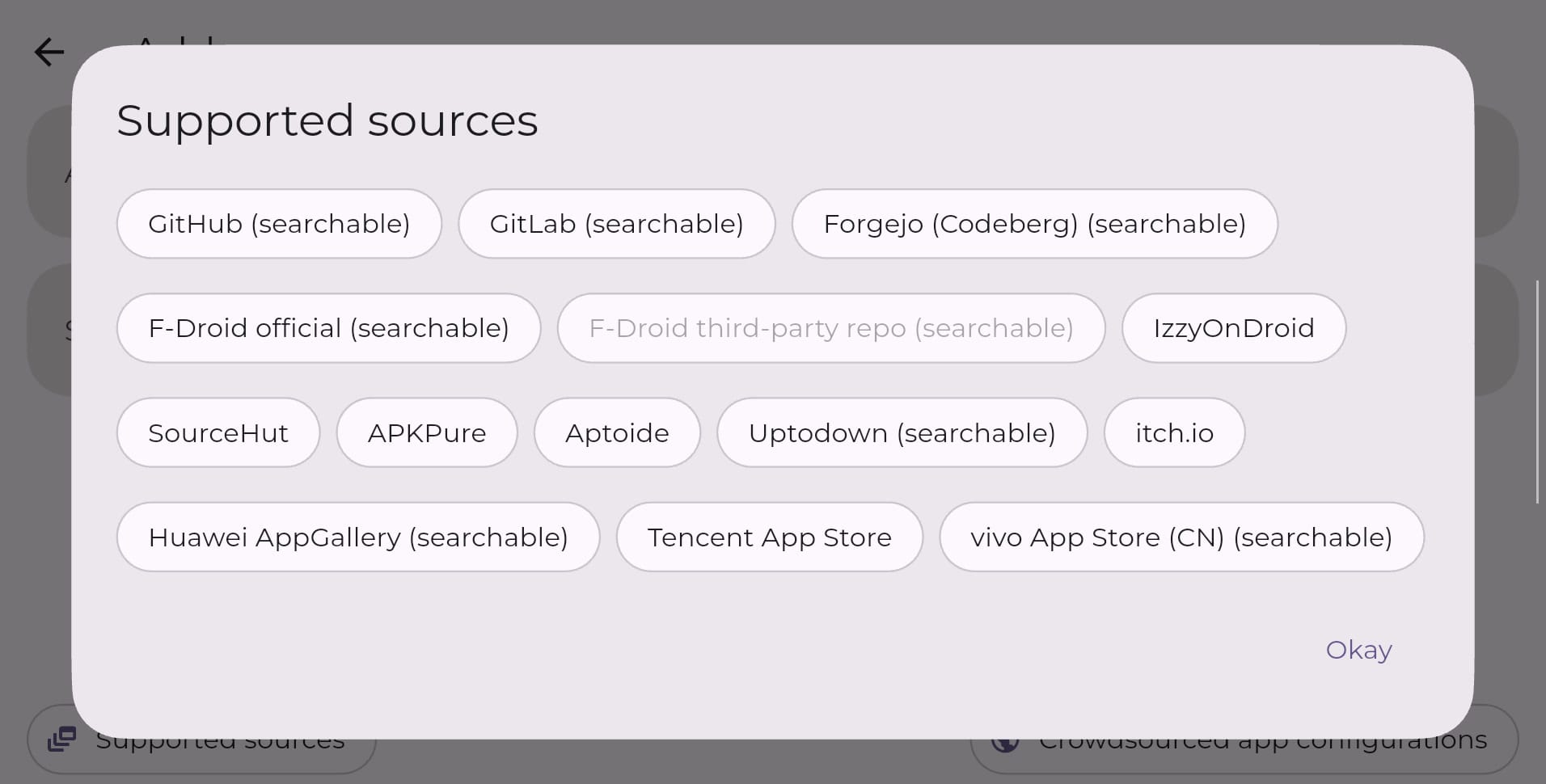
Grab it from its GitHub releases page, the developer’s own, unless you already use F-Droid or IzzyOnDroid, the app stores for open-source apps. All three are free, and the links are on Obtainium’s GitHub page. On GitHub, pick app-arm64-v8a-release.apk. Handhelds like the Duo run 64-bit Arm chips, which is what arm64-v8a means, and you can skip the build with fdroid in its name.
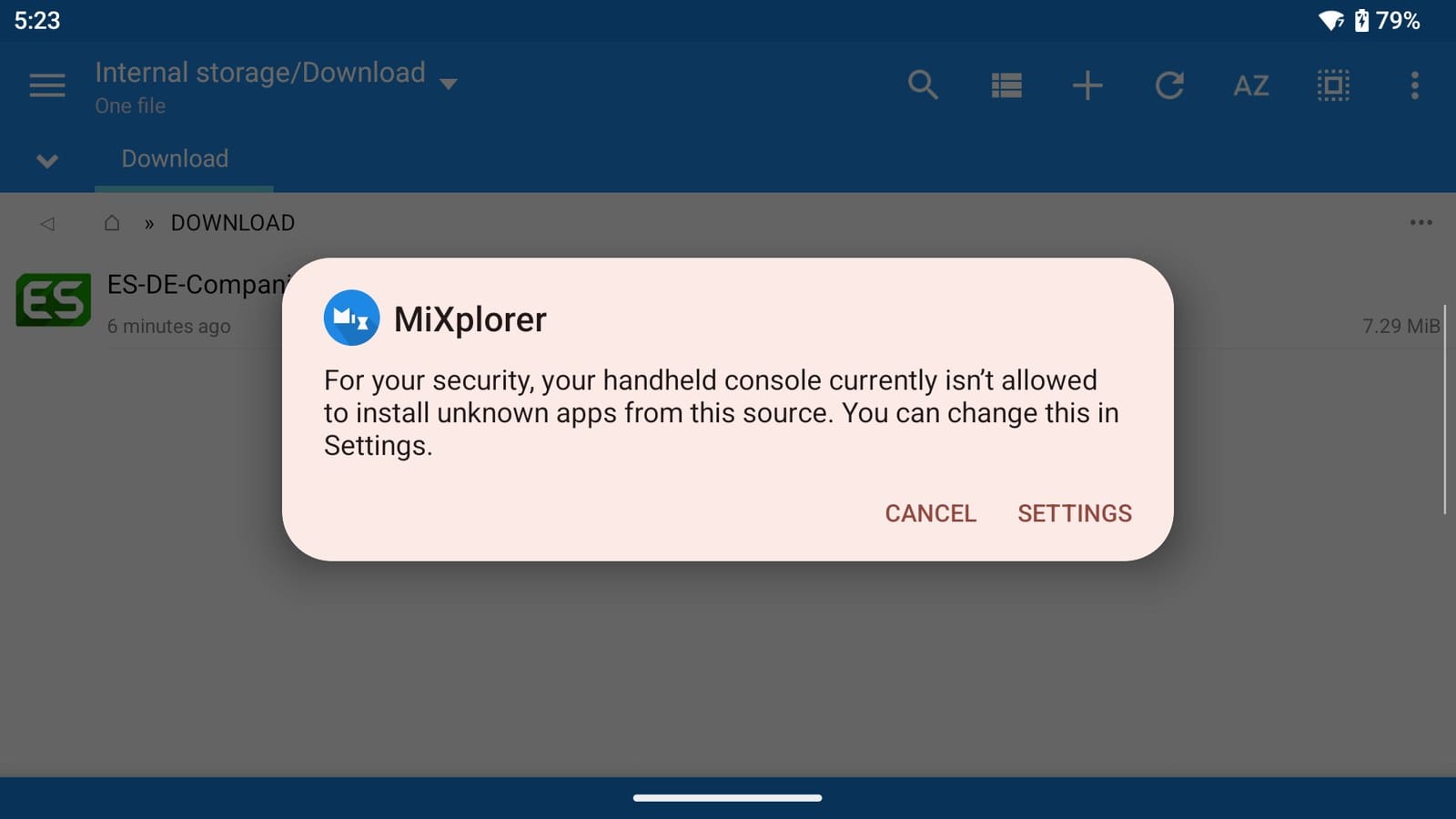
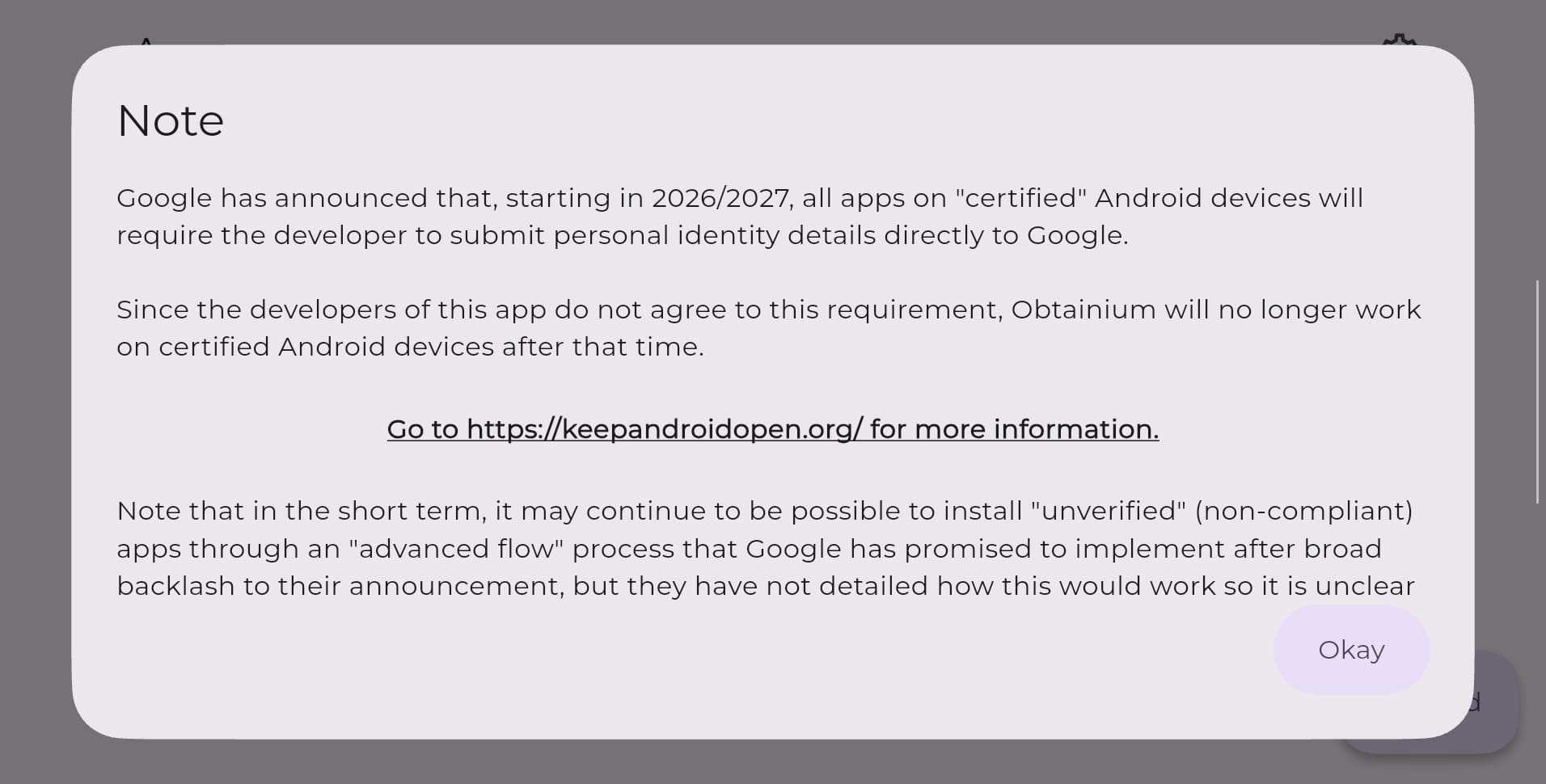
Open it, and Android asks whether Obtainium can send notifications. Allow it. That’s how update alerts reach you. After a welcome card comes a note about Google that’s worth reading before you tap Okay.
The note about Google on first launch
That note is about your handheld’s future. Google wants every Android app developer to register with it, ID and all. On a certified device, meaning one that ships with Google’s apps and passed Google’s compatibility testing, apps from developers who haven’t registered won’t install the normal way. Right now that only applies to seven app stores in Brazil, Indonesia, Singapore and Thailand. Google plans to take it worldwide in 2027.
Obtainium’s developers say they won’t register, so the note warns that Obtainium will stop working on certified devices once the rule reaches them. The same goes for any app whose developer doesn’t register, emulators included. Google does leave two ways around it. One is installing from a computer over USB with adb. The other is what Google calls the advanced flow. You turn on developer options, confirm nobody’s coaching you, restart, wait one day, then confirm with your fingerprint or PIN. After that, you can allow apps from unregistered developers for seven days or for good. It’s a one-time setup.
Is your handheld certified? Open the Play Store, tap your profile icon, then Settings, then About. Play Protect certification says yes or no. For now, nothing changes for installs from GitHub or F-Droid, because the rule only covers those seven stores.
Adding your first app
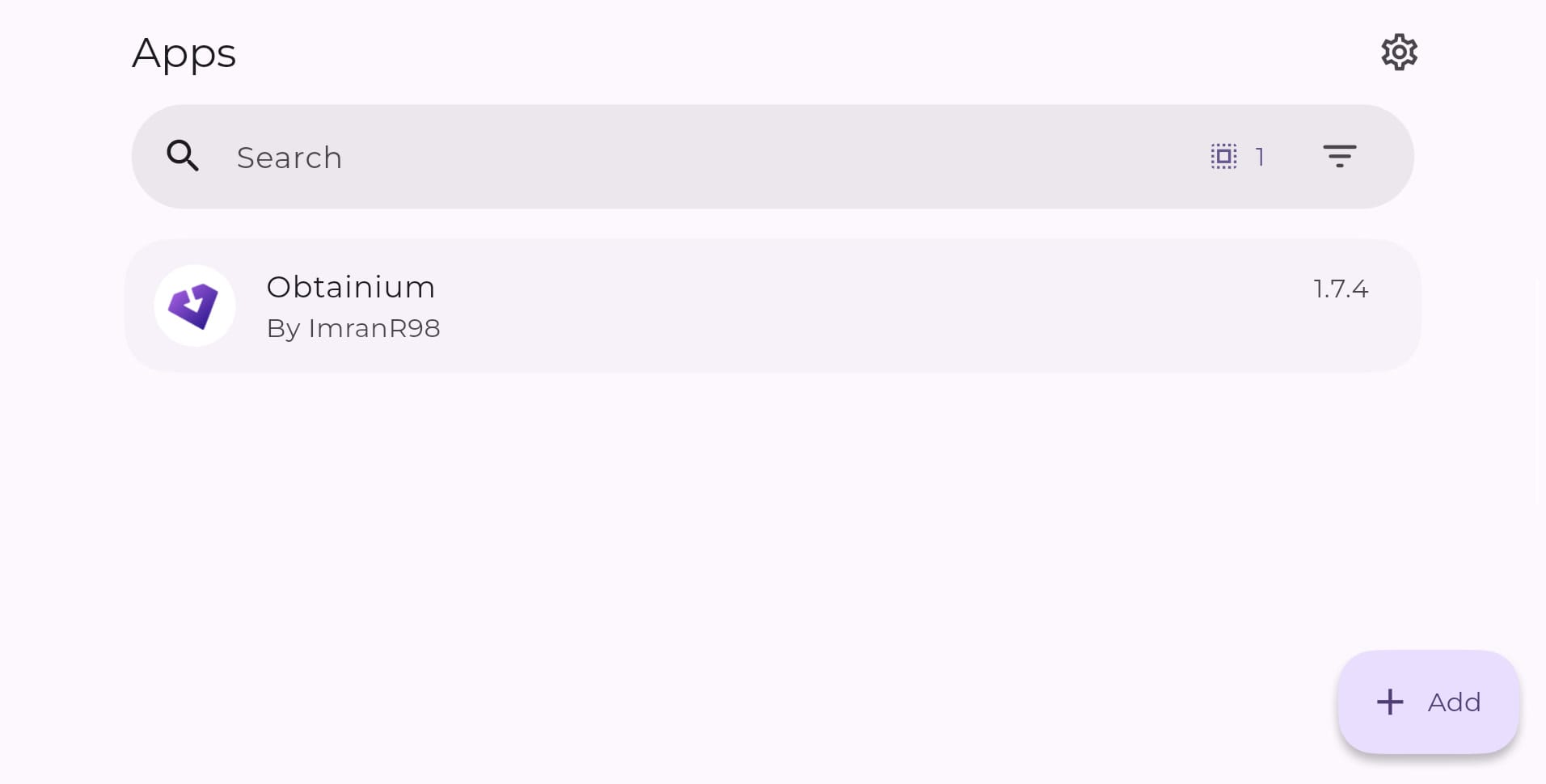
Here’s a nice touch. Obtainium already keeps itself up to date. It’s on its own Apps page from the first launch, so there’s nothing to set up for it.
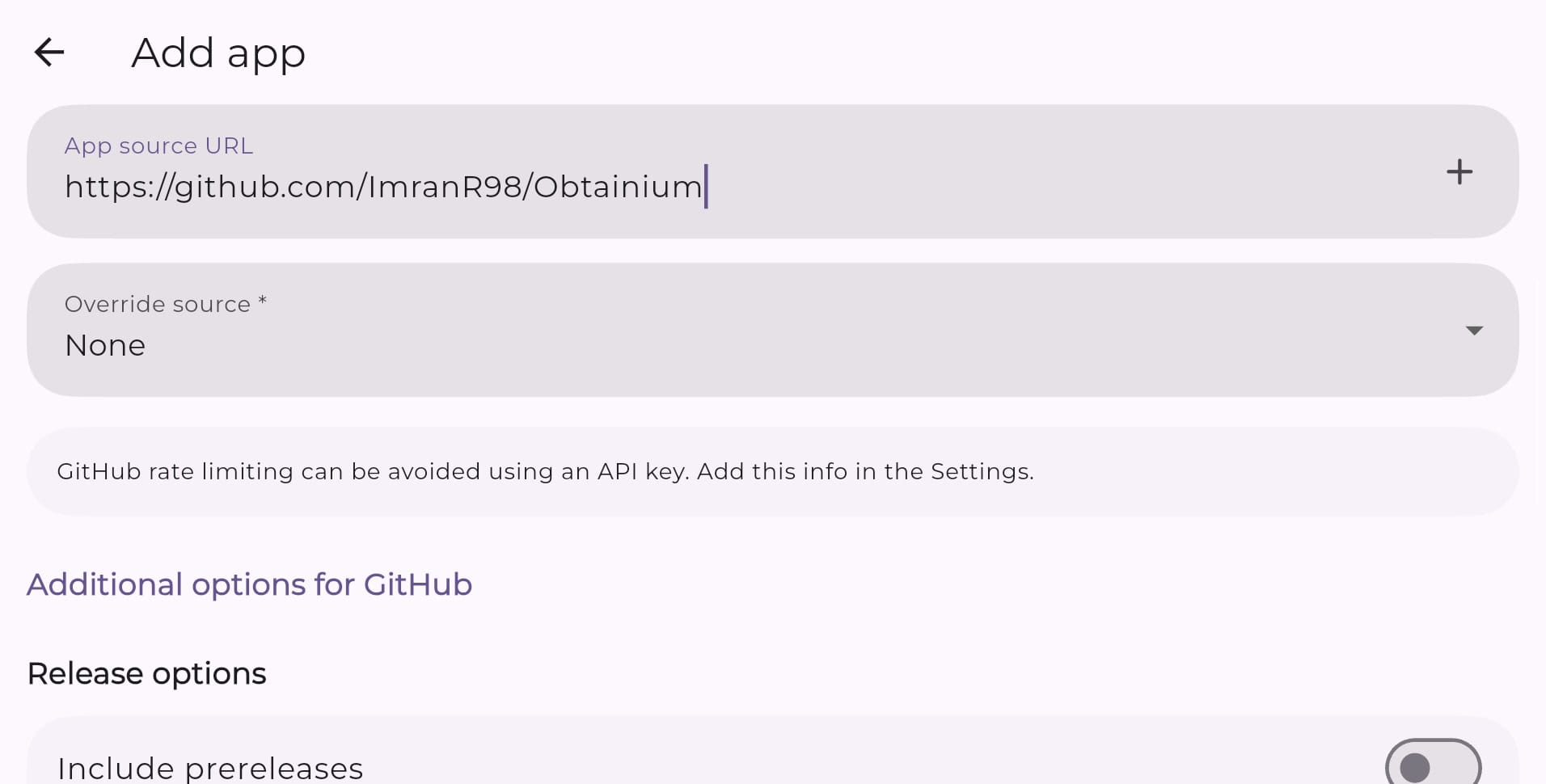
For anything else, tap Add at the bottom right and paste the address of the page where the developer publishes the app. Obtainium recognises the source on its own and shows its options underneath. For GitHub, that’s a heading that says Additional options for GitHub. You can leave the options alone. Tap the + at the end of the address field, and Obtainium shows the newest version. You don’t need to be exact with the address, either. For GitHub, any link inside the project works, and Obtainium trims it to the right page.
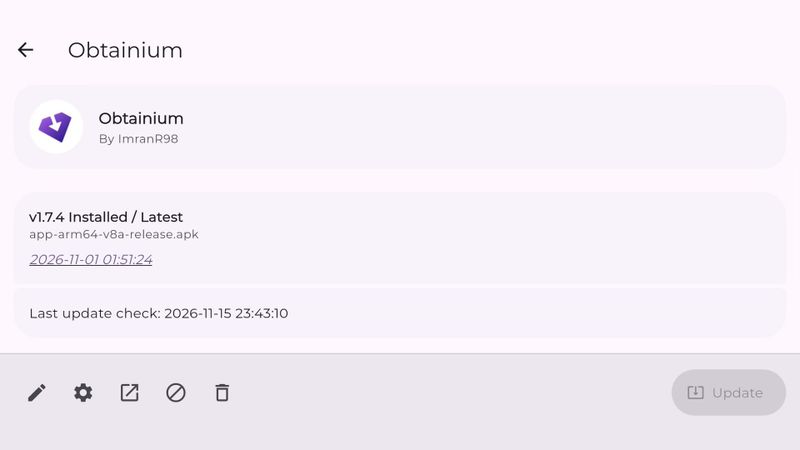
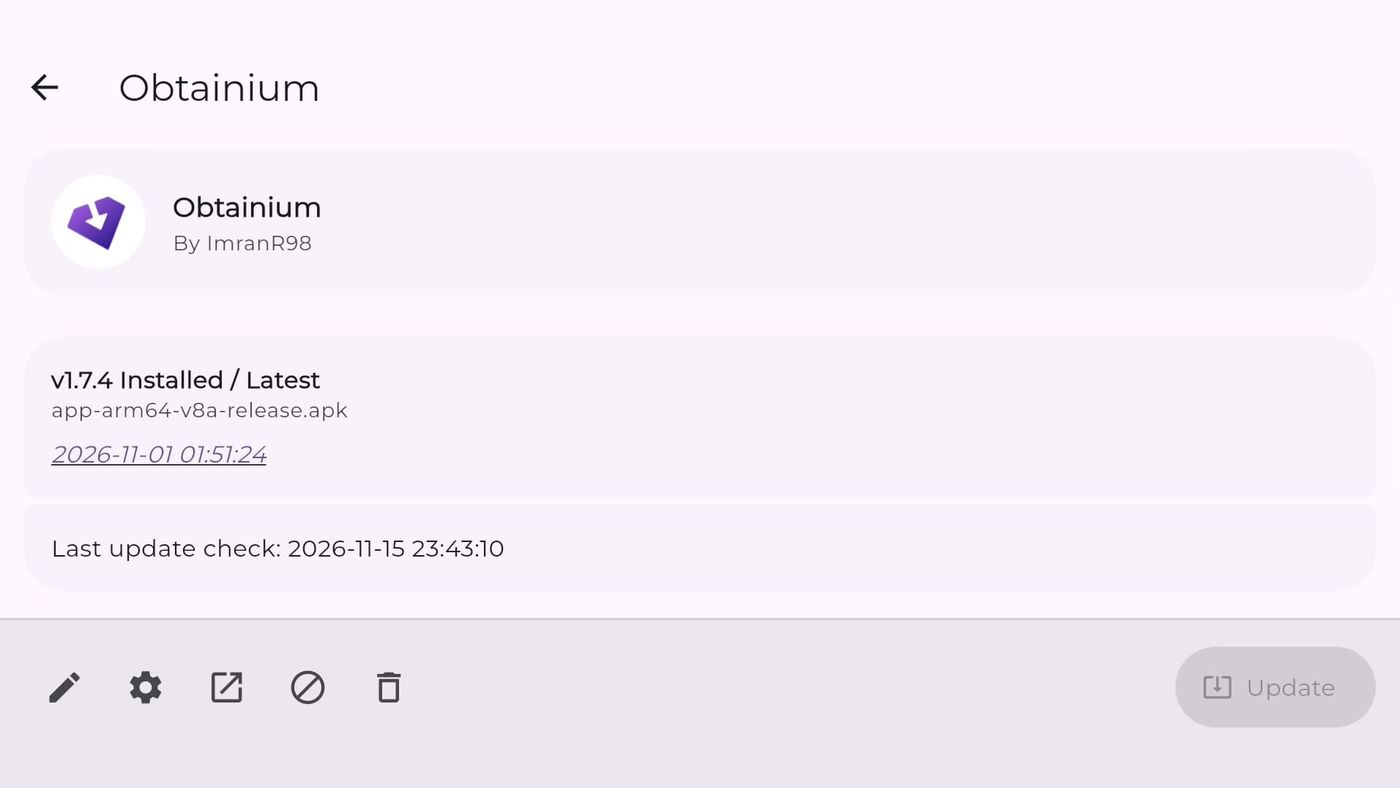
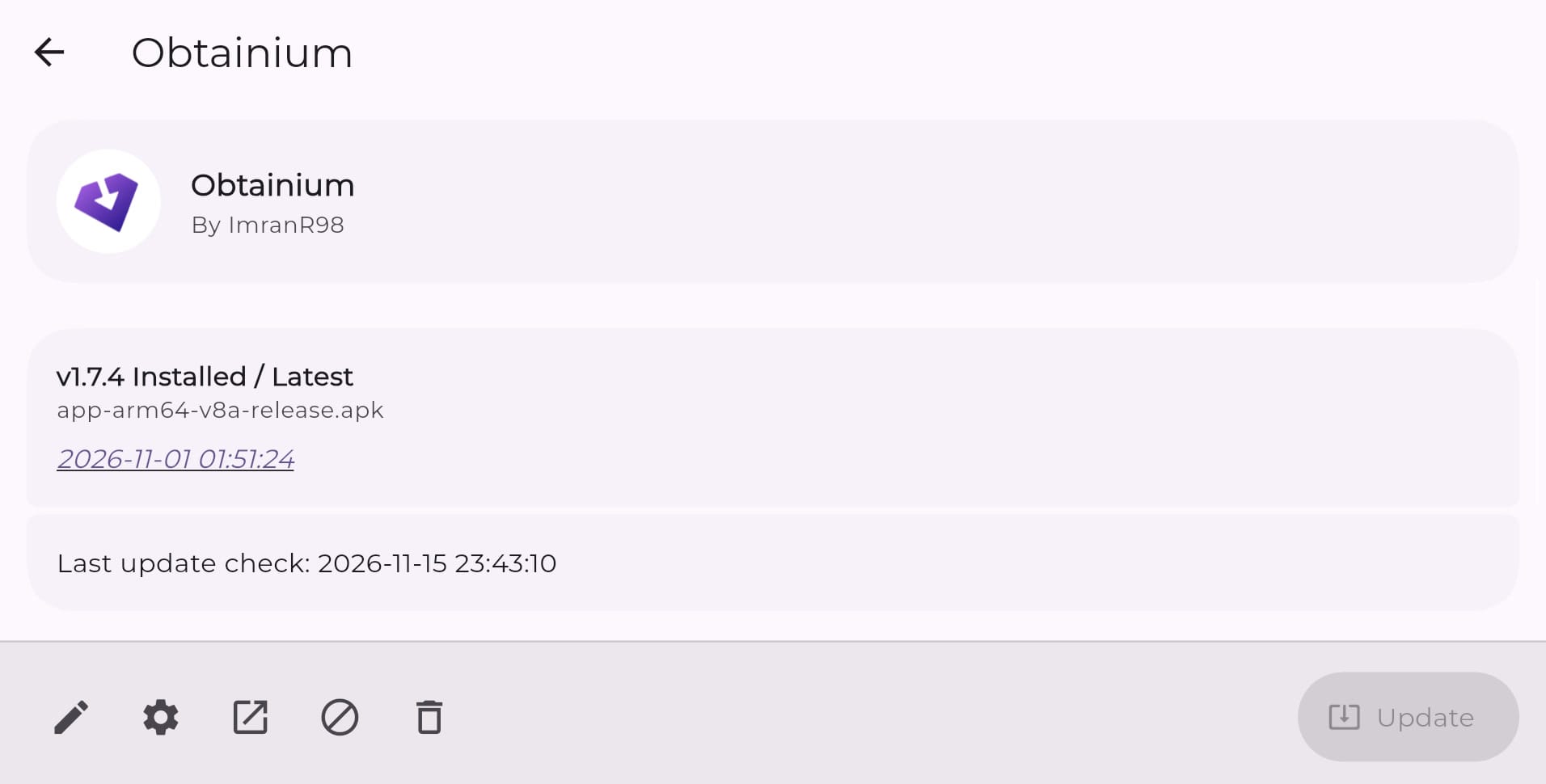
Each app gets a page of its own. It shows the version you have against the newest one, the exact file Obtainium uses, when that version came out, and when Obtainium last checked.
Adding emulators the easy way
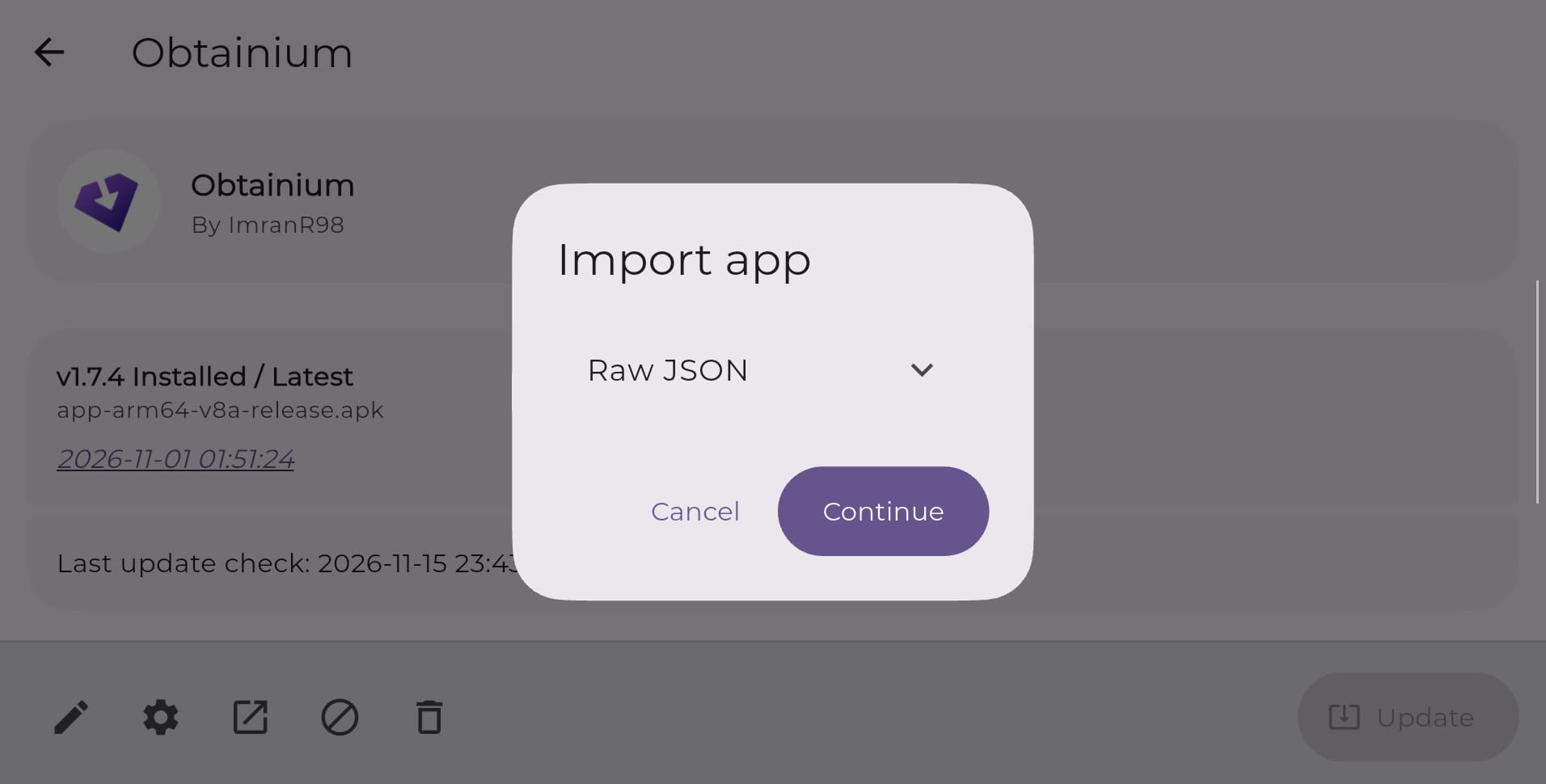
For popular apps, someone has usually done the setup for you already. Obtainium’s app directory has entries other users have put together, with the address and the right options filled in. Open the directory on your handheld, find your app and tap Install. Obtainium opens with an Import app box, and nothing gets added until you tap Continue. Some apps have more than one entry, like a stable and a nightly build, so pick the one you want.
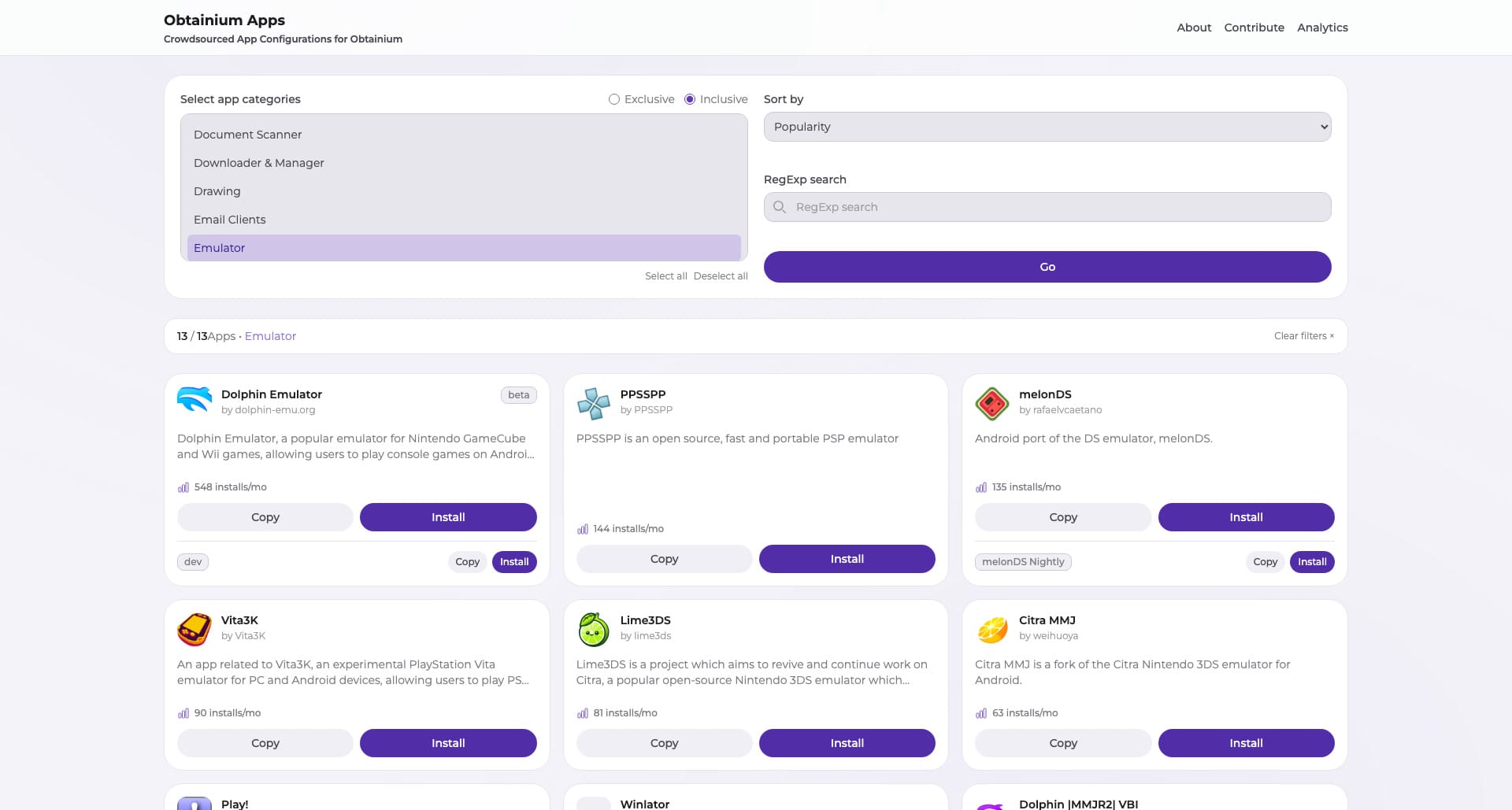
For emulators, the directory covers a good part of a handheld setup: RetroArch’s 64-bit website build, Dolphin, PPSSPP, melonDS and Vita3K, plus MiXplorer if you want a file manager that can install apps. Winlator is in there too, but it’s the main version. ES-DE’s docs point to a different one, Winlator Cmod, for launching games from a front end.
Picking the right file
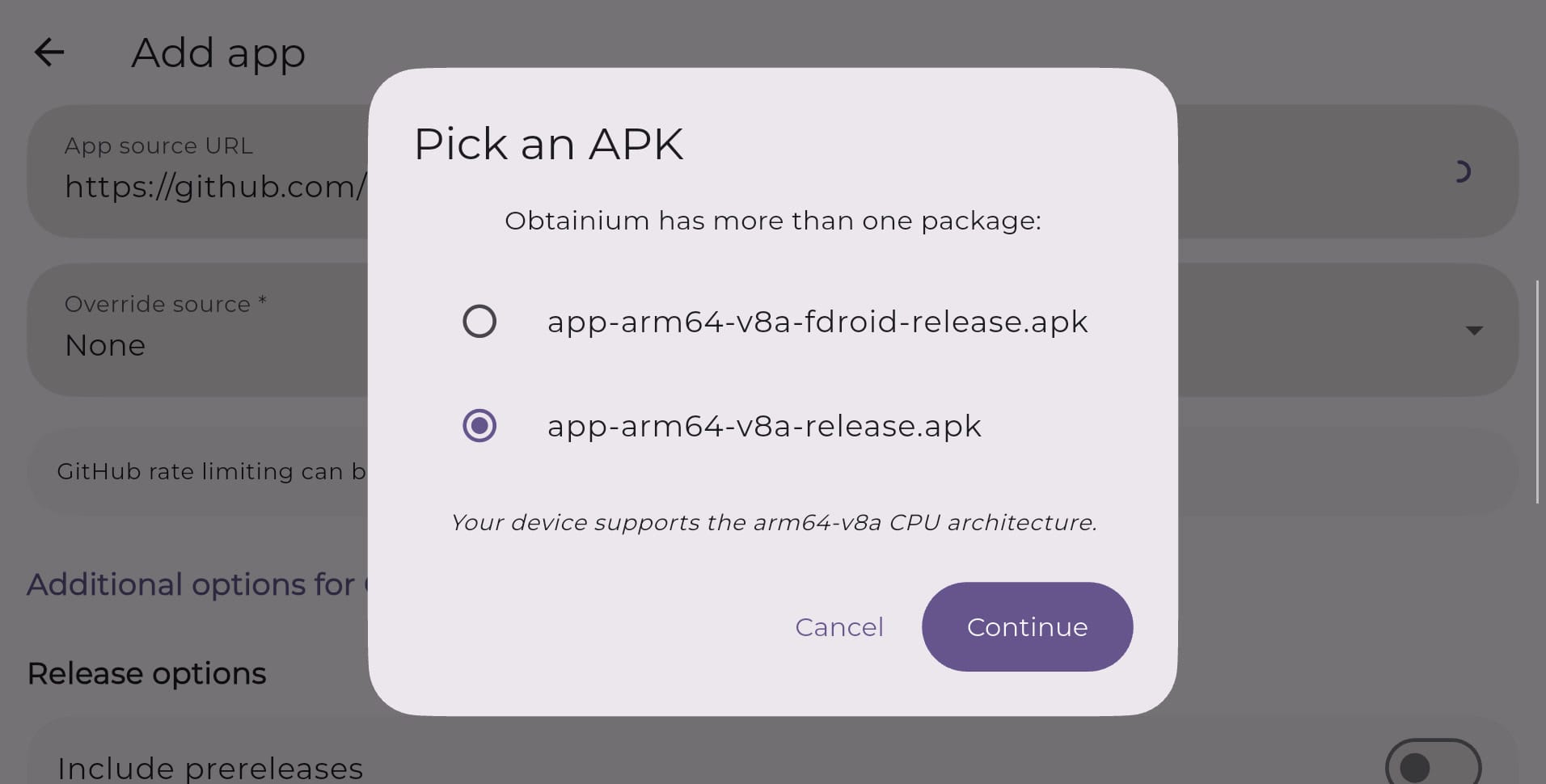
Some developers publish several files for one version, one for each kind of processor, or a regular build next to a debug build. When that happens, Obtainium asks which one you want. Every time. Two options in an app’s settings stop the asking. One filters by your handheld’s processor, and it’s on by default. The other lets you type a pattern that matches the file name you want. Handhelds like the Duo want the arm64 file, usually labelled arm64-v8a. Once Obtainium can narrow it down to one file, updates go through without asking.
How updates arrive
Obtainium checks for updates in the background, every six hours unless you change it in Settings, under Updates. Two menus there decide what happens when you’re off Wi-Fi or not charging: check and update, check only, or nothing. When it finds something, you get a notification. Open the app, tap Update, and Android shows the usual install screen.
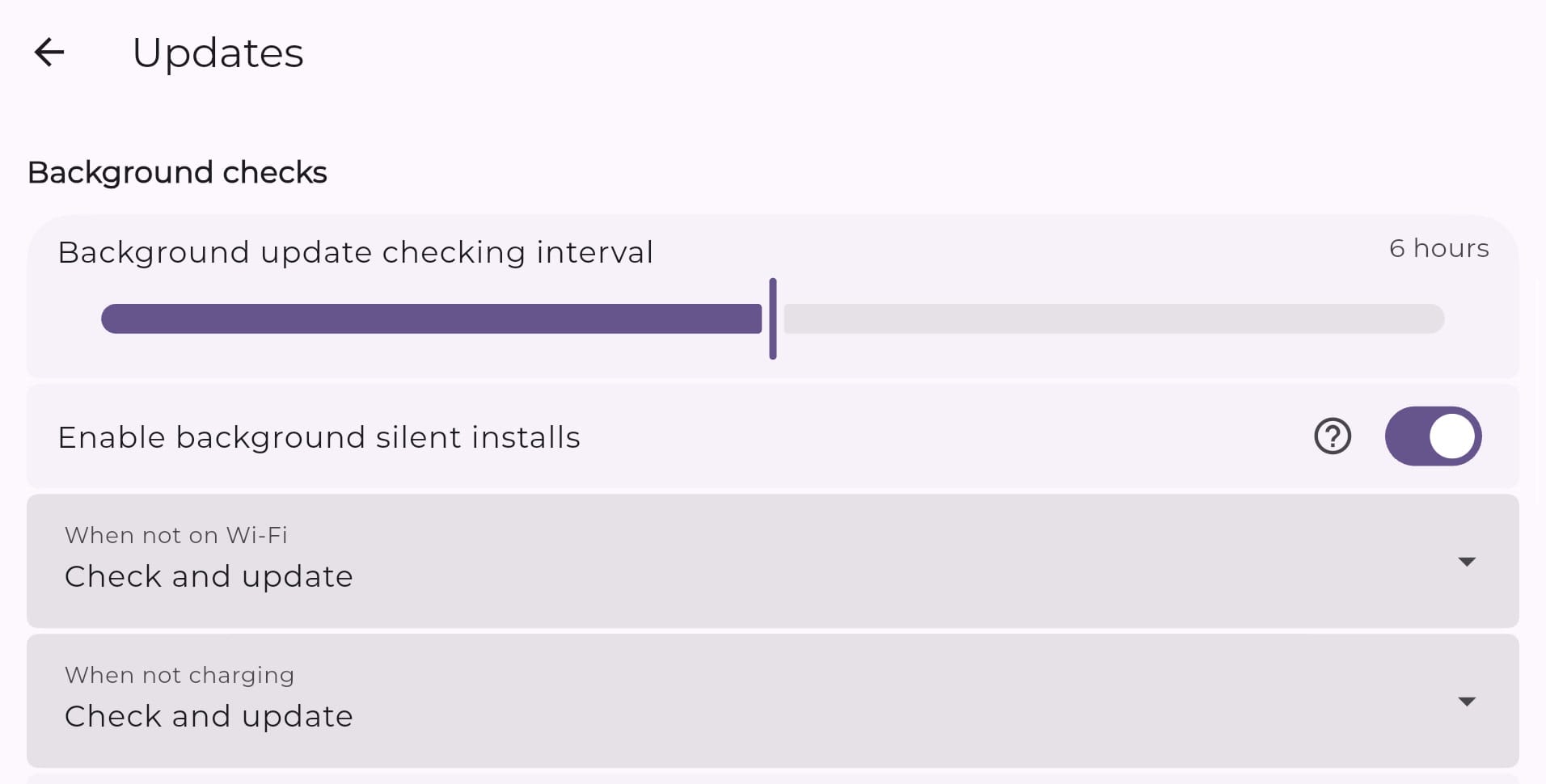
It can skip that screen, too, under a few conditions. Your handheld needs Android 12 or newer, the app needs to be one Obtainium installed itself and built for a recent Android version, background updates need to be on, and Obtainium has to know exactly which file to grab. Then it updates in the background and just tells you afterwards. If a background update fails, it doesn’t tell you, so it’s worth opening Obtainium now and then.
Two safety switches worth knowing
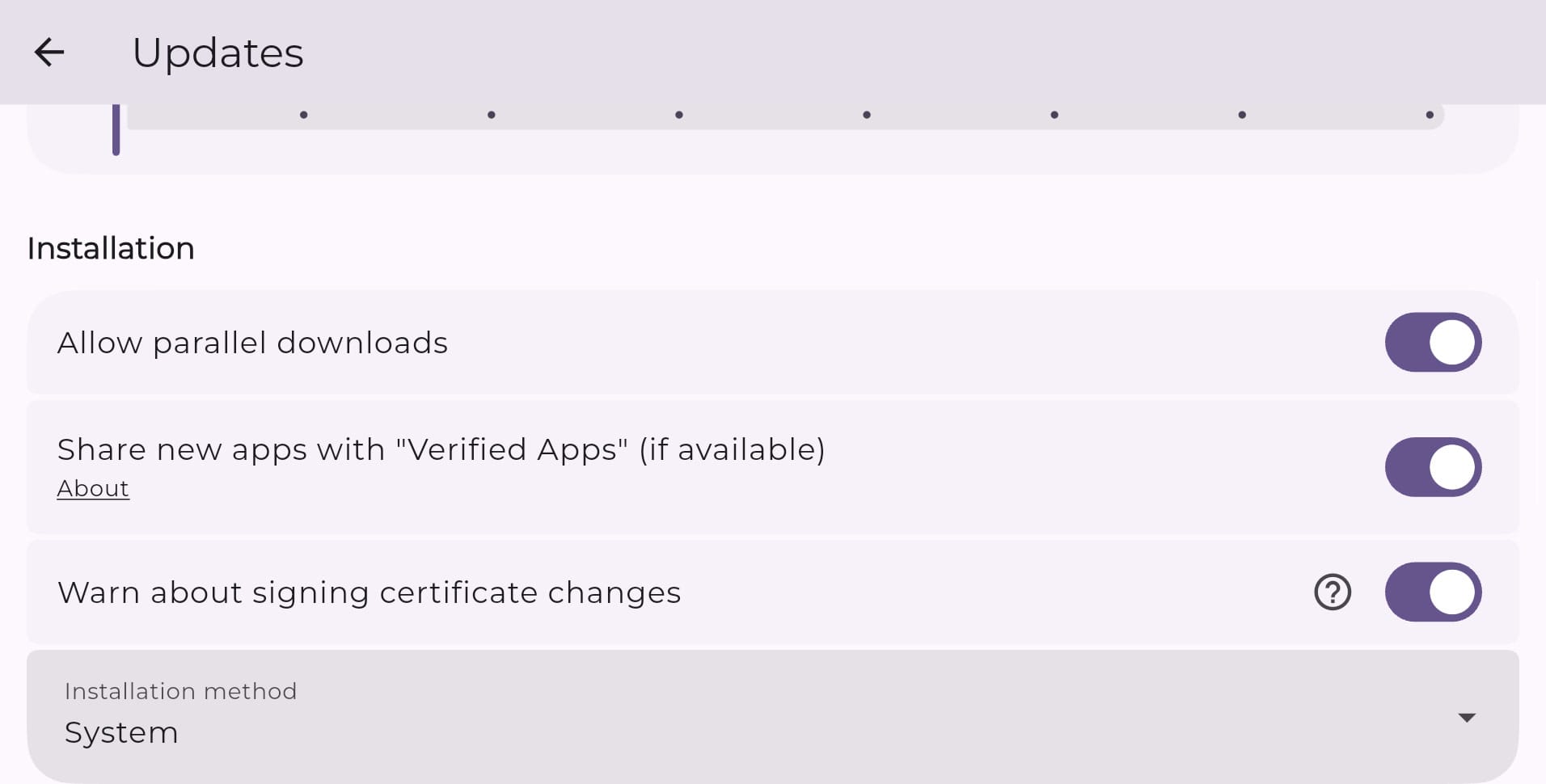
Further down the same page, two switches are on from the start. Warn about signing certificate changes does what it says. Every app is signed by its developer, and an update signed by someone else is a red flag, so Obtainium warns you before installing it.
The other one shares new apps with Verified Apps. That’s a separate free app from Privacy Guides that checks an app’s signature against a list of known-good ones. If you have it installed, Obtainium hands each new app to it for a check before installing. If you don’t, the switch does nothing.
If GitHub says you’ve hit a limit
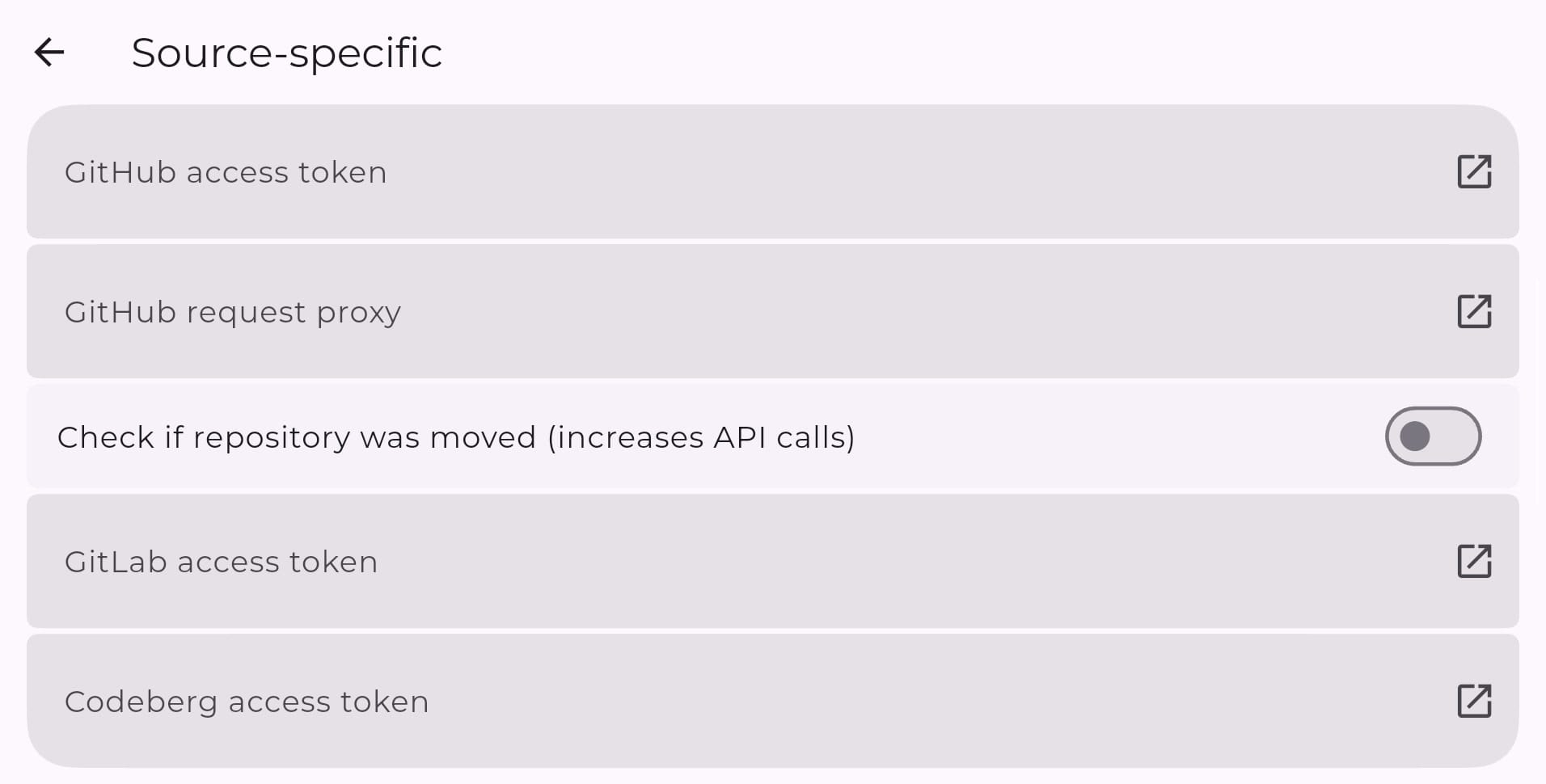
GitHub only answers so many questions from one device in a given time. Obtainium asks it about every GitHub app you track, so with more than a few dozen of them, you can hit that limit and see a rate limit error. The fix is free. A GitHub personal access token raises the limit. Make one in your GitHub account’s developer settings and paste it into Obtainium’s Settings, under Source-specific. Obtainium’s wiki walks through it.
Moving your list to another handheld
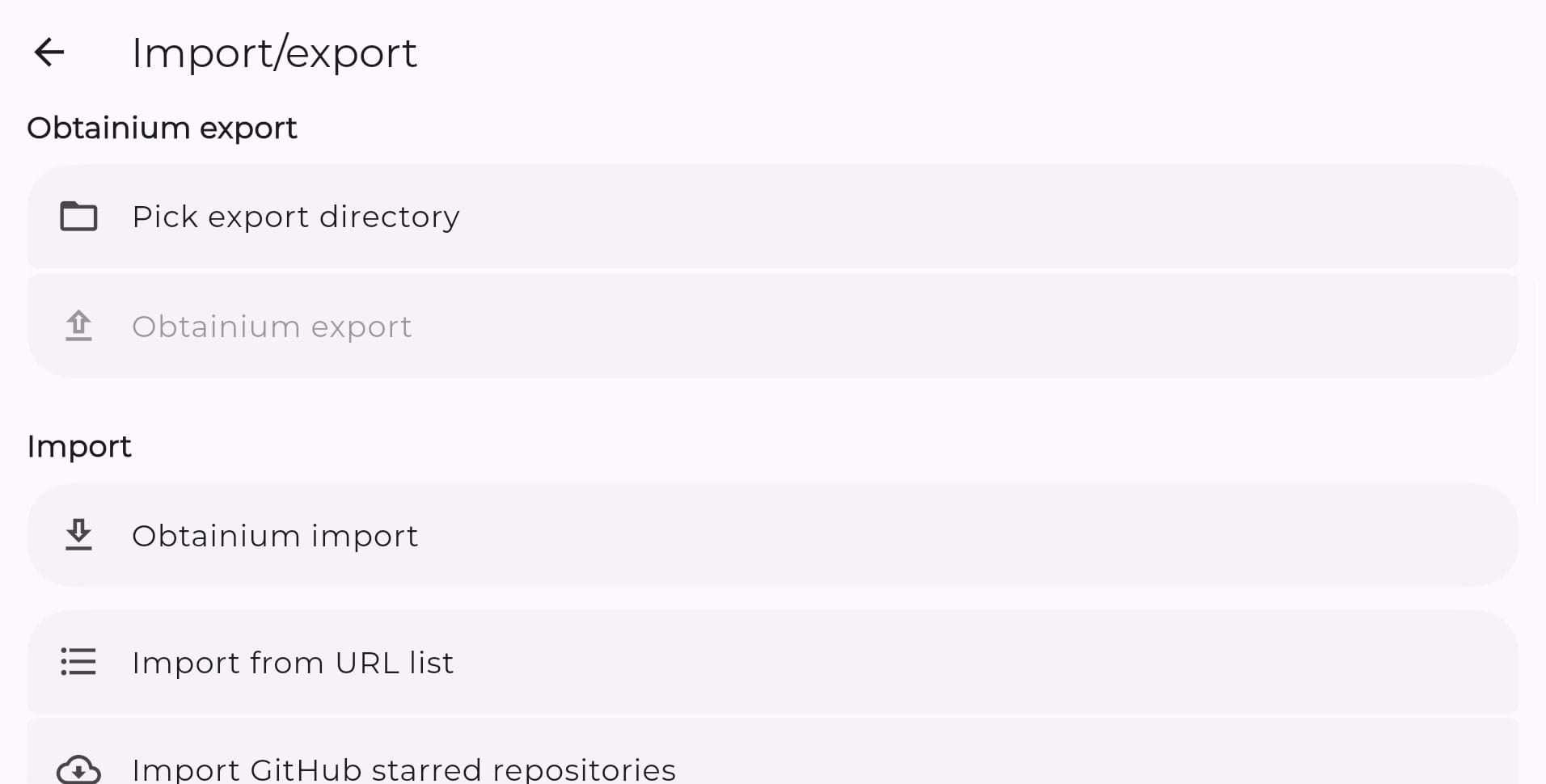
Got more than one handheld? Settings has an Import/export page that saves your whole list of apps, with every option you set, to one file. Pick a folder for it first, then export. Copy that file to the next handheld, import it there, and every app is back in Obtainium, ready to install. You can even turn on automatic exports, so the file stays current every time your list changes.
Keeping a big list tidy
Once the list grows, categories help. Make a category for emulators, one for front ends, one for tools, and give each app its color. Turn on grouping in Settings, and the list folds into sections. A filter button narrows it down further, to just the apps with updates waiting, say.
When an app won’t update
Usually, the app’s page changed. For apps added through a plain web page, Obtainium scans the page for download links, so a redesign can break it. A download button you can see in a browser isn’t always a link Obtainium can find. When that happens, open the app’s page in a browser to see where the download went, then fix the address in Obtainium, or look the app up in the directory again.
If Obtainium shows the wrong version for an app, the developer probably writes it two ways. The release page says 2.12.8-2, say, and the app itself says 2.12.8-2+free. Obtainium sorts out the simple cases, like a v in front or -beta on the end. When it can’t, it stops comparing the two for that app, and updates through Obtainium still work. So from then on, update that app only through Obtainium. An update from somewhere else, like the Play Store, can leave it confused about what you have.
Still stuck? The bottom of the Settings page links to Obtainium’s logs.
On the shelf
EmulationSee the whole story →Nerd Alert
Your Turn
What are YOUR thoughts
What have your experiences been? Let us know.