News · News · Handheld Gaming · PC Gaming · Handheld PCs
Microsoft’s Auto SR Now Works Handheld on the ROG Xbox Ally X
Auto SR, Microsoft’s AI upscaler, is out of preview on the ROG Xbox Ally X and X20 and now works handheld. What changed and how to turn it on.
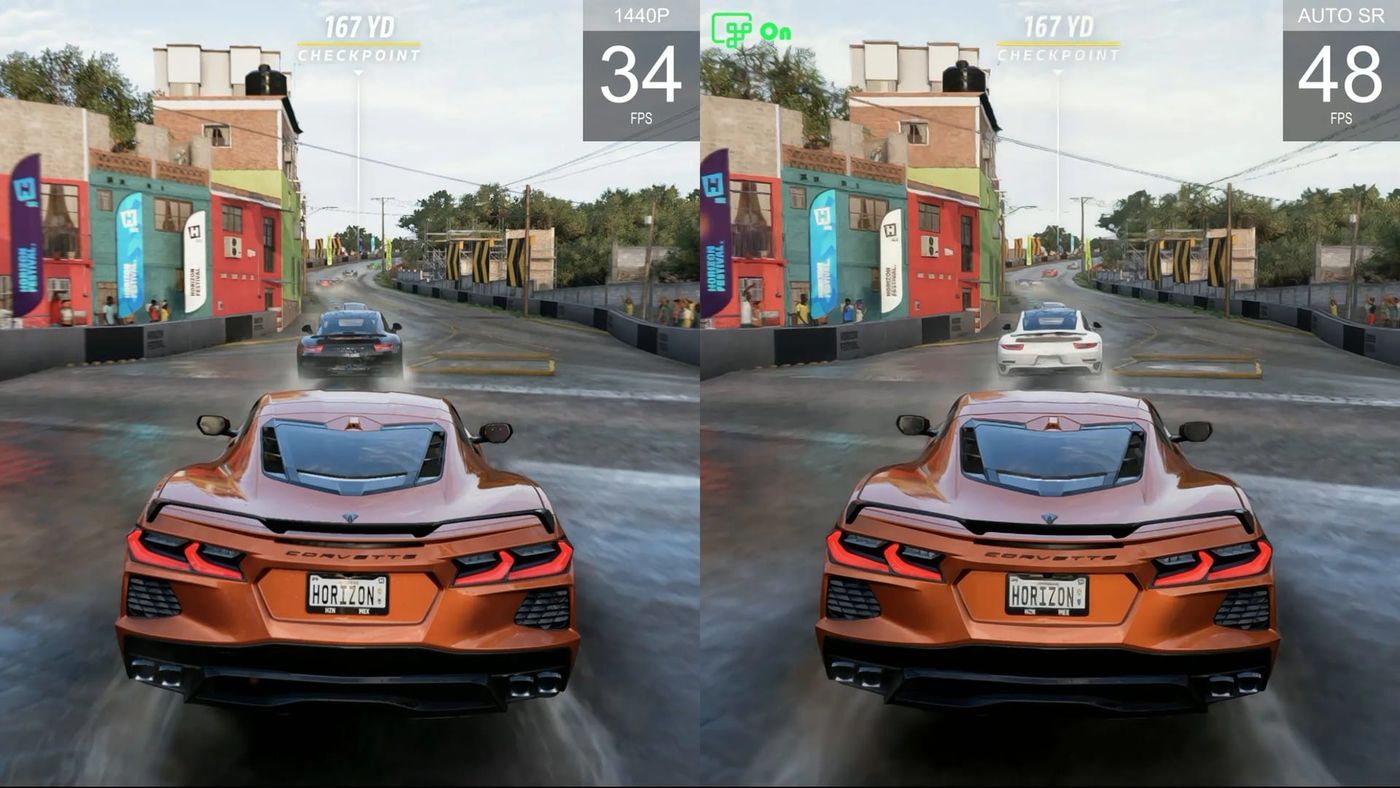
Until now, Microsoft’s AI upscaler on the ROG Xbox Ally X had a catch. It only worked docked to a TV or monitor. As of November 10, that catch is gone. Automatic Super Resolution, Auto SR for short, is out of preview and runs on the Ally X’s own screen, even on battery. For a handheld you mostly play in your hands, that’s the version of this feature that actually matters.
What is Auto SR?
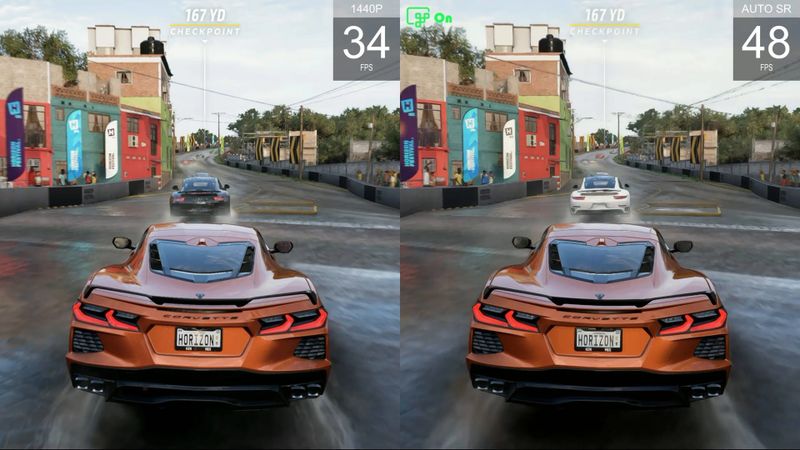
It’s an upscaler. Same idea as AMD’s FSR or Nvidia’s DLSS. The game draws each frame at a lower resolution, which is easier on the chip, and an AI model rebuilds it sharper before it reaches your screen. The difference is where it lives. FSR and DLSS have to be added to each game by its developer. Auto SR is built into Windows, so it can work on games that never got an upscaler at all.
It also runs on a different part of the chip. The Ally X’s processor has an NPU, a small engine made for AI work, and that’s where Auto SR does its thing, alongside the graphics instead of on top of them. There’s a trade, and Microsoft is upfront about it. It adds about one frame of delay, and the NPU’s power comes out of the same budget as the CPU and graphics, so sometimes you give a few frames back.
What changed on November 10?
Handheld play is the big one. When the preview started in April, Auto SR only worked while docked, because Microsoft figured a big screen was where it would help most. Microsoft says it added handheld play by popular demand. Now it runs on the built-in screen, even unplugged.
It also accepts games running at 1080p now. During the preview, you had to drop a game’s resolution before Auto SR would kick in, and Microsoft says that extra step was a common reason it didn’t turn on. There’s a caveat. Microsoft warns that 1080p on the handheld’s own screen may not perform as well as other setups, though you’ll still see the picture improve, especially in older games. Docked, it can take that 1080p up to 1440p on your TV.
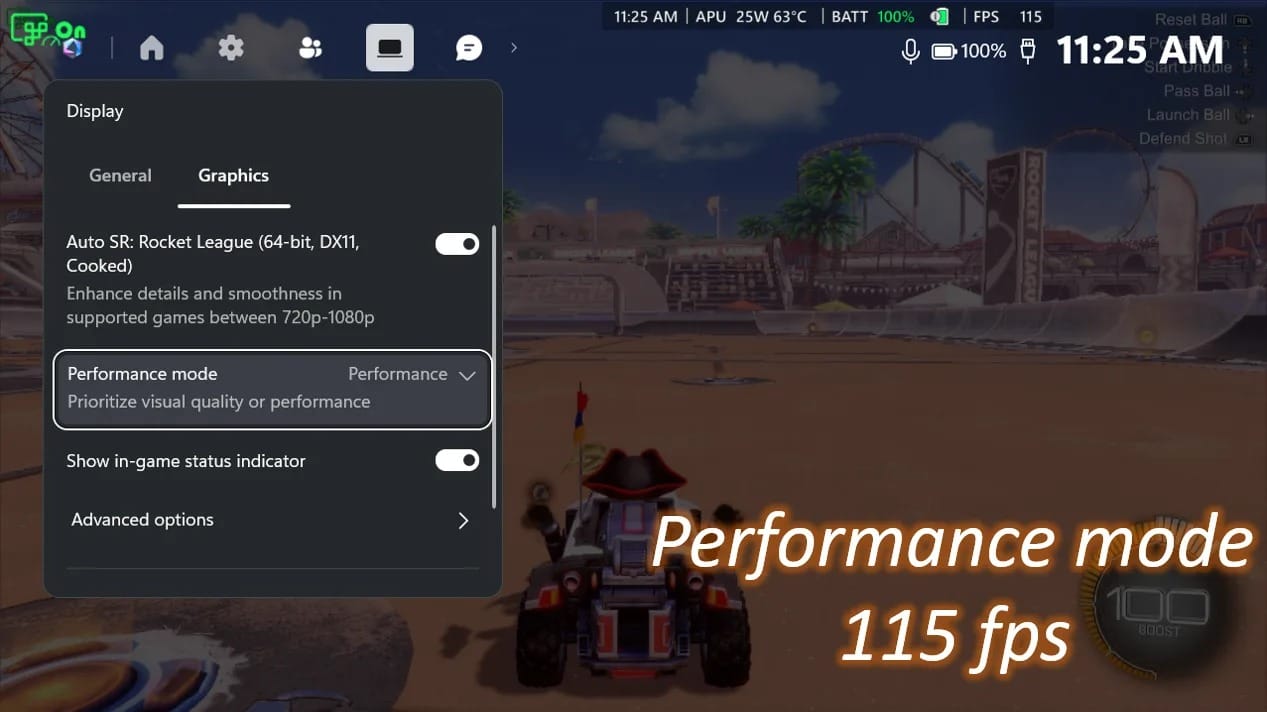
Two more features are rolling out through Windows updates, so they may take a while to reach you. The bigger one is Performance mode, which lifts the frame rate cap to 120. In Microsoft’s own Rocket League test on an Ally X, it took the game from 70 FPS to 115, and that makes it the one to try first on fast games. The other is Auto SR working together with Auto HDR, the Windows feature that gives older games brighter, HDR-style highlights. You need an HDR screen for that, though. The X20’s OLED is one, but on an Ally X it means docking to an HDR TV or monitor.
Which handhelds can use Auto SR?
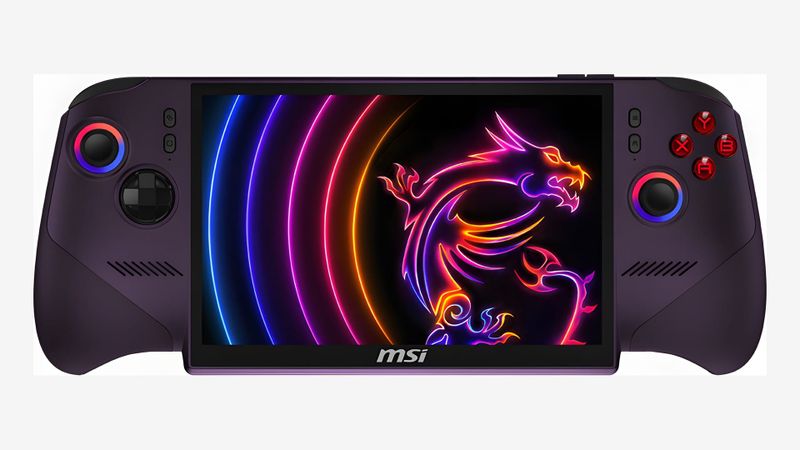
The ROG Xbox Ally X and the Ally X20. Both run AMD’s Ryzen AI Z2 Extreme, which has the NPU Auto SR needs. The regular ROG Xbox Ally is out of luck. Its Z2 A chip doesn’t have an NPU, so there’s nothing for Auto SR to run on. Microsoft also lists one handheld from outside the Ally family, MSI’s Claw 8 EX AI+.
Beyond handhelds, it works on Copilot+ PCs with AMD Ryzen AI, Intel Core Ultra Series 3 or Arc G3, and Snapdragon X chips. And it’s a Windows feature, so it doesn’t follow you to Linux. My own Legion Go 2 runs Bazzite, so this one passes me by. Its chip doesn’t have an NPU either.
How do you turn on Auto SR?
Update first. You need Windows 11 version 24H2 or later, the latest graphics and NPU drivers from Windows Update, and the newest Auto Super Resolution Package from the Microsoft Store. Then launch a game and press the Xbox button for Game Bar. In the Display widget, open the Graphics tab and switch on Auto SR for that game, along with the in-game status indicator, so you can see when it’s working.
Still off? Check two things. On the Ally X, the game needs to run between 720p and 1080p, in Fullscreen or Exclusive Fullscreen. It’s usually the resolution or the window mode. Some games only run borderless, and for those, Windows can switch the display resolution for you when the game launches. You’ll find that under Settings, System, Display, Graphics, then Custom settings for applications, where you pick the game and set its Maximum display resolution. Once a game is set up, Auto SR turns itself on whenever you launch it, as long as those settings stay the same.
Expect a few quirks. Small text and menus can look a little faint, since they get upscaled too. Games with their own HDR need Auto SR off. And screenshots come out at the lower resolution, because capture tools grab the game before Auto SR touches it.
Should you use Auto SR or FSR?
FSR first, when the game has it. Microsoft says it plainly. The upscaler built into a game is still the better choice, because it gets information from the game that Auto SR can’t see. When you’re using one, Microsoft recommends switching Auto SR off. If you’re wondering where AMD’s newer FSR 4.1 fits, I covered its preview on the Ally X and what’s coming to Xbox last month.
Auto SR earns its place on everything else, the older games and the ones that shipped without any upscaler. Microsoft and AMD worked out the order together for the Ally X, and it’s easy to follow. Under 60 FPS? Turn on whichever upscaler the game supports, Auto SR or FSR. Still under 60? Use Auto SR together with AMD Fluid Motion Frames, the driver feature that slots in generated frames, and turn FSR and any other frame generation off.
On the shelf
Handheld PCsSee the whole story →Nerd Alert
Your Turn
What are YOUR thoughts
What have your experiences been? Let us know.