News · News · Controllers & Accessories · Console Gaming · Xbox controllers
Xbox Cloud Gaming Is Testing Your Phone as a Controller, and a Wi-Fi Mode for the Nano
Two Xbox Cloud Gaming previews: your phone as a controller on smart TVs, and cloud connect, which sends the Nano’s inputs over Wi-Fi.
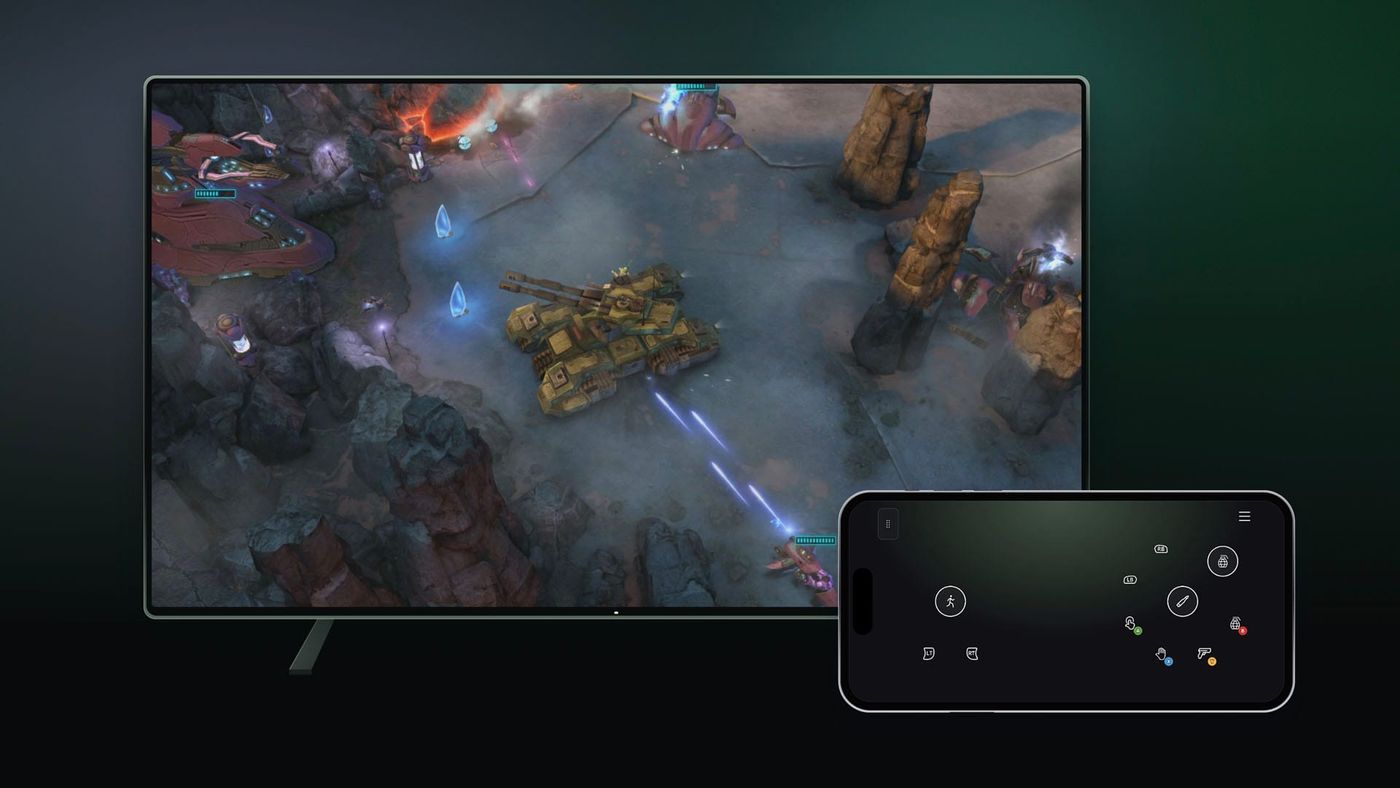
You’ve settled onto the couch, found a game on the TV, and then remembered the controller is somewhere else. Microsoft is testing a fairly convenient answer to that problem: use your phone. There’s something for people who remembered the controller, too, because the new Xbox Nano can now try a Wi-Fi connection directly to Xbox Cloud Gaming.
How do you use your phone as a controller?
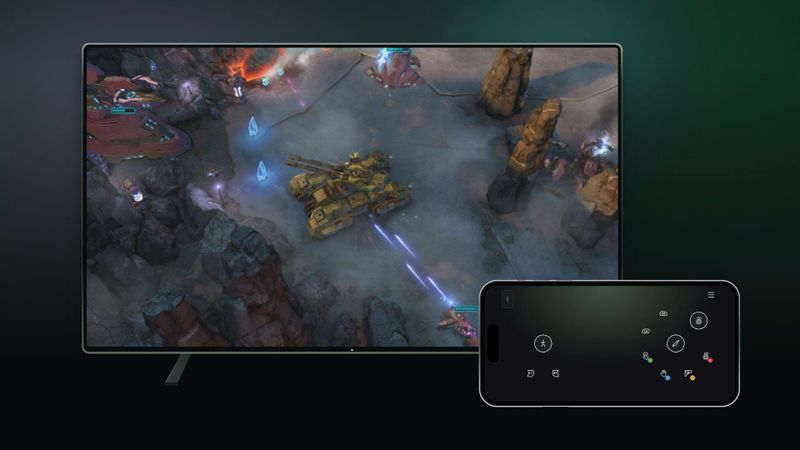
Enable Preview Features on the TV, launch a game without a physical controller connected, and scan the QR code when the phone option appears. You’ll find the switch under Settings > Account in the latest supported Xbox Cloud Gaming TV experience. The controls then open in your phone’s browser, with no controller app to install.
The game stays on the big screen; your phone supplies the buttons. Microsoft’s announcement says some games will get layouts tailored to how they play, so the controls can change with the game. There’s a practical difference between tapping through a turn-based game and trying to land a precise jump on glass, though. Being able to start a game this way doesn’t settle how comfortable it will be to play.
Which TVs and countries does it work in?
The phone-controller preview is rolling out on supported smart TVs in countries where Xbox Cloud Gaming operates. A smart TV badge on the box doesn’t tell you whether yours qualifies, so check Microsoft’s supported-device list for your model. The announcement also leaves room for limits on games and devices during the test.
Cloud connect has a narrower launch: the US, with support for compatible smart TVs and the web. Keep that distinction in mind if you’re outside the US and see the phone controls arrive. The two previews have different availability.
What is cloud connect on the Xbox Nano Controller?
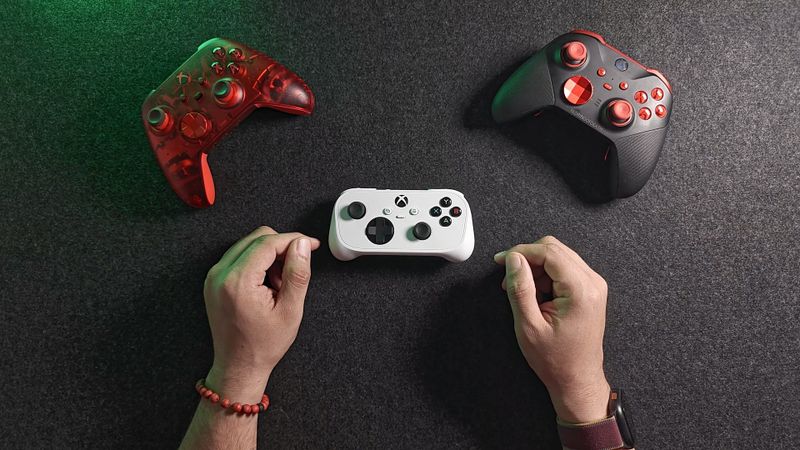
Cloud connect lets the Xbox Nano Controller send your button presses to the cloud server over Wi-Fi. With the usual Bluetooth setup, those inputs reach the TV first, which then passes them along. This gives them a more direct route to the game.
Microsoft says removing that step can reduce input latency, the delay between pressing a button and the game responding. It hasn’t put a number on the improvement in this announcement, so there’s no promised millisecond saving to compare. How much difference it makes in play is the useful question for this preview.
If that sounds familiar, Google built its Stadia controller around a direct Wi-Fi connection as well. Stadia itself closed in January 2023, but the approach has turned up again here. For Xbox’s early test, you need the Nano, and Microsoft says cloud connect won’t work with every cloud gaming experience yet.
How do you set up cloud connect?
Use the Xbox beta app on Android or Xbox Accessories on PC to connect the Nano to your Wi-Fi network. The PC setup requires Xbox Insider enrollment. Follow the app’s prompts, then open a supported cloud gaming experience using the same Xbox account you used for setup. That’s how the controller gets linked to your session.
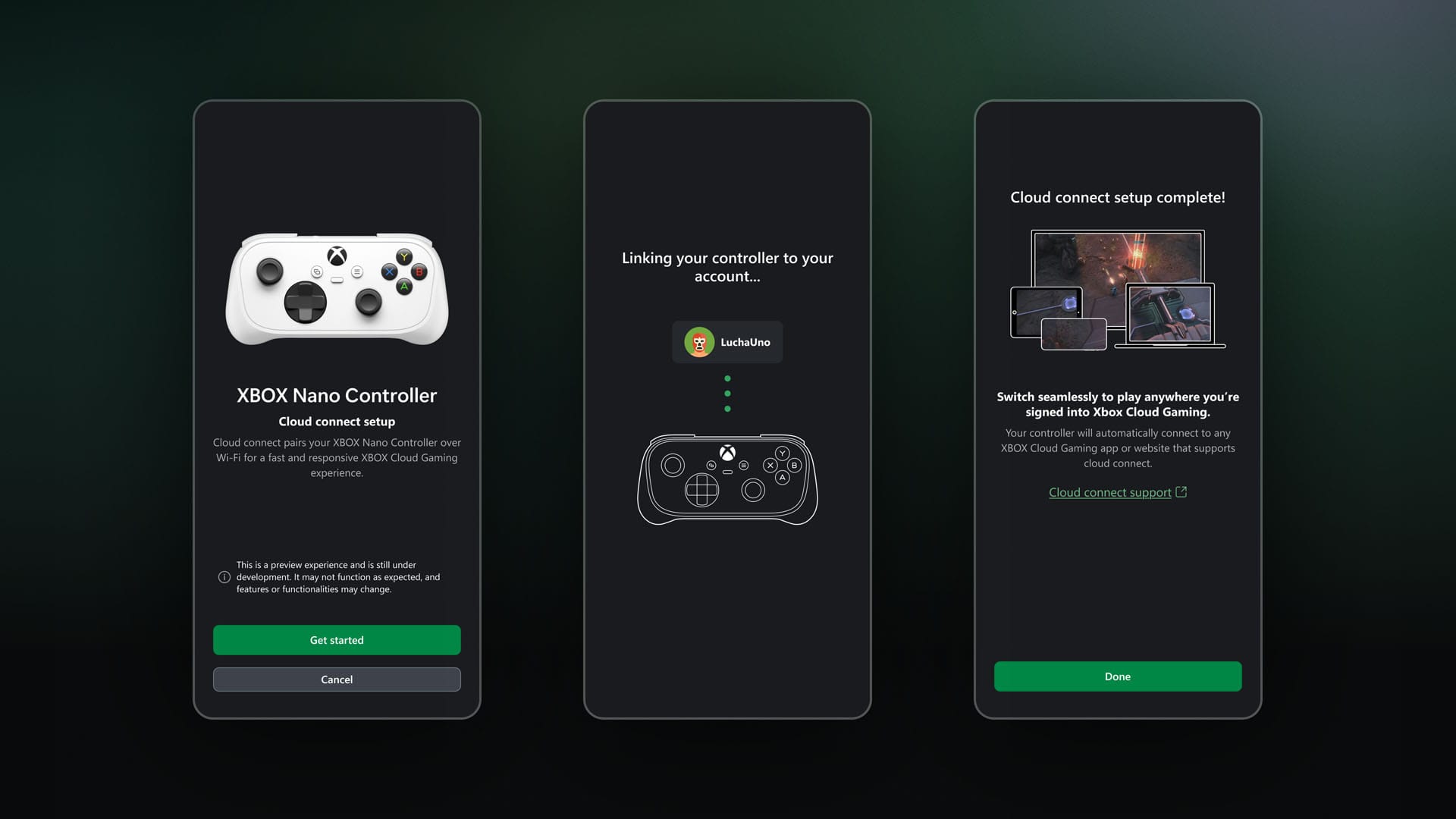
There’s an easy detail to mix up here: an iPhone can take part in the phone-controller preview, but the announced Nano setup routes are Android and PC. Microsoft hasn’t listed an iPhone setup route in this announcement. Its cloud connect support page is the place to check for the current instructions.
Why now?
The previews arrive in the same month as Microsoft’s announced changes to cloud gaming access. Its September announcement set monthly included playtime at 15 hours for Game Pass Ultimate, 10 for Premium and five for Essential, beginning in November. It also outlined buying extra hours and a route to stream eligible owned games without a Game Pass subscription. The current service details sit alongside the games on our Game Pass page.
Microsoft hasn’t said those changes are the reason for these controller previews. They do affect the same decision, though: how easily you can start a cloud game, and how much time you have to play it. Getting into a session with the phone already in your pocket takes one piece of hardware out of that decision.
Who is it for?
The phone option makes sense when the TV can stream your game and you don’t have a controller handy. The Nano preview gives existing owners in the US a way to try a different connection with physical buttons still in their hands. There’s room for both: a convenient way to get started, and a possible improvement for someone who already plays this way.
Playing on the phone’s own screen is a different setup again. A clip-on pad such as the GameSir X5 Lite for XBOX puts physical controls around that screen, and our phone-controller comparison covers the differences between three of them. Here, the question is whether the phone you already have with you is enough to get a game going on the TV.
On the shelf
Xbox controllersSee the whole story →Nerd Alert
Your Turn
What are YOUR thoughts
What have your experiences been? Let us know.