Hands-on / Guide · Guides · Retro Gaming · Retro consoles
How to Use a SummerCart64 on the N64, Analogue 3D and ModRetro M64
One flash cartridge, three consoles: how to set up a SummerCart64, how saves work, how to keep everything updated, and what changes on an N64, Analogue 3D and M64.
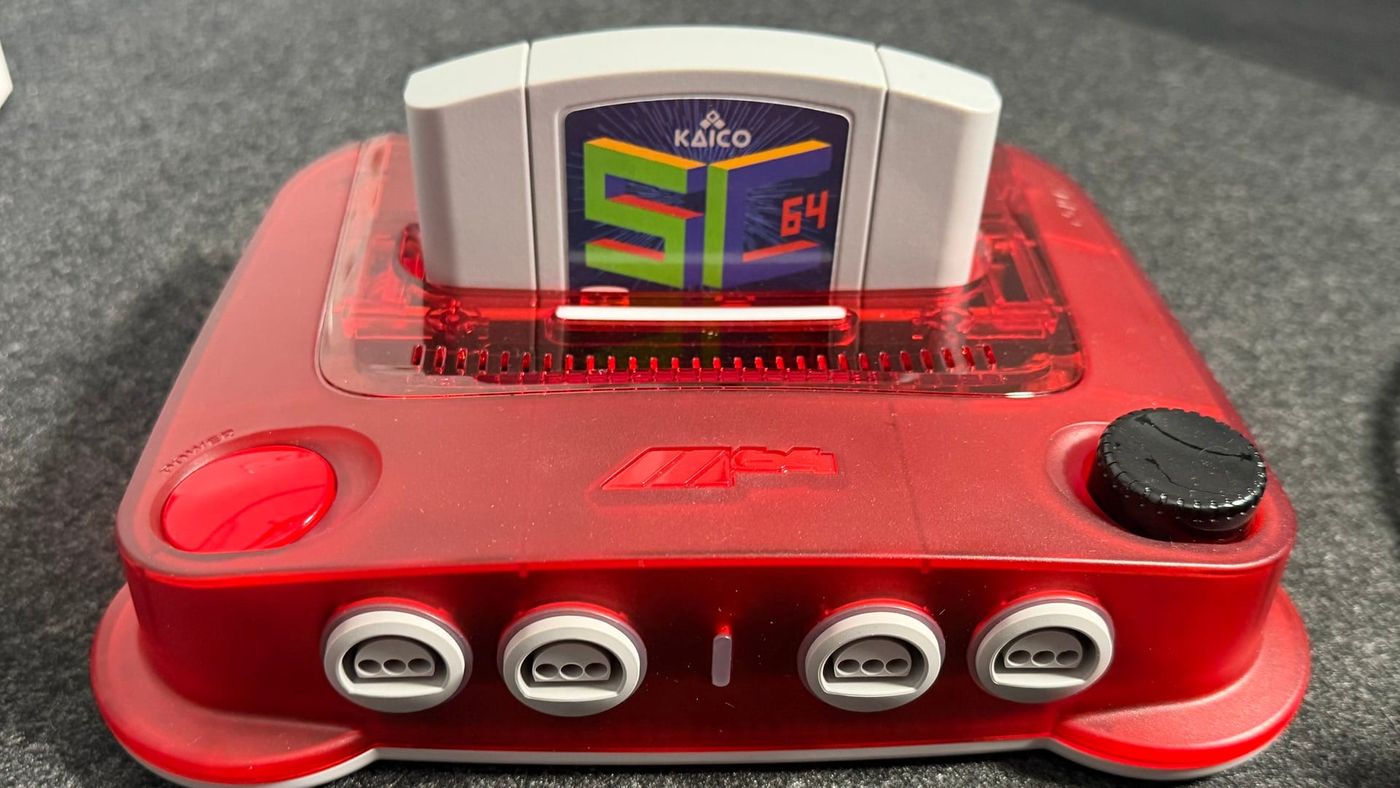
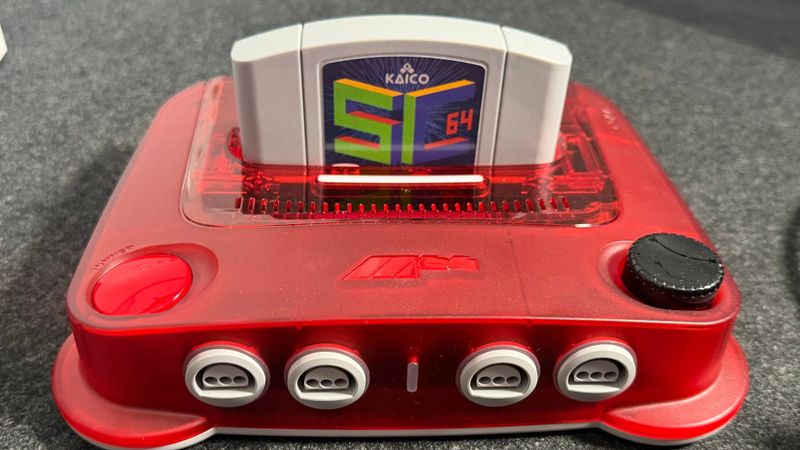
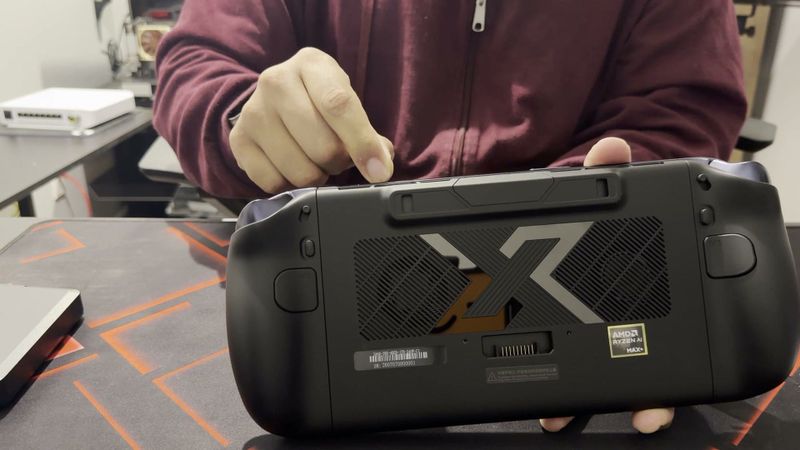
My SummerCart64 has done the rounds. It’s played games on an original Nintendo 64, on the Analogue 3D and on the ModRetro M64 you can see it sitting in up there, and it worked the first time on every one of them. It’s a single grey cartridge with a microSD card inside, and that card can hold an entire N64 library. The odd part is that only the 1996 console is officially supported. This guide gets you from a blank card to playing, then covers saves, updates and the little differences between the three consoles.
Meet the SummerCart64
To the console, the SummerCart64 looks like whatever game you pick. You load backups of your own cartridges, or homebrew, onto its microSD card, choose one from the menu, and the N64 starts it as if the real cartridge were plugged in. It can hold a game of up to 78 MiB, more than any retail N64 game needed, and it carries a USB-C port for updates plus a small battery-backed clock for the handful of games that keep time.
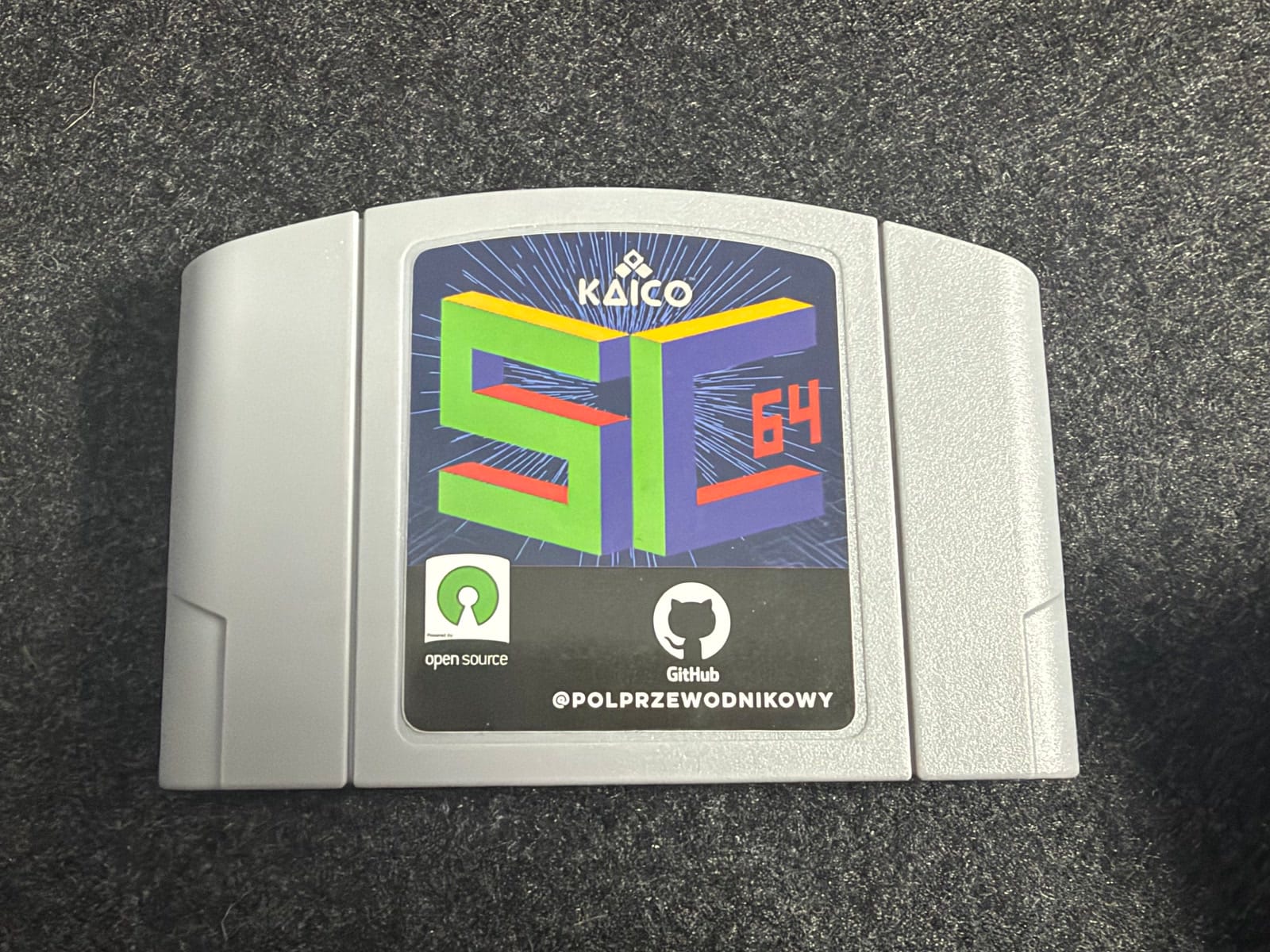
Every N64 cartridge has a lockout chip, the CIC, that the console checks before it lets a game run. It’s also the reason European PAL consoles and American and Japanese NTSC consoles don’t swap cartridges freely. The SummerCart64 imitates that chip and switches between regions by itself, and it can even stand in for the 64DD, Nintendo’s disk drive add-on that never left Japan.
Because the whole design is open source and published on GitHub, more than one company builds it. The project’s site points to where you can buy one, and mine came from Kaico, which isn’t on that list. If a store-bought unit has a problem, the project’s FAQ says to take it up with the seller.
Three consoles, one unofficial answer
I’ve had no trouble on the Analogue 3D or the M64, and I didn’t update anything before trying. Officially, though, both are on their own. The SummerCart64’s designer closed an M64 bug report in October with “consoles other than standard N64 are not officially supported,” and he’s said much the same about the 3D.
The console makers are no more committed. Analogue’s 3D FAQ says it doesn’t provide customer support for third-party devices, and ModRetro has no page about flash cartridges at all, even though it named SummerCart64 compatibility among the M64’s launch features when it spoke to Retro Dodo.
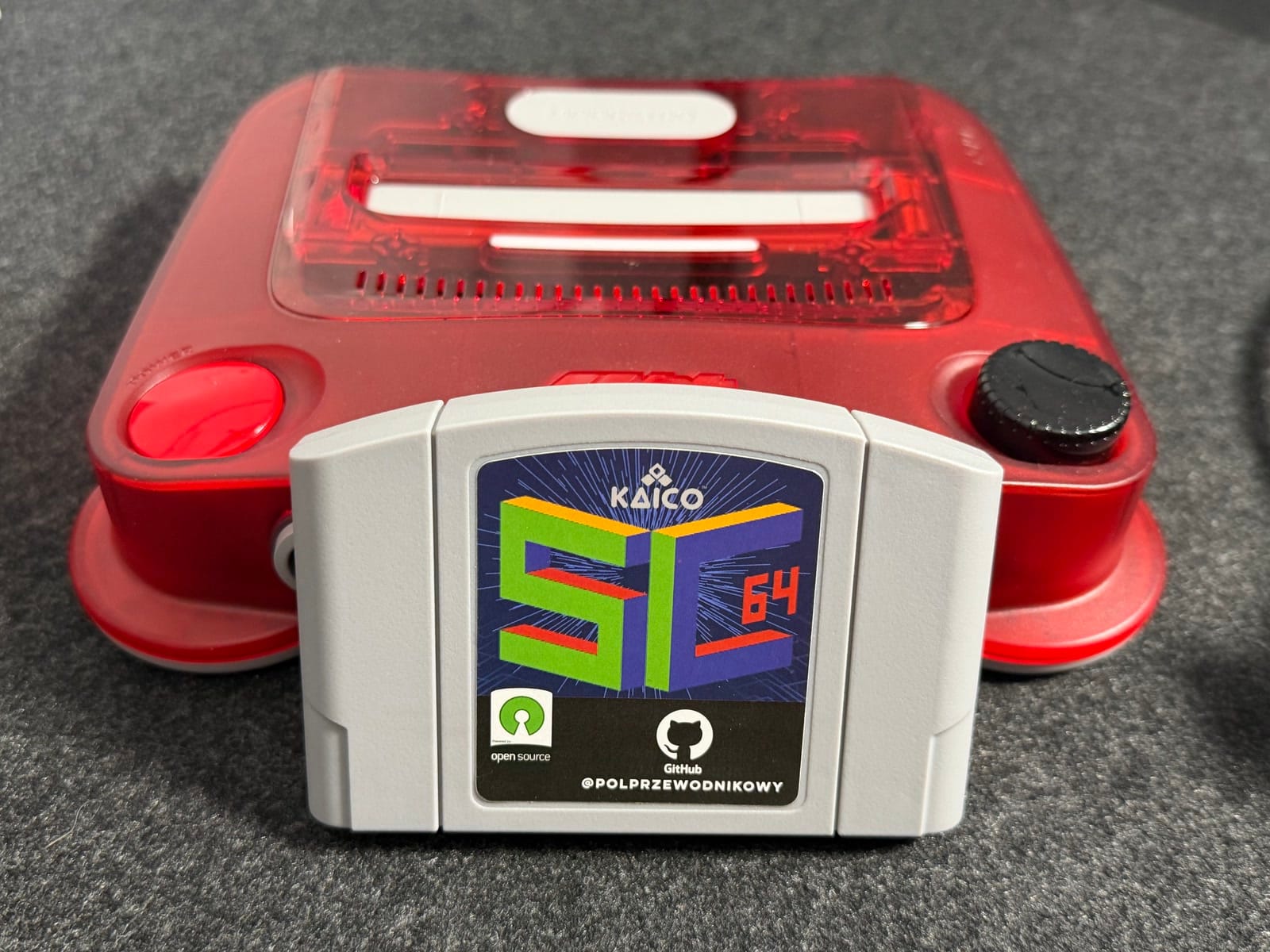
So it runs because both machines copy the original closely enough. That’s also why I’d keep everything up to date, which we’ll get to after setup.
Setting up the card
There isn’t much to it. Most microSD cards already come formatted in a way the cart reads, though I formatted mine myself.
- Make sure the card is FAT32 or exFAT. The menu’s documentation suggests exFAT with a 128 KiB cluster size if you want slightly faster loading.
- Get the newest
sc64menu.n64from the N64FlashcartMenu releases and copy it to the top level of the card. - Put your game backups anywhere on the card except inside the
menufolder. The menu reads .z64, .n64 and .v64 files. - If your cart arrived without a CR2032 battery, fit one. The clock and the saved settings depend on it, and the menu’s documentation warns that pushing a battery in too hard can bend the contact.
- Slide the card in, plug the cart into the console and switch on. The menu writes its settings file on that first start. To set the clock, press Start and open Time (RTC) settings.
| What it’s for | |
|---|---|
| /sc64menu.n64 | the menu, at the top level |
| Any folder except /menu | your game backups |
| A saves folder beside your games | save files, made when you first start a game there |
| /menu | the menu’s settings file, plus box art if you download a pack for it |
| /menu/64ddipl | 64DD system files, needed only for 64DD disk images |
I’m assuming the games you load are backups of cartridges you own, or homebrew, and this guide doesn’t go into where to get game files.
How saving works
You don’t have to think about it. Roughly a second after a game saves, the cart copies that save into a .sav file with the game’s name, in the saves folder next to it, and it handles every kind of save that lives on a retail cartridge. There’s no need to press Reset first. Games that only save to a Controller Pak are the exception: the cart can’t stand in for one, so on an original N64 you still need the real thing.
The only thing you might notice is the first launch of a game being a touch slower while its save file gets created. If you’re bringing saves over from another flash cart or an emulator, renaming them to .sav usually works, though some need converting first.
To get back to the menu from a game, press Reset. If you’ve switched on “Fast ROM reboots” in the menu settings, Reset restarts the game instead, and turning the console off and on is what takes you back.
Keeping everything up to date
I’d update in this order: the cart’s firmware, then the menu, then the console. The firmware has sat at 2.20.2 since November 2024, and today’s menu refuses to run on anything before 2.17.0, so an older cart needs the update.
The firmware goes on from a computer over USB-C, with the cart out of the console. It powers itself from the cable.
- Download the sc64deployer tool for your system and the firmware file, which ends in .bin, from the SummerCart64 releases.
- Unzip the tool and connect the cart to the computer.
- Open a terminal in the tool’s folder and check the cart is seen with
.\sc64deployer.exe liston Windows or./sc64deployer liston a Mac or Linux. If the tool runs but finds nothing on Windows, the project recommends current FTDI drivers. - Save a copy of your current firmware:
sc64deployer firmware backup sc64-firmware-backup.bin, starting with.\sc64deployer.exeor./sc64deployeras in step 3. - Install the new one:
sc64deployer firmware updatefollowed by the name of the .bin file, with the same start. - Ten quick blinks from the cart’s light means it worked.
Coming from anything older than 2.19.0, the update clears the clock, the remembered region and the cart’s own stored settings, so set the clock again afterwards.
The menu is the easy one. Download the latest sc64menu.n64 from the same releases page and copy it over the old file; version 0.3.5 arrived on October 17. Press Start in the menu if you want to check what you’re on: Menu Information shows the menu version, and Flashcart Information shows the firmware.
On the Analogue 3D, look under Settings, then System, then Version and Update to see your 3DOS version. The menu needs at least 1.2.0, and 1.5.1 is the newest.
- Download the update from Analogue’s firmware page.
- Switch the 3D off completely and take out its own SD card, the one in the console itself, which is separate from the cart’s microSD.
- Delete any old update files from the top level of that card, copy the new one on and put the card back.
- Switch on. The update runs by itself in three to six minutes, though Analogue warns the last stage of 1.5.1 can take longer. Leave it alone until it’s done.
Analogue’s notes for 1.5.1 also suggest resetting your Library hardware configurations afterwards, from Settings, System, Maintenance.
The M64 updates over Wi-Fi. Hold Z and Start for the overlay menu, go to About and choose Check for Updates; 1.26.4 came out on October 21. ModRetro’s update guide also explains updating from the M64’s own microSD card, and if you’d rather use its web updater, you’ll need a USB cable that carries data, because the one in the box only does power.
Little differences between the three
On an original N64, the cart is on home ground: it’s what the SummerCart64 was built for and the only console its designer supports. Some games, the menu’s cheats and most ROM hacks want an Expansion Pak in the console. The cart also draws more power than a normal game, and the menu’s documentation blames weak power supplies for black screens or crashes after a few minutes of play.
The Analogue 3D is where the firmware rule bites. The newer software the menu is built on relies on an N64 hardware feature called MI Repeat, which Analogue only added in 3DOS 1.2.0 in January, so an older 3D can’t run today’s menu. The 3D has the Expansion Pak built in and defaults to Auto for region. Since 3DOS 1.2.4 it also notices when a cartridge’s header changes and gives each game its own Library entry and settings, which is exactly what happens every time the cart loads something new. If you’re choosing between the two consoles, my Analogue 3D and M64 comparison lays them side by side.
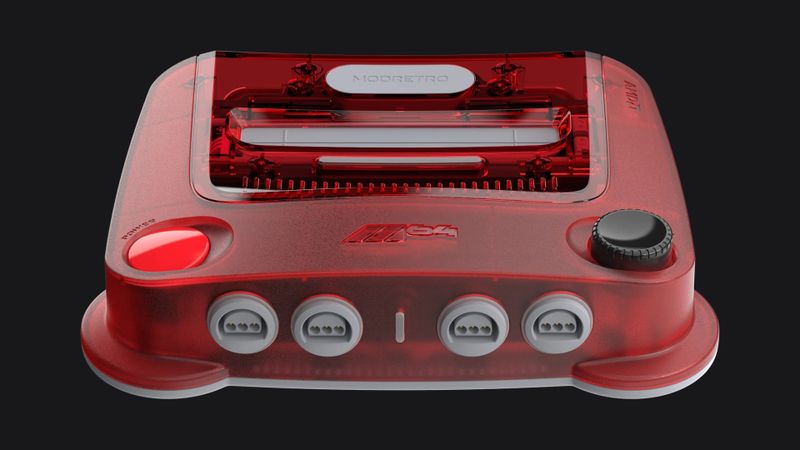
The M64 is region free, with the Expansion Pak built in and, since firmware 1.26.0, a built-in Controller Pak too. One owner has reported that 64DD disk images won’t load through the cart on the M64, and the designer closed that report as unsupported. Every game I’ve tried on mine has loaded, which is what I found in my M64 unboxing too.
On the shelf
Retro consolesSee the whole story →Nerd Alert
Your Turn
What are YOUR thoughts
What have your experiences been? Let us know.